
Help Center
Introduction
This guide provides you with clear instructions on how to submit tickets to Reluna Support when you face an issue, need help or have feedback about the platform. Whether you're encountering an error, need assistance with a feature or have an idea for improvement, this guide ensures that your request is processed quickly and efficiently.
When to Submit a Support Ticket
Before you submit a ticket, please check Reluna’s Knowledge Base for possible solutions. You may find the answer to your issue there, which could help resolve your problem(s) more quickly.
Choose the Right Support Option
Our ticketing platform offers three distinct forms to help you efficiently address your needs. Select the appropriate option based on the purpose of your request:
Report An Issue
Use this option to report any bugs or platform errors that affect the functionality of the platform.Suggest An Enhancement
Use this option to propose new features or improvements to enhance the platform's performance or user experienceService Request
Use this option when you need assistance or support, such as troubleshooting or general inquiries.
How to Create a Ticket
Click on
 icon in the top-right corner of the platform (accessible from any page) to create a Support ticket.
Complete the form with all the required details to ensure your request is processed efficiently. Here are detailed guides for each field to help you fill them out accurately.
Upload relevant files. This is an optional but highly recommended as it provides additional context or evidence to help us better understand and resolve your request.

Ensure the file is in one of the supported formats, such as JPG, JPEG, PNG, GIF, PDF, HEVC, TXT, XLS, XLSX, SVG, ZIP, HTML, MP4, DOCX, AVI, JSON and LOG
Click the Send button to submit your service request. After submission, you will receive an acknowledgment email from Support.
Where to Find Submitted Tickets
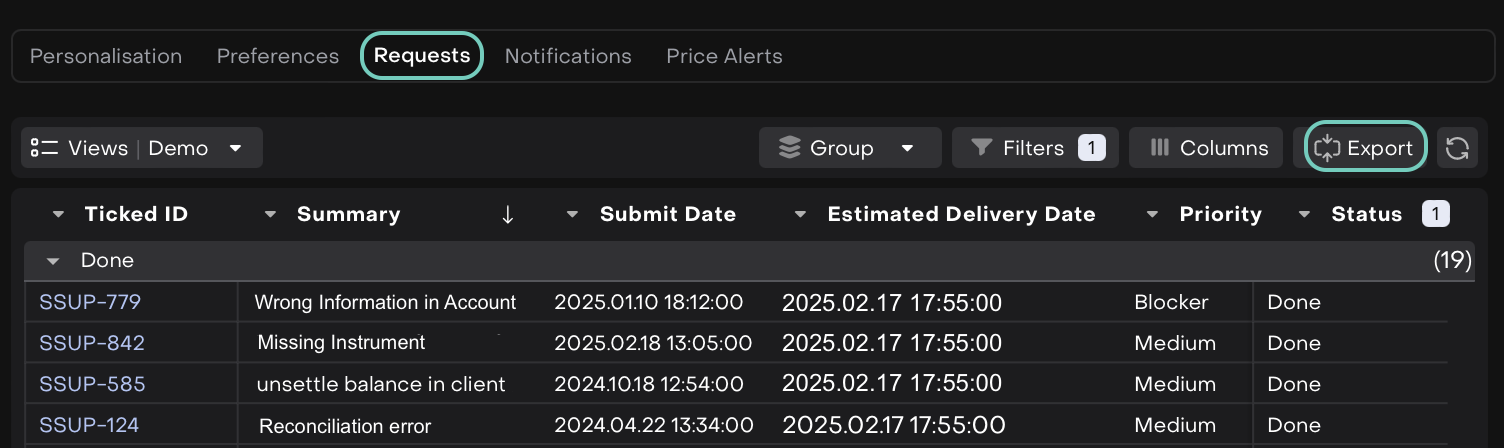
All your submitted tickets can be found in the My Requests table on the Reluna platform. This section allows you to view, update, or close your tickets conveniently in one place.
There are 3 ways to access the table:
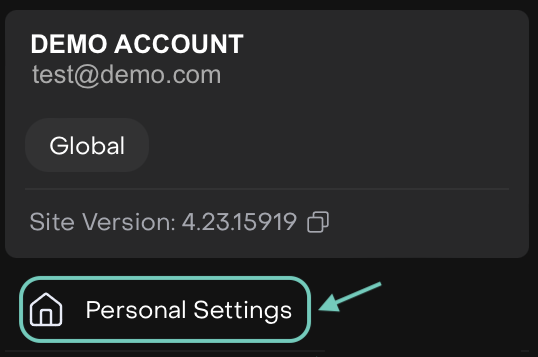
A. From User Settings
Click the
 icon located on the right corner of the platform.
Click on Personal Settings > Requests Tab
B. From Notifications
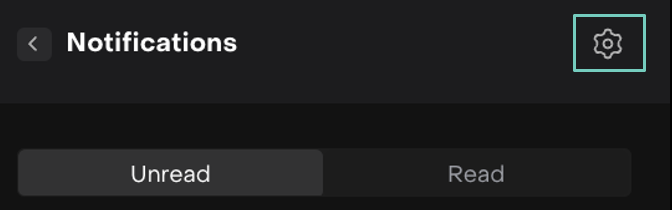
Find and Open Notification
 icon on top right of the platform (next to Profile).
On the Notifications bar > Click on Settings gear.
C. From the Ticket form
Click the
icon in the top-right corner of the platform; Select Contact Support > My Requests. Or, From Contact Support > click on

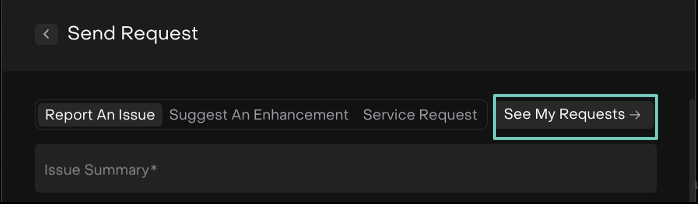
Then, find My Requests tab on the page.
Or,
Export all or selected tickets in “My Requests” tab to Excel.
How to Update a Submitted Ticket
After submitting a ticket, you may need to provide additional details or attach files to help resolve the issue faster. The platform allows you to do this by opening a dedicated page for ticket updates.
Steps to Update Your Ticket:
Locate the ticket by navigating to your My Requests table.
Click on the ticket to open it.
This will take you to a dedicated page for the ticket update.
To update the ticket, you can:
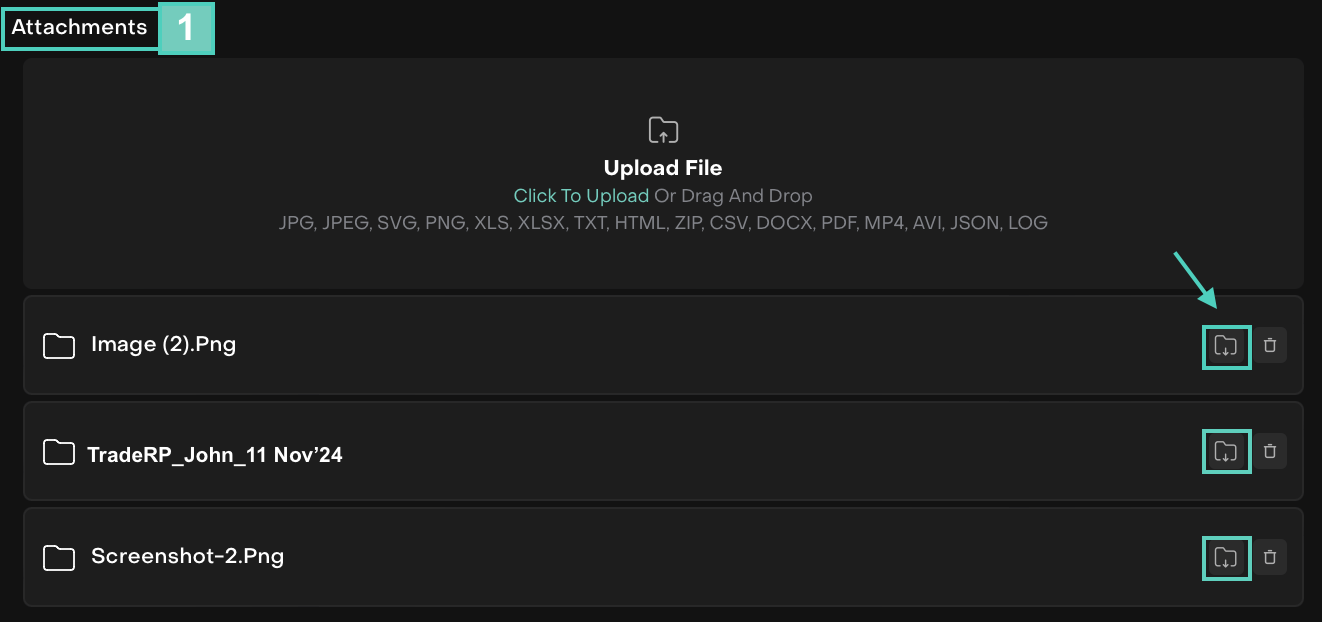
(1) Use the Attachment box to upload files.
(1.1.) Click on Download icon to open or view the attached file(s).
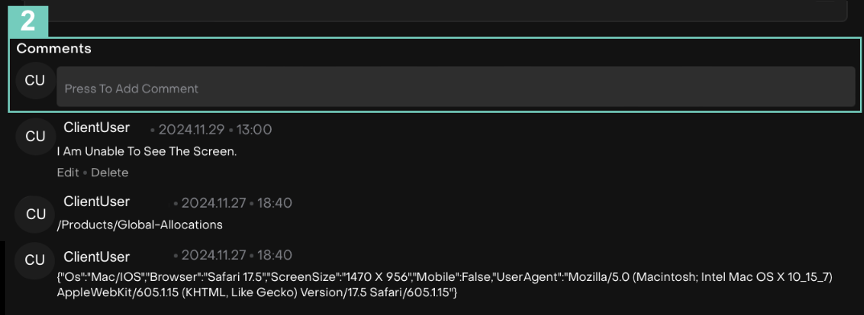
(2) Add details in the Comments section and press Enter key.

You can delete files using the Delete icon next to uploaded file.
Expected Response Time and SLA

To learn more about the Reluna SLA, refer to the detailed documentation:
Reluna - Service Level Agreement