
Market Data Connectors
Introduction
This guide will walk you through the steps to connect and manage market data providers in the platform. Market Data Connectors allow you to use your own market data provider subscriptions, giving you flexibility in choosing the right data sources for your investment workflow.
Permission Requirement
Name on Platform | Permission ID | Permission Level |
|---|---|---|
Connectors (in System Settings) | Connectors | View, Modify, Create |
Browse Available Providers
Steps to View Available Providers
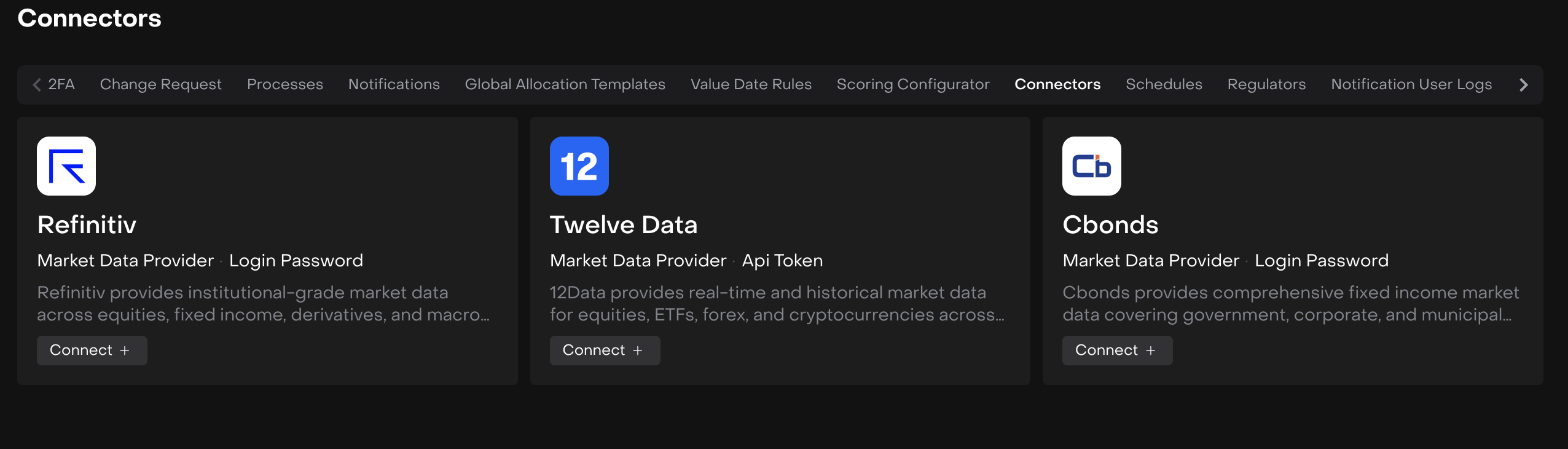
From the main menu, navigate to System Settings > Connectors
Open the Browse tab to view the integration options
View Provider Details
Click on any available provider card to open detailed information
The detail view shows:
Full service description
Available data types
Connect button to initiate the connection
Connect a Market Data Provider
Steps to Connect a Provider
Click on the provider card you want to connect
In the detail view, click the Connect button
A modal window will open with credential input fields:
For 12Data:
Enter your API Token
For Cbonds:
Enter your Username
Enter your Password
For Refinitiv:
Enter your Username
Enter your Password
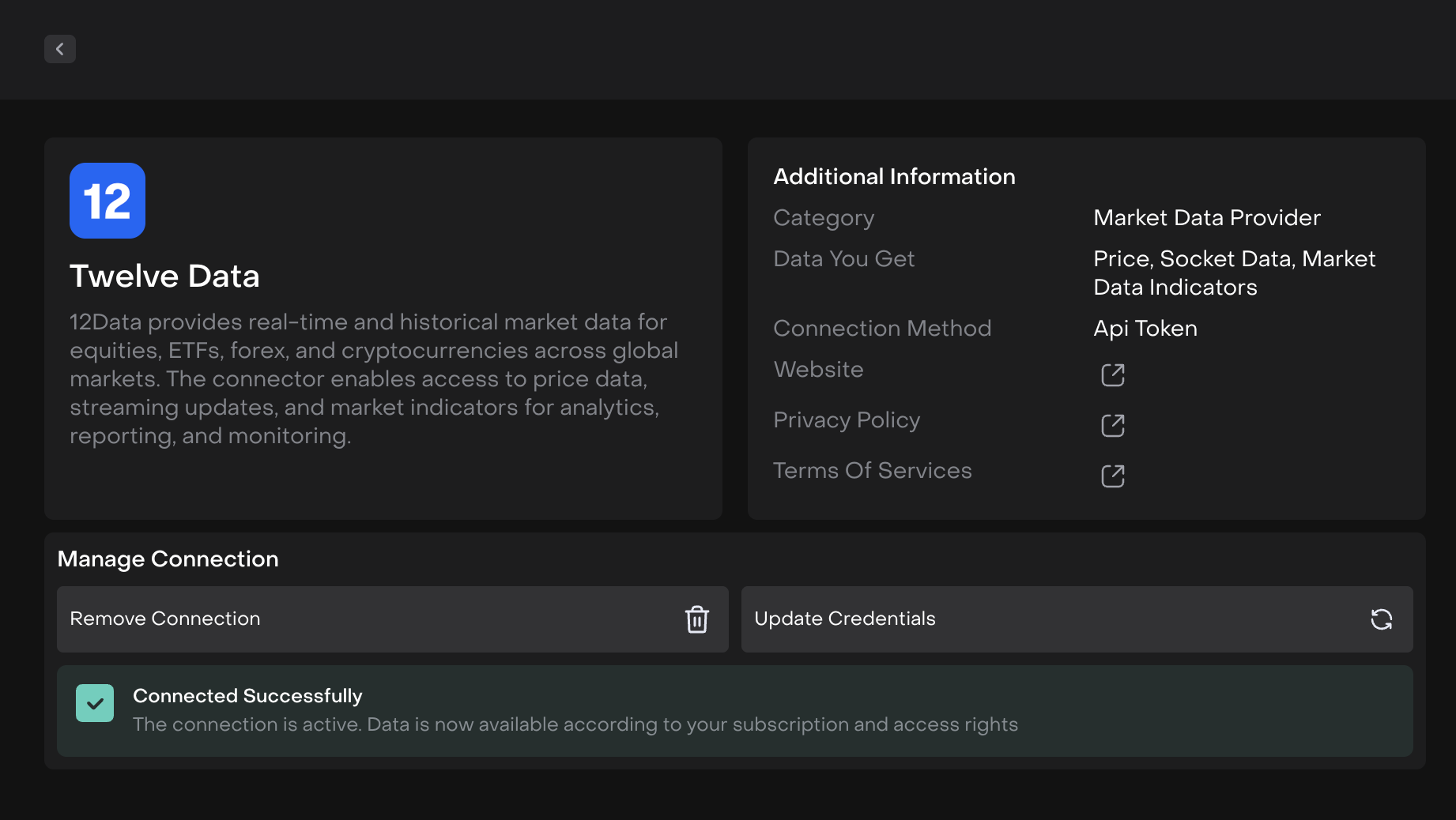
Connection Test
Once you click Connect, the system will:
Send a test request to the provider (e.g., requesting Apple price data)
Display a loader/spinner during the verification process
Return the connection test result
Security Note: All credentials are stored encrypted in the database. When viewing existing connections, credentials are displayed masked (e.g., ************).
Manage Active Connectors
View Your Connected Providers
Navigate to System Settings > Connectors
Open the My Connectors tab

You'll see all your connected providers with:
Provider name
Status (Active/Inactive)
Last update date
Management buttons: Edit Credentials and Disconnect
Edit Provider Credentials
Click Edit Credentials for the connection you want to update
A modal window opens with input fields
Current credentials are shown masked (*************)
Enter your new credentials
The connection test runs automatically with the new data
Working with Instrument Rolling Data
Automatic Price Column Display
Once you connect a market data provider, price columns automatically appear in Rolling Data tab of the Instrument, allowing you to manage pricing.