
Strategies Subscription & Unsubscription
AVAILABLE IN: 
Introduction
When a Strategy is published on the Marketplace, you can interact with it in multiple ways - subscribe to invest in it, unsubscribe if you no longer wish to invest or promote it to others.
Once a strategy is published:
Clients or Portfolio Managers can subscribe to it to invest cash, respecting the minimum investment amount defined by the Strategy Manager.
Strategy Managers can also subscribe/unsubscribe from the strategy themselves, manage requests on the Requests tab and rebalance portfolios accordingly.
You can Promote your strategy to increase visibility and attract more subscriptions.
Accessing a Published Strategy
Go to the Marketplace.
Click on the strategy you have published.
🔗 Learn more here on how to Manage Marketplace.
On the strategy page, you will see three main options:
Subscribe
Unsubscribe
Promote
🔗 Learn more here on how to Promote Your Strategy.

Subscribing to a Strategy (Invest / Buy)
When you click on Subscribe button:
The platform opens Product Subscription order form.
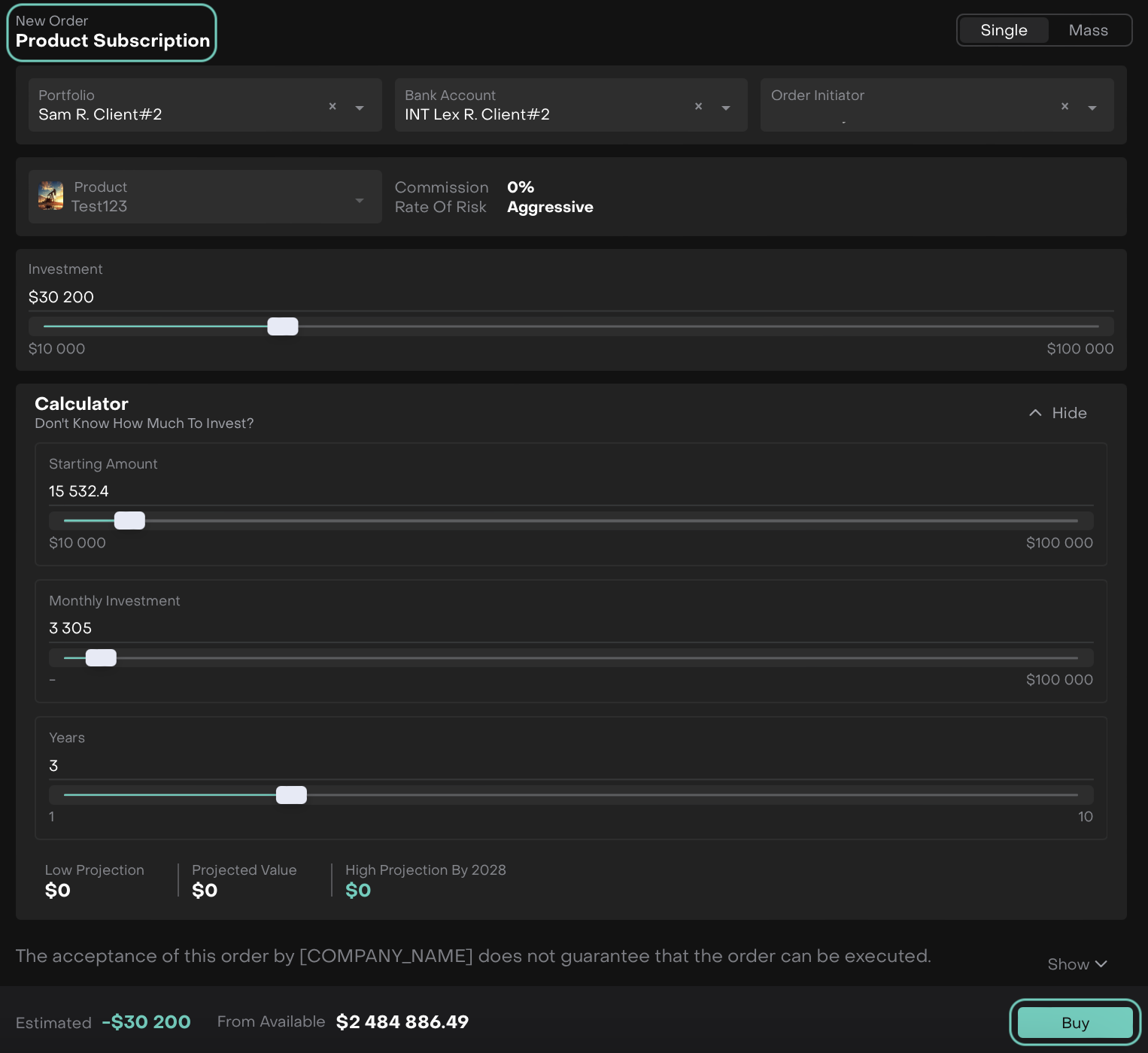
Click Buy to confirm the investment to create a Buy order for the strategy.
A pop up appears, here reconfirm to Create or Close to cancel.
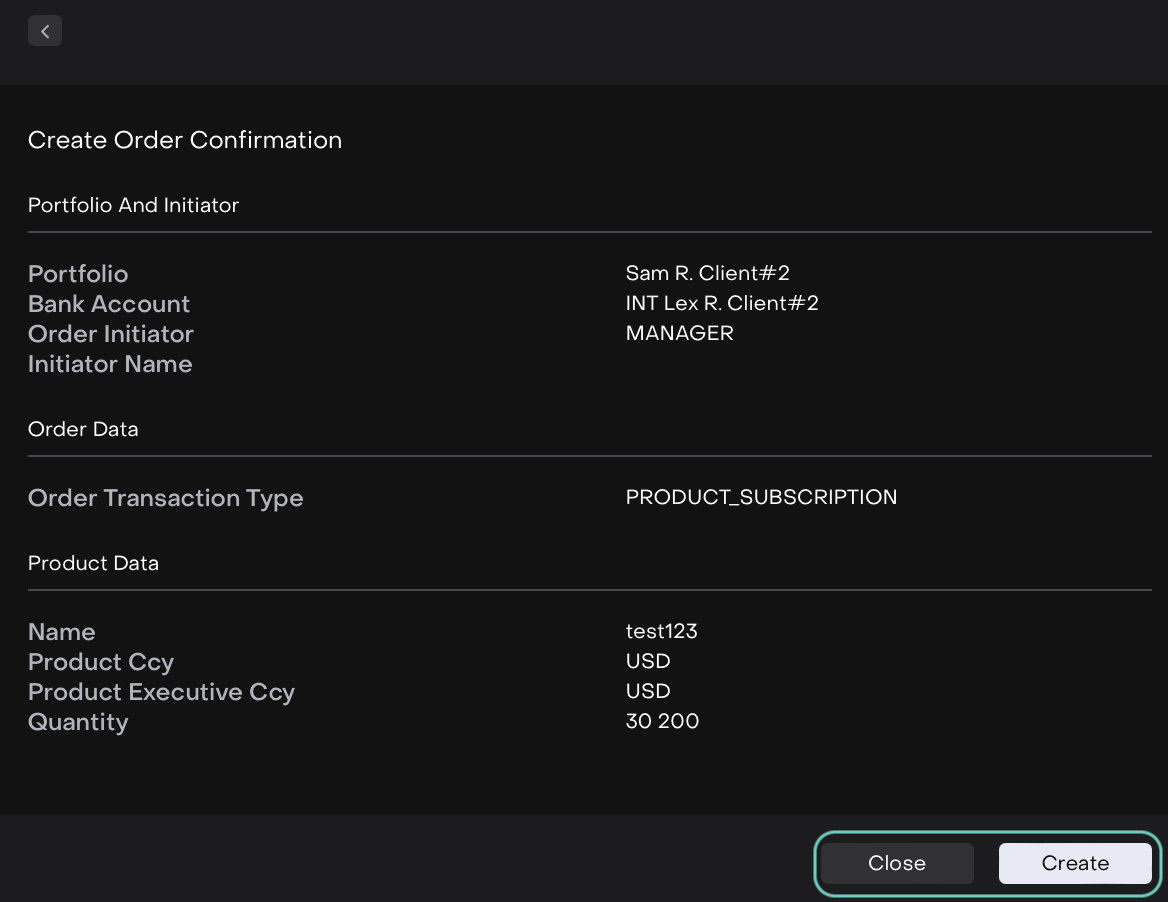
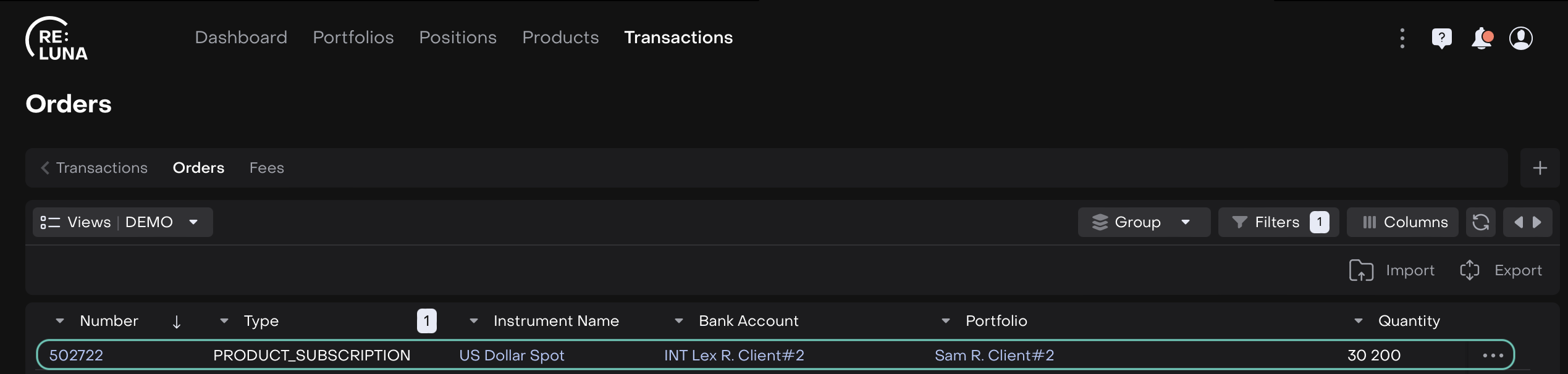
The Order is created. Now, find it in Portfolios > Orders tab / Transactions > Orders tab.
Click on the three dots menu to Edit and execute the order further.
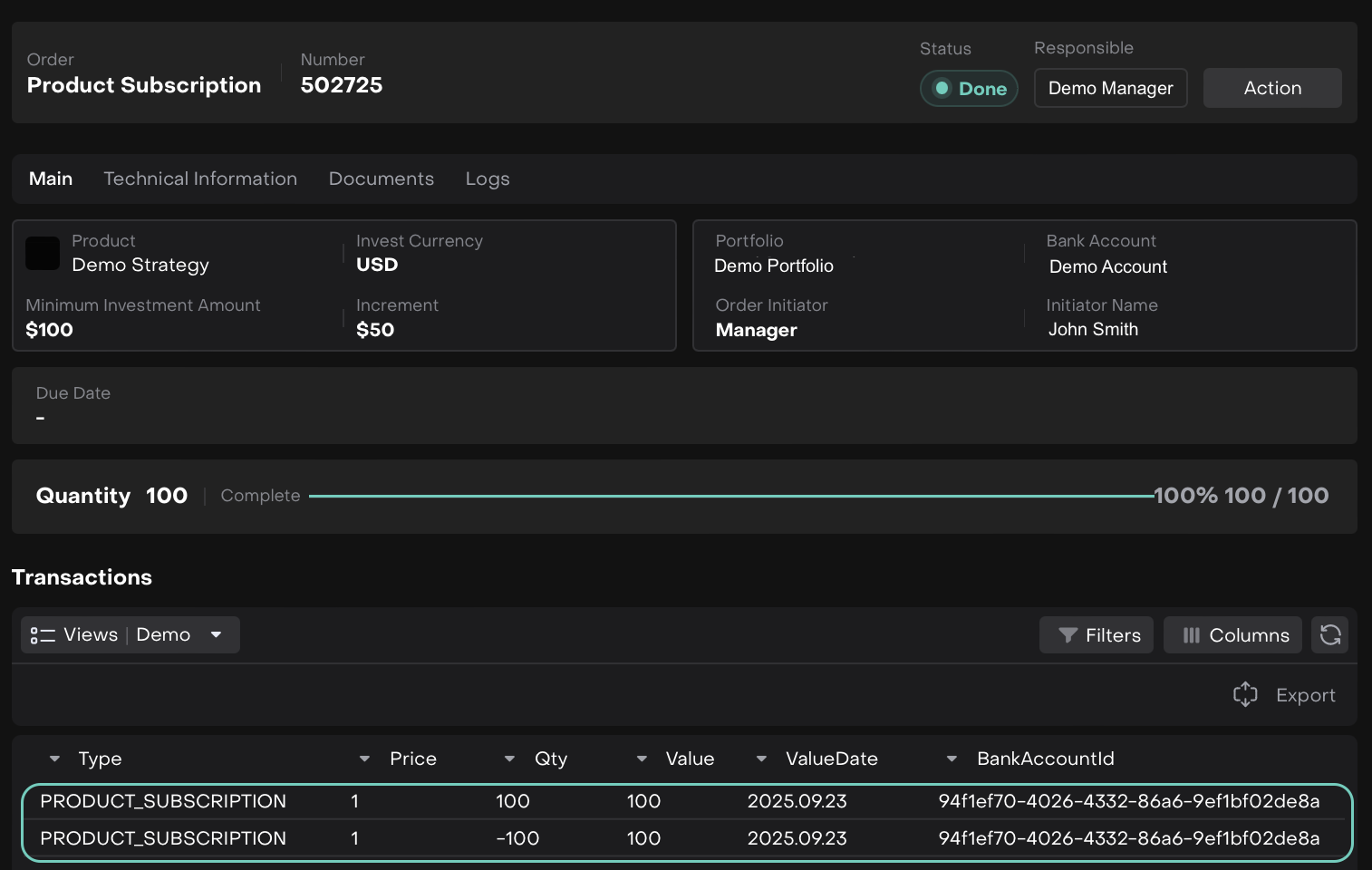
The order is executed according to your portfolio and bank account settings.
🔗 Learn more here on how to Execute Order.
Unsubscribing from a Strategy (Redeem / Sell)
When you click Unsubscribe button from Marketplace:
The platform opens Product Unsubscription order form.
Fill in the required fields as shown below in the table.
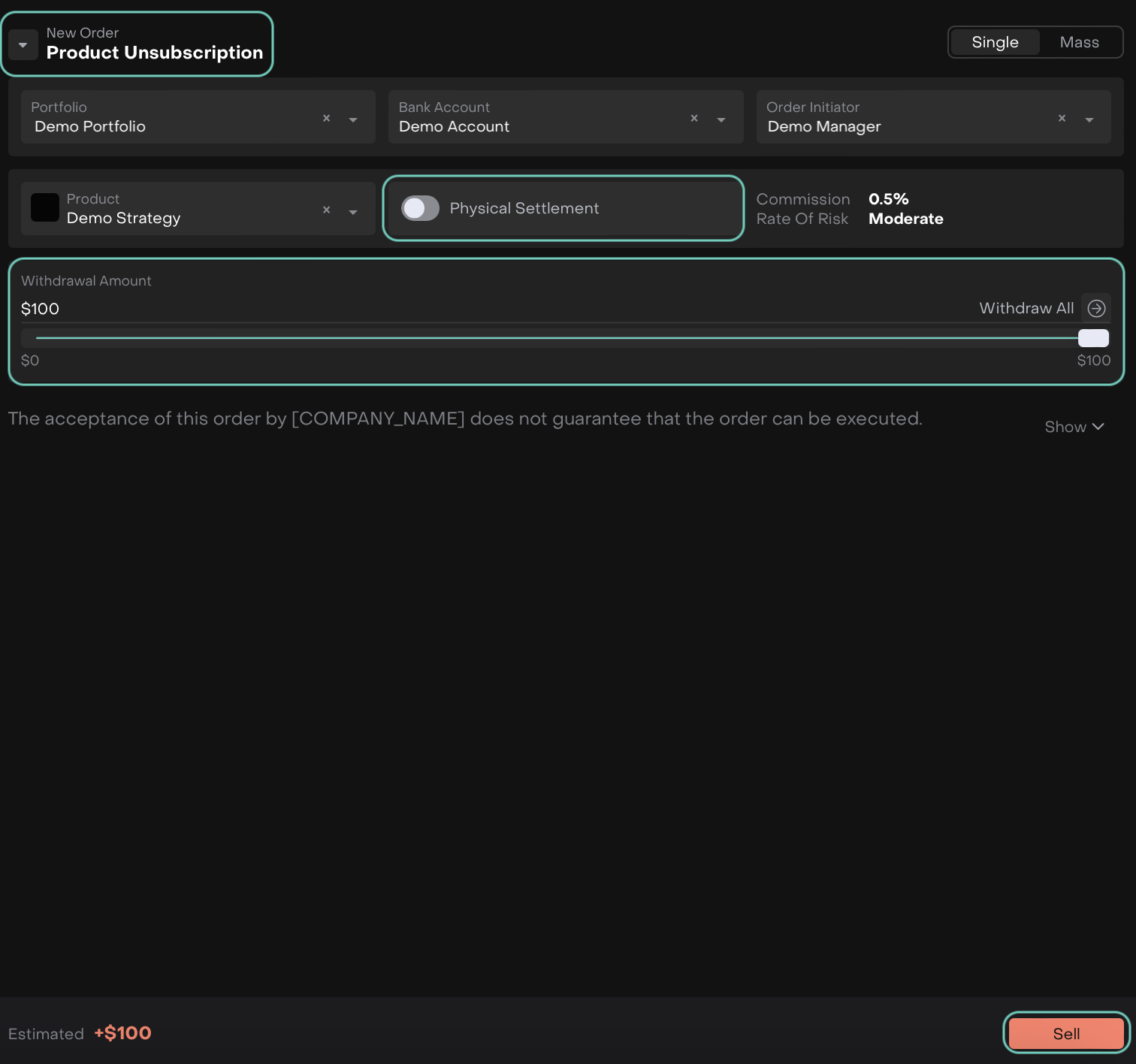
Disabled Physical Settlement Form
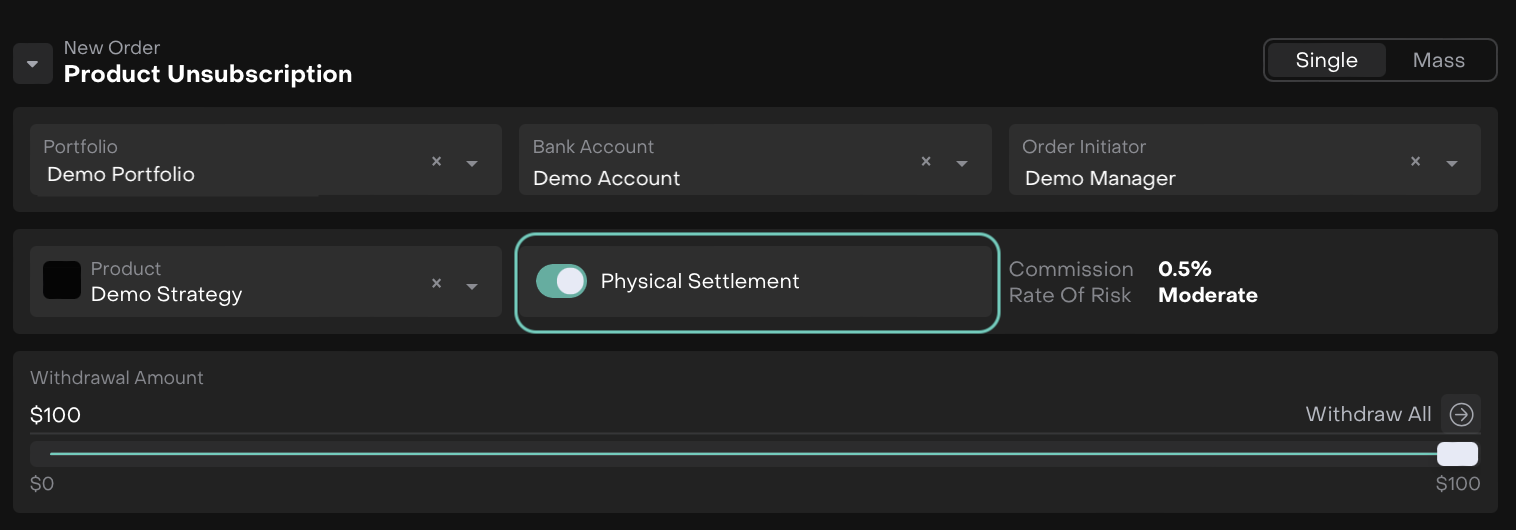
Enabled Physical Settlement Form
Field / Section | Description |
|---|---|
Portfolio* | Select the portfolio from which you want to redeem the investment. |
Bank Account* | Choose the bank account where the redeemed funds will be transferred. |
Order Initiator* | The person creating the order. |
Product* | Select the strategy you are unsubscribing from. If you clicked Unsubscribe in Marketplace, this will be auto-filled. |
Physical Settlement | Indicates whether the redemption will be settled physically.
|
Withdrawal Amount | Set the amount you wish to redeem. You can use the slider. |
Estimated | Displays the total redemption value for this order. |

Confirm the action to create a Sell order.
The Order is created. Now, find it in Portfolios > Orders tab / Transactions > Orders tab.
Click on the three dots menu to Edit and execute the order further.
🔗 Learn more here on how to Execute Order.

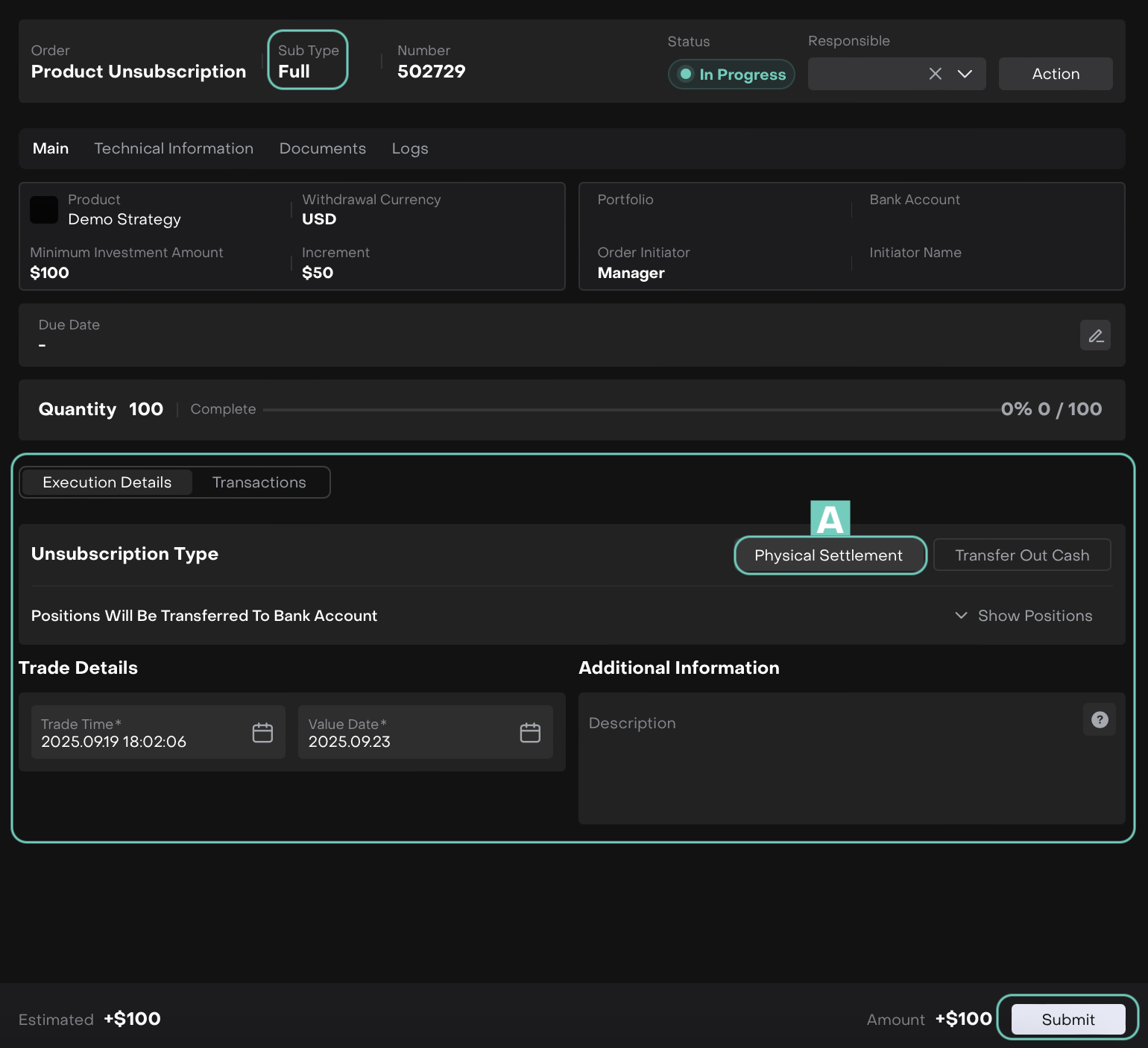
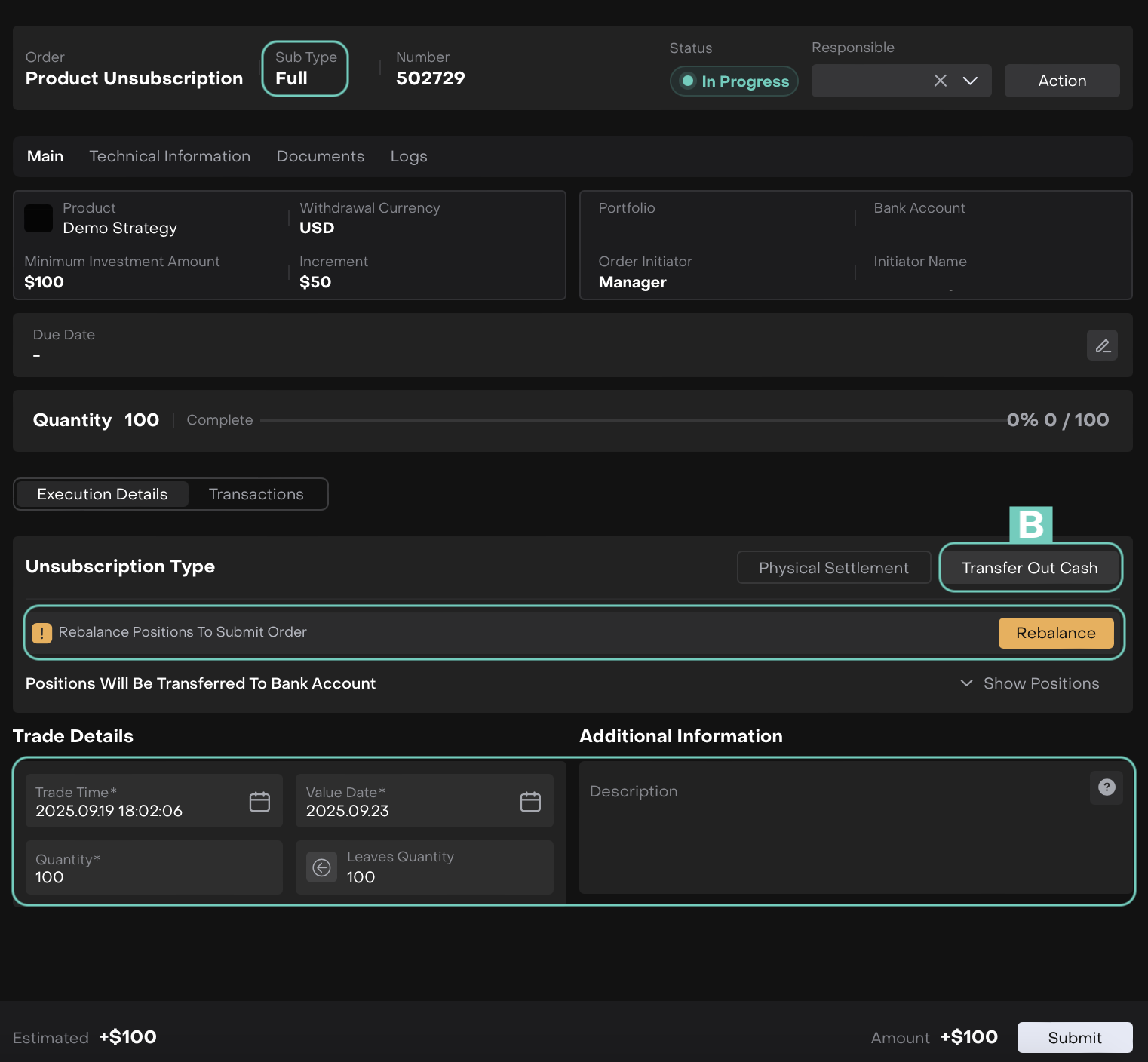
Now, while executing the order. There are two Unsubscription Types:
A. Physical Settlement
B. Transfer Out Cash

Unsubscribing does not remove your past investment history, it only processes the redemption of your current investment.
Click Submit and then, execute the order.
🔗 Learn more here on how to execute Physical Settlement/Transfer Out Cash.