Enable Two-Factor Authentication (2FA)
Introduction
Two-Factor Authentication (2FA) adds an extra layer of security to your login process. In addition to your regular password, you'll need to enter a One-Time Password (OTP) that will be sent to your registered email address.
What Happens When 2FA is Enabled
The mandatory 30-day password reset will be lifted.
After entering your password, you’ll be prompted to enter a verification code, which will be sent to your registered email. This OTP code must be entered to complete the login process.
Key Terminologies
Term (A-Z) | Definition |
|---|---|
Admin | A user with permissions to enable, configure or disable 2FA settings for the user/organization. |
Authenticator App | A mobile application that generates time-based OTP codes for login. (Coming Soon) |
Email OTP | A One-Time Password (OTP) sent to the user’s registered email address for 2FA verification. |
OTP (One-Time Password) | A 6-digit code used for verifying user identity during login. It is valid for a limited time. |
OTP Expiration (Minutes) | The time (in minutes) after which a generated OTP becomes invalid. |
OTP Frequency (Trusted) | The number of days an OTP session remains valid on trusted devices before re-authentication is required. |
OTP Frequency (Untrusted) | The number of days an OTP session remains valid on untrusted devices before re-authentication is required. |
SMS OTP | A One-Time Password sent to the user’s mobile phone via SMS for 2FA verification. (Coming Soon) |
Trusted Device | A browser-specific device remembered by the platform, allowing extended 2FA session validity. Max allowed: 59. |
Untrusted Device | A device not remembered by the platform, requiring frequent re-authentication. Max allowed: 29. |
User Management | A feature allowing admins to specify which roles or individual users are required to use 2FA. |
👉 New to some terms? Check out our full Platform Glossary for more.
Permission Requirement
Platform Name | Permission ID | Who Can Initiate? | Permission Level |
|---|---|---|---|
2FA (tab) | Two Factor Auth | Admin | View and Modify |
How to Enable 2FA
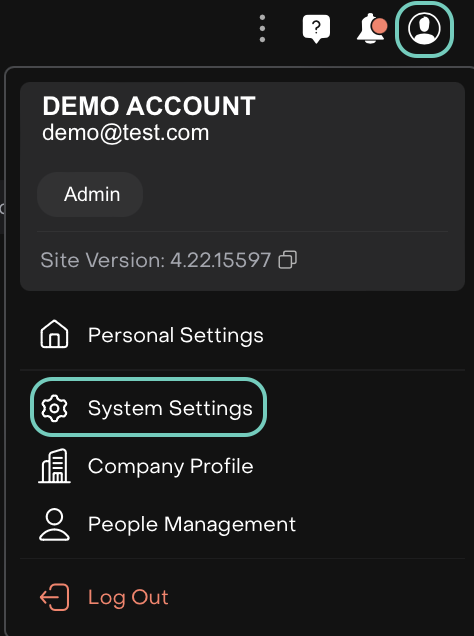
Click on User Settings (
 icon) > Go to System Settings.
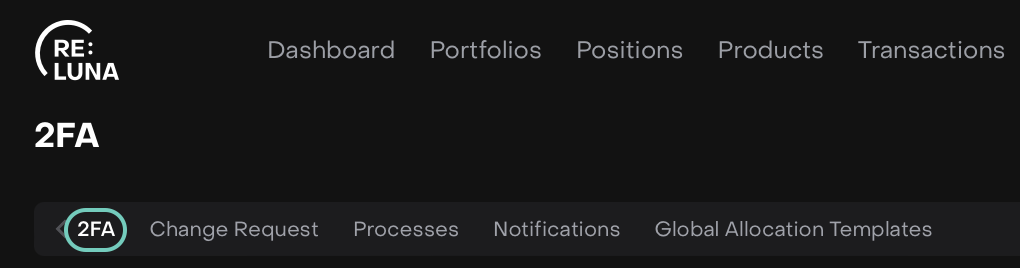
Locate the 2FA (Two-Factor Authentication) tab.
Toggle the Enable User Two-Factor Authentication to 'ON' to begin the setup process.
2FA Method - Choose Your 2FA Delivery Method.
2FA helps improve security by delivering login codes in different ways. Below are the available options:
Option | Description | Availability |
|---|---|---|
Users receive a login code via email. This is the currently supported method. | Available | |
SMS | Users get a login code sent to their phone via SMS. | Coming Soon |
Auth App | Users enter a code generated by an authenticator app (like Google Authenticator). | Coming Soon |

Currently, Email Option is Only Available on platform.
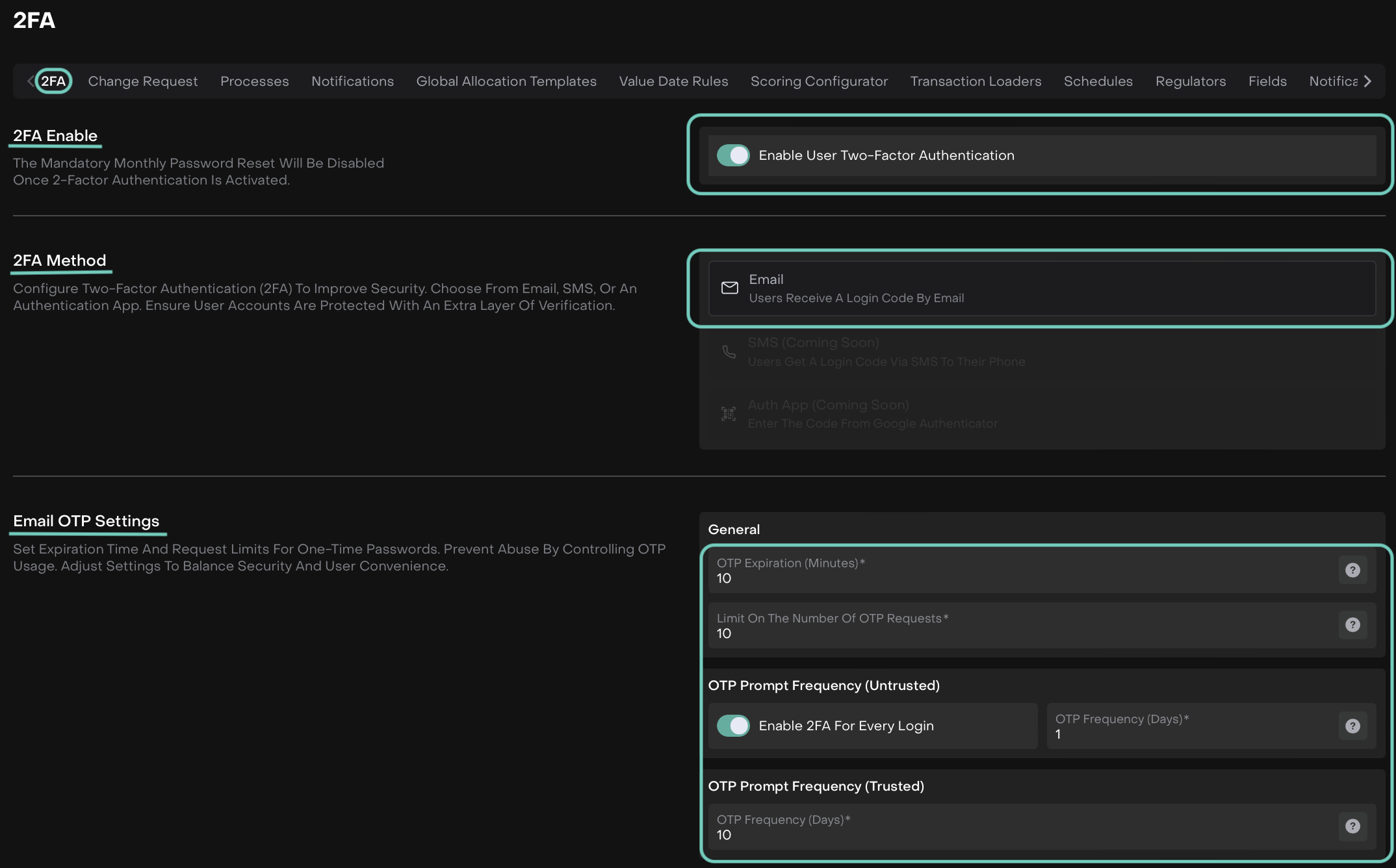
Email OTP Settings - Set the expiration time and request limits for OTP codes through the following fields.
When setting up 2FA, ensure you enter valid limits for trusted and untrusted devices:
Untrusted Devices Limit: less or equal to 29
If higher values are entered, setup will fail and an error message will appear.
Section | Field Name | What It Means / Does When Set |
|---|---|---|
General | OTP Expiration (Minutes)(*) | Defines the time limit (in minutes) before an OTP expires and becomes invalid. |
Limit On The Number Of OTP Requests(*) | Sets the maximum number of OTP requests allowed within a specific time frame to prevent abuse. | |
OTP Prompt Frequency (Untrusted) | Enable 2FA For Every Login | Forces users to complete 2FA on every login from untrusted devices if toggle is ‘On’. |
OTP Frequency (Days)(*) | Specifies how long an OTP session remains active on an untrusted device before it expires. Limit on Untrusted Devices: The maximum allowed is 29. Entering values higher than this will cause setup errors. | |
OTP Prompt Frequency (Trusted) | OTP Frequency (Days)(*) | Sets the number of days an OTP session remains valid before requiring re-authentication. Limit on Trusted Devices: The maximum allowed is 59. Entering values higher than this will cause setup errors. |

A trusted device is browser-specific. Accessing your account from a different browser will prompt for re-authentication.
User Management :
When disabled: 2FA applies to all users.
When enabled: You can control which roles or users are required to use 2FA.
Roles - Select roles that should require 2FA. Multiple roles can be added.
Users - Specify individual users who must use 2FA.
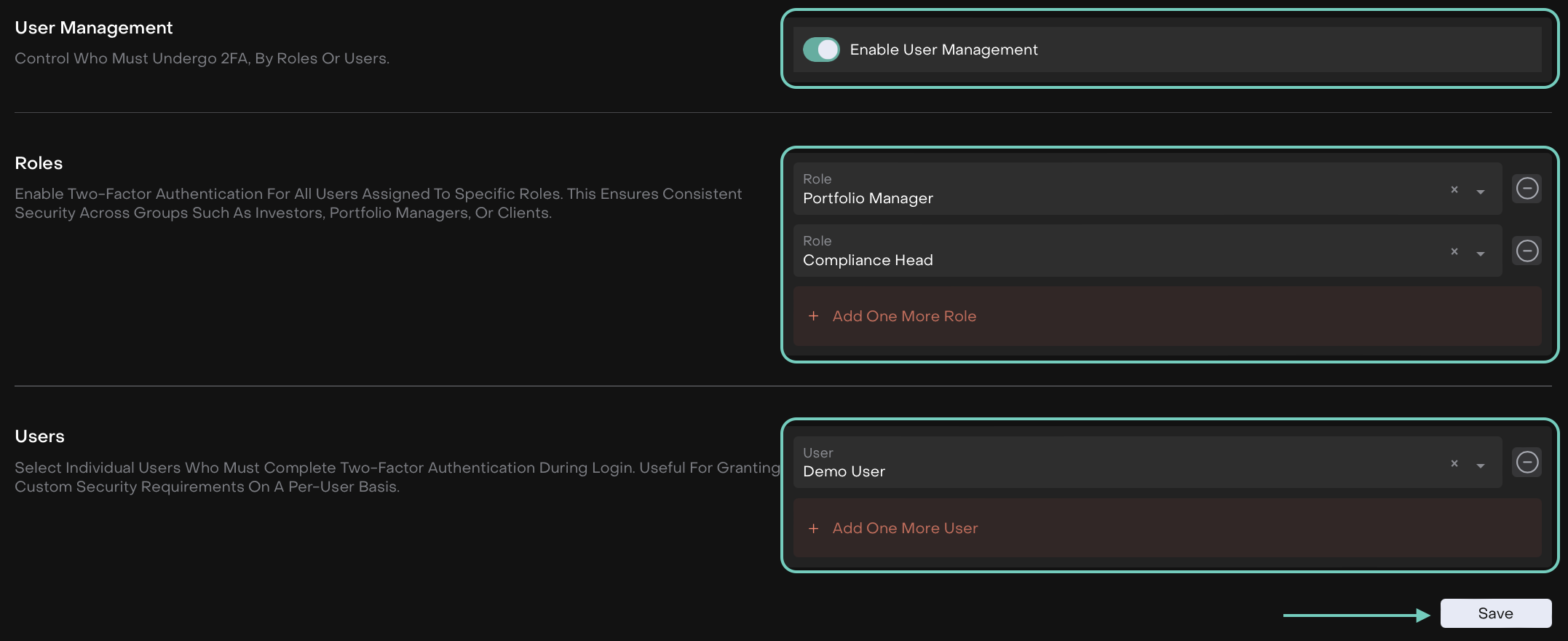
Once all settings are configured, click Save to confirm.
How Users Use 2FA via Email
Once the admin enables 2FA for your company, there’s no need for users to take any further action. 2FA will be automatically linked to the email address that was used during registration.
Here are the updated steps:
Login to the Account
Users log in using their username and password.
Prompt for 2FA Verification
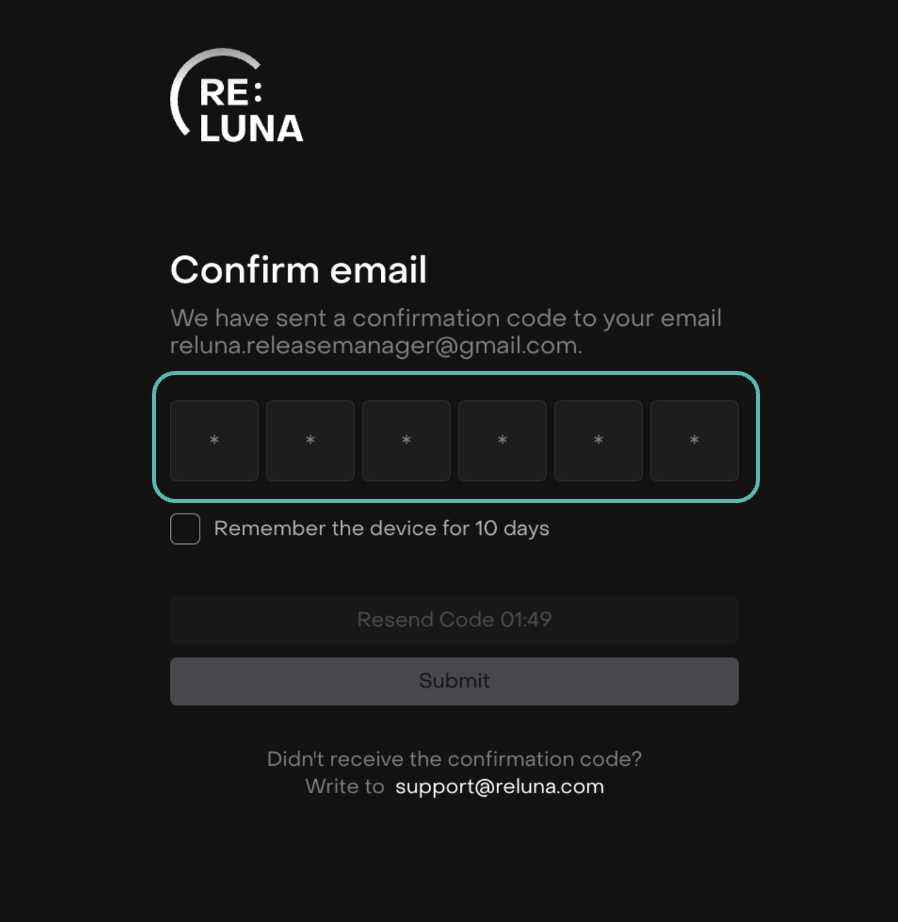
After entering the password, users will be prompted to verify their identity through 2FA.
Enter the Verification Cod
A 6-digit OTP will be sent to the user’s registered email address. If it’s not found in the inbox, check the SPAM or Junk folder.
Optional: Mark "Remember the device for 10 days".
This setting applies to trusted devices. If you access the platform from a different browser, you will need to re-authenticate.
Access the Platform
After entering the correct OTP code, users will be granted access to the platform.
Screen Walkthrough Video Guide