
Unified Instrument Search
Introduction
This guide explains how to search for Instruments across the platform using a unified and consistent functional steps across Orders, Transactions and Instruments tabs. The process includes three types of searches: External Search, By Ticker ID and Internal Search.
Instrument Search Types
There are three primary ways to search for instruments:
Internal Search | External Search | By Ticker |
Includes Public/Private Databases of Reluna for the specific production. | Searching of Instrument(s) in Market Data Source by any key symbol. | Search External in Market Sources by Ticker ID or Asset Type and its Sub type. |
Where to Search Instruments
You can search for instruments from the following tabs within the platform:
A. From Transactions
Go to Transactions tab on the Dashboard.
Then, click on + icon to create Transaction and enter its type.

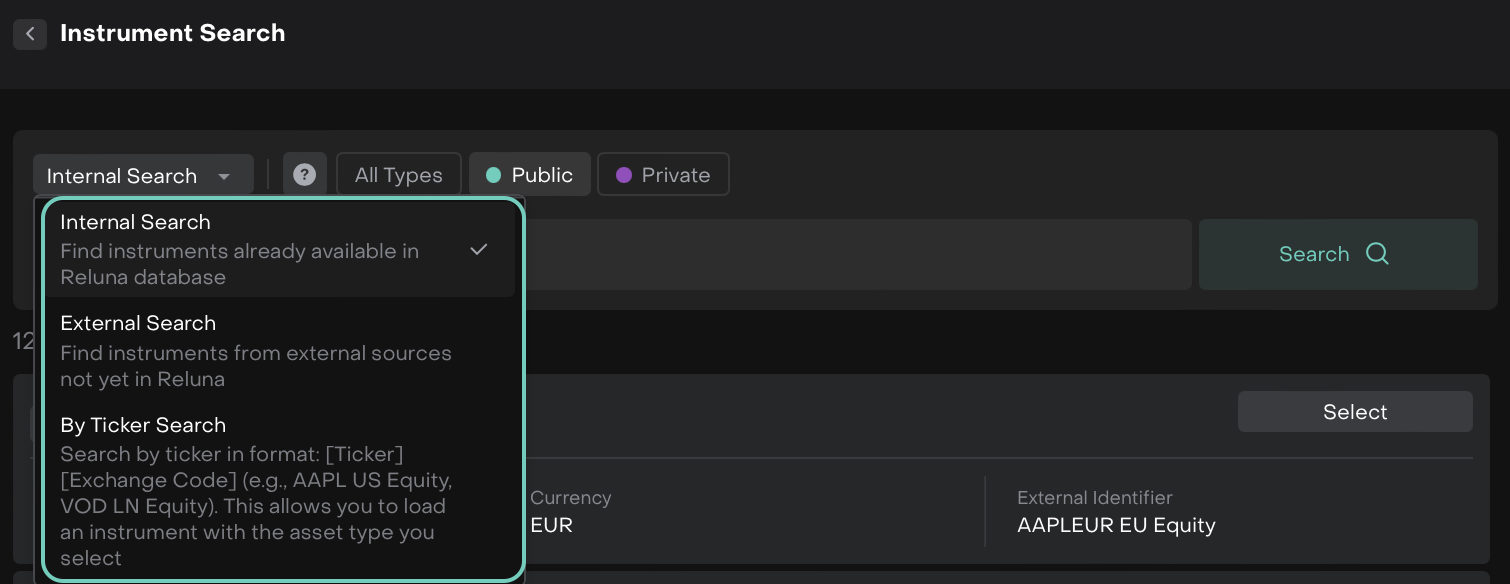
Enter the Instrument(*) field by searching with Internal/External/By Ticker.
B. From Orders
Go to Transactions Tab > Orders > Click on + icon.

A new order form opens.
Enter the Instrument(*) field by searching with Internal/External/By Ticker.
C. From Instruments tab
Go to Instruments Tab from dashboard.
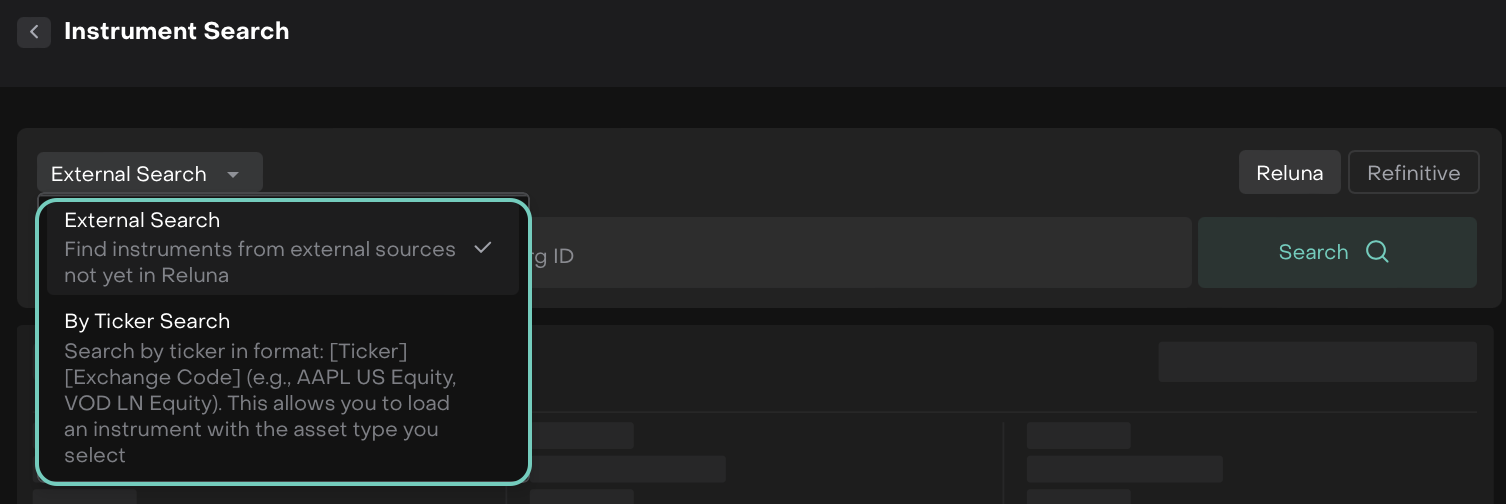
Then click on External Search

A dialogue box opens. Here, search through External/By Ticker.
Criteria for Searching Instruments
When conducting an instrument search, you can input the following search criteria, depending on the type of search.
Name of Instrument – Search by instrument name.
ID – Enter the identifier.
ISIN – Use the International Securities Identification Number.
Contract ID – For internal instruments, enter the unique Contract ID.
Ticker Symbol – For By Ticker search, input the Ticker Symbol.
Asset Type – Select the category of the asset.

Additional Mandatory Fields (Certificates Only)
Subtype
Nominal
How to Search and Load Instruments
External Search
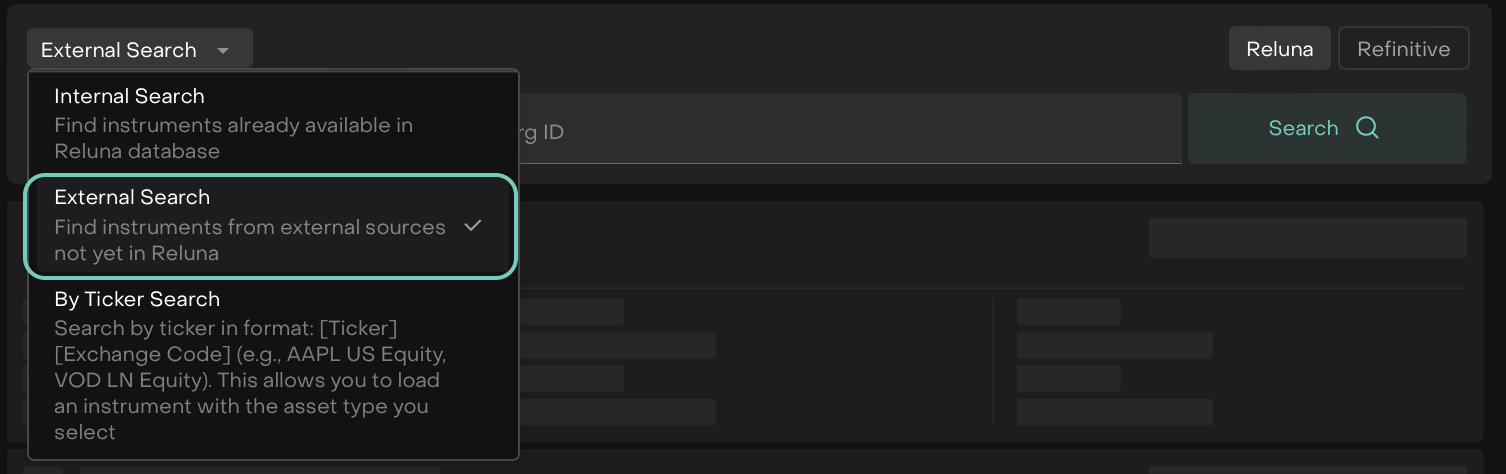
From Instrument Search, select External Search.
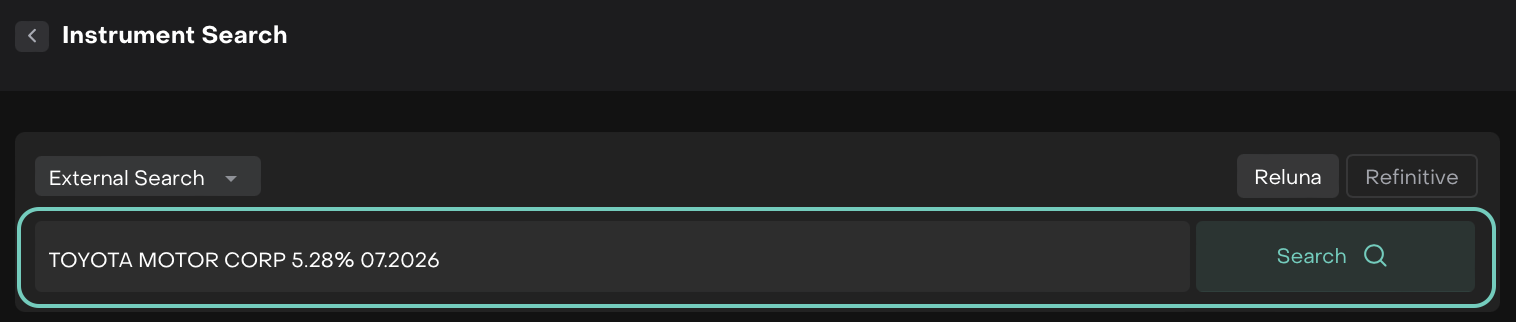
Enter the search value (Name / ISIN / ID) and click Search.
Select the instrument from the results list.
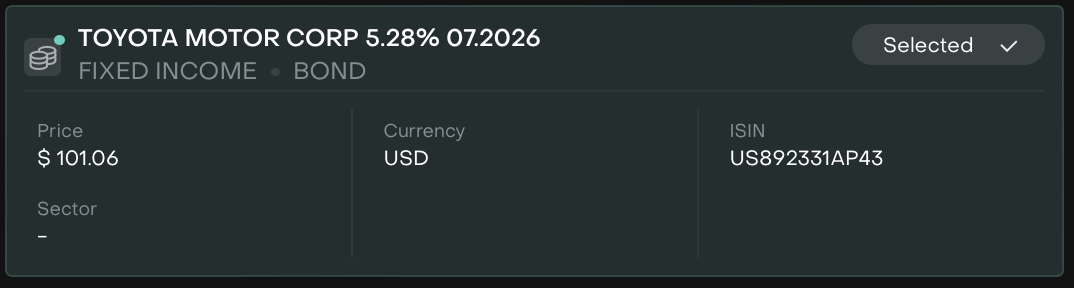
Click Select and Load (the instrument is highlighted with a green checkbox when selected).
By Ticker ID
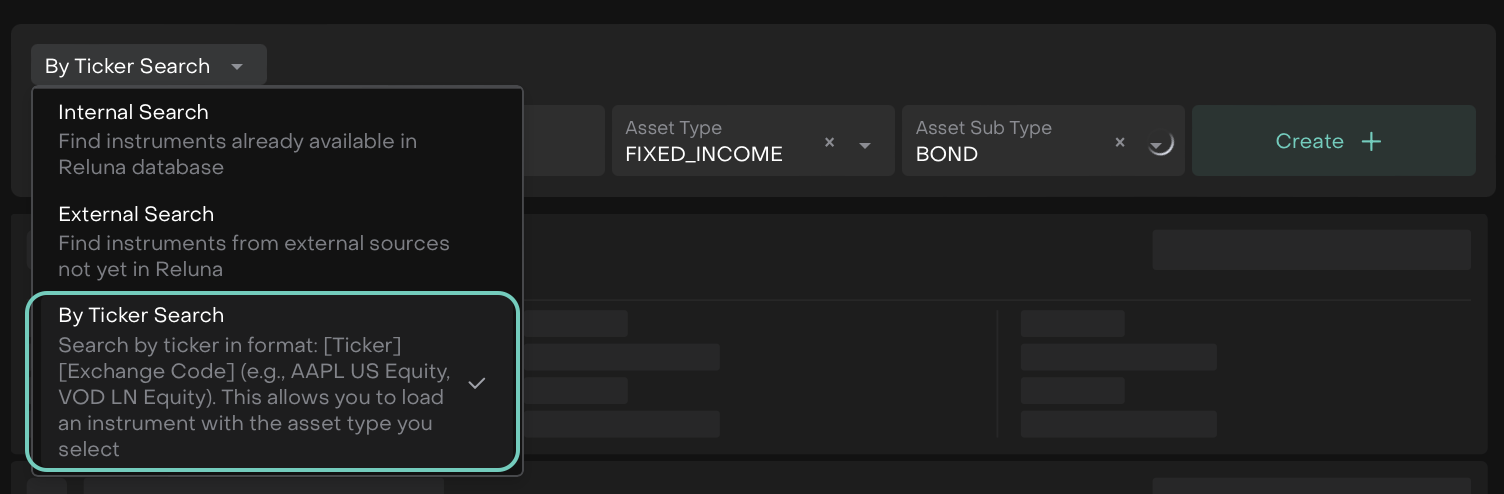
Choose By Ticker Search in the Instrument Search dropdown.
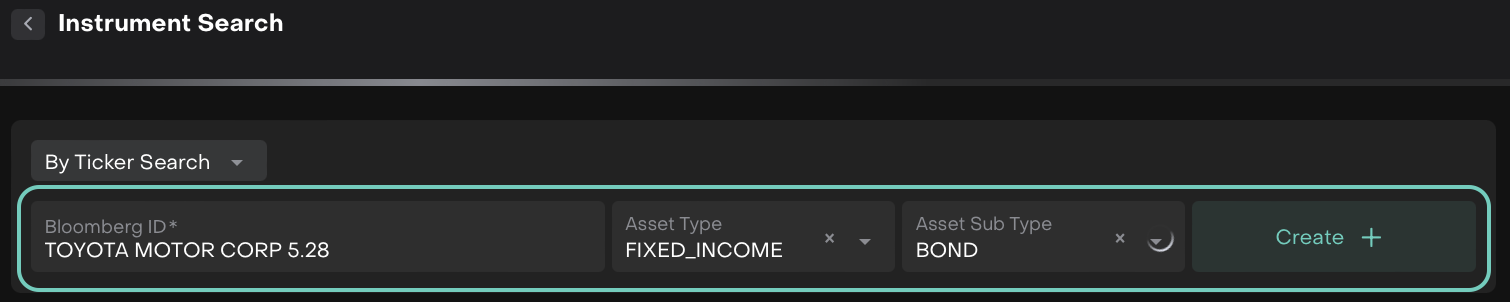
Enter the ID(*).
Select the Asset Type, its Asset Subtype(*) and hit Create button to add.
Click Select and Load (the instrument is highlighted with a green checkbox when selected).
Internal Search
Choose Internal Search from the Instrument Search dropdown.
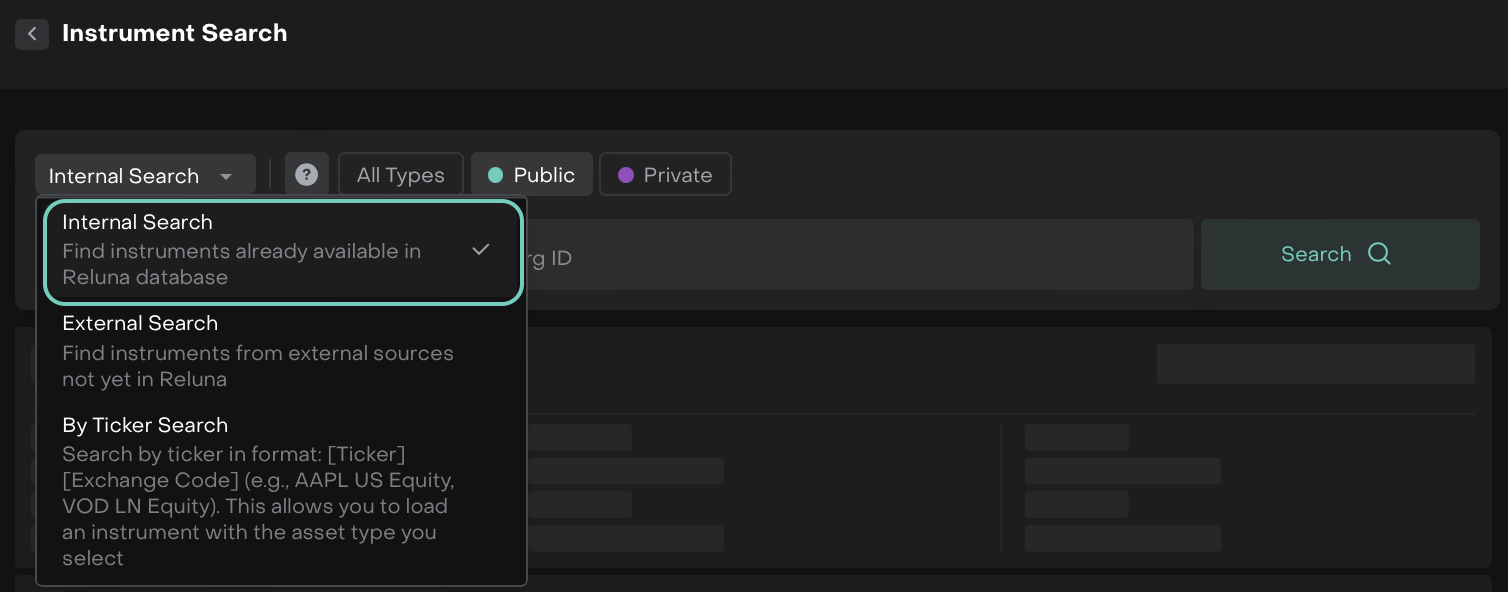
Search using Name / Contract ID / ISIN / ID.
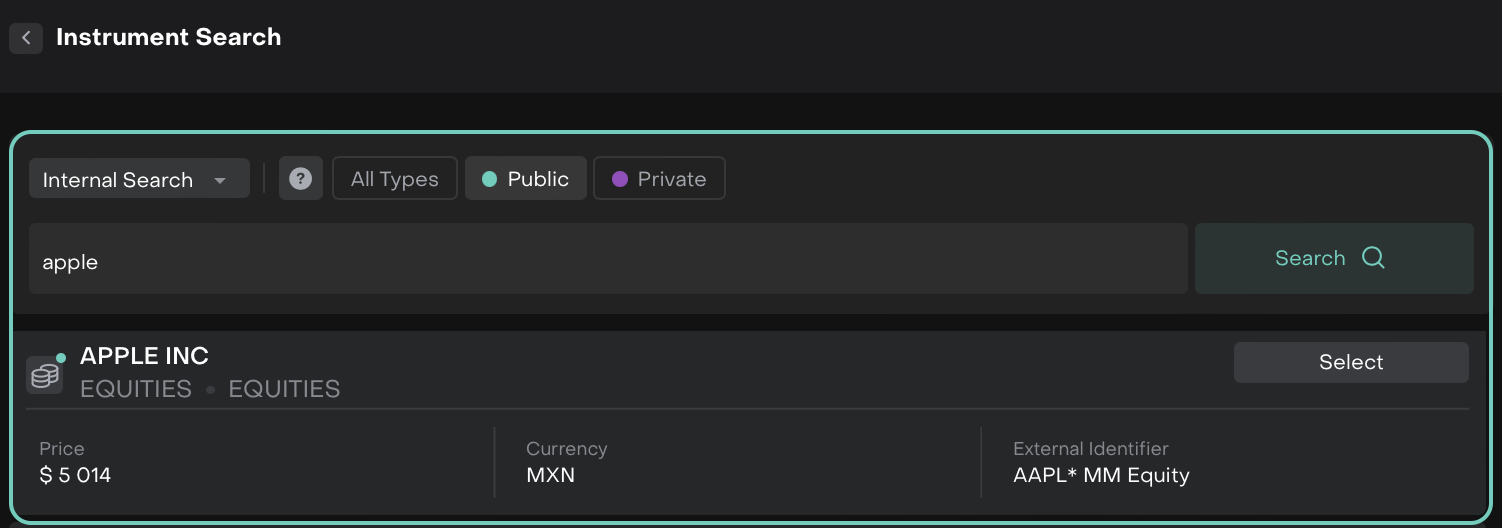
Review results from the Public and Private internal databases.
Click Select on the instrument you need.
Once selected, the instrument is added to the field automatically.
Instrument search in Refinitiv
Search and select instruments using rich Refinitiv data.
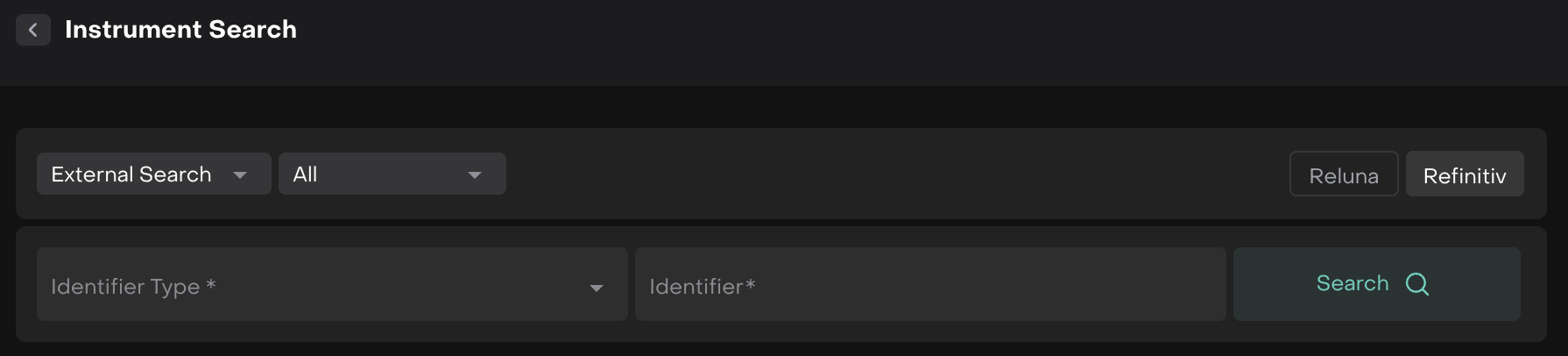
It’s the first step in enhancing our search capabilities, and we will continue to actively develop and improve this feature in upcoming releases.
Select the instrument that you would like to find in Refinitiv.
All- displays fields required to find all type instruments except options and futures.
Futures and options are displayed as separate categories with required fields.
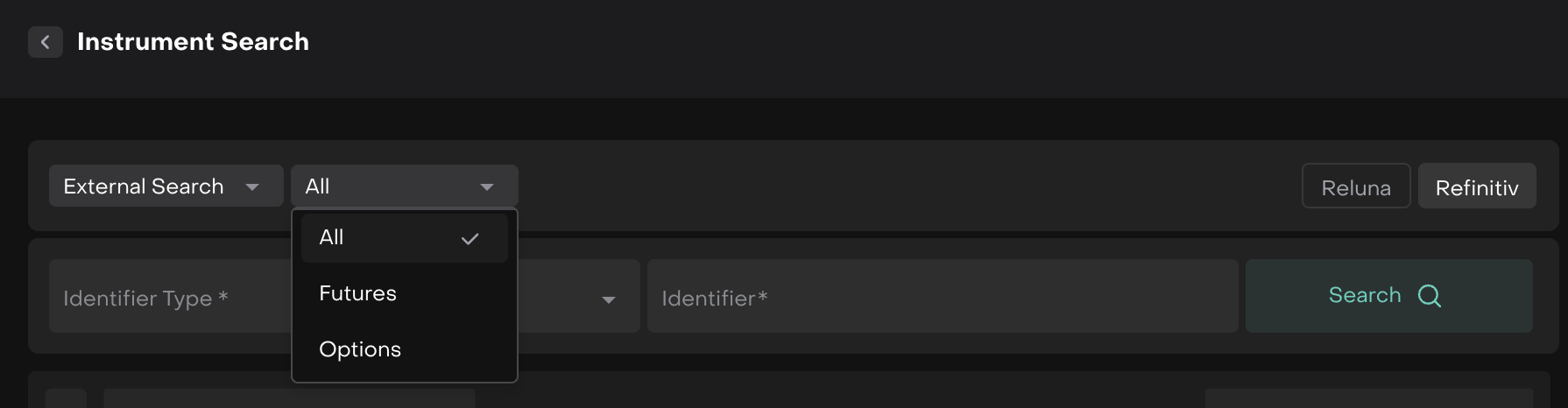
Use available fields for search of the instruments.
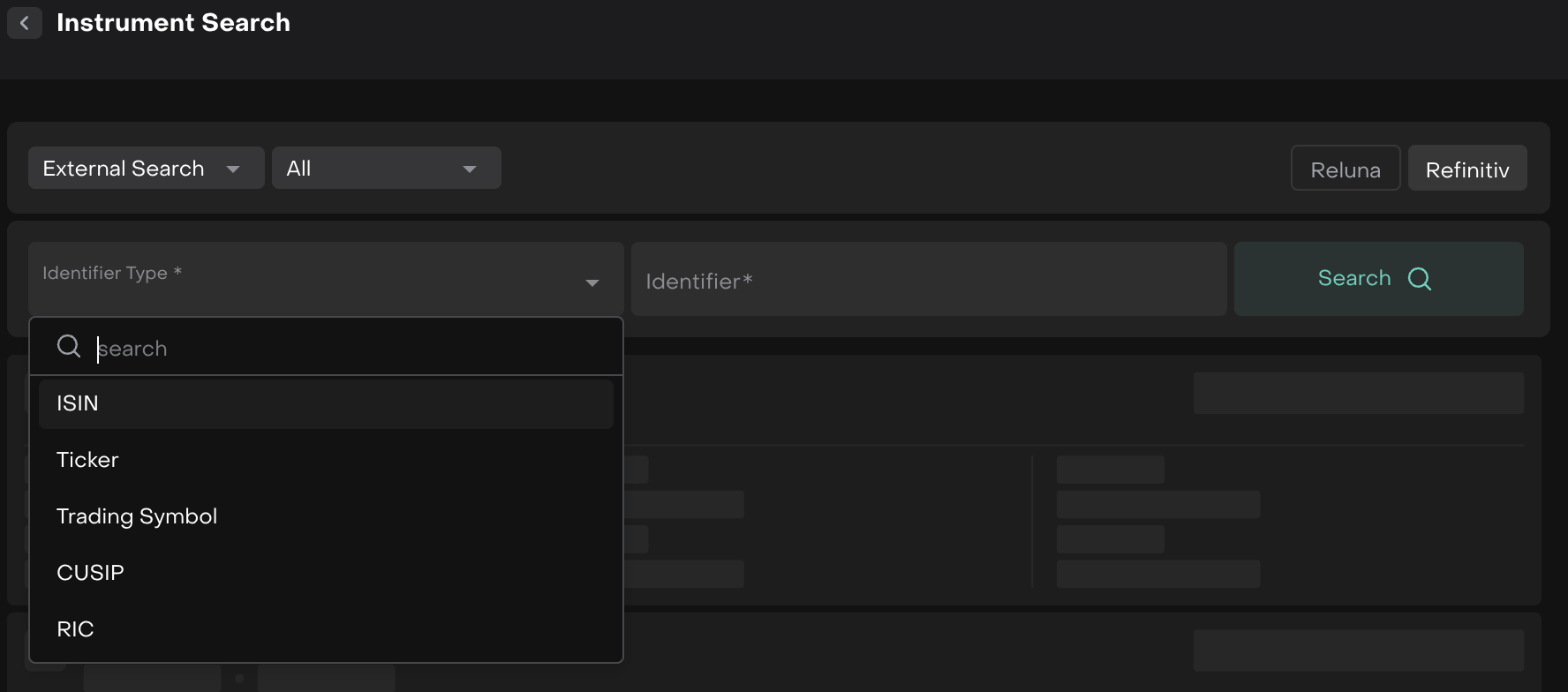
Identifier Type | Definition | Example | Primary Market/Usage | Global Adoption | |
|---|---|---|---|---|---|
1 | ISIN | International Securities Identification Number - 12-character alphanumeric code that uniquely identifies securities globally (ISO 6166 standard) | US0378331005 (Apple Inc.) | Global - all markets | Very High - Most widely used worldwide |
2 | Ticker | Short alphabetic code (2-4 characters) used to identify publicly traded shares on specific exchanges | AAPL (Apple on NASDAQ) | Global - all exchanges | Very High - Most recognizable to retail investors |
3 | CUSIP | Committee on Uniform Security Identification Procedures - 9-character alphanumeric code for North American securities | 037833100 (Apple Inc.) | USA & Canada only | High - Standard in North America |
4 | RIC | Reuters Instrument Code - Used by LSEG/Refinitiv to identify instruments including trading venue | IBM.N (IBM on NYSE) | Global - Refinitiv/LSEG systems | High - Used extensively in financial data platforms |