
Client Account Structure
Introduction
The Account Structure tab helps you see all your accounts, portfolios and bank accounts in one clear, hierarchical view. It’s designed to give you a complete picture of how everything is connected — parent accounts, sub-accounts, portfolios and linked bank accounts — so you can easily understand relationships and navigate your data.
Key Terminologies
Term (A–Z) | Definition |
|---|---|
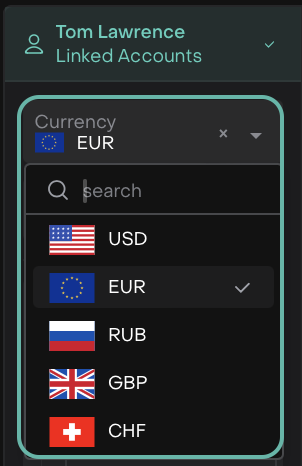
Currency | Lets you choose which currency accounts or portfolios you want to see (USD, EUR, GBP, RUB, CHF). |
Date Range | Allows you to focus on account relationships for a specific period. |
Parent Account | The top-level account in the structure that may have portfolios or subsidiary accounts beneath it. |
Portfolio | Your investment account linked under a parent account. |
Bank Account | A financial account connected to your portfolio, used for deposits, withdrawals, and transactions. |
👉 New to some terms? Check out our full Platform Glossary for more.
Account Structure Tab Overview
Your Account Structure tab gives you a tree-like view of all accounts, portfolios and bank accounts linked to your client or entity accounts. It helps you:
See parent and child relationships between accounts.
Understand how your portfolios and bank accounts are linked.
Navigate quickly to related positions, transactions or account details.
View Account Structure on Client Portal
Go to Accounts > Account Structure from your dashboard.
You’ll see a tree showing all accounts assigned to you.
Each block represents a Parent Account, Portfolio, or Bank Account.
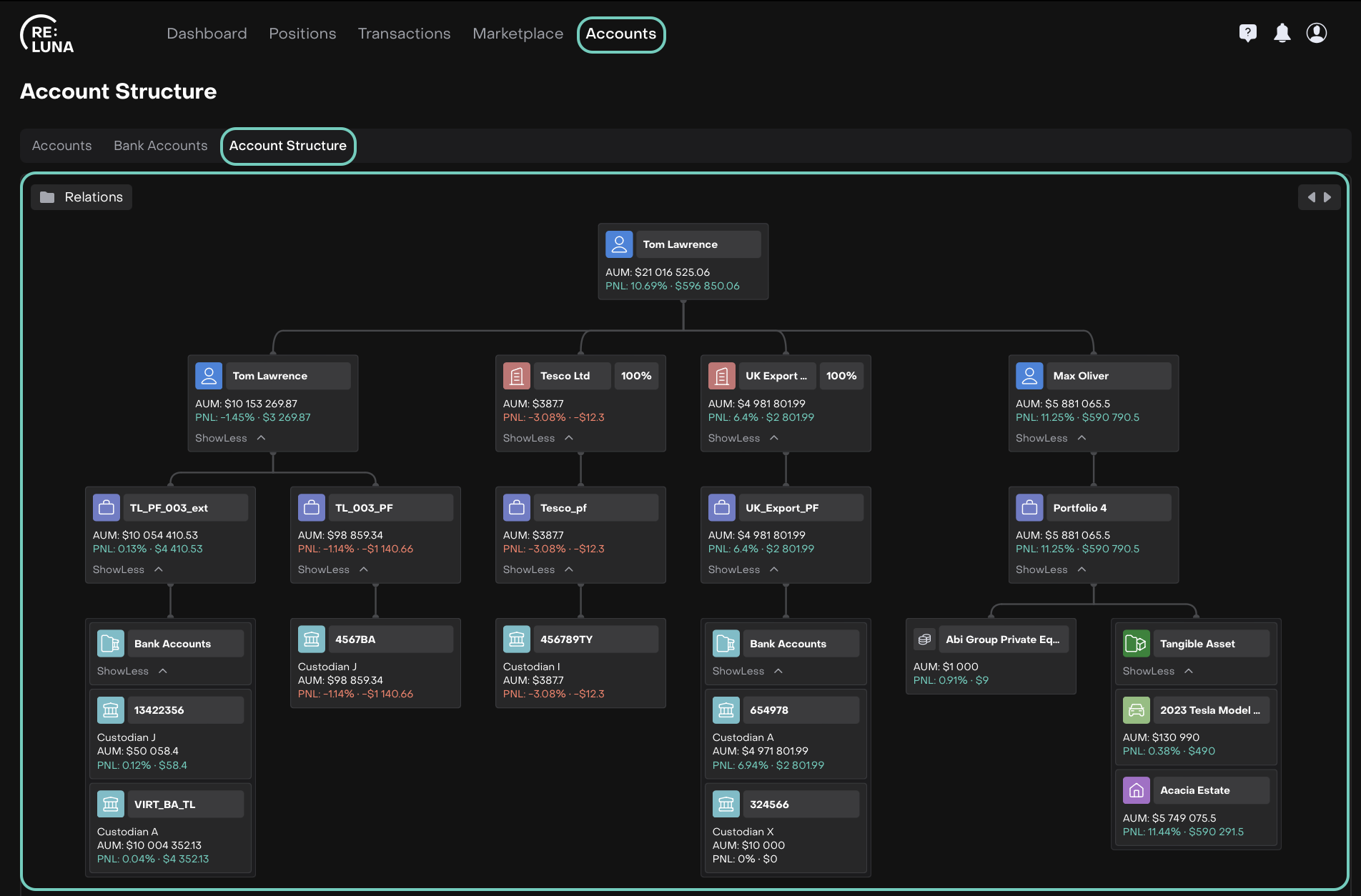

You can zoom in/out of the structure using your cursor.
Manage Account Structure
Here’s how you can work with your account structure:
You can click on Relations to open the side panel.
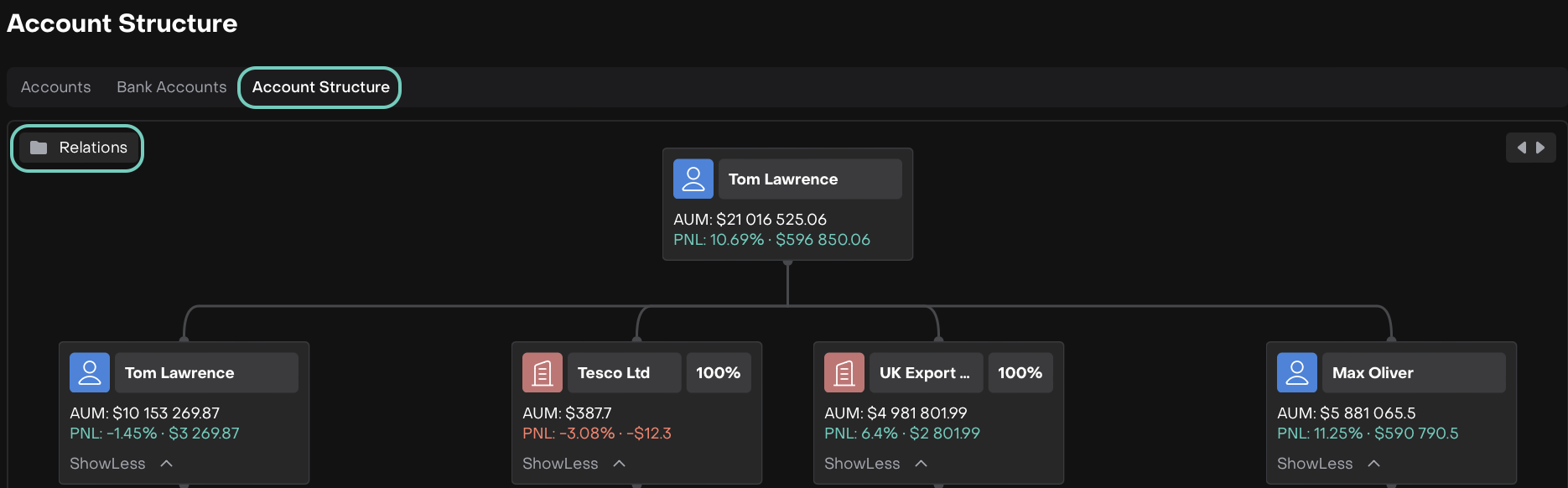
1. Relations Section
Here you’ll see your linked Portfolios, Bank Accounts and other related entities.
Select the linked account or consolidated portfolio you want to view.
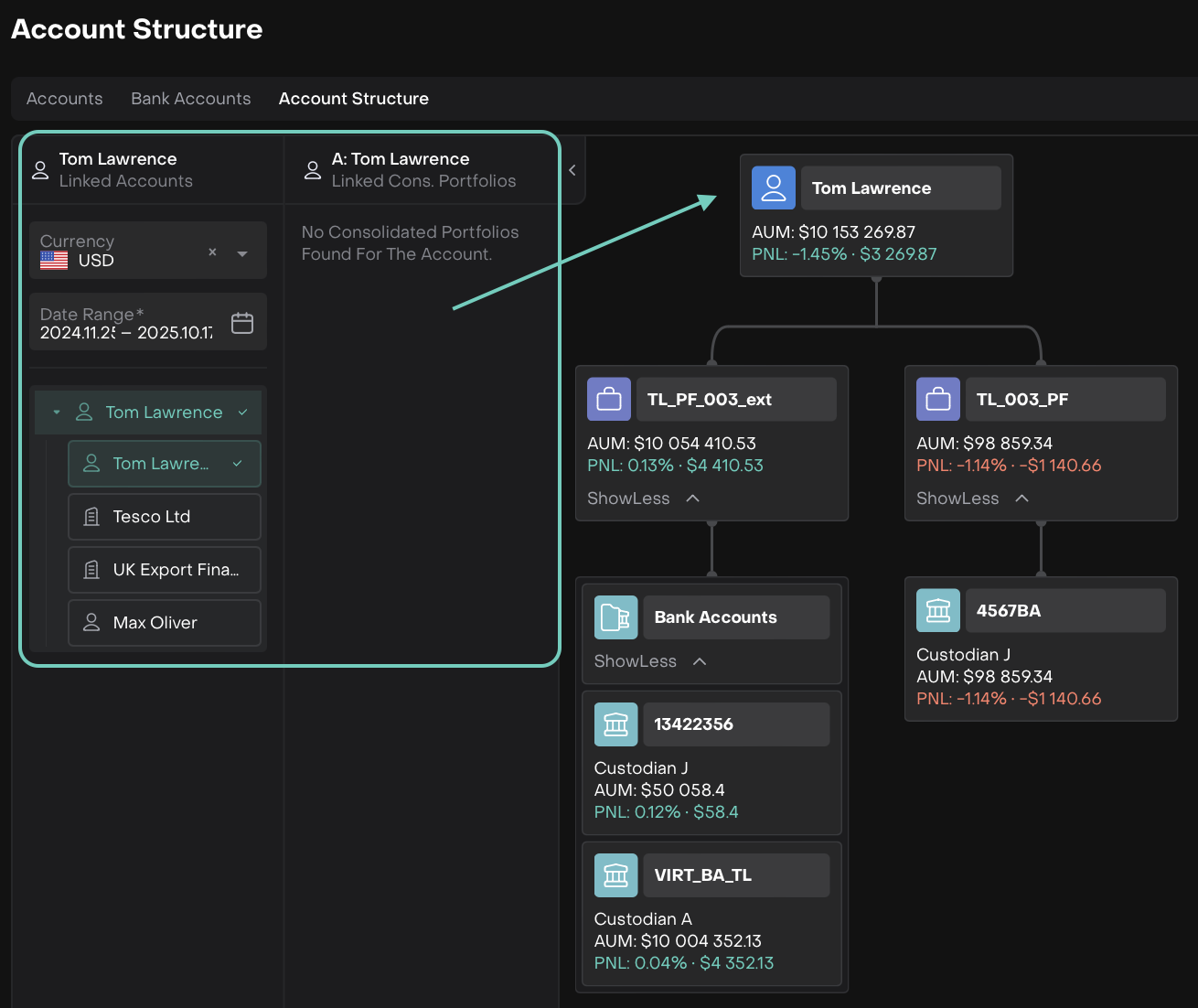
Click on any section or block to open it.
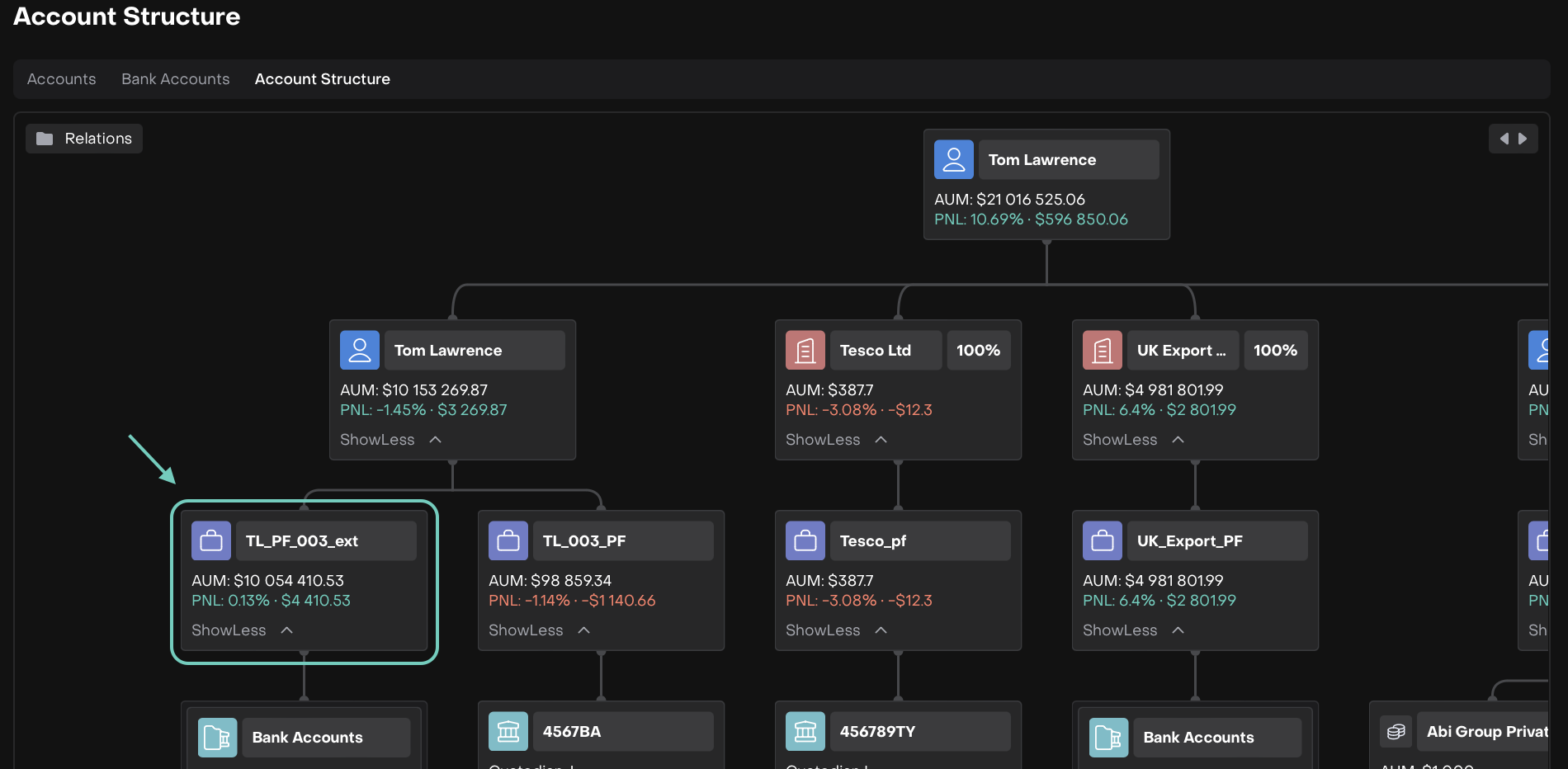
You’ll be redirected to the Dashboard to view positions and transactions related to it.
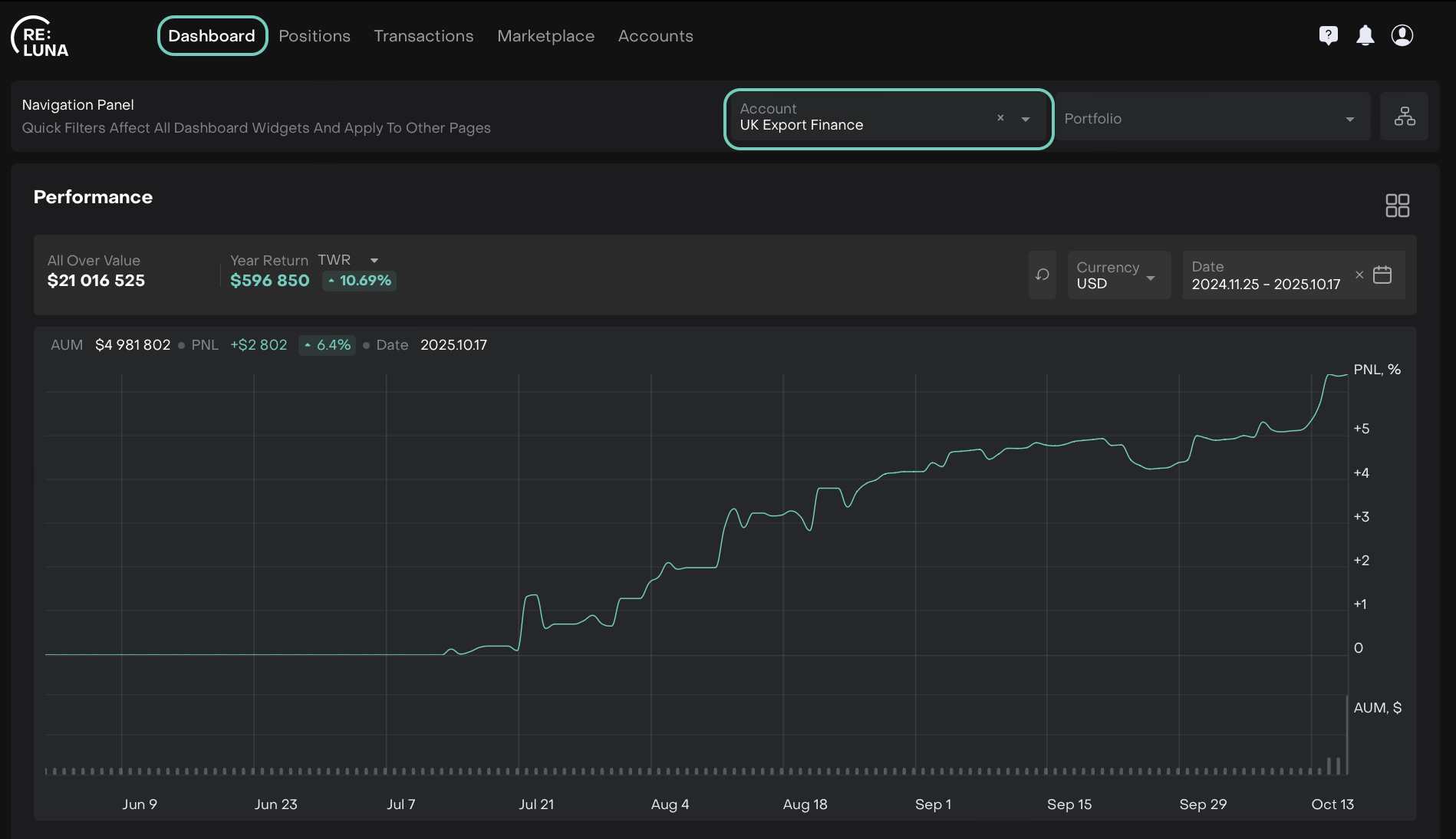
1.1. Filtering Options
Currency – Select available currency (USD, EUR, GBP, RUB, CHF) to show only accounts or portfolios in those currencies.
Date Range – Pick a time period to see account relationships during that range.
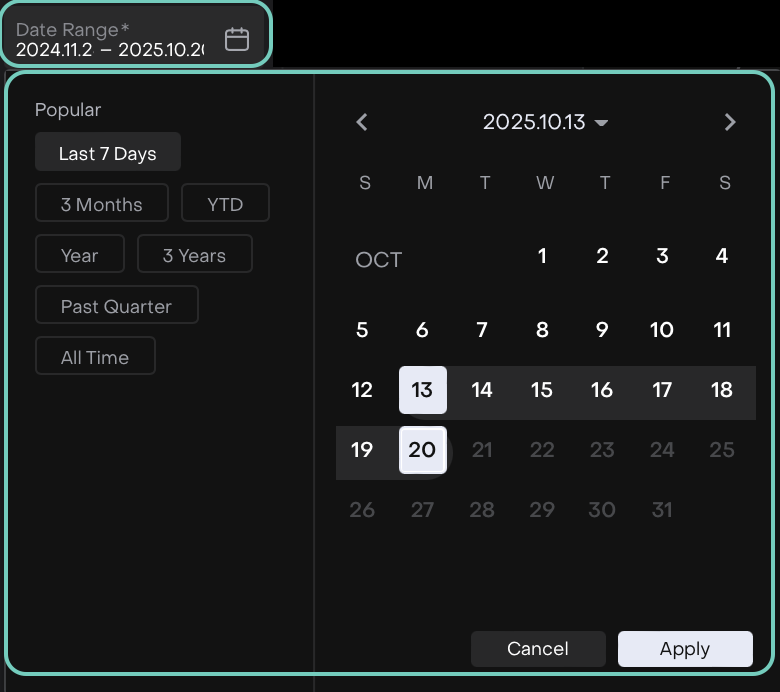

You cannot select future dates, only current or past dates are allowed.