
Create Ticker Change
Introduction
Ticker Change is a corporate action in which a publicly traded company updates its stock ticker symbol, the short identifier used to represent its security on an exchange. This change does not affect the company’s outstanding shares, market capitalization or the value of investor holdings, but ensures accurate tracking, reporting and portfolio management.
On the platform, Ticker Change facilitates a seamless transfer of holdings from the old instrument to the new instrument, maintaining portfolio integrity and ensuring performance metrics remain unaffected.
Ticker Change can be classified as:
Mandatory: Automatically executed by the company, requiring no action from shareholders.
Voluntary: Shareholders may have options to participate, depending on the company’s announcement.
When to Use a Ticker Change Order:
When a company updates its ticker symbol but the underlying security remains unchanged.
When holdings need to be reflected accurately in the platform, transferring from the old instrument to the new one.

Corporate actions are not supported for Private instruments.
Permission Requirements
Tab / Feature | Permission Levels |
Instruments | View, Modify, Create |
Corporate Actions (On Instruments) | View, Modify, Create |
Corporate Action (On Orders) | View, Modify, Create |
Key Terminologies
Term (A–Z) | Definition |
|---|---|
Action Date | The date when the Ticker Change takes effect and holdings are moved from the old instrument to the new one. |
Announcement Date | The date on which the company publicly announced the ticker change. |
Available Balance | The number of shares available in the portfolio on the Action Date for the current (old) ticker. |
Balance | The quantity held in the current instrument at the time of action. |
Compensation | Cash amount auto-filled when fractional shares are involved. Not applicable for 1:1 ticker changes. |
Current Instrument | The existing ticker symbol that is being replaced. |
Description | Additional notes or relevant information about the Ticker Change. |
New Balance | The updated quantity that appears under the new instrument after the action (must match the old balance). |
Security Transfer | Platform-generated transaction type showing the OUT and IN movements between old and new tickers. |
👉 New to some terms? Check our full Platform Glossary for quick definitions.
Create a Ticker Change Order
Before you can apply a corporate action to an Order, you must first create the corporate action under the Instrument. Once created, it will appear for selection when creating or updating relevant orders.
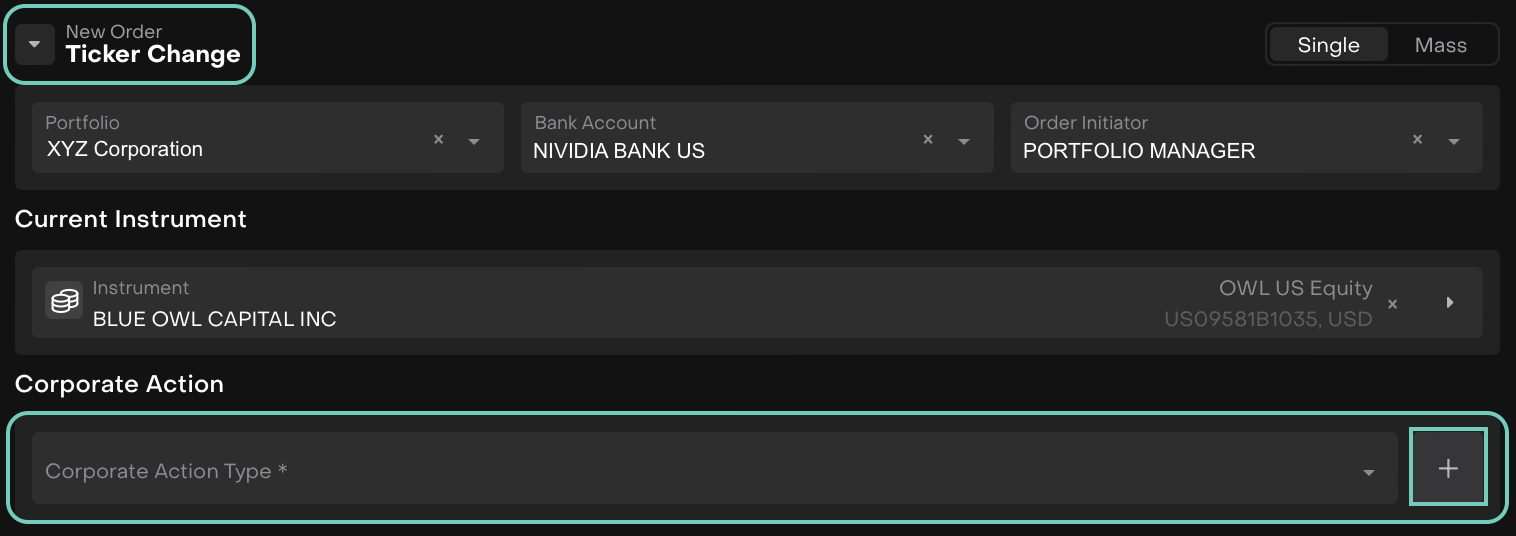
Go to Transactions > Find Orders tab > Click + icon

A window opens, select the New Order Type as “Ticker Change”.
Fill in Required Fields:
Portfolio, Bank Account and Initiator
Select Current Instrument
Choose Corporate Action Type from the dropdown.
Or,
Click on the "+" button near the Corporate Action type if you are creating a new action type or if it needs to be confirmed.
Under Corporate Action, fill in the following fields.
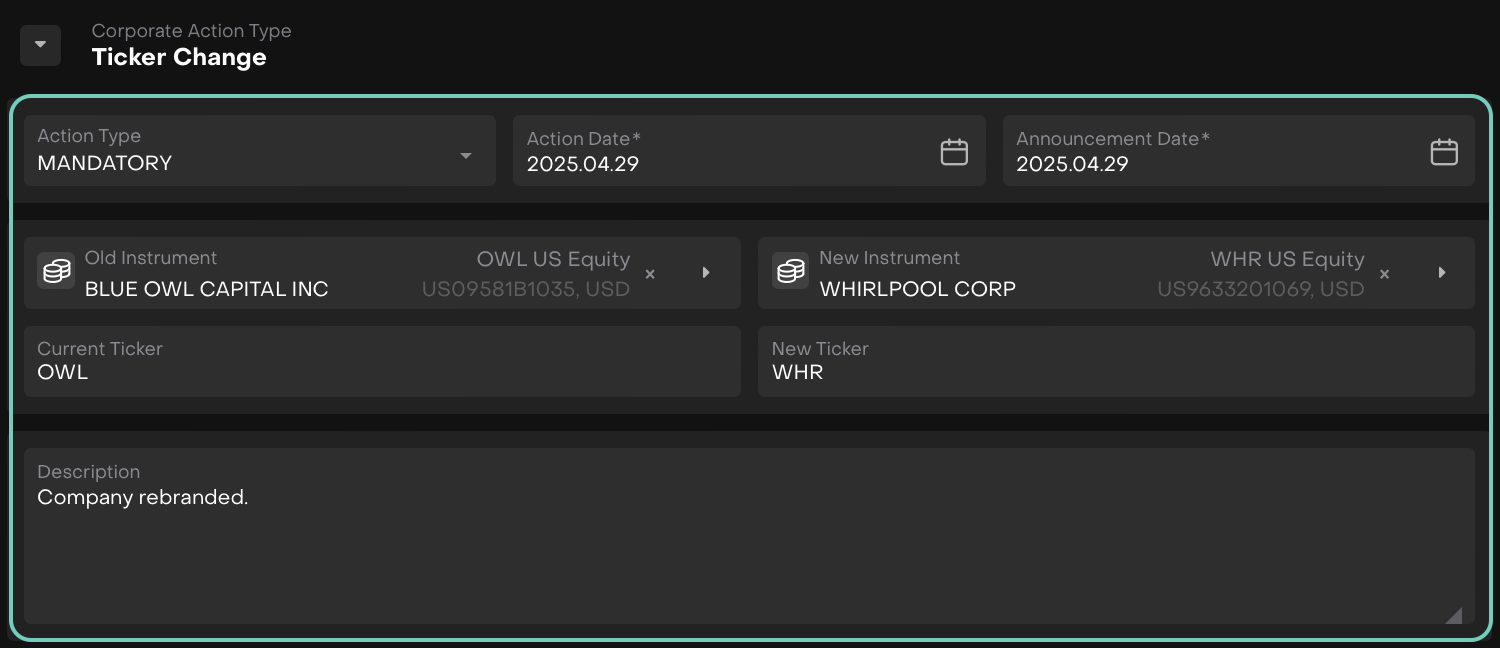
Save Changes and click Create. The corporate action type will be added to the main form.
-3.png?inst-v=ace73a86-59b4-416b-9e19-764250a7d3ed)
Corporate Action Balance section auto populates for the following fields.
Once created, the platform:
Validates available balances
Checks for existing or pending orders
Creates transactions: One OUT (old ticker) and one IN (new ticker)
What Happens After Order Creation?
How to Execute Order
Navigate to the execution screen.
Confirm:
Old Ticker and New Ticker are correct.
Quantity (e.g.,
750,000) is populated and matches.The status should update to Filled upon completion.
👉 Learn how to execute the order step-by-step by following the instructions in this guide.
Review Transactions Log:
SECURITY_TRANSFER(OUT and IN).TICKER_CHANGEInfo entry.
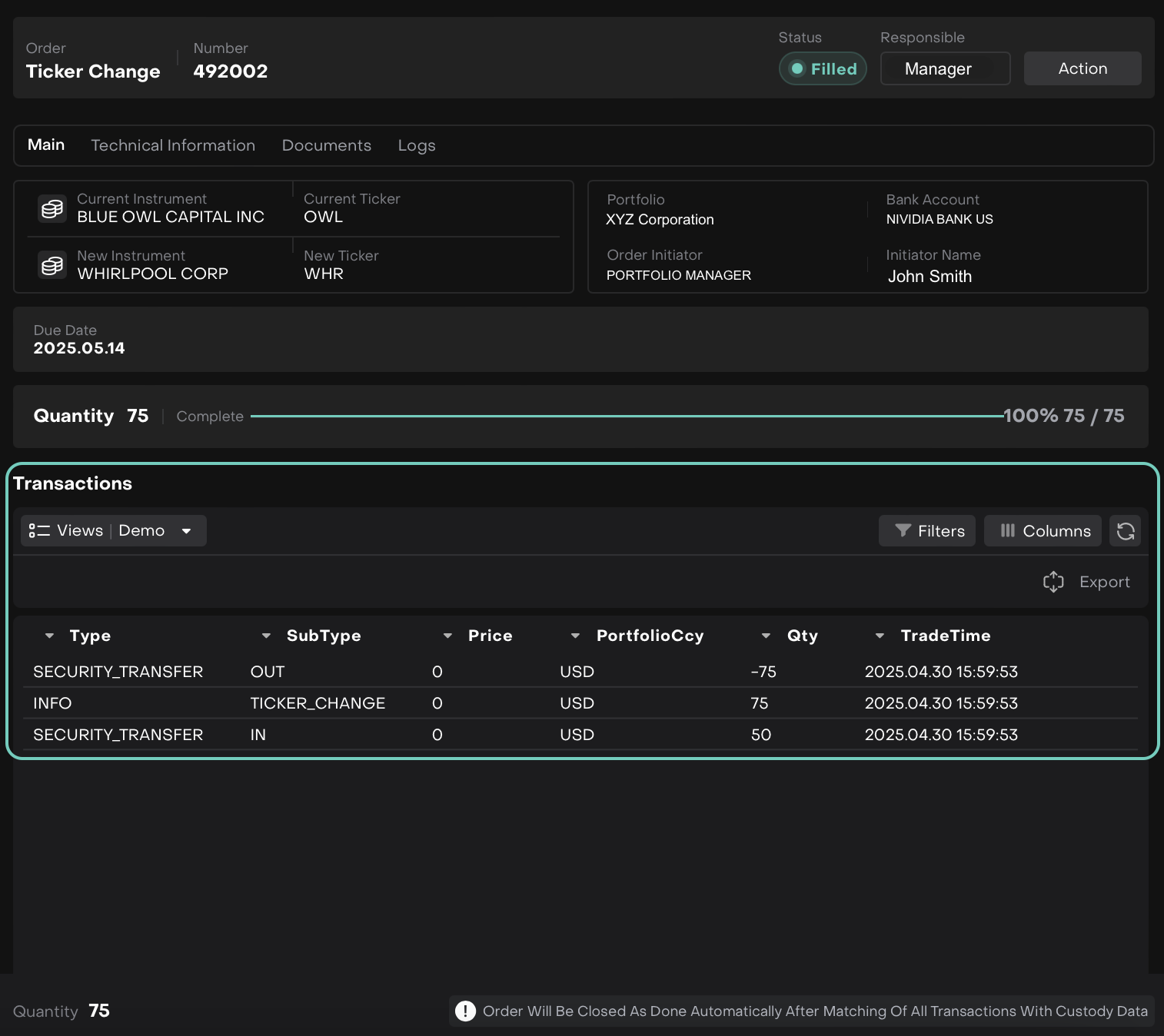

Order will be closed as Done automatically after matching of all transactions with custody data.