External Order Management (via Reluna Spaces)
AVAILABLE IN:
Introduction
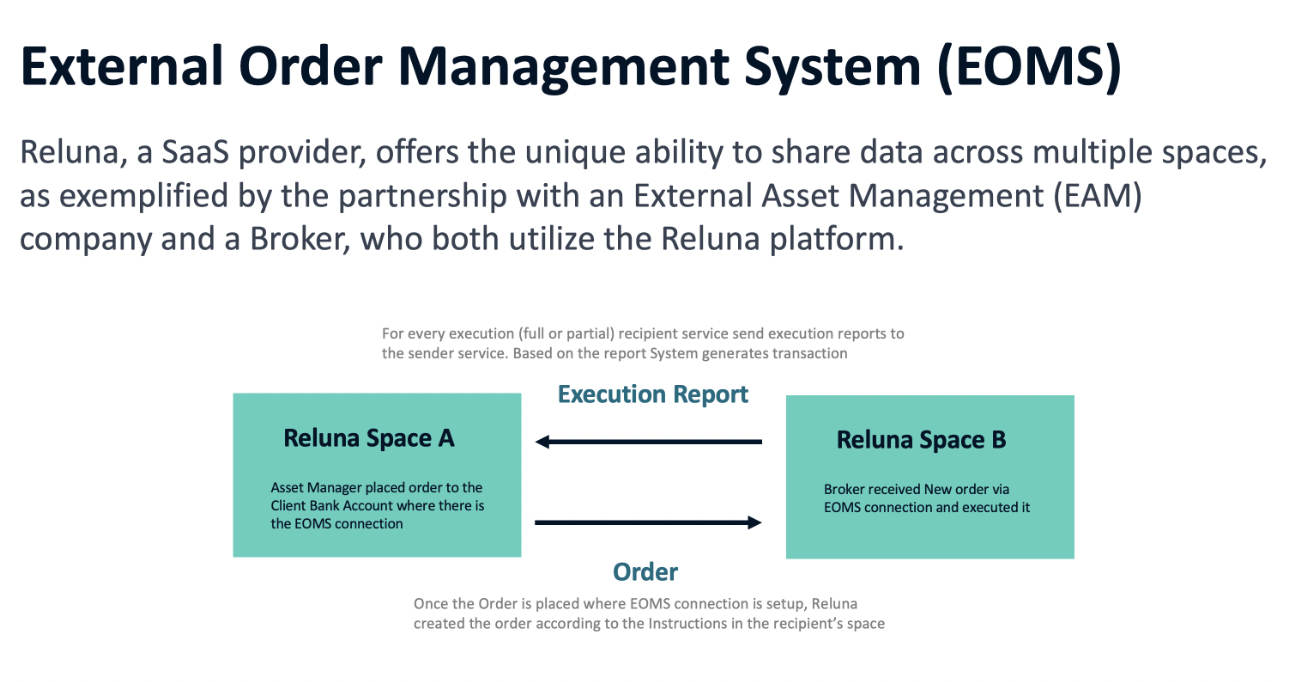
Reluna, a SaaS platform, enables seamless data sharing across multiple parties, such as an External Asset Management (EAM) firm and a Broker.
In this setup, the EAM opens a client account with the Broker, who then creates a portfolio and bank accounts with various custodians. The EAM can access transaction and position reports and place orders to manage the client portfolio, while the Broker receives these orders and sends executions automatically, streamlining operations.
Key Functionality
The EOMS service ensures instant transmission of orders and immediate reflection of execution outcomes. It allows orders to be created, executed, and automatically communicated, enabling efficient portfolio management across multiple parties.
Key Terminologies
Term (A–Z) | Definition |
|---|---|
Authorized Person | A person assigned in the Mandate who can place orders or access a specific client portfolio. |
Bank Account | The account used to execute or receive orders, linked to a custodian. |
DMA (Direct Market Access) | Trading type where transactions are executed automatically based on broker execution reports. |
External User ID | Unique identifier assigned to an Authorized Person for order initiation and access control. |
OTC (Over-the-Counter) | Trading type where execution details are manually entered into the platform. |
Recipient | Space where the order is automatically generated upon placement and execution details are communicated back. |
Sender | Space where the order is initially created and sent for execution. |
👉 New to some terms? Check our full Platform Glossary for quick definitions.
Platform Configuration for EOMS Functions
To use EOMS effectively, the platform must be properly configured on both ends, the Sender and the Recipient.
Order Creation Process When EOMS is Active
When creating an order to send to another Reluna space, select “EOMS” as the Execution Type.
Selecting “OTC” will create a standard order using the simple flow.
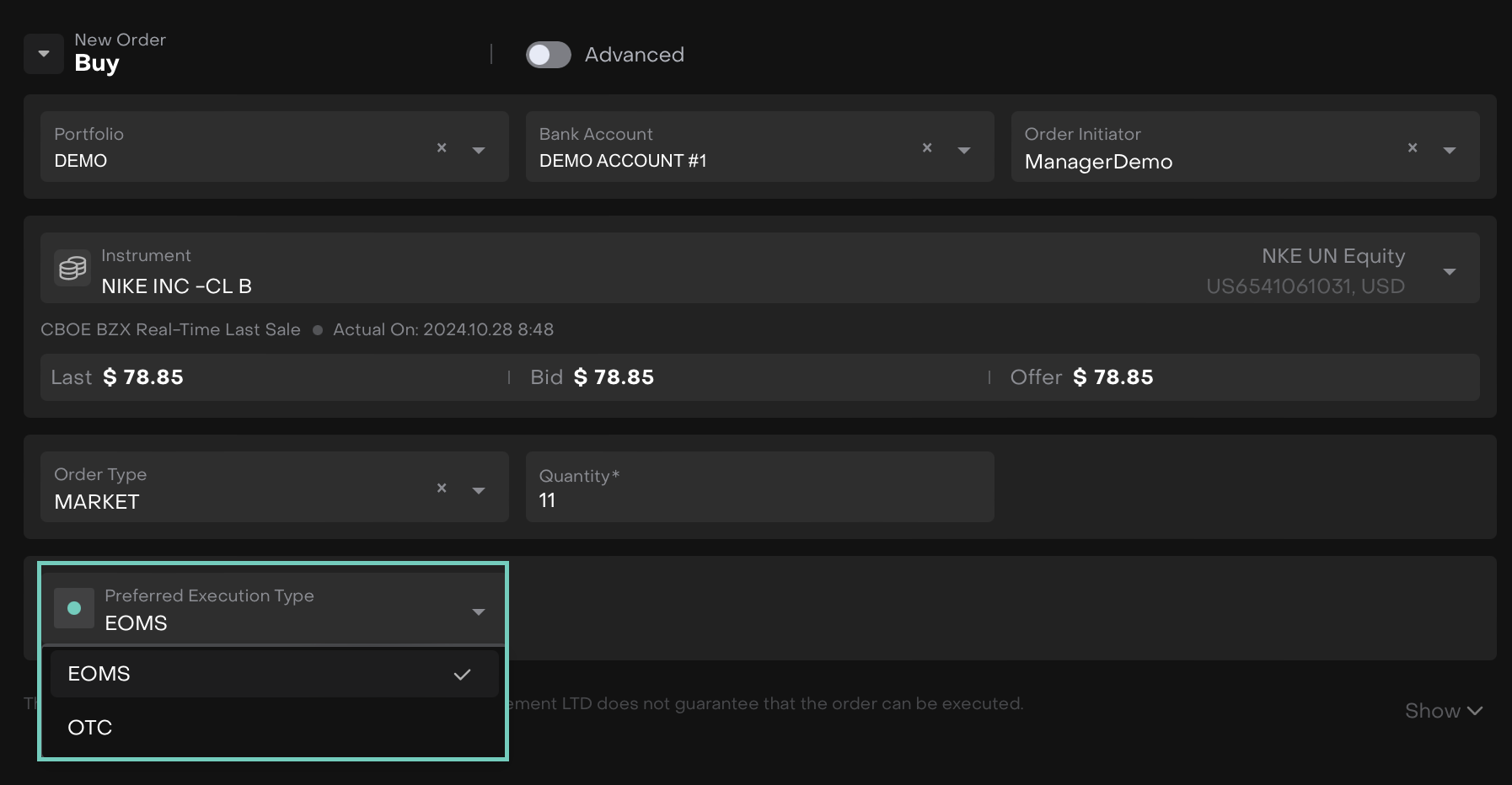
Once created, an EOMS order is set to “Execution” status, indicating it was automatically received and accepted by the recipient.
If the recipient does not accept or rejects the order, it moves to the “Ready” stage. From here, you can resend via EOMS or cancel the order.

Refer to the table for possible issues while creating an EOMS order.
EOMS orders appear in the order table at the “New” stage.
You must specify the Bank Account and select the trading type (OTC/DMA) based on available options.
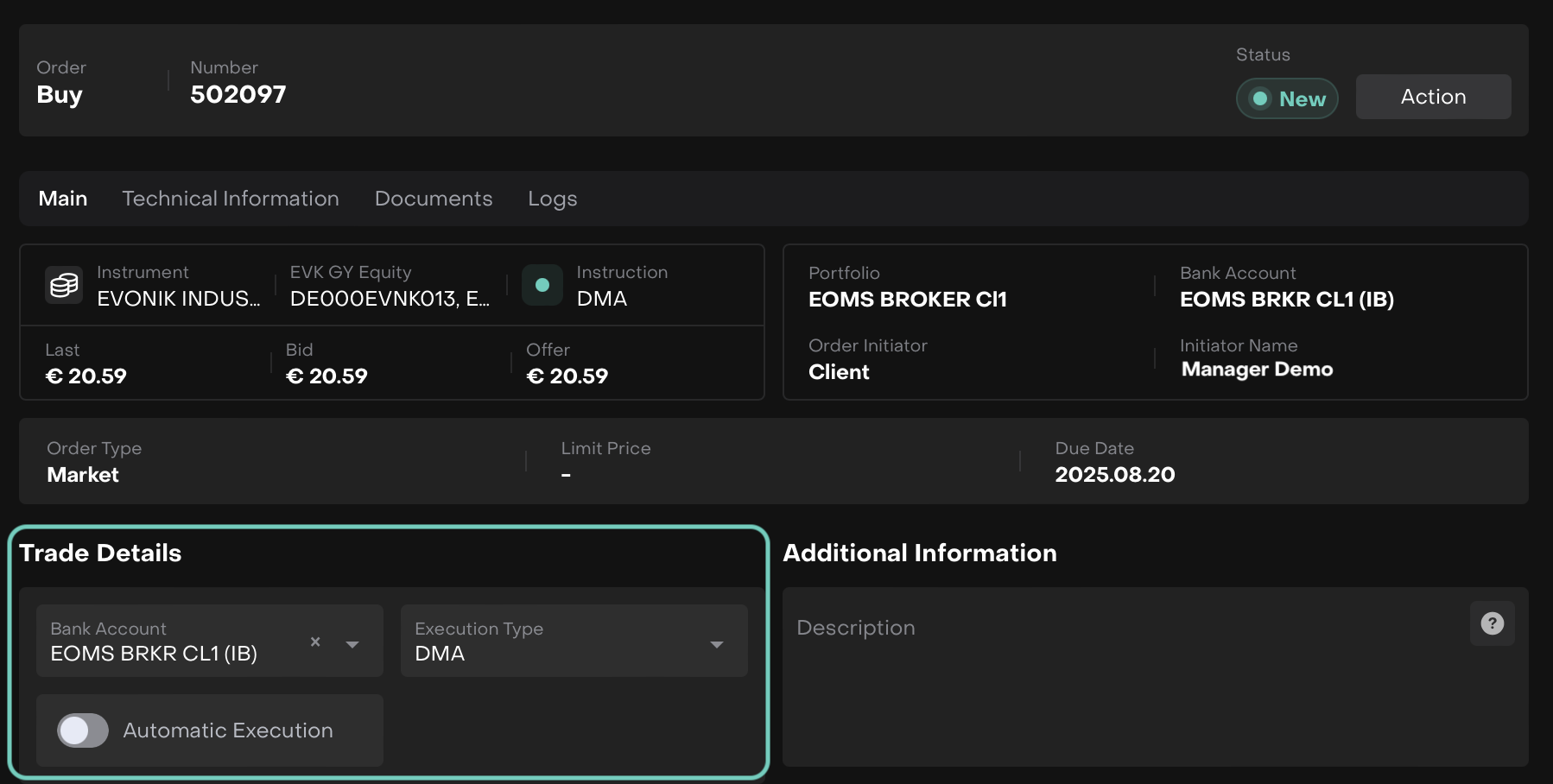
Order execution follows the standard trading flow:
OTC: Enter execution details manually to update transactions.
DMA: Transactions are created automatically based on broker execution reports.
Once filled, the order moves to the “Filled” stage on both the sender and recipient sides.
Manage External User ID on Authorized Person
Go to Mandates tab > Click + Icon.
A new form opens, find Authorized Persons section > Click + Icon.

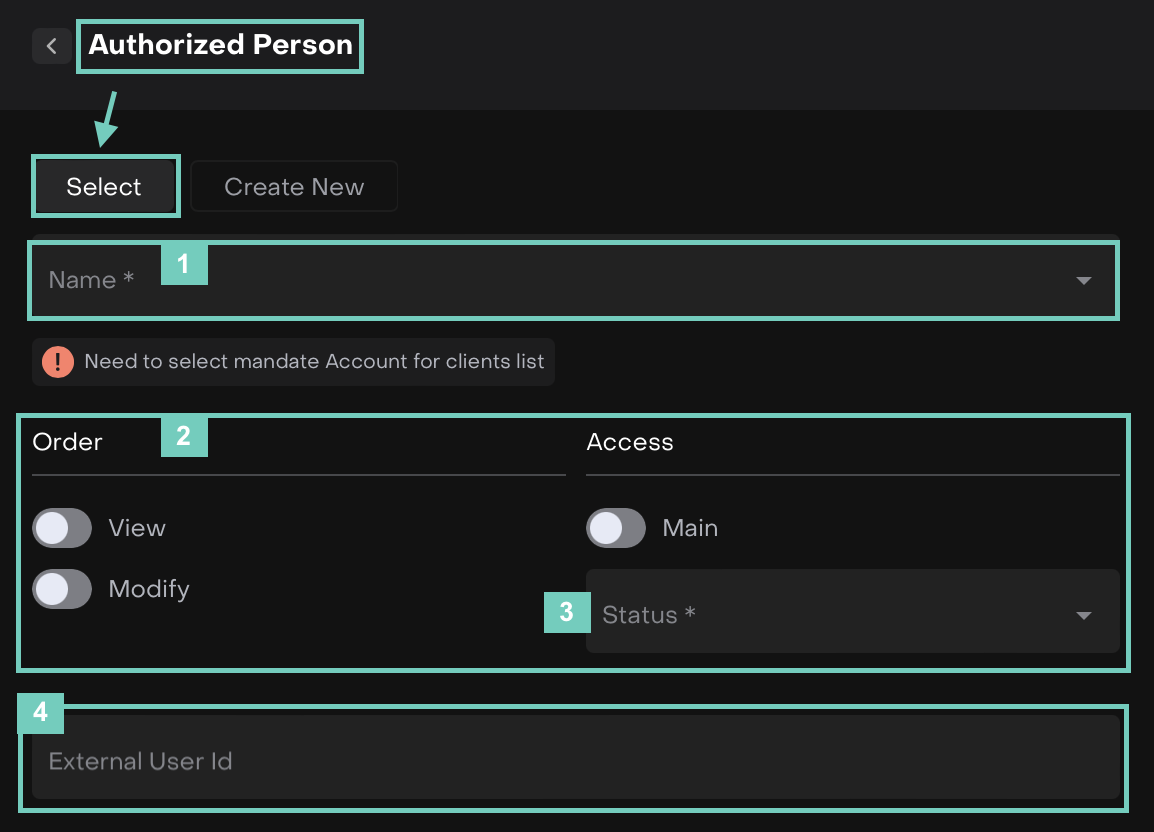
On Authorized Person form, choose to Create New or Select from the already existing data.
In case of choosing tab Select:
Fill in the required fields(*) such as Name.
Manage the Order and Access permissions for the specific client.
Select the Status as Access or No Access.
Fill in the External User ID of the client and then, click Save.
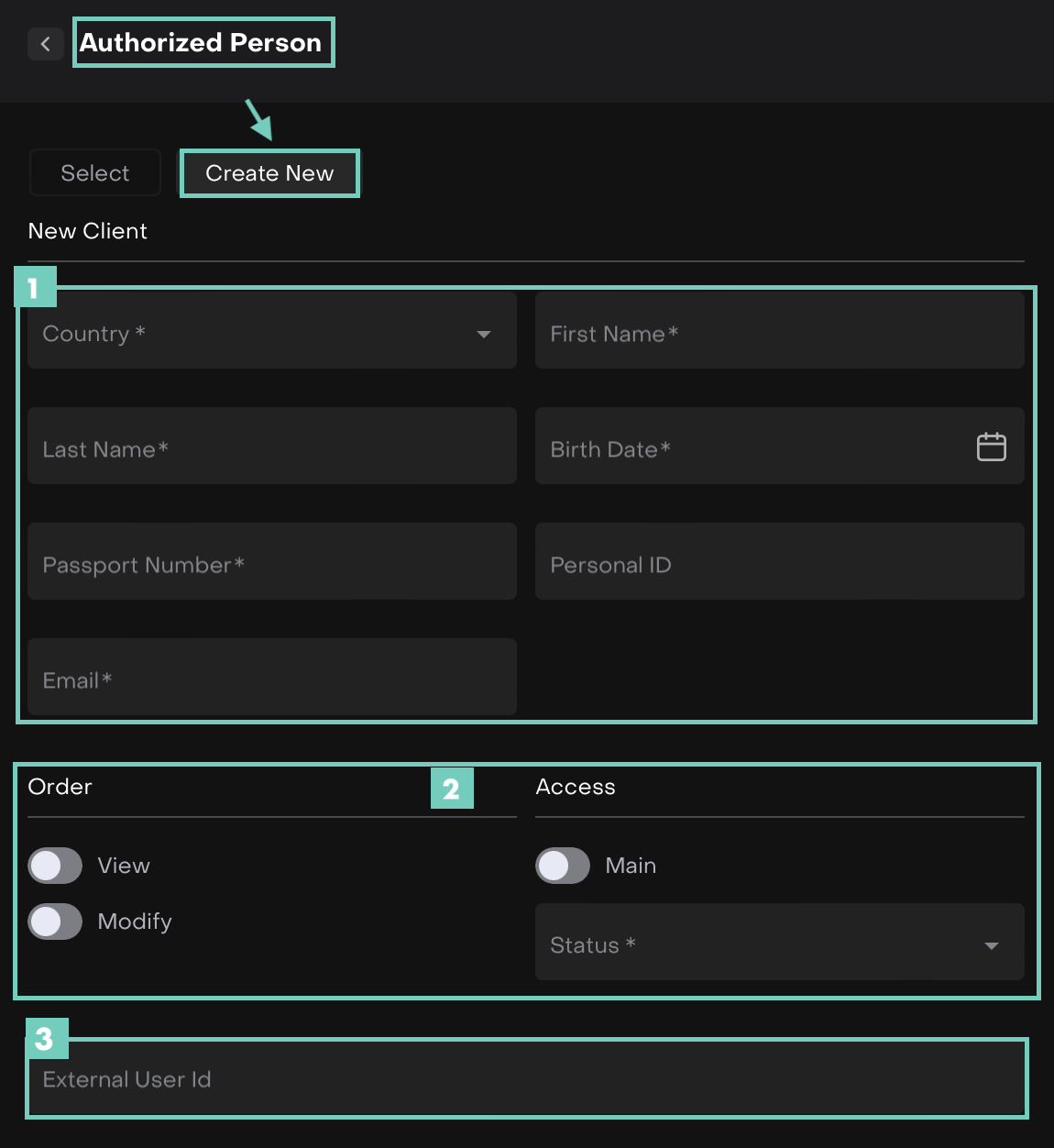
In case of choosing tab Create New:
Fill in the required fields(*) such as Country, First & Last Name, Birth Date, Passport Number, Email and so on.
Manage the Order and Access permissions for the new client. Select the Status as Access or No Access.
Fill in the External User ID of the client and then, click Save.
Post saving, the following Client(s) will be added to the list.
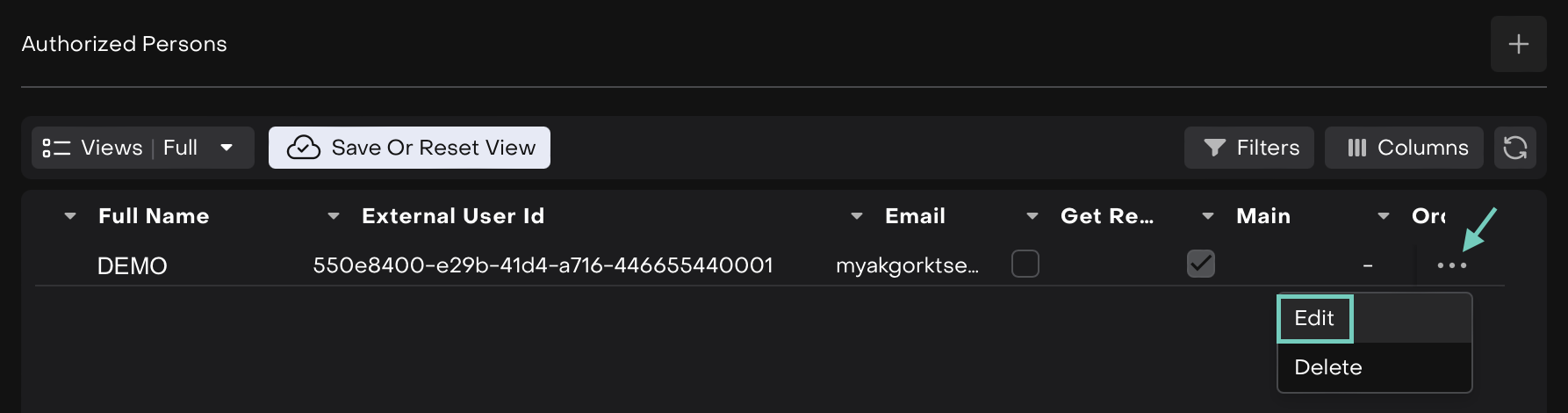
The External User ID mentioned while filling in the form is also available, as highlighted below.
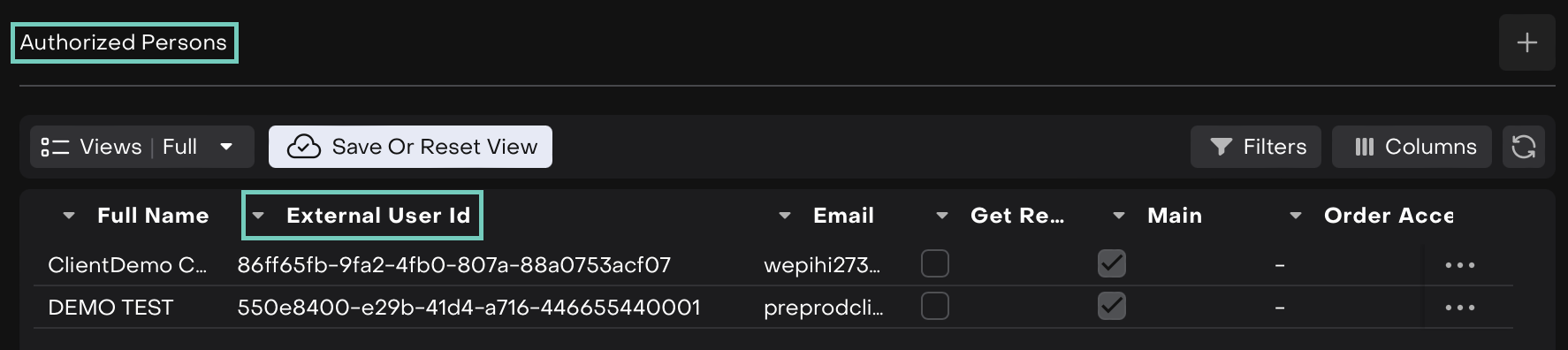
You can further choose to Edit or Delete the added entry from the list by clicking on three dots > Edit.
Only Global Admin can view or edit “External User ID” field on Mandates page.