Order Management
AVAILABLE IN: 

Introduction
The Order Management on the platform is used to create, manage or track all types of orders, including trading, non-trading or corporate action orders. It ensures that every order, from initiation to execution, is processed accurately and efficiently.
Key Terminologies
Term (A–Z) | Definition |
|---|---|
Corporate Action Orders | Orders that cause security or cash movement as a result of a corporate action event. |
Direct Market Access (DMA) | An electronic facility that allows placing orders directly to financial market exchanges. |
Marginal Trading | Purchasing securities on credit or using existing holdings as collateral, allowing trading beyond available cash. |
Instructions to back-office teams to transfer cash or assets or to write off fees. | |
Order Initiator | The person who made the decision to place an order. |
Over-the-counter (OTC) | A type of trading that occurs directly between two parties, without a central exchange. |
Product Subscription Orders | Orders to subscribe or unsubscribe to an investing firm's products, such as recommendations or strategies. |
Instructions to a broker to buy or sell a security on an investor’s behalf, including forex instructions. |
👉 New to some terms? Check our full Platform Glossary for quick definitions.
Types of Orders on Platform
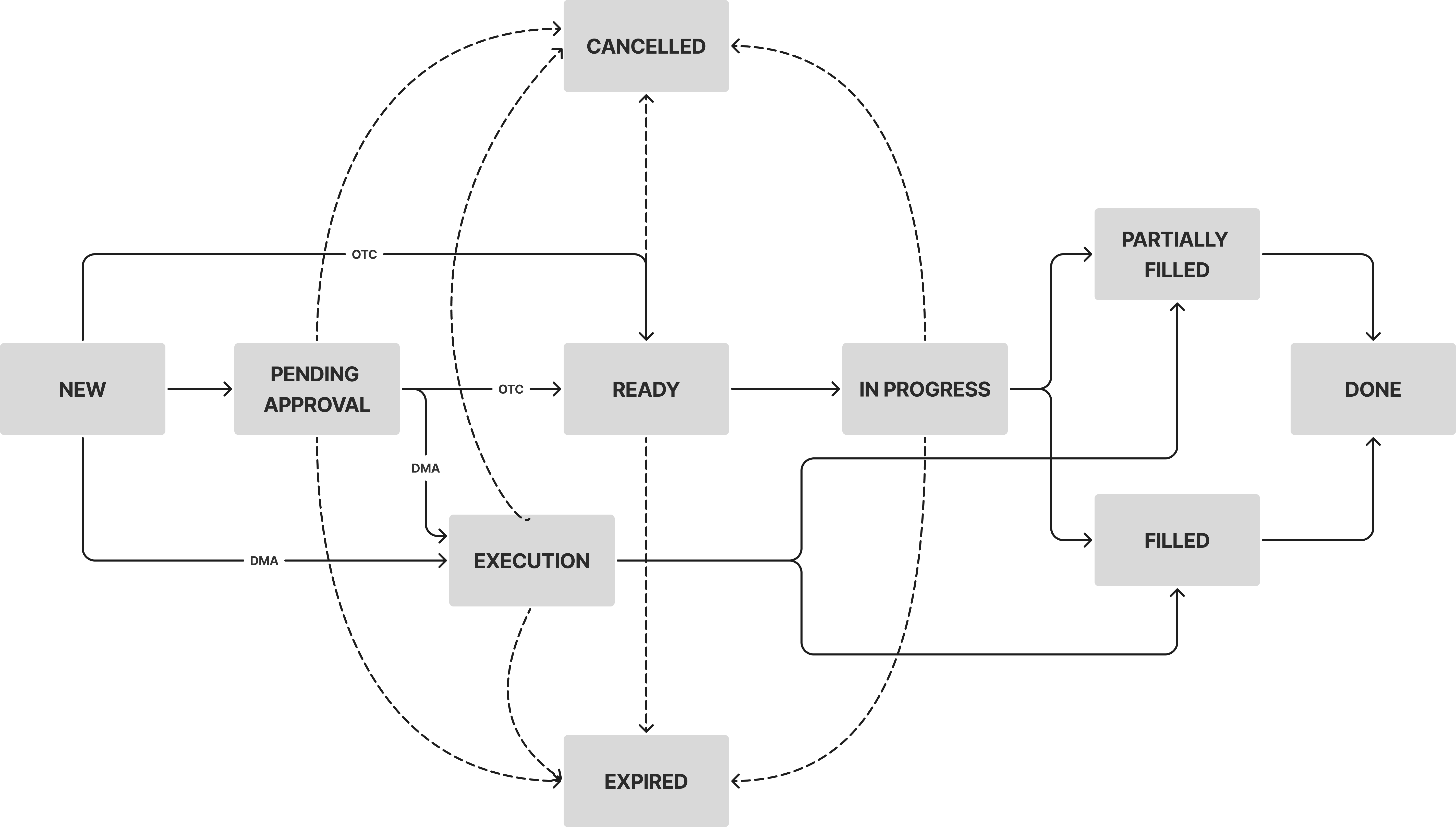
Order Status Lifecycle
Order Creation
You can create Orders from multiple locations.
From Transactions:
Go to Transactions > Find Orders tab > Click + icon.

From Portfolios:
Go to Portfolios > Find Orders tab > Click + icon.

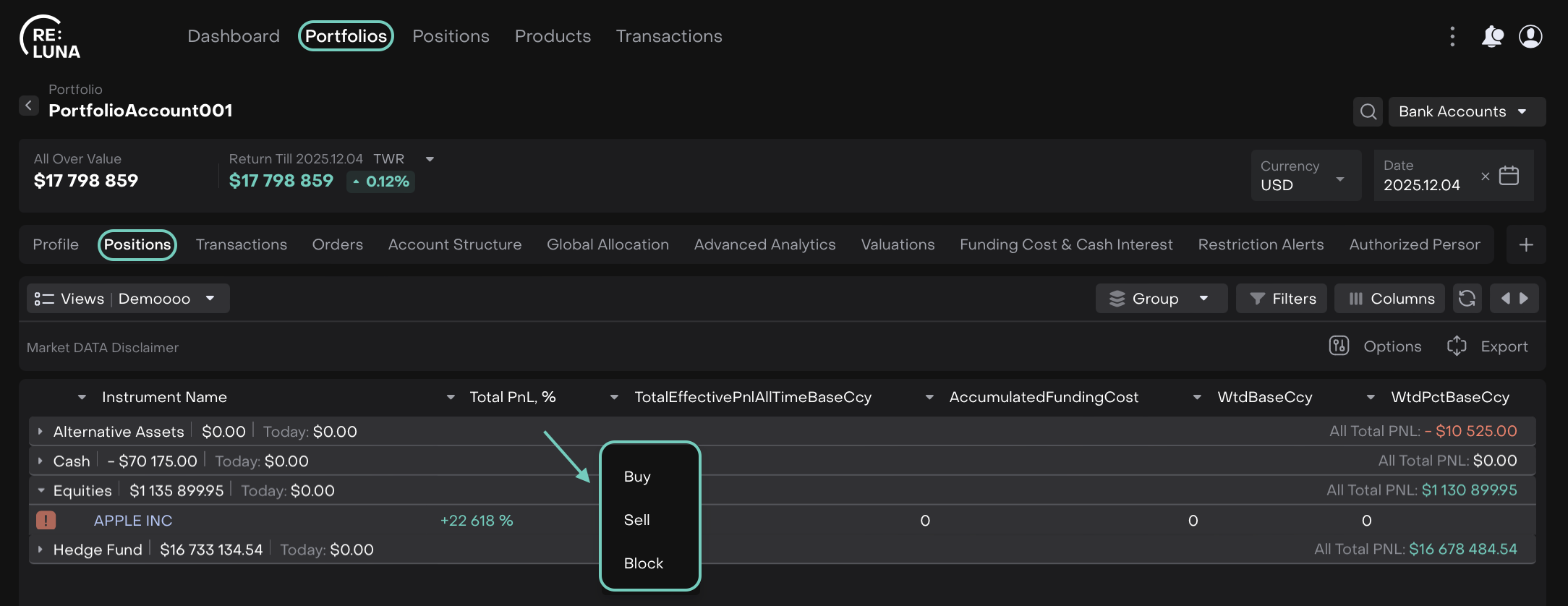
From Positions:
On Portfolios page > Find Positions tab > Right-click on Position.

Tracking Your Orders:
To view orders for a specific portfolio, go to Portfolios and open Orders. This will show only the orders linked to the bank accounts within that portfolio.
To see all orders across portfolios, navigate to Transactions > Orders.
🔗 To create a specific order, visit the guides below:
Order Execution
Order execution is the process of accepting and completing an order. You need to enter the execution result on the platform to keep your portfolio positions up to date.
For OTC trades, the manager submits the order.
For DMA trades, the platform receives an execution report.
🔗 How to Execute Order Manually, click here.
Order Expiration
If an order is not GTC (Good Till Cancel) and the due date passes, the platform automatically closes it as:
Expired (if not partially filled)
Partially Filled (if partially executed)
The platform provides a default alert when an order is aBack Officeut to expire.
You can extend or modify the due date if needed.

Regularly check alerts to prevent unintended expirations.
Order Cancellation
Orders can be cancelled only if they have not been filled.
To cancel an order, follow the cancel order guide.
If an order was filled by mistake, use the Revert function instead.

Do not manually deactivate transactions linked to an order, as this will not change the order’s status back to open.
Order Revert
Use the Revert function when an order was executed by mistake and you need to:
Deactivate related transactions
Re-submit or cancel the order
Reverting ensures that calculations and order statuses remain accurate.
Order Modify
You can modify order details such as:
🔗 Click here to learn about Modify Order rules.
Order Type (Limit / Market / Stop / Stop Limit)
Its related Price fields (Limit / Stop / Stop Limit Price)
Quantity
Due date
Changes can be made by the order initiator or the responsible person.