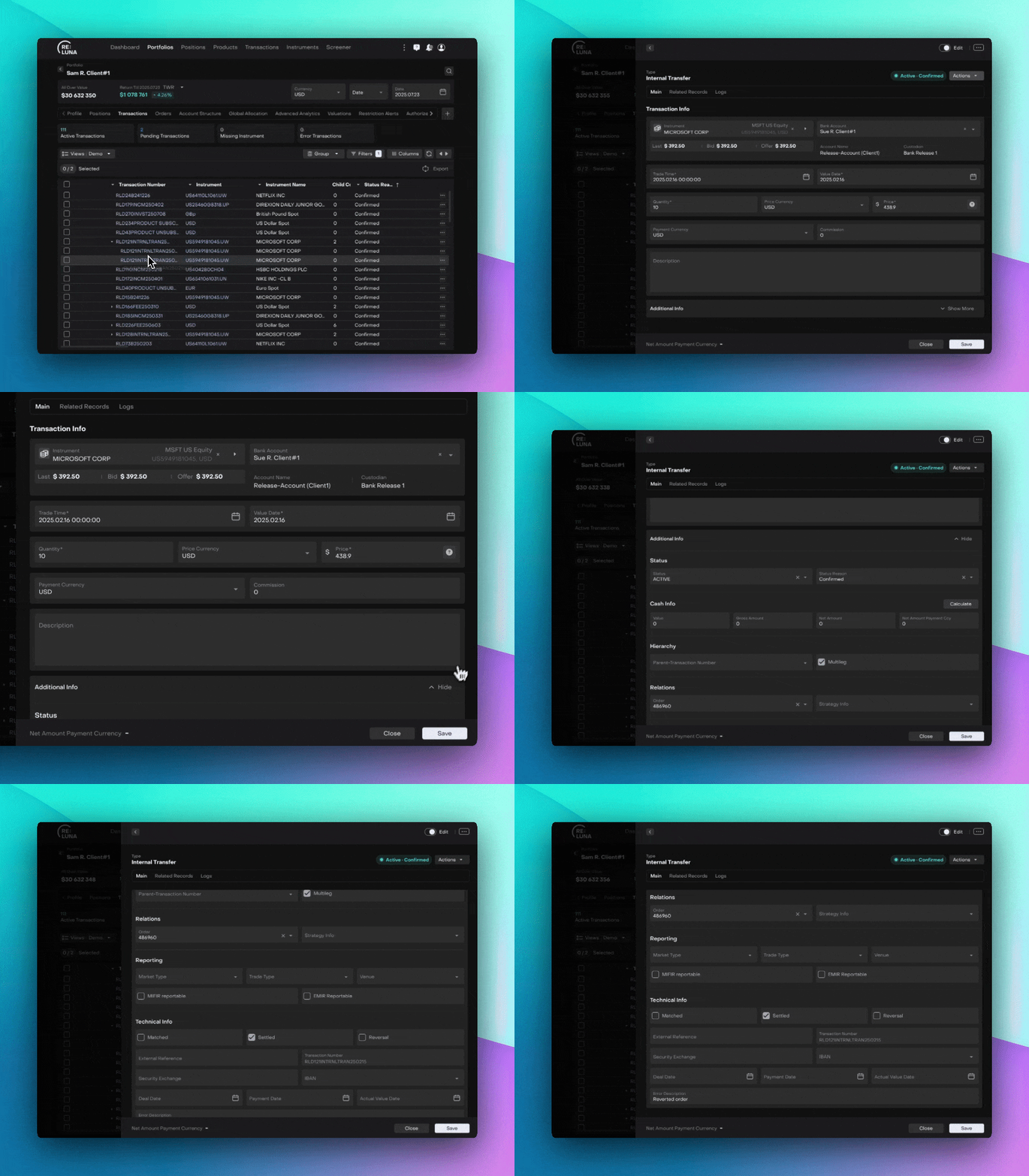
Create Transactions Manually
Introduction
This guide explains how to create transactions using the Unified Transaction Form. The form consolidates all capabilities into a single interface, making it easier to work with transactions regardless of their complexity.
Key Terminologies
Term (A–Z) | Definition |
|---|---|
Deal Date | The date the transaction was agreed or initiated. |
EMIR Reportable (Checkbox) | Marks trades reportable under EMIR regulation. |
Error Description | Field for recording any errors related to the transaction. |
External Reference | External ID associated with the transaction. |
External Search | Lookup instruments using external market data by ticker ID. |
Gross Amount | Total before deductions: |
IBAN | Bank account identifier for payment. |
Internal Search | Search within platform’s shared instrument database. |
Market Type | Choose between DMA, OTC, or EOMS. |
Matched (Checkbox) | Marks the transaction as confirmed with the counterparty. |
MIFIR Reportable (Checkbox) | Flags transactions for MIFIR reporting. |
Multileg (Checkbox) | Indicates the transaction is part of a multi-leg order. |
Net Amount | Final total after deductions: |
Net Amount Payment Currency | Net amount in selected payment currency. |
Order | Link the transaction to an existing order. |
Parent – Transaction Number | Link the transaction to a parent transaction (if any). |
Payment Date | When payment is due or expected to settle. |
Price Currency | Currency in which the asset is priced. |
Reversal (Checkbox) | Marks the transaction as an adjustment. |
Search By Ticker | Instrument search by symbol. |
Security Exchange | Exchange where the asset is traded. |
Settled (Checkbox) | Marks transaction as fully settled in cash and securities. |
Strategy Info | Links the transaction to a selected strategy. |
Trade Type | Classification of trade type (Buy/Sell/etc). |
Transaction Number | Unique Platform identifier for the transaction. |
Value | Total cost = |
Venue | Dropdown to select the trading venue (linked to Trade Type). |
Access Points
From Transactions Tab
From the top menu, click Transactions
Click the ➕ icon in the top right corner
Select the transaction type or search for it
Click Create +
From Portfolios Tab
Go to Portfolios
Select a portfolio
Navigate to the Transactions tab
Click the ➕ icon
Follow the same process as above
Unified Transaction Form
The form is organized into five sections. Required fields are marked with an asterisk (*).
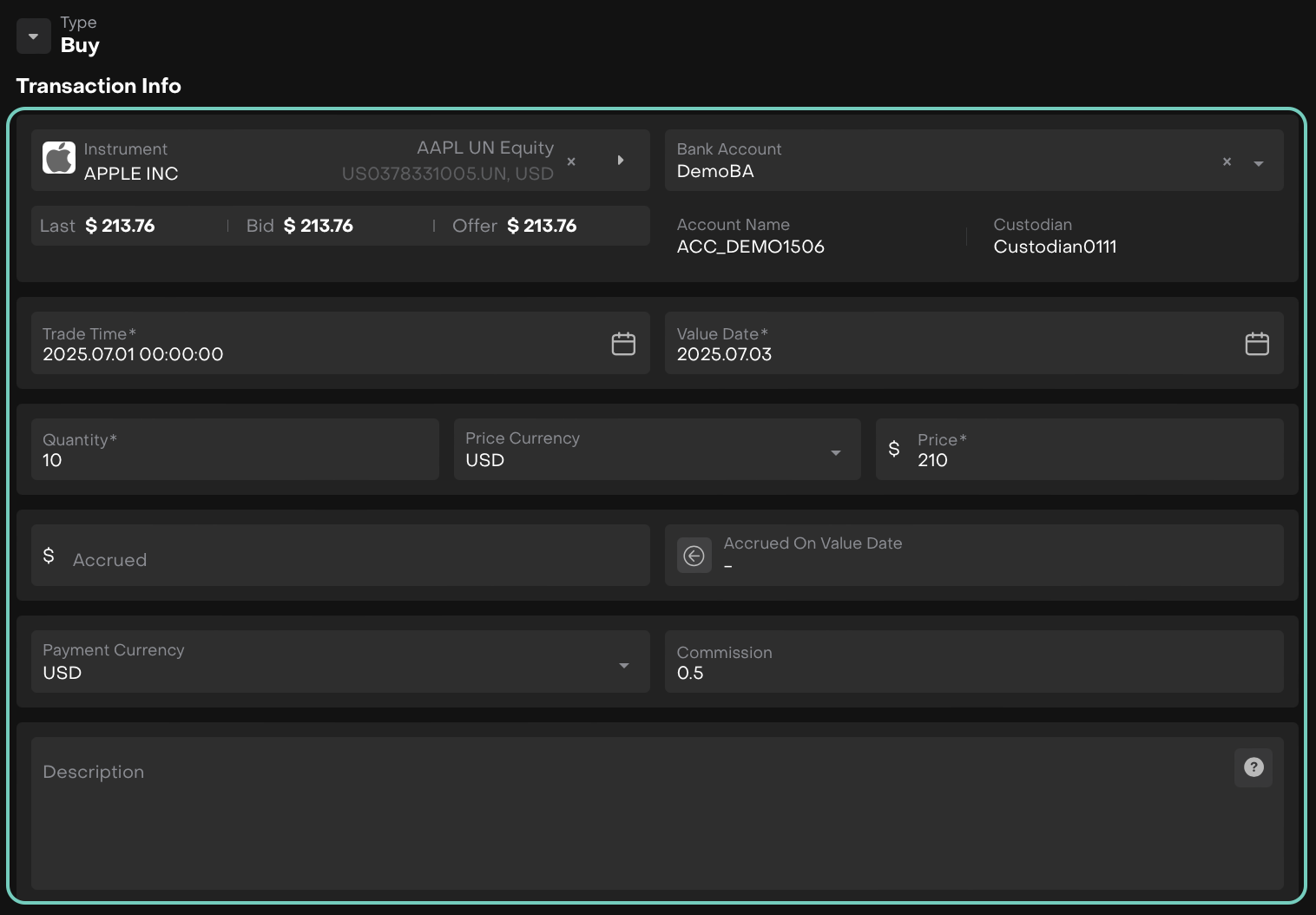
Section 1: Transaction Info
Core transaction details:
Field | Required | Description |
|---|---|---|
Instrument | Yes | Search using Internal/External/Ticker |
Bank Account | Yes | Select from dropdown list |
Trade Time | Yes | Must be current or past (no future timestamps) |
Value Date | Yes | Defaults to Trade Date + 2 working days (editable) |
Quantity | Yes | Number of units |
Price | Yes | Execution price |
Price Currency | Yes | Auto-filled from instrument (editable) |
Accrued on Value Date | No | Populated from bank account |
Payment Currency | Yes | Select from dropdown |
Commission | No | If applicable |
Description | No | Additional notes |
Section 2: Cash Info & Calculations
Click 'Calculate' to auto-compute:
Value
Gross Amount
Net Amount
Platform updates values dynamically when you change quantity, price, accrued, or commission
Net Amount Payment Currency shows the final payable value

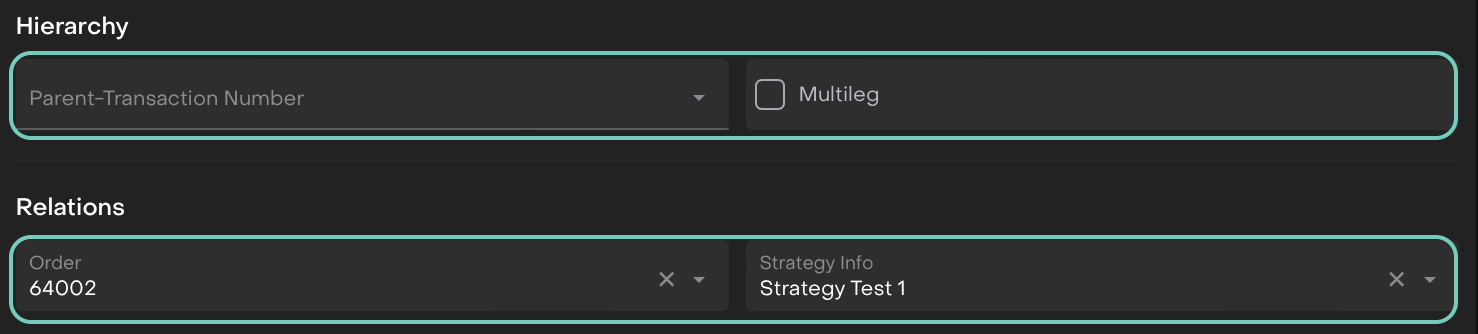
Section 3: Hierarchy & Relations
Define transaction relationships:
Field | Description | Rules |
|---|---|---|
Parent Transaction Number | Link to parent transaction | If filled, Multileg must be False |
Multileg | Part of multi-leg order | If True, leave Parent Transaction Number empty |
Order | Link to existing order | Select from dropdown |
Strategy Info | Link to strategy | Select from dropdown |

Important
Parent Transaction Number and Multileg are mutually exclusive. If one is filled, the other must be empty or False.
Section 4: Reporting
For regulatory compliance:
Tick EMIR / MiFIR Reportable as needed
Add related reporting info:
Market Type: DMA, OTC, EOMS
Trade Type
Venue

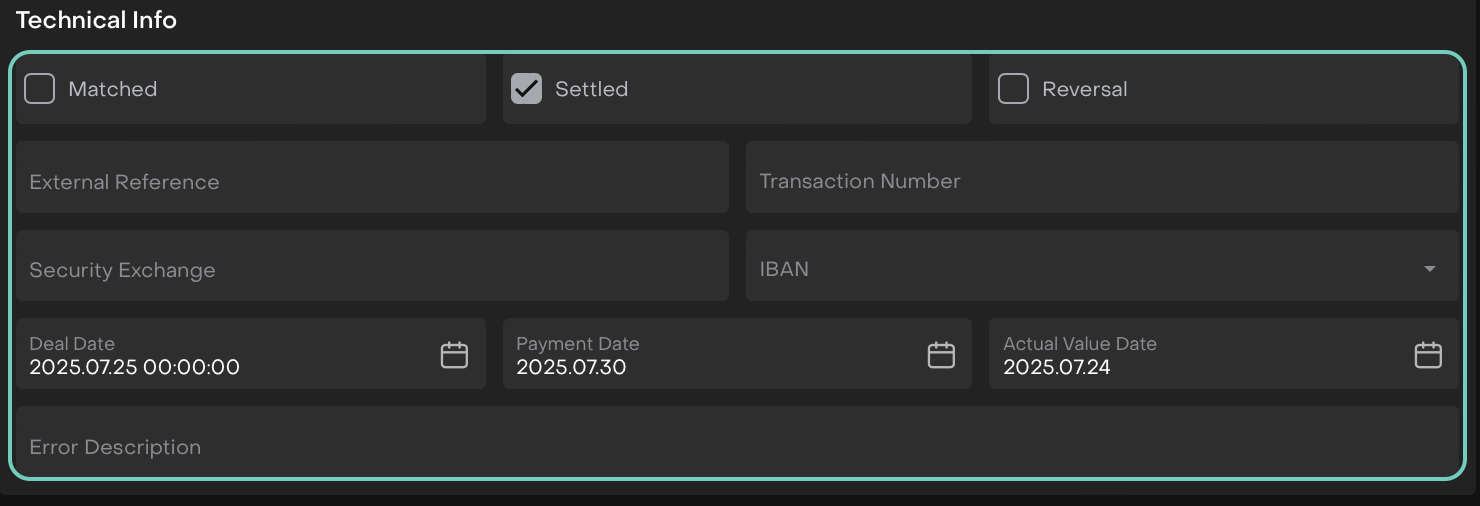
Section 5: Technical Info (Optional)
Additional metadata:
Matched: Check if transaction is reconciled
Settled: Check when transaction is settled
Reversal: Check if this reverses a previous transaction
External Reference: ID from external system
Transaction Number: Internal transaction ID
Security Exchange: Trading venue
IBAN: Bank account details
Deal Date: Trade agreement date
Payment Date: Scheduled payment date
Finalizing the Transaction
Once all required fields are filled:
Click Save to create the transaction (or Close to cancel)
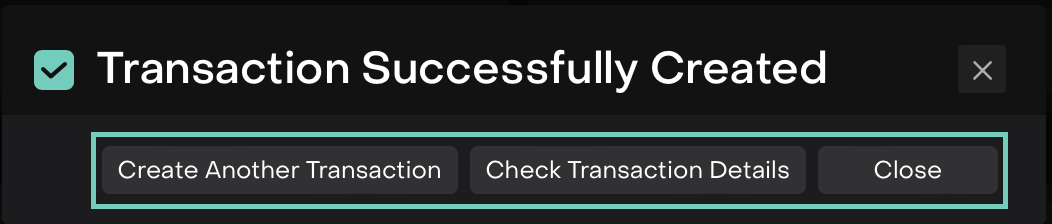
A confirmation screen appears with options:
Create Another Transaction
Check Transaction Details
Close


💡Tip
The platform automatically saves your preferences for certain fields, making it faster to create similar transactions in the future.
Let’s use a BUY transaction as an example to explain the form structure and flow.