
Master Order Creation
Introduction
Master Order Creation lets Strategy Managers and Portfolio Managers place a single buy or sell order that is automatically distributed across client portfolios and bank accounts. Instead of creating individual orders per client, you configure one master order, thePlatform calculates the allocation, you review and approve, then submit — and child orders are generated for every bank account in one action.
After submission, all orders are visible in the Executions view with a parent-child hierarchy. DMA orders receive real-time status updates automatically via WebSocket.
Permission Requirement

Master Orders- Create, View, Modify permissions required.
Contact your Administrator if you do not have access.
Process Overview
Master order creation is a single continuous screen that guides you through six steps from configuration to live monitoring.
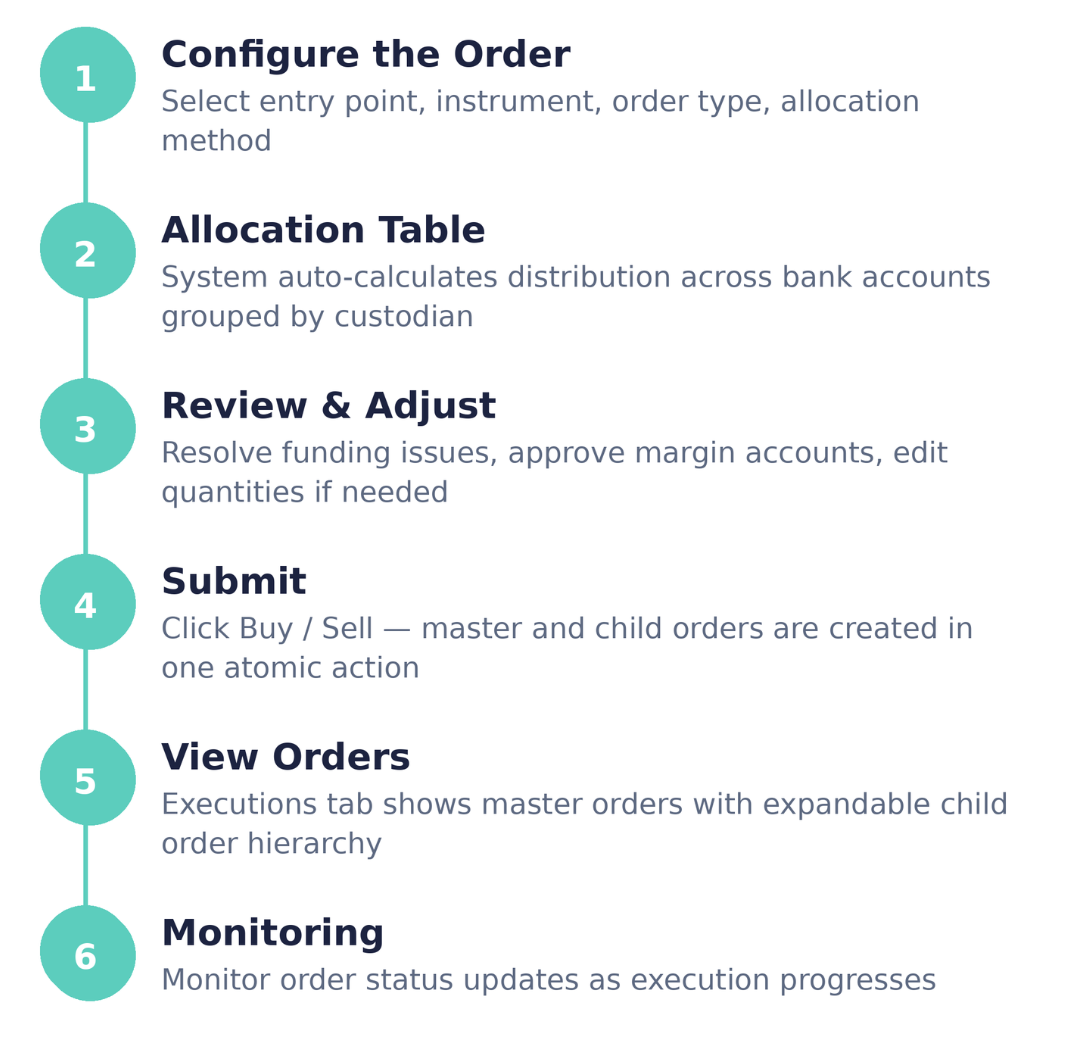
Step 1 Configure the Order
Entry Points
Master order creation can be started from three places. Each pre-loads a different set of bank accounts into the allocation table.
Entry Point | How to Access | Pre-loaded Accounts |
|---|---|---|
Portfolio Positions | Click + Create Master Order in the positions toolbar | Bank accounts belonging to this portfolio |
Strategy Execution tab | Strategy page → Execution tab → Master Orders → + Create Master Order | All client portfolios and bank accounts subscribed to the strategy |
Global Positions | Select rows with the same instrument using checkboxes → + Create Master Order | Bank accounts corresponding to the selected positions. Instrument is pre-filled. |

When using Global Positions, all selected rows must share the same instrument. Selecting rows with different instruments disables the + Create Master Order button.
General Information
The top section of the creation page captures the core order parameters.
Field | Description | Notes |
|---|---|---|
Side | Buy or Sell | Required. Determines the operation direction. |
Order Initiator | Person placing the order | Defaults to the current user. Can be changed to any manager or authorised client. |
Instrument | Instrument to trade — name, ticker, ISIN, asset class, currency | Required. Pre-filled when entering from Global Positions. |
Order Type | Market or Limit | Required. |
Price | Execution price | For Market orders, shows the current market price. For Limit orders, enter the desired limit price. |
Executive Ccy | Currency for order execution | Defaults from the instrument. Can be changed. |
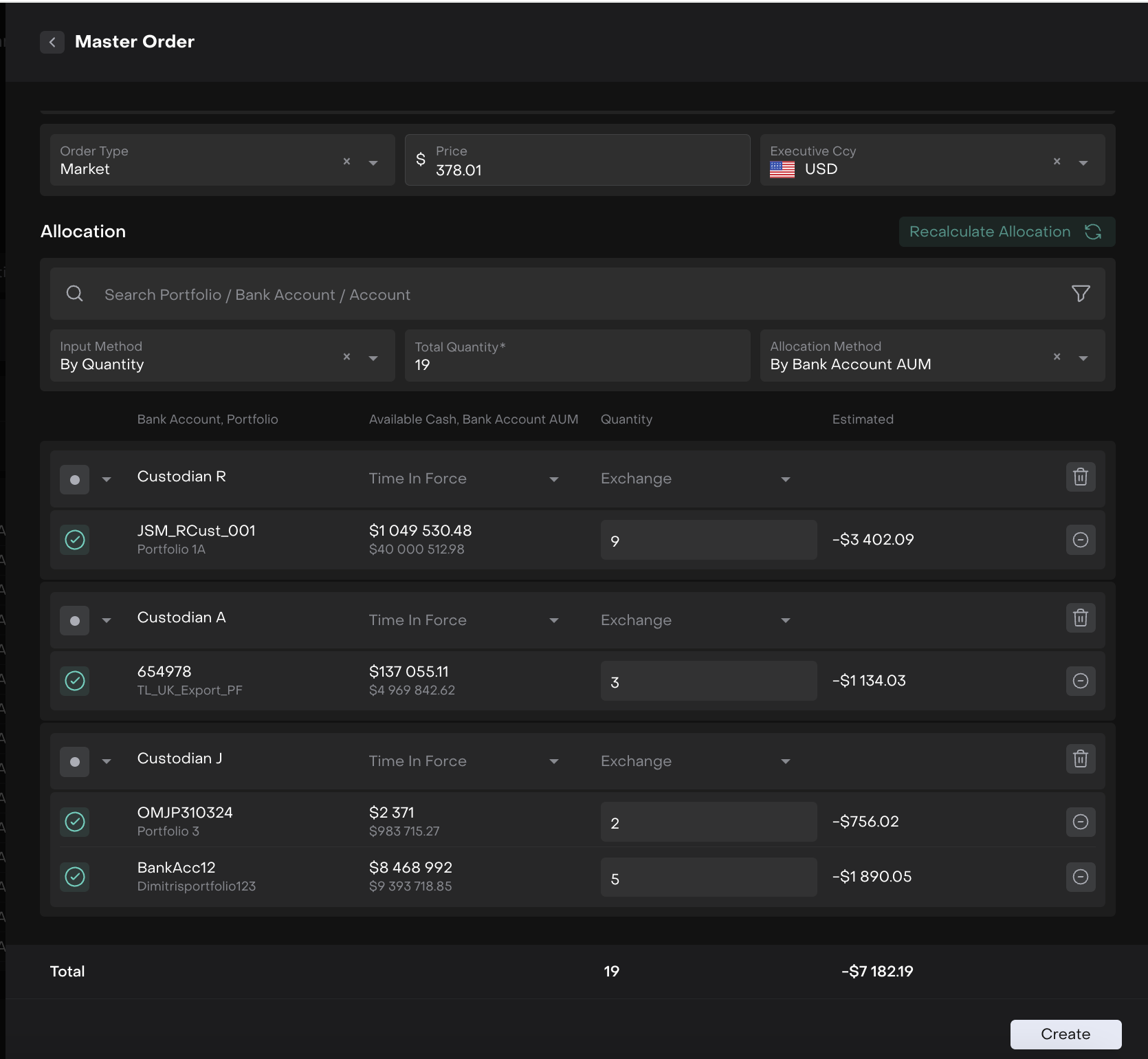
Allocation Configuration
The Allocation section controls how the quantity is distributed. A Search bar at the top lets you filter the table by Portfolio, Bank Account, or Account name.
Field | Description |
|---|---|
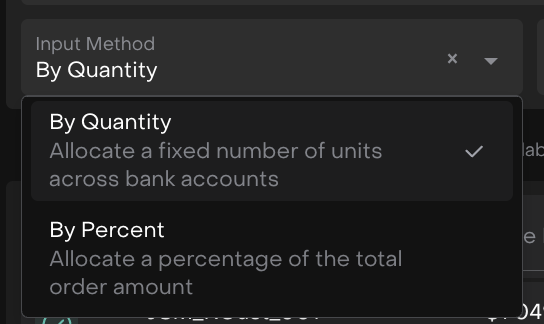
Input Method | By Quantity — allocate a fixed number of units across bank accounts |
Total Quantity / Percent | Total order size. Hidden when Allocation Method = Manual. |

Use the Recalculate Allocation button in the top-right of the Allocation section to re-distribute quantities after manually editing the table or changing parameters.
Step 2 Allocation Table
After configuring the order, the Platform populates the allocation table. Rows are grouped by custodian - each group shows the custodian's execution parameters at the header, with individual bank account rows beneath it.
Allocation Methods
Method | Formula | Notes |
|---|---|---|
By Bank Account AUM | Weight = bank account aum / total aum, qty = total qty × weight | Bank Accounts with AUM = 0 are excluded. Each included account receives a minimum of 1 unit. |
By Available Cash | Weight = bank account cash / total cash, qty = total qty × weight | Bank Accounts with zero cash are excluded. Same rounding rules apply. |

Rounding
Only whole shares are allocated - no fractional shares. After rounding, any discrepancy between the sum of allocated quantities and the entered total is resolved by adding or removing one unit from accounts with the largest fractional parts.
Table Columns
Column | Description |
|---|---|
Status | Validation status icon for this row: OK (green checkmark), or issue indicator |
Bank Account, Portfolio | Bank account ID and the linked portfolio name |
Available Cash, Bank Account AUM | Current available cash and total assets under management for this bank account |
Quantity | Number of shares allocated to this account. Editable directly in the table. |
Estimated | Estimated value of the allocation at current price (shown as negative for sell orders) |
Delete | Removes this bank account from the allocation |
A Total row at the bottom aggregates Quantity and Estimated Amount across all accounts.
The Create button appears in the bottom-right corner once the allocation is ready to submit.
Custodian Parameters
Each custodian group header shows execution parameters that apply to all accounts under that custodian. These are configured per custodian and inherited by each child order:
Parameter | Options |
|---|---|
Execution Type | DMA (Direct Market Access) or OTC (Over the Counter) |
Time in Force | e.g. Day, GTC (required only for particular Custodians) |
Exchange | Target exchange for DMA orders (required only for particular Custodians) |
If a custodian does not support DMA, a warning is shown on the custodian group header. DMA will not be available for that group — OTC must be used instead.
Step 3 Review & Adjust
After the table is populated, each bank account is validated against its available cash and client mandate.
Validation Summary
A three-tier summary bar above the table shows the count of accounts in each state. Click any tab to filter the table to that category only.
Condition | Action Required |
|---|---|
Est. Amount ≤ Available Cash, or margin has been approved | None |
Est. Amount > Available Cash and margin trading is allowed by this client's mandate - but not yet approved | Approve margin individually or use Approve All Margin |
Est. Amount > Available Cash and margin trading is not allowed by this client's mandate | Reduce allocated quantity or delete the account from the allocation |
Submit is blocked
The Buy / Sell button remains disabled as long as any account has unresolved Issues
Step 4 Submit
Once all accounts are verified or margin-approved, the Create button in the bottom-right corner becomes active.
Click Create.
The Platform runs a final validation check.
The Platform creates the master order and one child order per bank account.
Master order and all child orders receive READY status.
You are navigated automatically to the Executions view for the new order.
Submission is irreversible
Once submitted, the order can only be modified or cancelled through the Master Order Management screen. Navigating away before submitting discards all configuration — there is no draft saving.
Order creation is all-or-nothing. Either the master order and all child orders are created successfully, or none are created.
Step 5 View Orders in the Executions Tab
After submission you are navigated automatically to the relevant Executions view based on where you started:
Entry Point | Post-Submission Destination |
|---|---|
Strategy Execution tab | Strategy → Execution → Master Orders |
Portfolio Positions | Portfolio → Orders |
Global Positions | Global Orders view |
The same master order is visible in all three views — it is one order displayed in different scopes.
Order List (Master Order Row)
Each master order appears as a collapsed row showing aggregated data:
Column | Description |
|---|---|
Order ID | Unique identifier (e.g., 0143) |
Status | Derived from child statuses — color-coded (see Status Reference below) |
Client | Aggregated count, e.g. "5 clients" |
Portfolio | Aggregated count, e.g. "5 portfolios" |
Instrument | Instrument name — click to open instrument details |
Side | Buy / Sell |
Type | Market / Limit |
Price | Limit price if applicable |
Quantity | Total allocated quantity |
Filled | Total filled quantity across all child orders |
Remaining | Total remaining quantity |
Child Orders (Expanded View)
Click the expand arrow ► on any master order row to see individual child orders.
Each child row shows the client name, portfolio, individual Qty, Filled, Remaining, and Status. All children share the same Instrument and Side as the master order.
💡Use the Filters button to switch between Active orders (READY, IN PROGRESS, EXECUTION, PARTIALLY FILLED) and Completed orders (FILLED, EXPIRED, CANCELLED, DONE).
Step 6 Monitoring of Orders
Monitor statuses of your orders.
Status Reference
Status | Meaning | Actions Available |
|---|---|---|
READY | Order created, awaiting execution | Modify, Cancel |
IN PROGRESS | OTC order sent to broker | Modify, Cancel |
EXECUTION | DMA order active on exchange | Modify, Cancel |
PARTIALLY FILLED | Some quantity filled | Modify, Cancel |
FILLED | Fully executed | None |
EXPIRED | Order expired before full fill | None |
CANCELLED | Manually cancelled | None |
DONE | Terminal — all lifecycle actions complete (including matching with the bank data) | None |