
Log In to Reluna Client App (iOS)
Introduction
Welcome to the Reluna Client App! This guide walks you through everything you need to get started — from understanding what the app is, required permissions or logging in for the first time.
Whether you're a new client or switching to mobile from desktop, this guide will ensure a smooth experience for you.
Before You Begin: What You Need
Make sure you have the following ready:
✅ Your workspace name (same as your web login)
✅ Your registered email address
✅ Your password
📱 Already downloaded the App? Jump to the Login Instructions.
If not, get started here:
Step-by-Step Login Instructions
Open the Reluna Client App > Click on Get Started
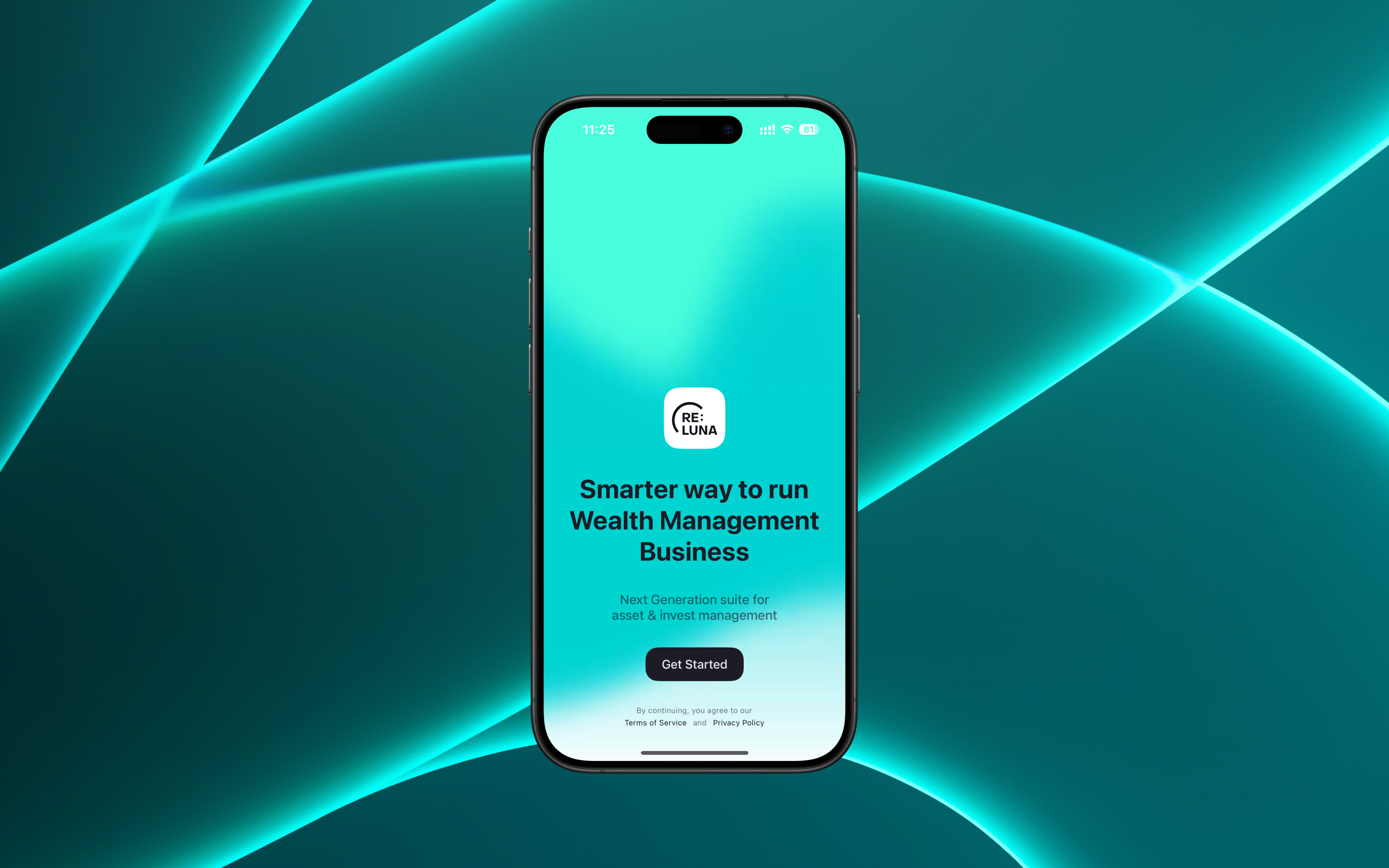
Enter Your Workspace Name
You’ll be prompted to enter your workspace — this is the subdomain you use on the web.

What Is a Workspace? Every Reluna user logs into a workspace — this is your secure, firm-specific environment.
For example:
Web login:
https://demo.reluna.com
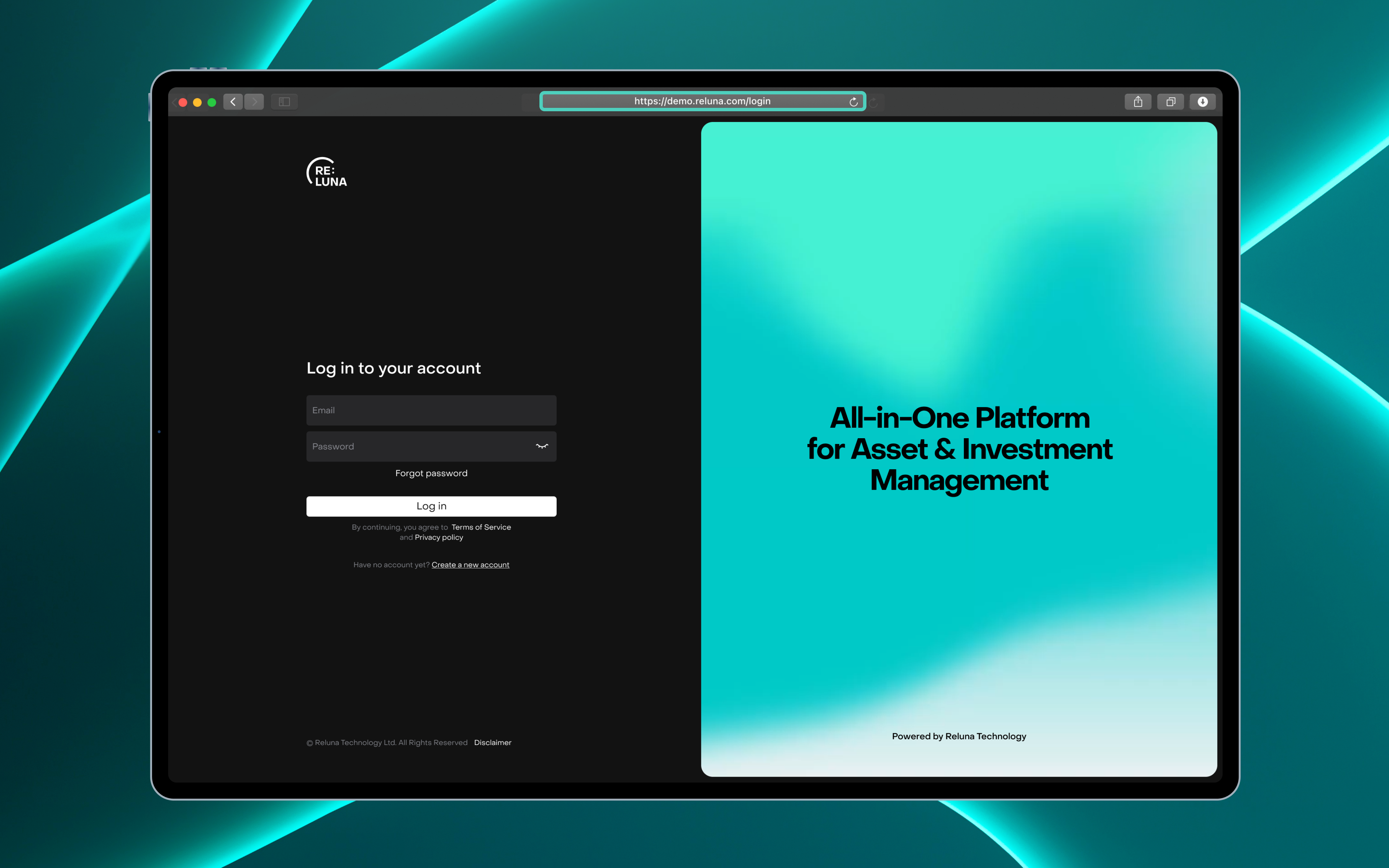
Mobile workspace entry:
demo.reluna.com
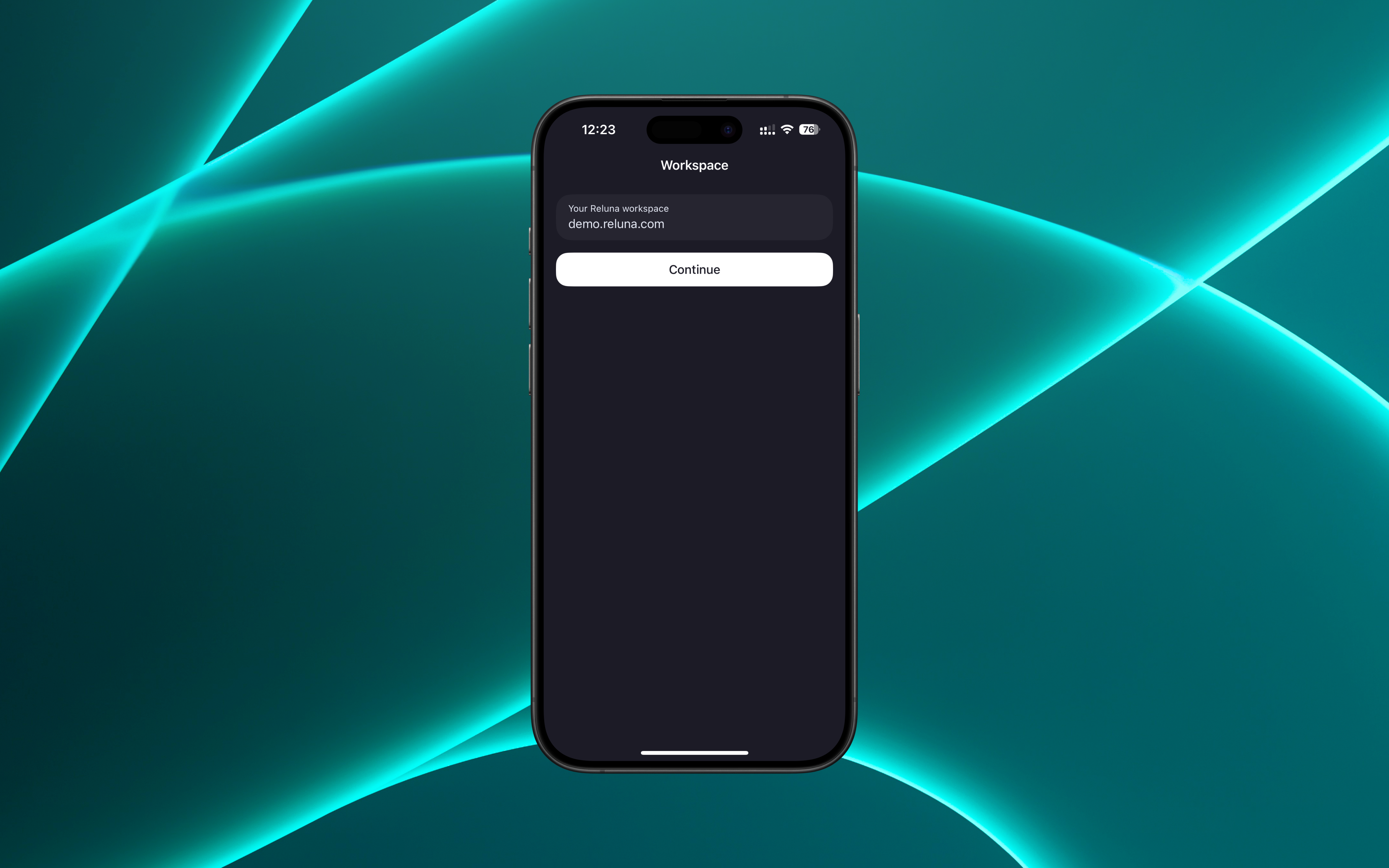
💡Just enter the subdomain part — no https://
Enter Your Login Credentials
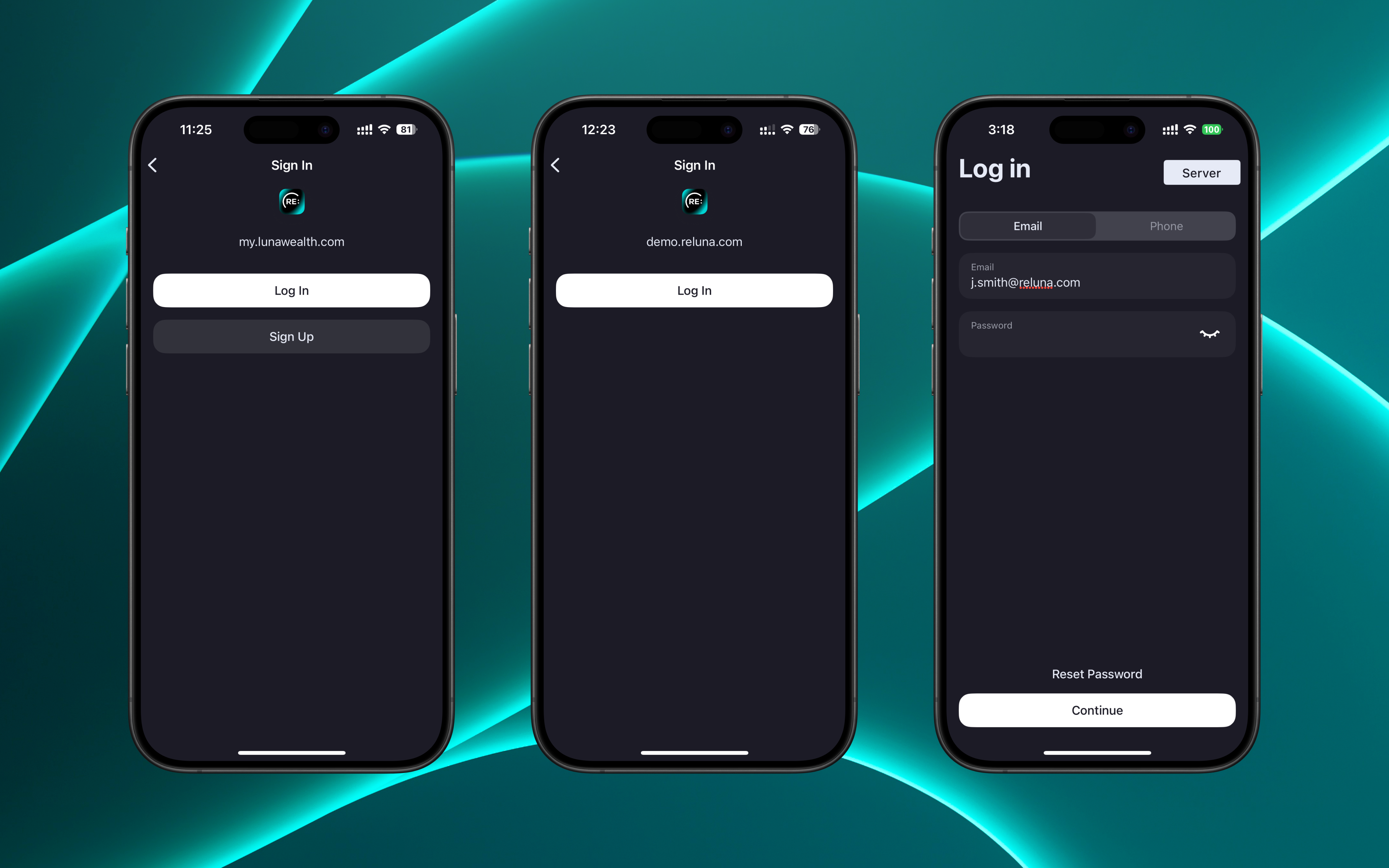
Once your workspace is verified, you’ll be taken to the login screen.
Click Log In
Enter your email or phone number
Enter your password
Click Continue
✔️ Use the same credentials you use to log in via the Reluna web platform.
Or,
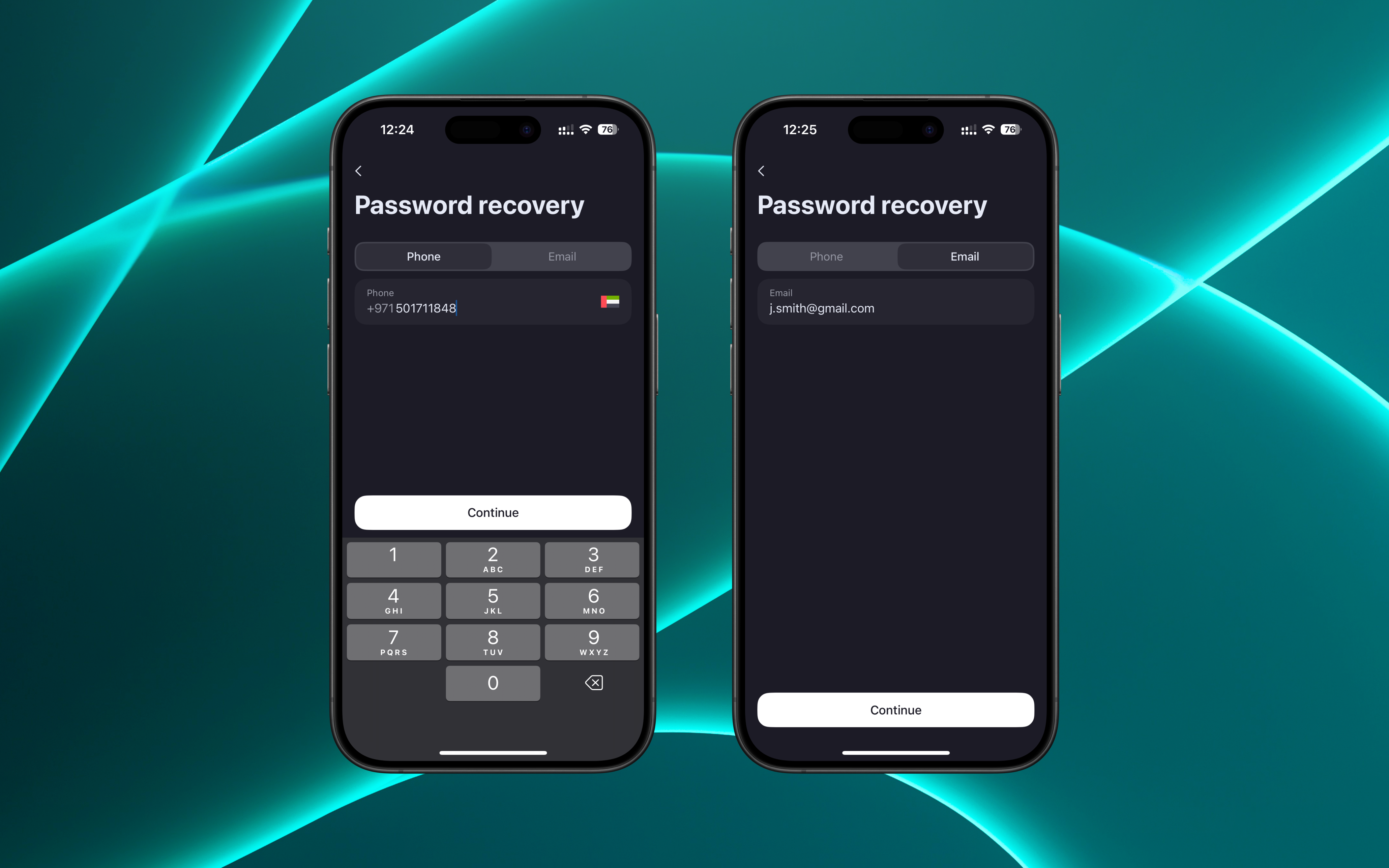
Forgot your password?
You can reset it using your registered email or phone number by clicking Reset Password
Enable Face ID or PIN code (4-Digit)
If your device supports face login, the app will prompt you to enable it for easier future access
Or,
Set and confirm the pin-code of 4-Digit number to continue.
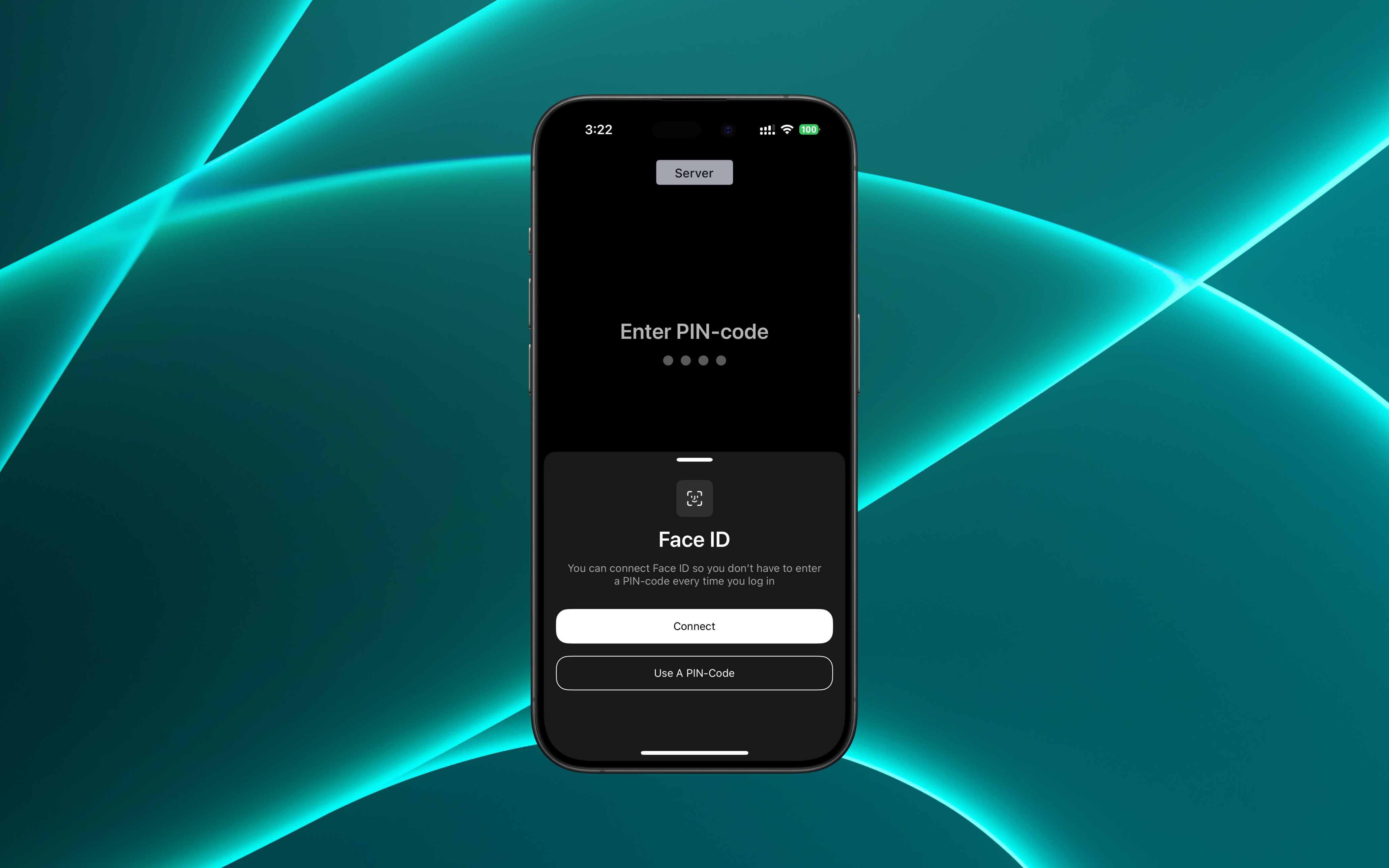
You can skip this and turn it on later via App settings.
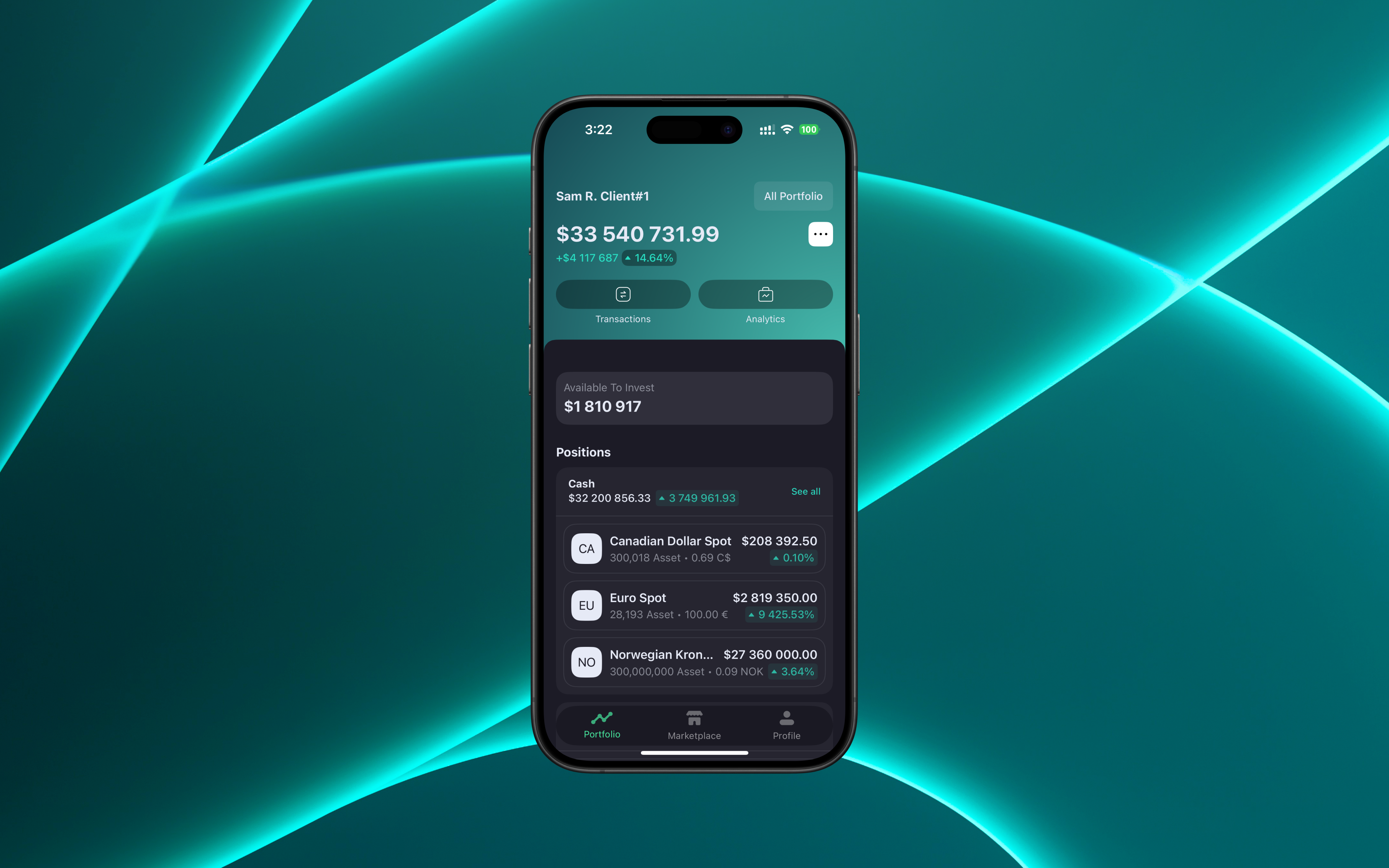
You’re In!
You’ll land on your dashboard, where you can:
View your portfolio
See performance charts
Access detailed analytics
Check recent transactions
Message your manager — and more!
FAQs & Troubleshooting
Q1: After I log out of the mobile app, why are my email and password not pre-filled even though I use Face ID / PIN code?
A: This is expected behavior. The Logout function performs a full sign-out for security reasons or when switching to another account. After a full logout, you must manually enter your email and password, even if Face ID or a PIN code is enabled.
If you simply close and reopen the app without logging out, you can log in using Face ID or your PIN code without manually entering credentials.
Q2: I forgot my workspace name. What should I do?
A: Contact your advisor or manager to retrieve your workspace details.
Q3: I forgot my password. How can I reset it?
A: Tap “Forgot password?” on the login screen and follow the instructions to reset your password.
Q4: I can’t log in. What should I check?
A:
Ensure you have an active internet connection.
Verify that your app is updated to the latest version.

Contact Reluna Support for assistance.
Thank you for choosing Reluna. We’re committed to helping you manage your wealth effortlessly!
