
Configure Value Date Rules
AVAILABLE IN:
Introduction
A new tab Value Date Rules is introduced to the System Settings page of the platform. This panel displays a list of current rules and provides options to add, edit, or delete rules, streamlining the process of assigning value dates to trade orders.
This panel enables sufficient permissions to manage settlement date rules for different combinations of Instrument fields. Settlement dates are calculated based on the trade date and vary by exchange, asset type and so on, with typical Rules like T+1 (Trade date + 1 business day), T+2 (Trade date + 2 business days), etc.
Permission Requirement
Permission | Description |
|---|---|
View | User has access to the settings tab, can see the list of existing rules. |
Modify | View + User can input new rules, modify and delete existing rules. |
Where is Value Date Rules tab on Platform?
Click on Profile > Go to System Settings.
Then, click on Value Date Rules tab.

How to Create Rule(s)
Click on icon
 on the right corner of Value Date Rules tab.
The following window opens, fill in the required fields:
Name of Rule
Enter Number of Days [Trade Date + No. of Business Day(s)]
Description for Rule

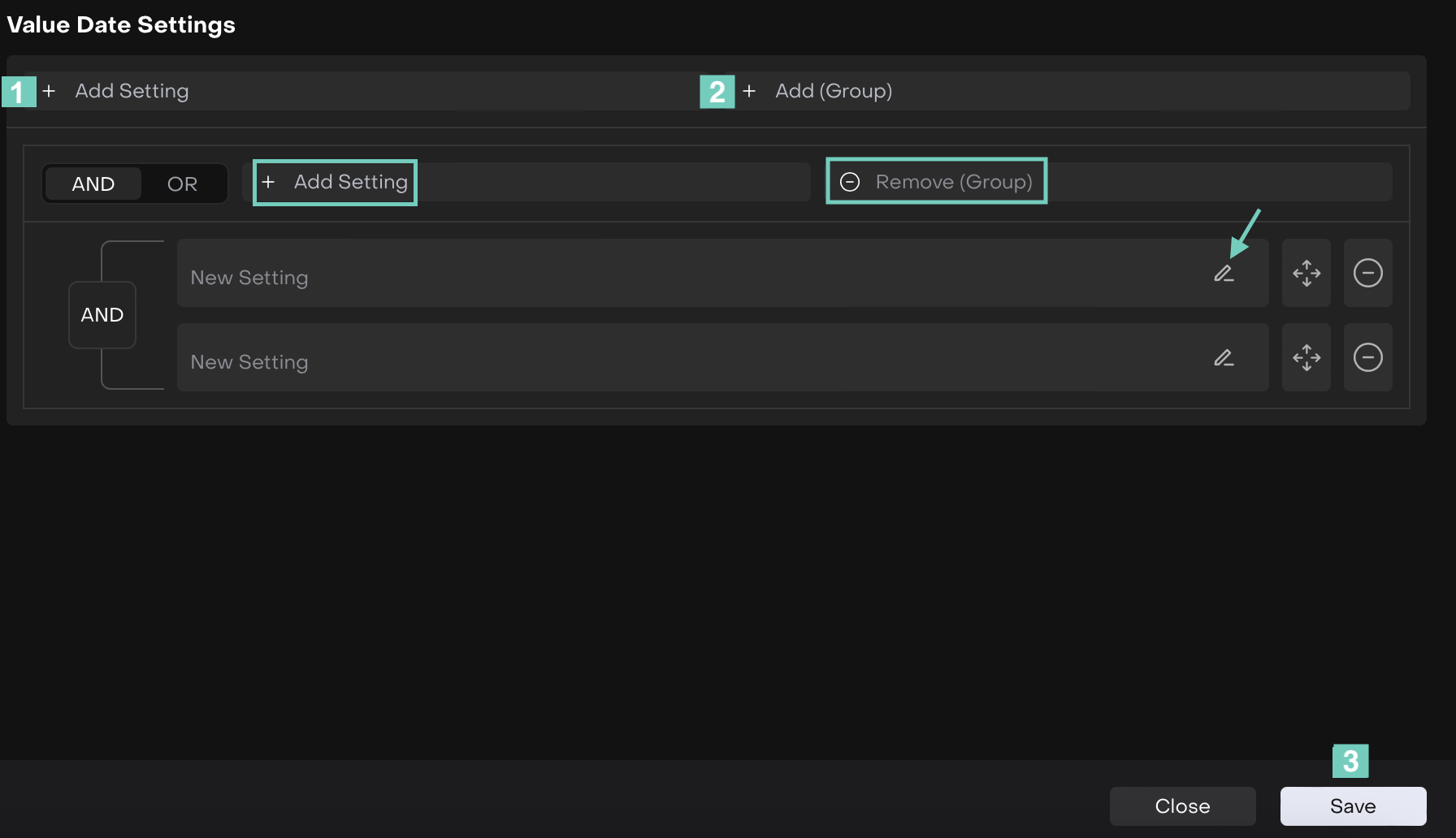
To set Value Date Settings > Click on Add Setting to add New Setting(s) section.
You can Edit the section added by clicking on pencil icon.Criteria pattern with AND/OR operators, where criteria is set as:
Select from System Fields(*) drop-down list.
Select Criteria Operator(*).
Enter Value(*), corresponding to selected field value input.
Click on Remove (Group) to remove the group section.
Then, click on Save or Close to go back.
The Value Date Rule(s) is created under the same Settings tab.
Users with View/Modify Permissions Can
Go to System Settings > Value Date Rules tab.
The platform displays a list of all existing settlement date rules.
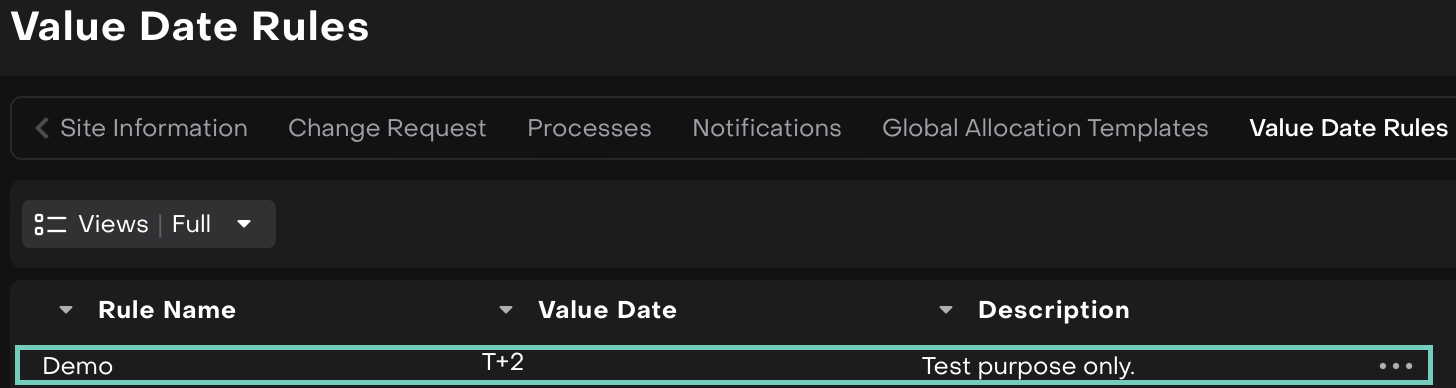
The user can use icon “Filters” or Search by Rule Name, Value Date or Description.

Order Execution
On Order Execution form, if all the conditions of the Rule(s) match, then the Value Date is pre-filled in accordance with the Rule created but the ability to adjust it remains.
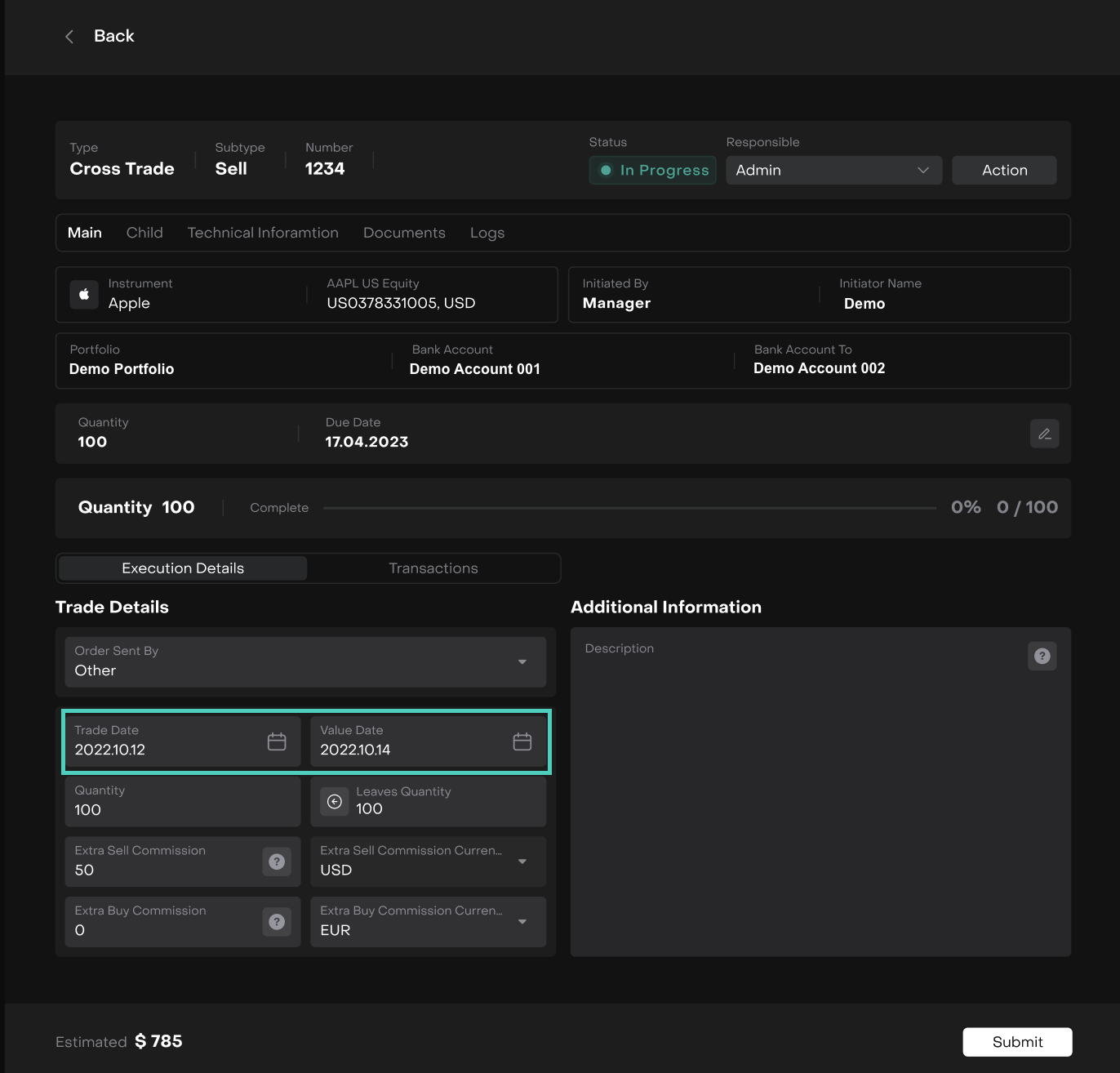

Here, the settlement dates are calculated based on the Trade Date and can vary by change of Rule(s).