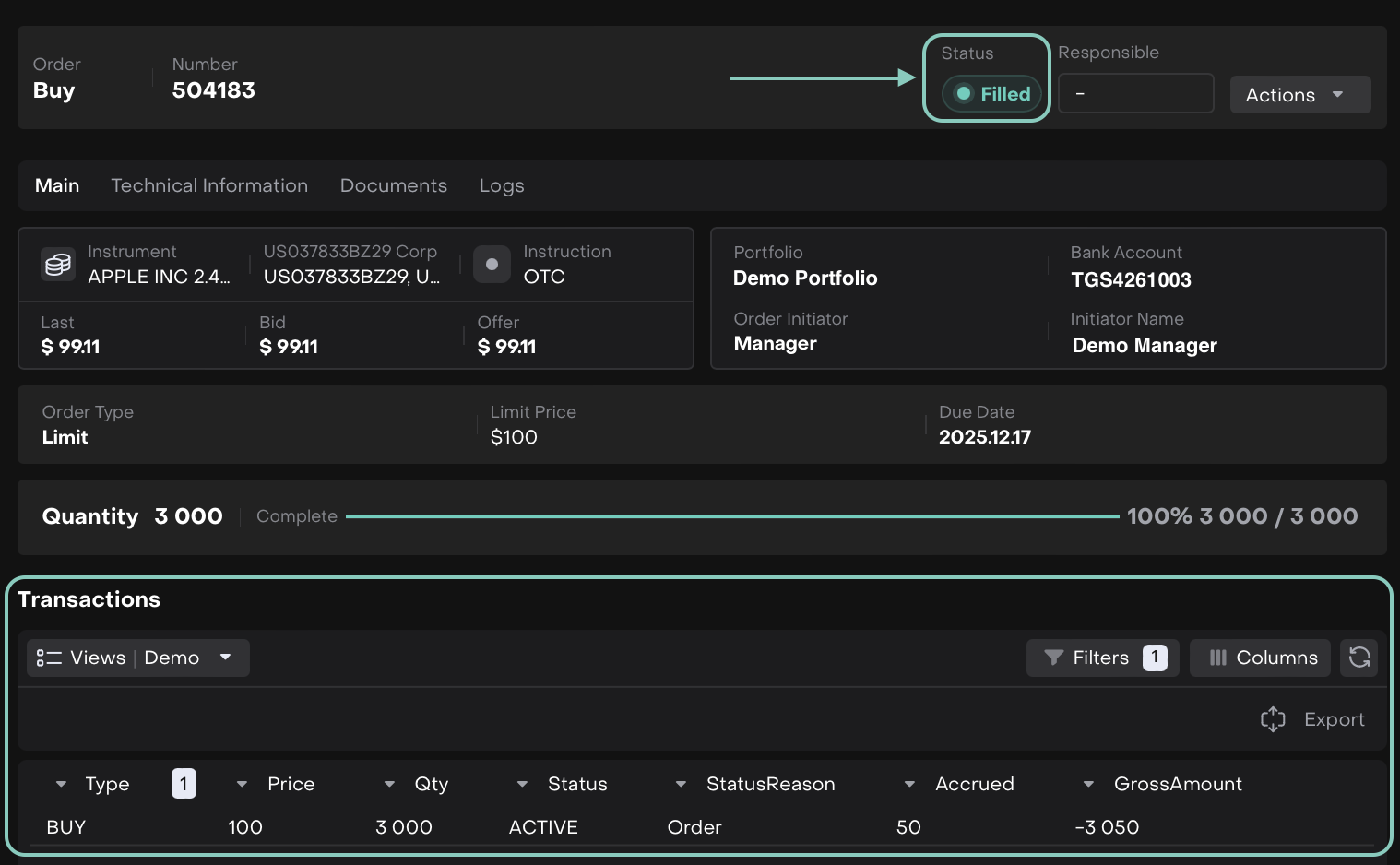
Autofill & Auto-Execution Process for Limit Orders
Introduction
The platform supports Autofill and Auto-Execution process for Limit Orders under the OTC trading type. This process reduces manual steps during order execution by automatically filling key fields and instantly executing the order once it is created.
This feature is powered by Custom Processes, which are an integral part of the platform’s automation framework. When configured, the process detects qualifying orders and executes them automatically, saving time and ensuring a smooth workflow.
Find the Custom Process
Navigate to System Settings on the platform.
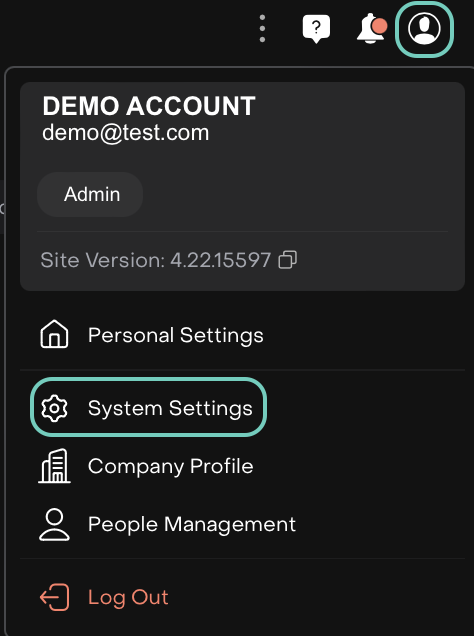
Go to the Processes tab and locate the existing process configured.


The Autofill and Auto-Execution flow for Limit and OTC orders is already set up on the platform as a Custom Process, but it’s turned Off by default.
Use the toggle button to switch the process status:
Deactivate > Active to enable the Autofill limit orders process.
Active > Deactivate to temporarily disable it.

Activating the process ensures the Autofill and Auto-Execution workflow is applied according to the configured criteria.
🔗 Learn here on how to Create/Manage Processes.
Open the process to update its Details or adjust the Trigger Process.
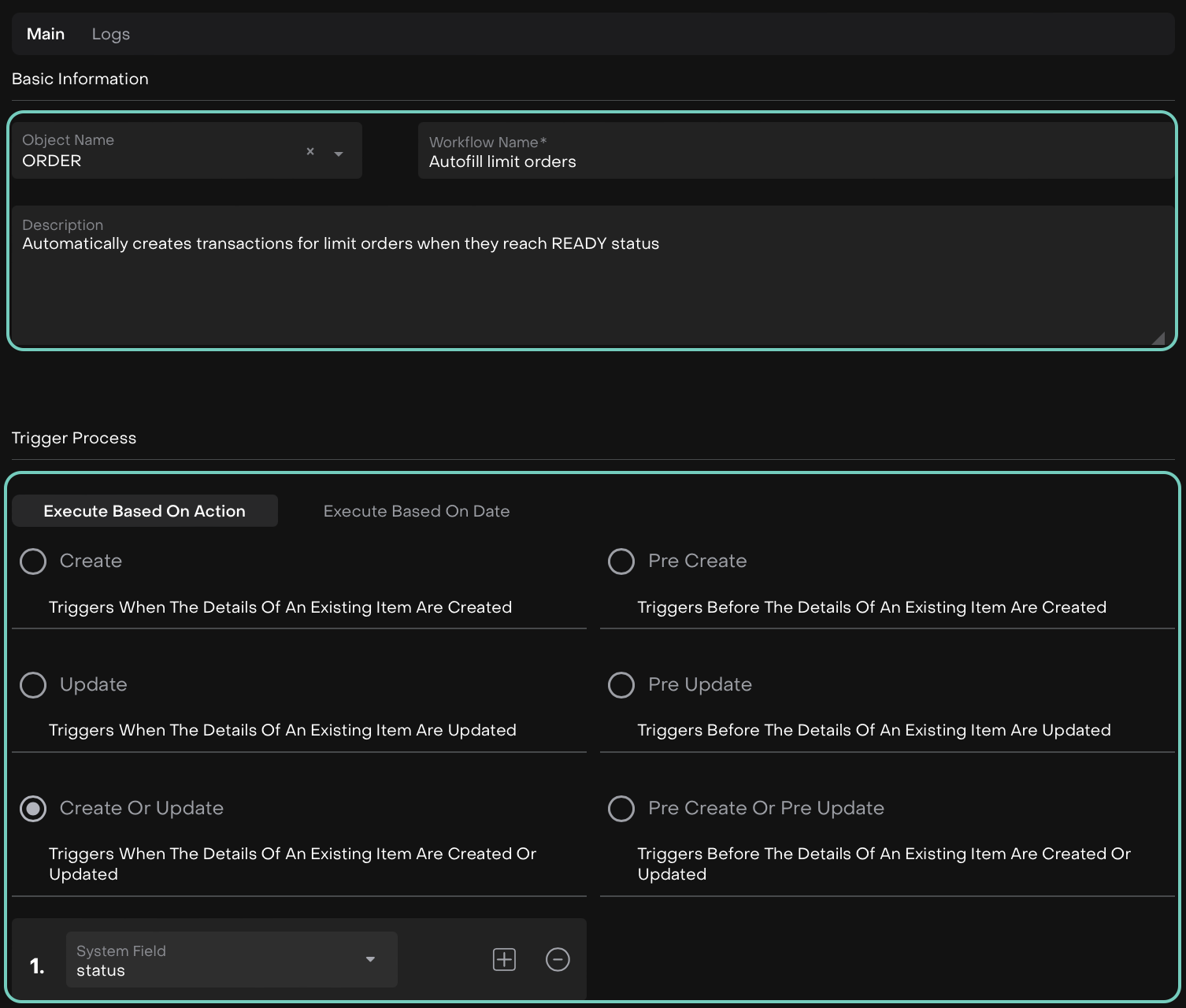

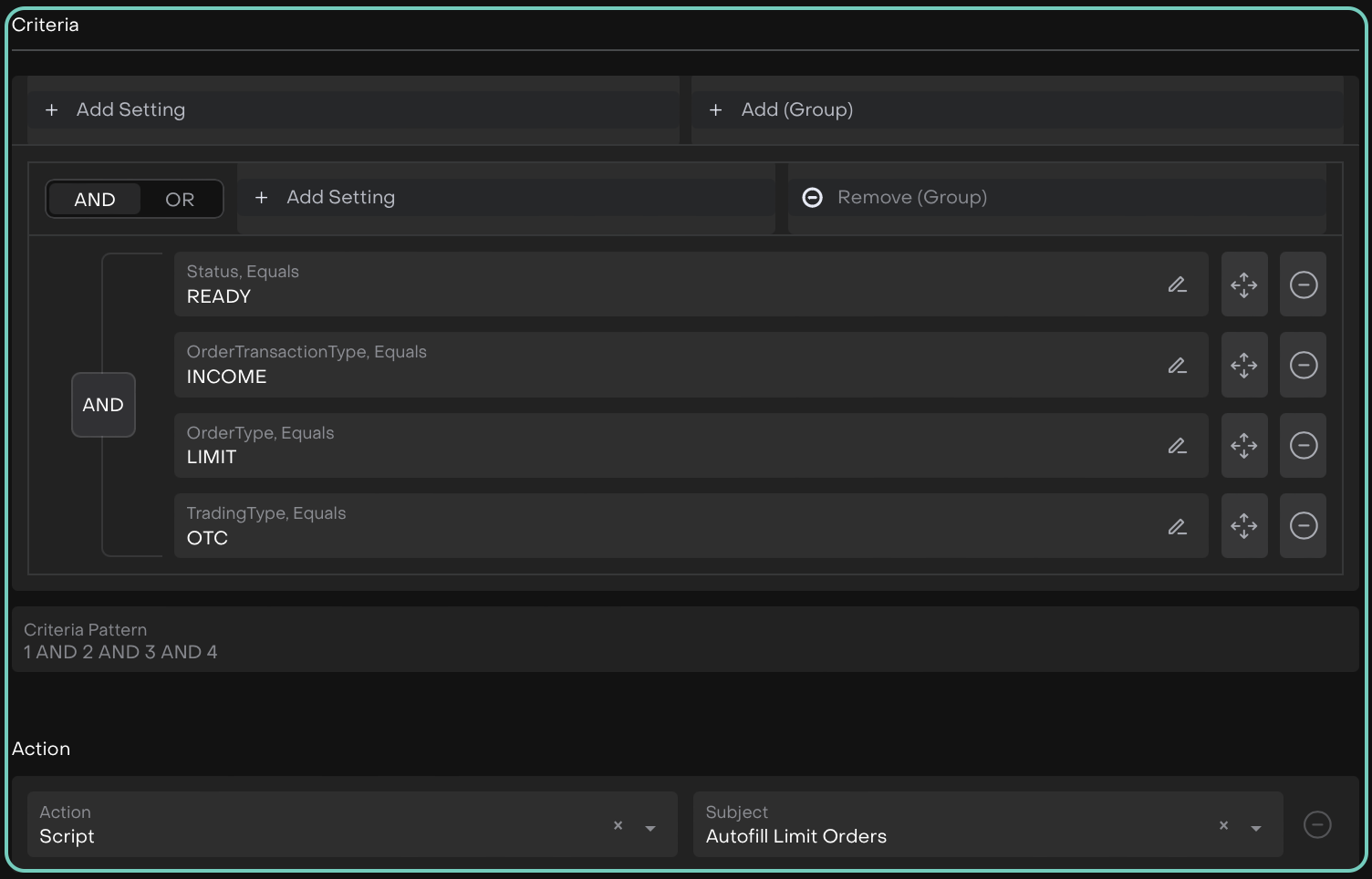
It is recommended to keep the Trigger Process as is. You can update the Criteria(s), for example, if you want it to run only for specific orders, such as Income.
Define the Criteria(s) or Actions as required and click Save.
How Autofill & Auto-Execution Order Process Works
When your process is active, you can create orders that will auto-execute.
Navigate to Transactions (Or Portfolios) on Dashboard.
Find Orders tab > Click on + icon.

An order form opens, fill in the required fields(*).
For Buy/Sell types, enable Advanced mode to fill in additional fields or options.
To ensure the Autofill Process works, make sure the order meets the required criteria:
Order Type: Limit
Trading Type: OTC
For example, only BUY / SELL / FX orders have an Order Type field. All other orders are considered OTC by default.
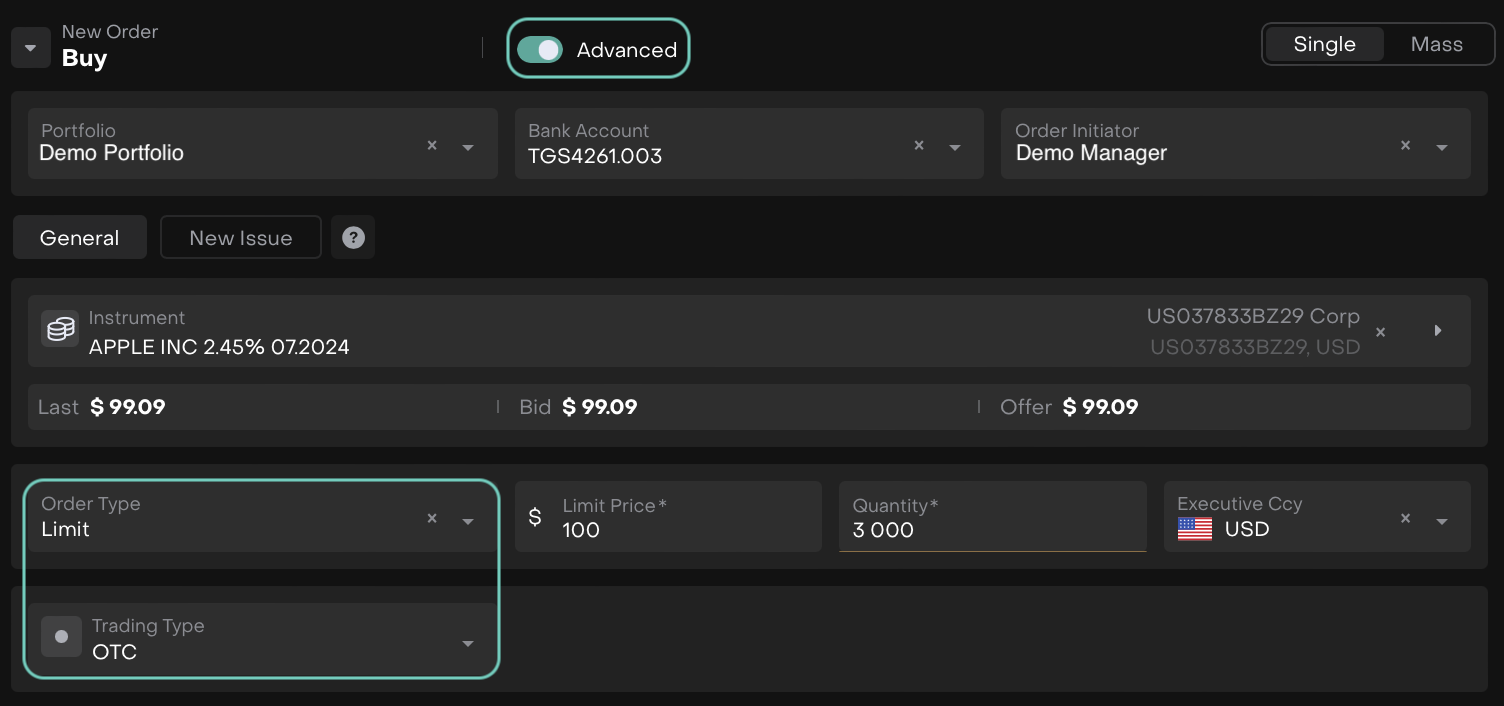
In the Additional Information section of the form, find the Autosubmit Order Details panel.
This section includes the following fields that influence the auto-execution:
Trade Date – Select the date the order is executed.
Value Date – Select the date when the cash or securities will be settled.
Commission – Enter the fee charged.
Accrued – Enter accumulated income or charges related to the order.
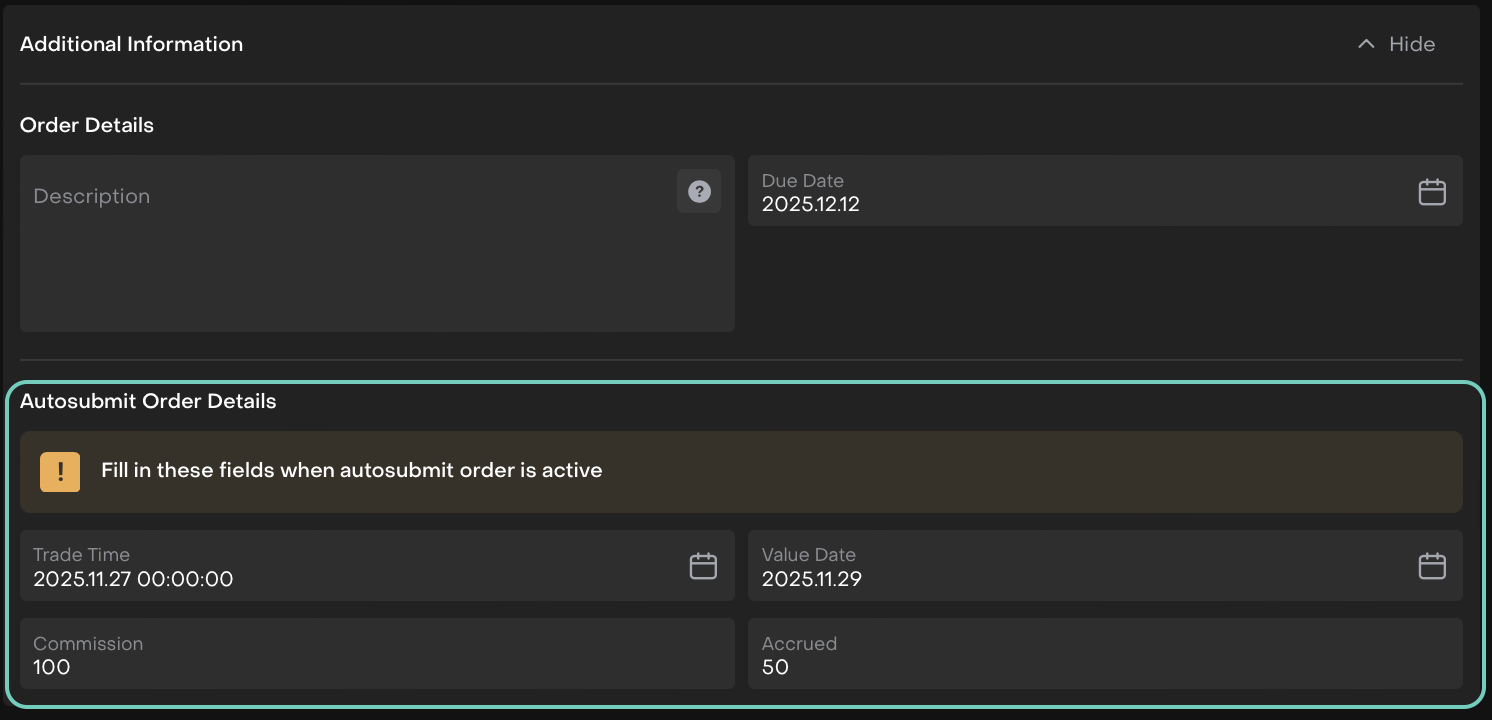
These fields are available on both Omnibus or Standard order forms.
Then, click Buy in this case and reconfirm by clicking on Create or to discard click Close.
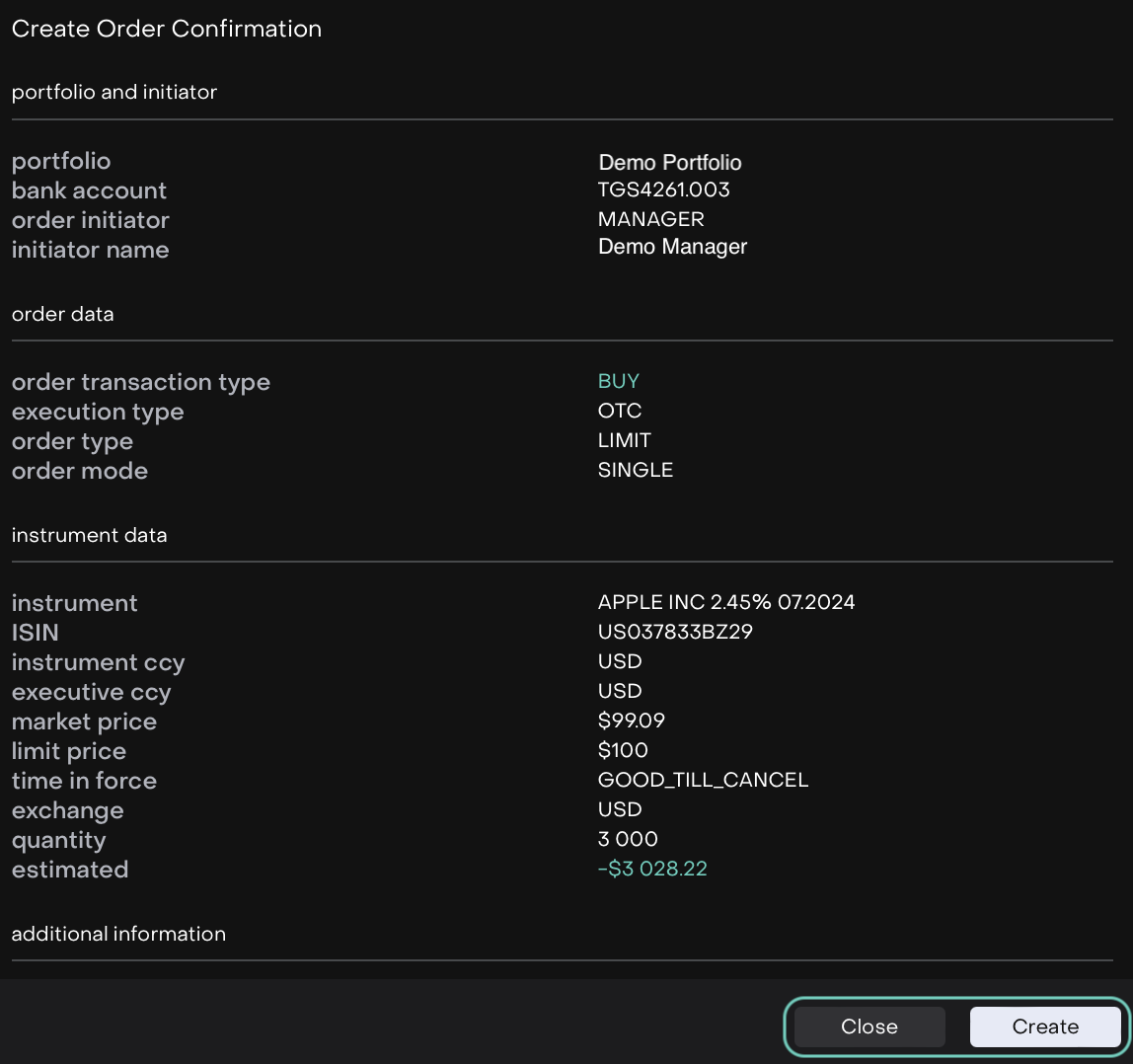
The order will qualify for auto-execution once the order is created.

For example: This combination (Limit + OTC) is what triggers the Autofill and Auto-Execution process.
What Happens After You Submit
It skips the Ready and In Progress statuses and moves directly to Filled.
The Transactions Status becomes Active & Status Reason = Order.