
Calculate Fees
Introduction
The platform allows you to calculate management fees efficiently using flexible configuration options. Fees can be generated for entire portfolios or for individual strategies, depending on your operational needs. This guide explains the available calculation modes, required fields and the actions you can take after a fee is calculated.
Key Terminologies
Term (A-Z) | Definition |
|---|---|
Calculate | An action that initiates fee processing based on the selected parameters. |
Mandate | Configuration attached to a portfolio that defines fee rates used for Off Product calculations. |
Off Product | The entire portfolio considered as a whole, including all assets, whether linked to a Product or not. Fees are calculated using the Mandate. |
Product | A strategy-based segment of a portfolio. Fees calculated by Product are linked to individual strategies, with rates defined at the strategy level. |
Strategy | An investment strategy is a defined approach focused on a particular sector or asset class, with predetermined allocations made upon subscription. |
👉 New to some terms? Check our full Platform Glossary for quick definitions.
Fee Formulas
Formula:
Management Fee = SUM: (% / 365 * S)
Component | Meaning |
|---|---|
S | Average value of the Portfolio during the Accounting Period. |
% | Annualized Management Fee rate (percentage). |

This is applied individually for each component (Product or Non-Product) based on its corresponding rate source.
Formula:
Success Fee = (Sj – Smax – MF – Inflow + Outflow) * %
Component | Meaning |
|---|---|
Sj | Portfolio value at the end of the current Accounting Period, expressed in Portfolio Currency (PF CCY). This is the net value after considering market movements, inflows, outflows and fees. |
Smax | Portfolio value at the end of the Accounting Period when the Success Fee was last charged. If none, initial assets value. |
MF | Management Fee charged for the current Accounting Period. |
Inflow | Total value of assets contributed or added to the portfolio between the last Success Fee date (Smax) and the end of the current period. Types of transactions included/excluded: Inflow is calculated as the sum of net amount (Net Amount PF Ccy) from transactions with the following types and subtypes:
|
Outflow | Total value of assets withdrawn from the portfolio between the last Success Fee date (Smax) and the end of the current period. Types of transactions included/excluded: Outflow is calculated as the sum of net amount (Net Amount PF Ccy) from transactions with the following types and subtypes:
|
% | Success Fee rate (percentage applied to net gains above the High Water Mark). |

This formula ensures the Success Fee is only applied to actual performance gains after deducting fees and client movements (like deposits and withdrawals)
How to Calculate Fees
Go to Transactions > Fees Tab and click on Calculate button.

A pop-up Calculate window opens, fill in the parameters as shown below.
The platform supports both manual and automatic calculations and you can choose between two calculation modes:
Off Product (Entire Portfolio)
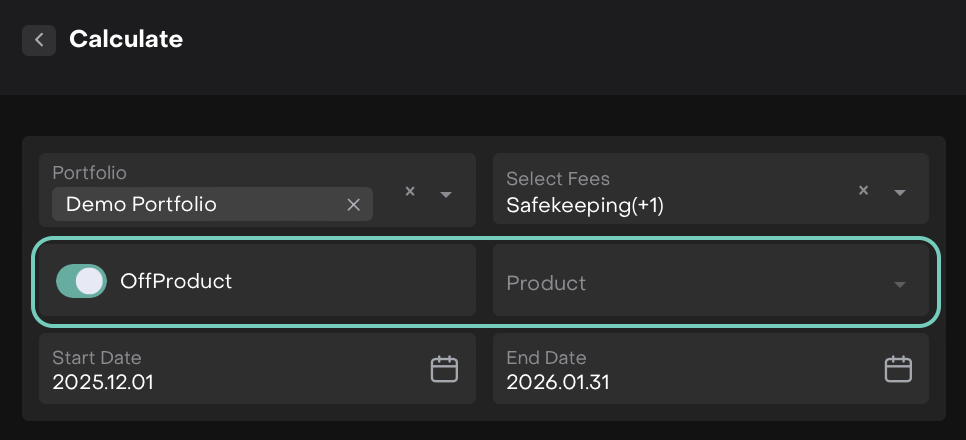
Toggle ON the Off Product option.
Fee calculation is applied to the entire portfolio, including all assets, even those linked to products.
You cannot select a specific Strategy.
Fee rates are taken from the Mandate attached to the portfolio.
Ideal when:
You want to apply a unified fee to all holdings.
You do not need to differentiate by strategy.
Product (Strategy-Based)
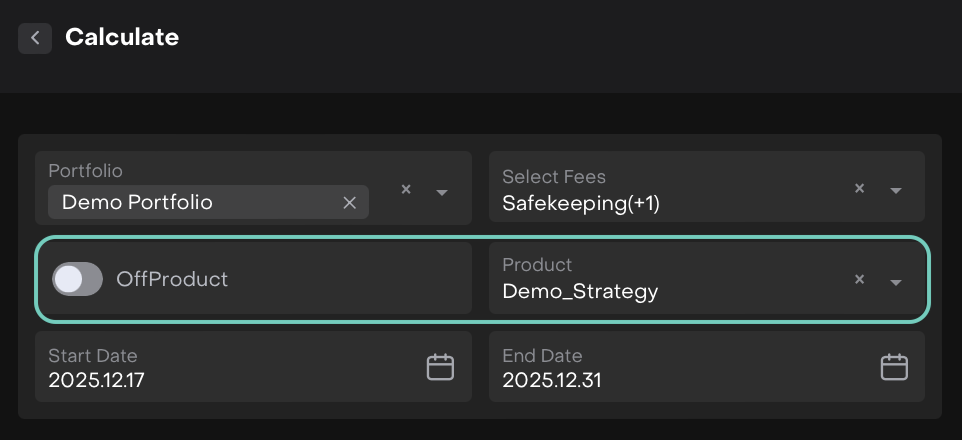
Toggle OFF the Off Product option.
Fee is calculated by individual Product (Strategy).
You can specify one or more Strategies in the Product field.
Fee rates are taken from the Strategy level.
Ideal when:
Different strategies have different fee agreements.
You need detailed fee attribution across strategies.
Safekeeping fee calculation via the Calculate button is available only when Automatic Billing is disabled on the mandate.
Click on Calculate to run the fee calculation.
After Triggering Fee Calculation
Once you click the Calculate button, the platform processes the fee based on the parameters you've selected.


If the calculation is successful, a new row will appear in the Fees table with the calculated fee details.
What You Can Do Next:
Use the three-dot menu (⋮) next to each fee entry to perform the following actions.
Action | Description |
|---|---|
Edit | Modify the fee entry if any details need correction before finalizing. |
Delete | Remove the fee if it was calculated by mistake or is no longer needed. |
Download | Export the fee details to a file for internal records. |
Send to Client | Share the fee file directly with your client through the platform. |
Deactivate | Marks the fee as inactive (without deleting). Allows recalculation for the same period, if needed. If there was an error in the original calculation (e.g., missing rate, wrong portfolio), you can deactivate the incorrect fee and recalculate a new one for the same date range without needing to delete or overwrite the old record. |

🔗 Learn how to Export Fee Details.