
Create Cash Transfer with Payments
AVAILABLE IN:
Introduction
The Cash Transfer Order form allows you to efficiently transfer funds in and out of accounts. Whether you are handling single, mass, or omni transactions, this guide will help you navigate through the various fields and options for Payment trading types, ensuring smooth and accurate order placement.
Create Cash Transfer Order with Payment as Trading Type
Go to Orders and select New Order.
Choose Cash Transfer as the order type.
Choose IN or OUT as your transaction subtype depending on whether you’re receiving or sending funds.
Select the Currency for your transfer and Amount you wish to transfer.
In the Trading Type dropdown, select PAYMENT.
This new option helps to specify that the order is a payment type, streamlining the order creation process.
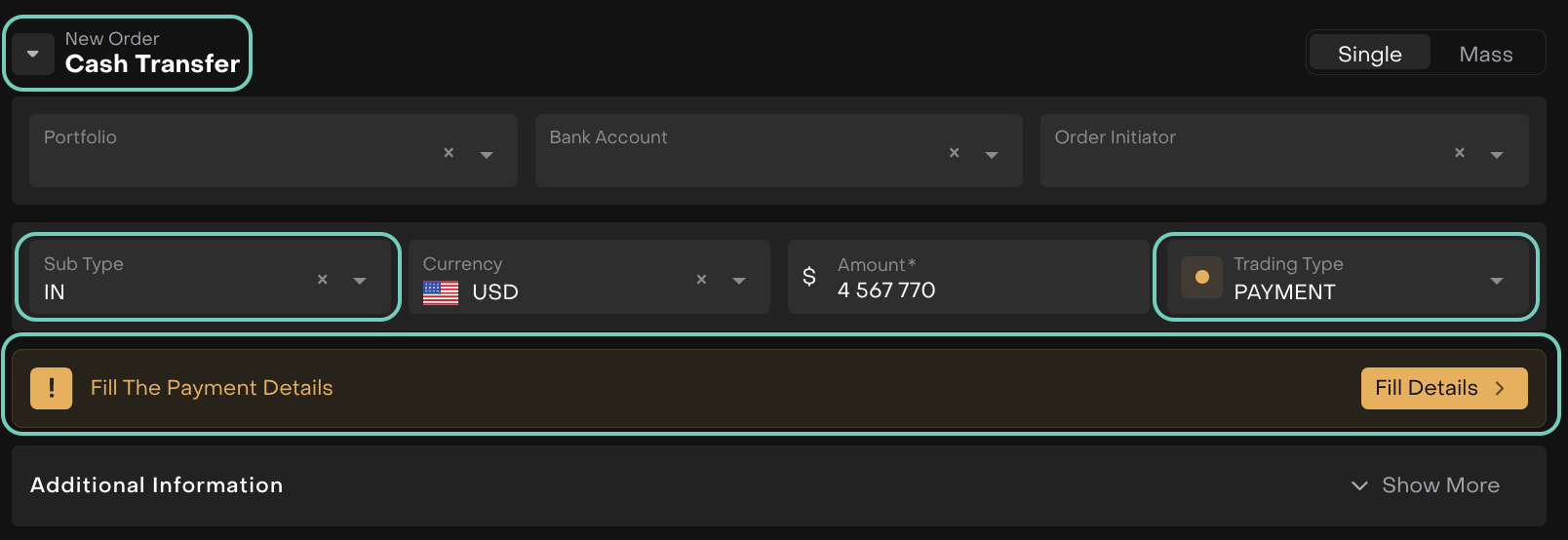
Click on Fill Details to open the payment form.
Provide detailed information for the following payment details steps.
Step 1: Debtor (Payer) Information
Fill in required fields such as Name, Identification, Date of Birth, Country of Birth, City of Birth.
Bank Address
Enter Country, Postcode, Address Line 1, Address Line 2, Address Line 3 (optional).
Account
Select Debtor Account Currency, enter Account Identifier Kind, and Account Identifier.
Identification Details
Enter BIC, Code, and Proprietary information.
Click Save Draft or Next.
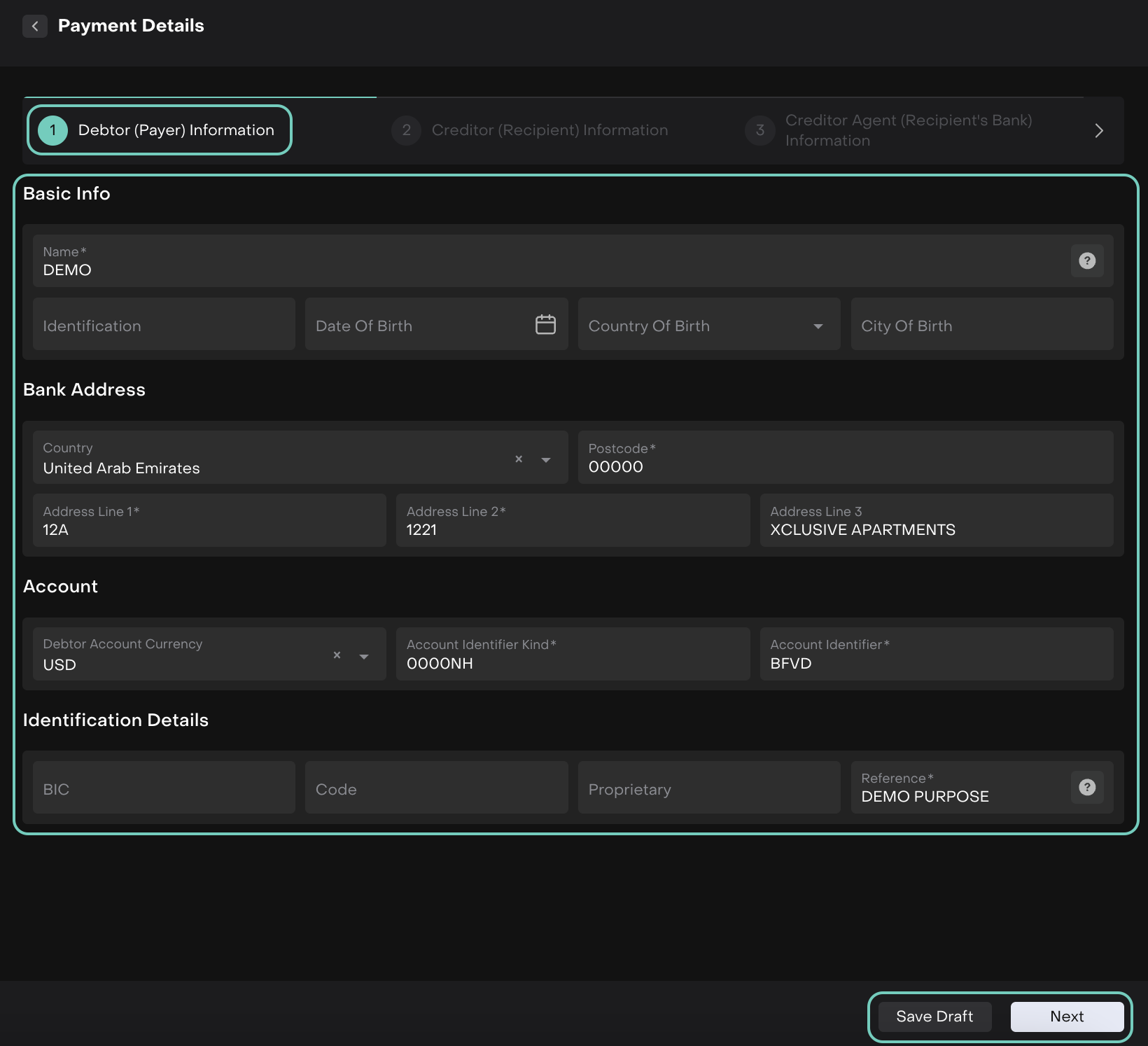
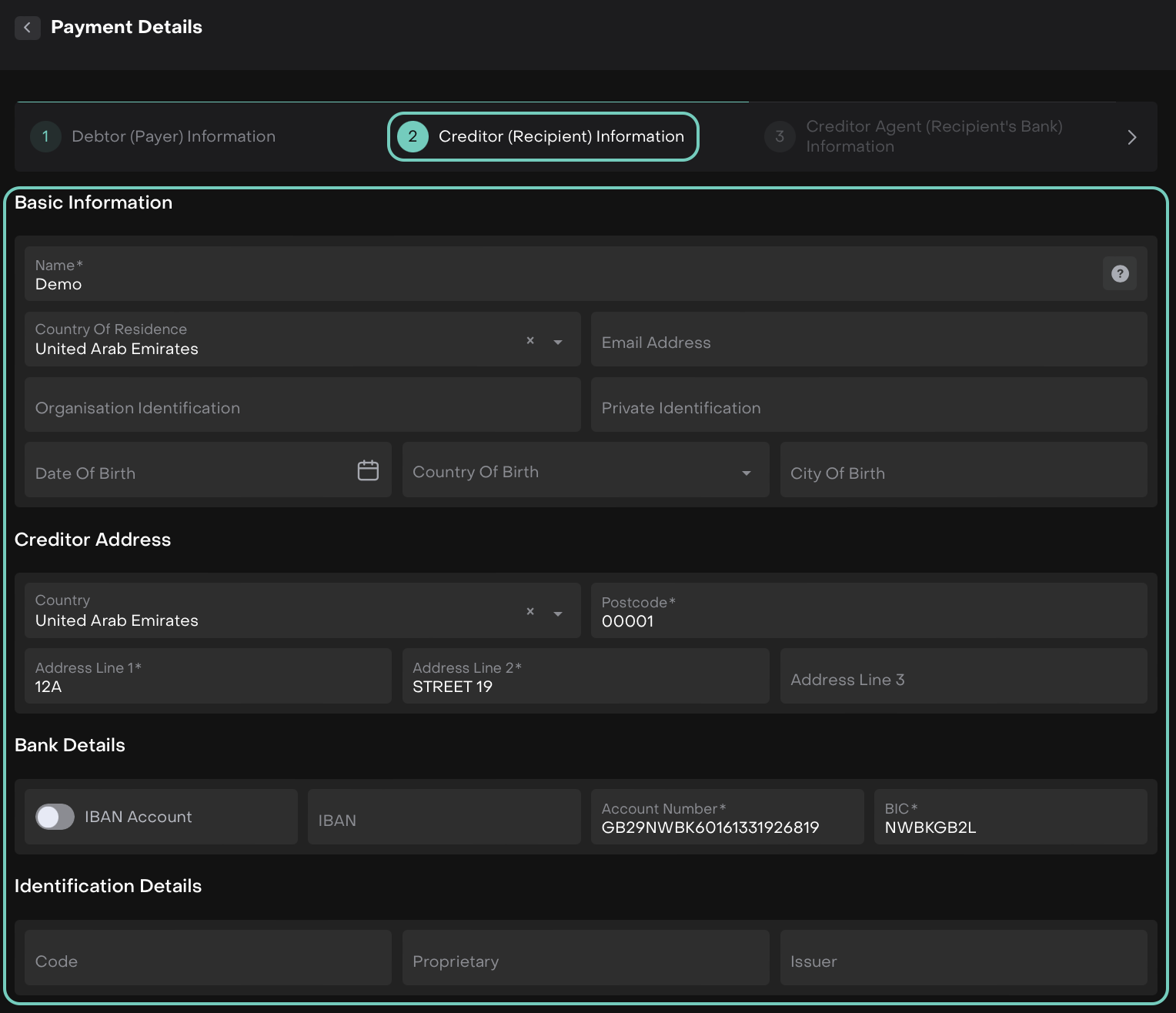
Step 2: Creditor (Recipient) Information
Fill in required fields such as Name, Country of Residence, Email Address, Private Identification, Date of Birth, Country of Birth, City of Birth.
Creditor Address
Enter Country, Postcode, Address Line 1, Address Line 2, Address Line 3 (optional).
Bank Details
Toggle IBAN to determines which fields are mandatory.
If the toggle is enabled (default), IBAN is required.
If the toggle is disabled, Account Number and BIC are required.
Identification Details
Enter Code, Proprietary.
Click Save Draft or Next.
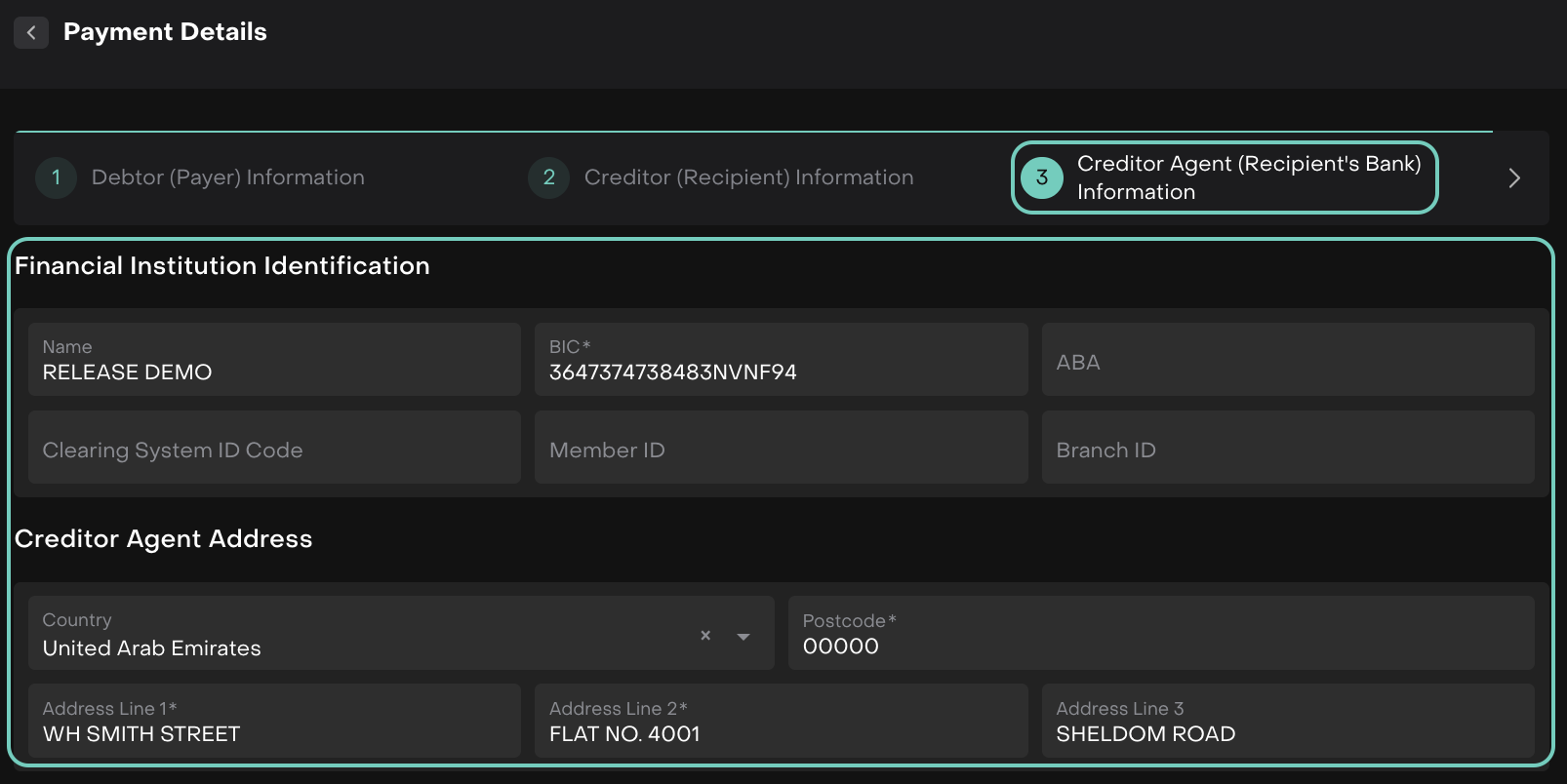
Step 3: Creditor Agent (Recipient’s Bank) Information
Financial Institution Identification
Fill in required fields such as Name, BIC, ABA (if applicable).
Creditor Agent Address
Enter Country, Address Line 1, Address Line 2, Postcode, Address Line 3 (optional).
Click Save Draft or Next.
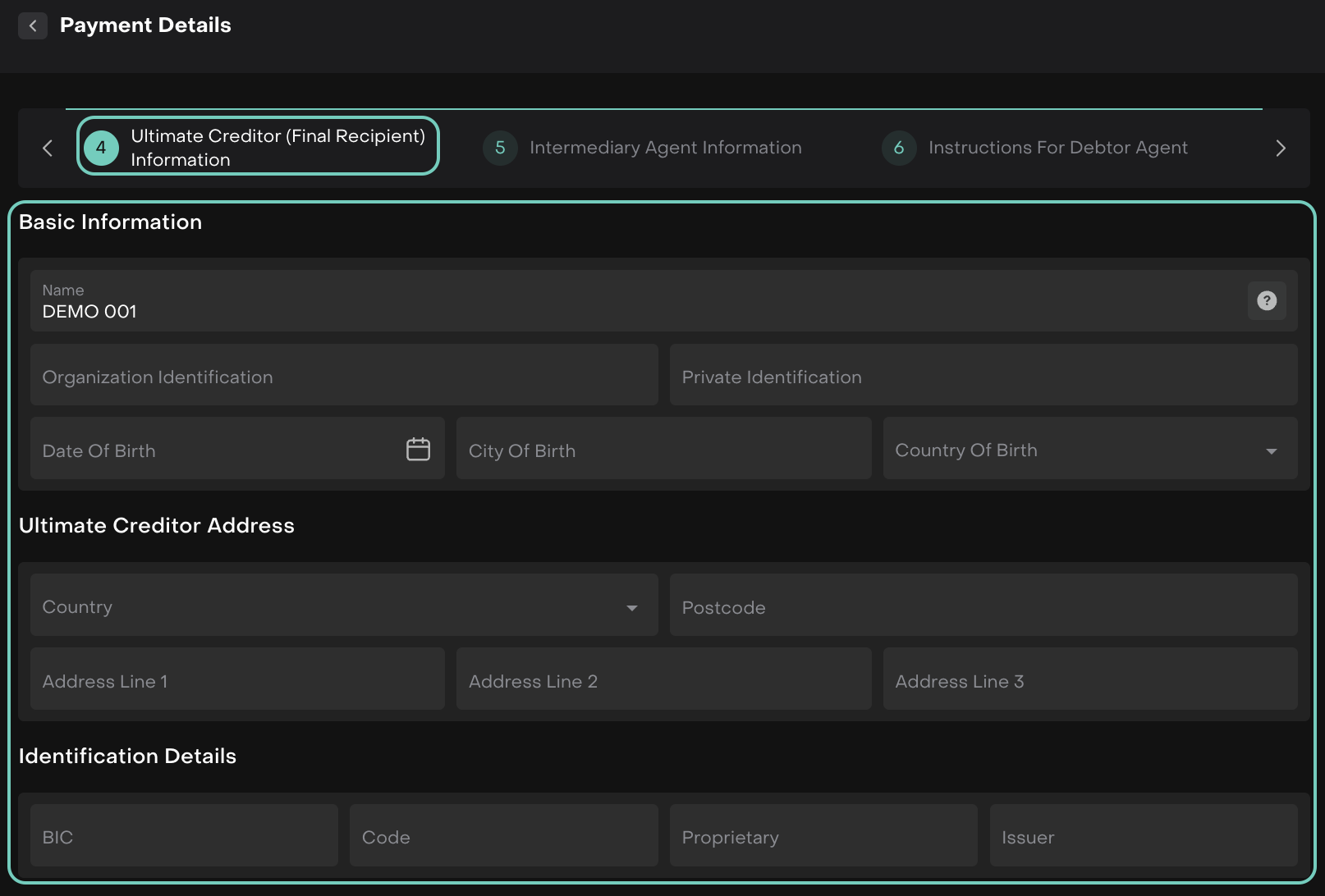
Step 4: Ultimate Creditor (Final Recipient) Information
Basic Information
Enter Name, Organization Identification (if applicable), Date of Birth (if individual), City of Birth, Country of Birth.
Ultimate Creditor Address
Enter Country, Address Line 1, Address Line 2, Postcode, Address Line 3 (optional).
Identification Details
Enter BIC, Code, and Proprietary information.
Click Save Draft or Next.
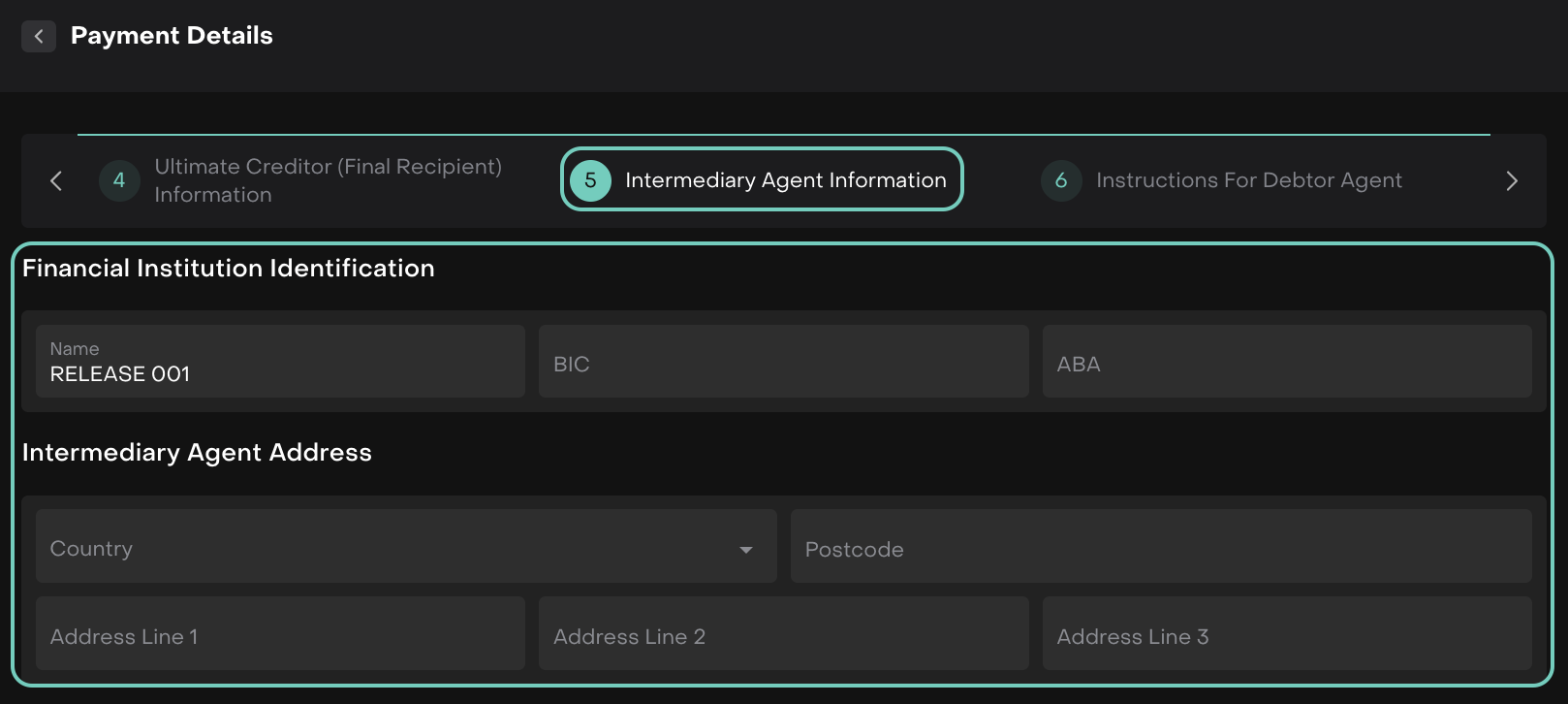
Step 5: Intermediary Agent Information
Financial Institution Identification
Enter Name, BIC.
Intermediary Agent Address
Enter Country, Address Line 1, Address Line 2, Postcode.
Click Save Draft or Next.
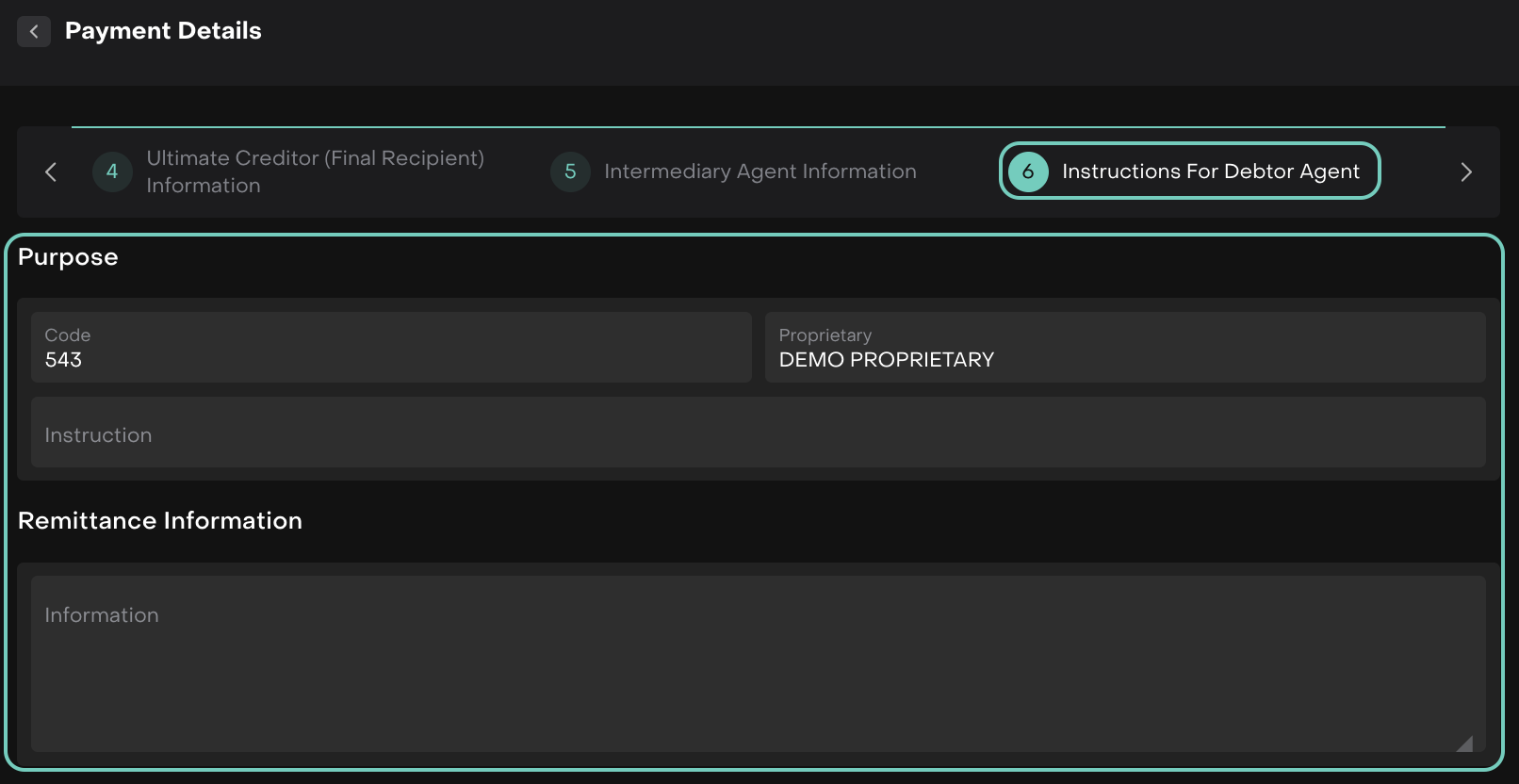
Step 6: Instructions for Debtor Agent
Purpose
Enter Code and Instruction.
Remittance Information
Provide Remittance Information.
Click Save Draft or Next.
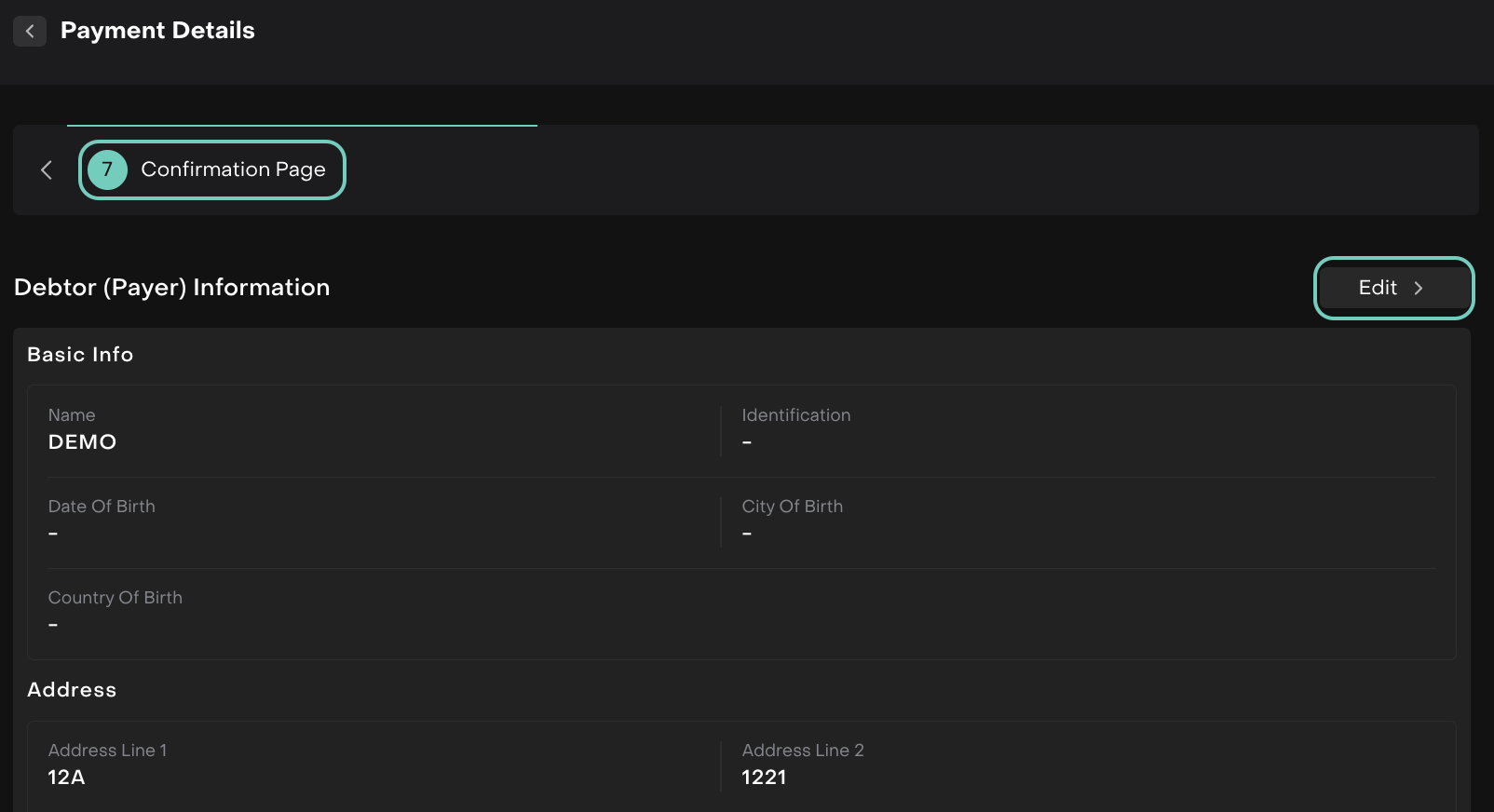
Step 7: Confirmation Page
Review all provided details.
Click Confirm to submit the payment or on Edit to make any changes.
Once confirmed, the Fill Details shall turn green once every detail has been filled.
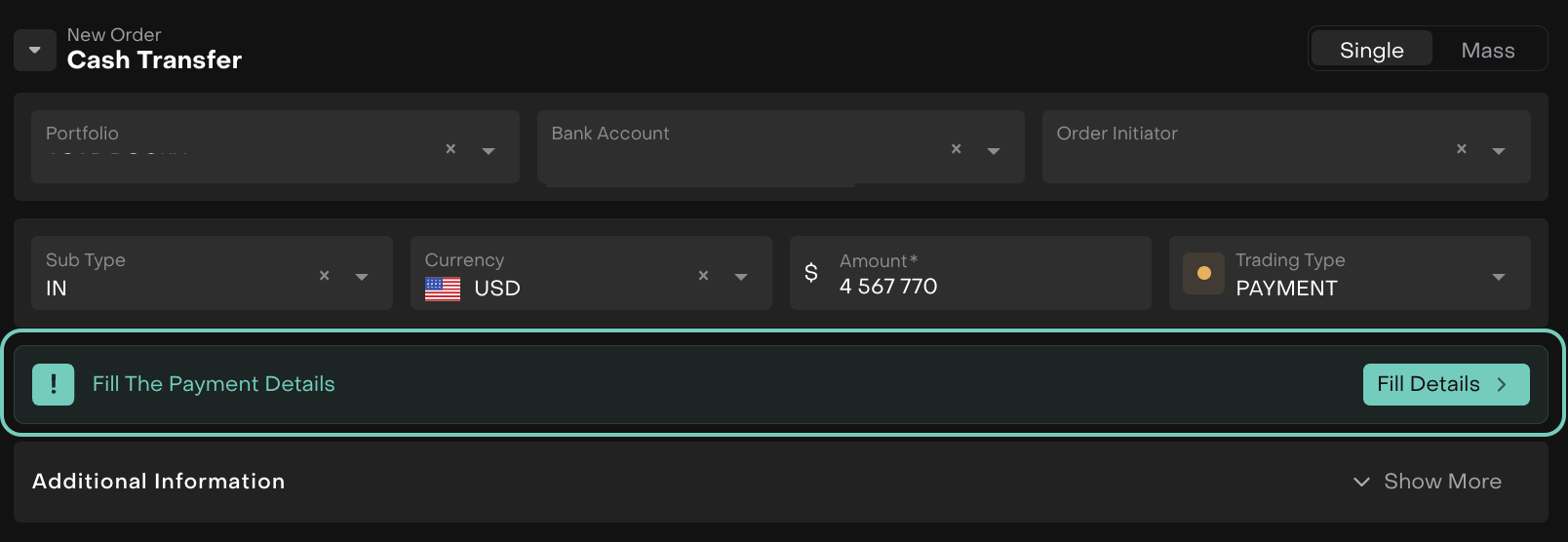
Now, go ahead and click on Create and Execute the order. For Payment orders, ensure that all sensitive information is correctly entered and saved as needed.
Manager and Approval
Manager: Select the manager responsible for this transaction.
Due Date: The system will automatically populate the due date (1-2 days). You can adjust this based on your needs, subject to approval.
You have the option to save this SSI information. By selecting Yes, the system will store it in a separate table, available only to users with the appropriate role. By default, this information will be deleted after submission.
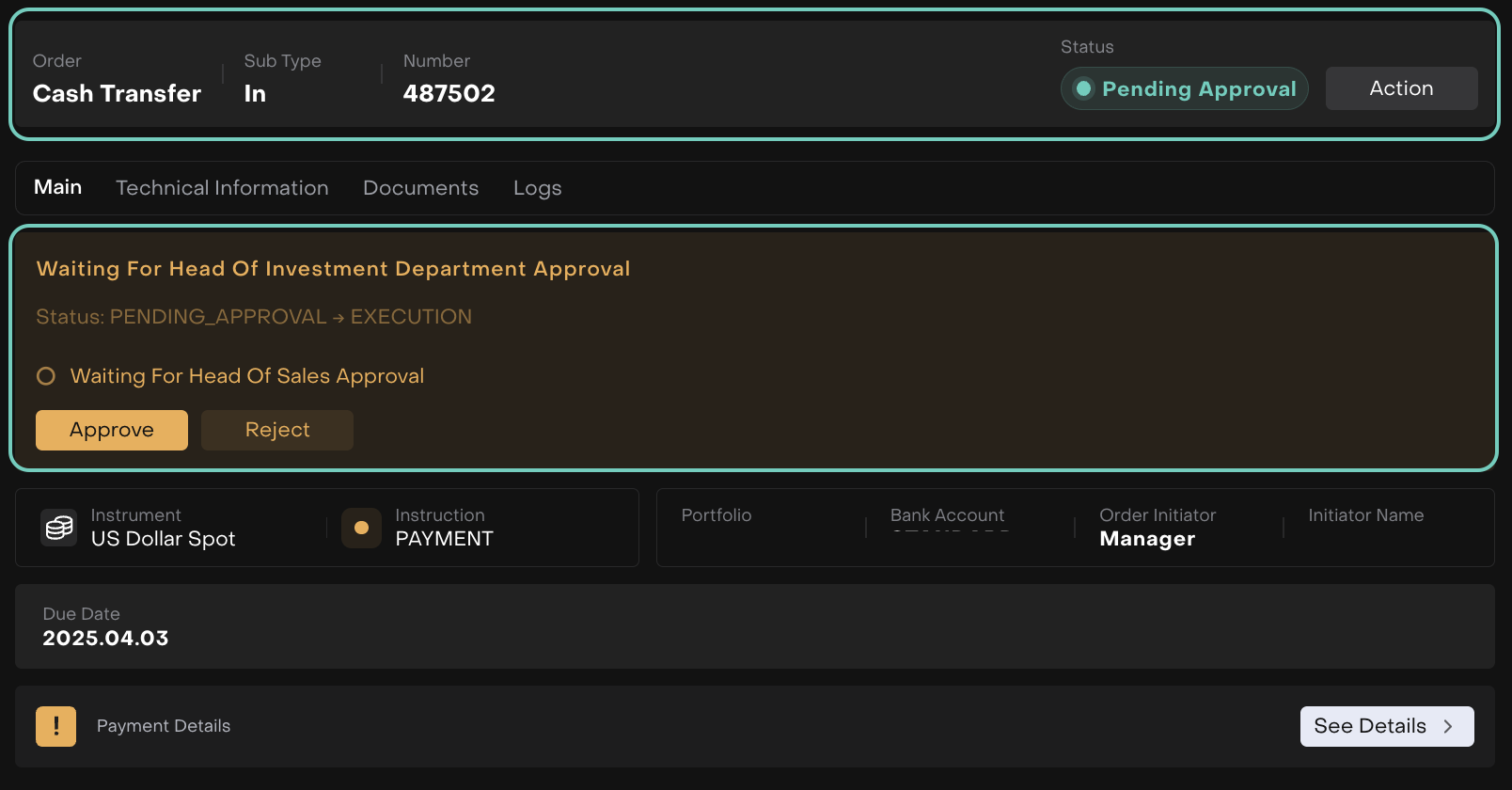

Mass Form: For Cash Transfer orders with the Payment subtype, a Mass form is not available.
Order Status: After submission, the order status will update automatically, and you can track the status as needed.