
Skip table of contents

Manage Fee Orders

Introduction

Fee is a non-trading order representing charges applied to a client account or portfolio. Fee orders can be cash-based (affecting the account’s cash balance) or security-based (deducted from a specific security).

Permission Requirement

Platform Name

Permission Level

Orders (tab)

View, Modify, Create, Delete

Non Trading Orders

View, Modify, Create, Delete

Create Fee Order

  • Go to Transactions > Find Orders tab

Or,

  • Go to Portfolios > Find Orders tab

  • Click + icon.

  • Now, select Order Type as Fee and fill in all the required fields(*).

Security-assigned Fee Orders only require the total amount, no quantity or per-unit price calculations are needed.
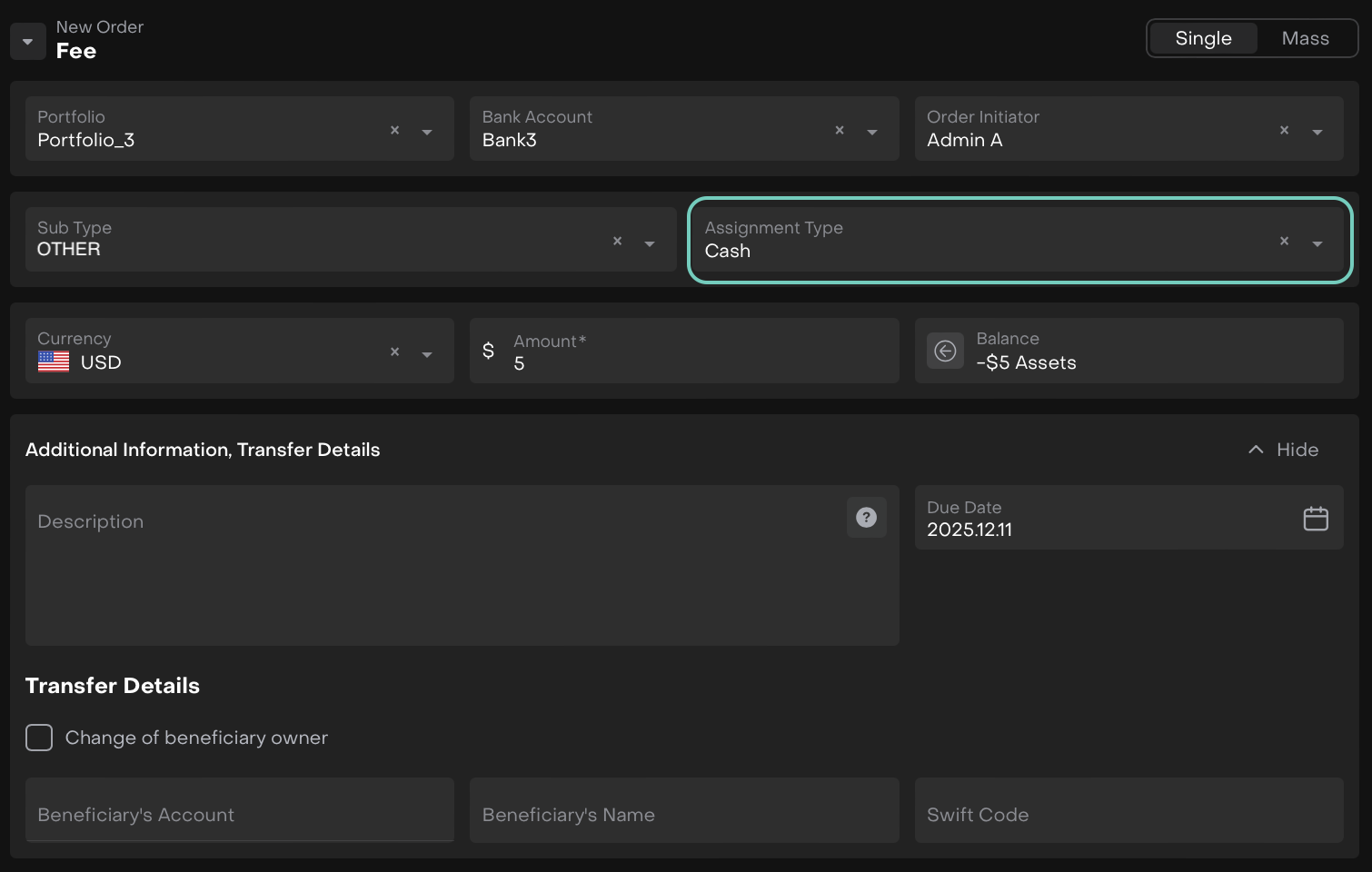
When Assignment Type = Cash
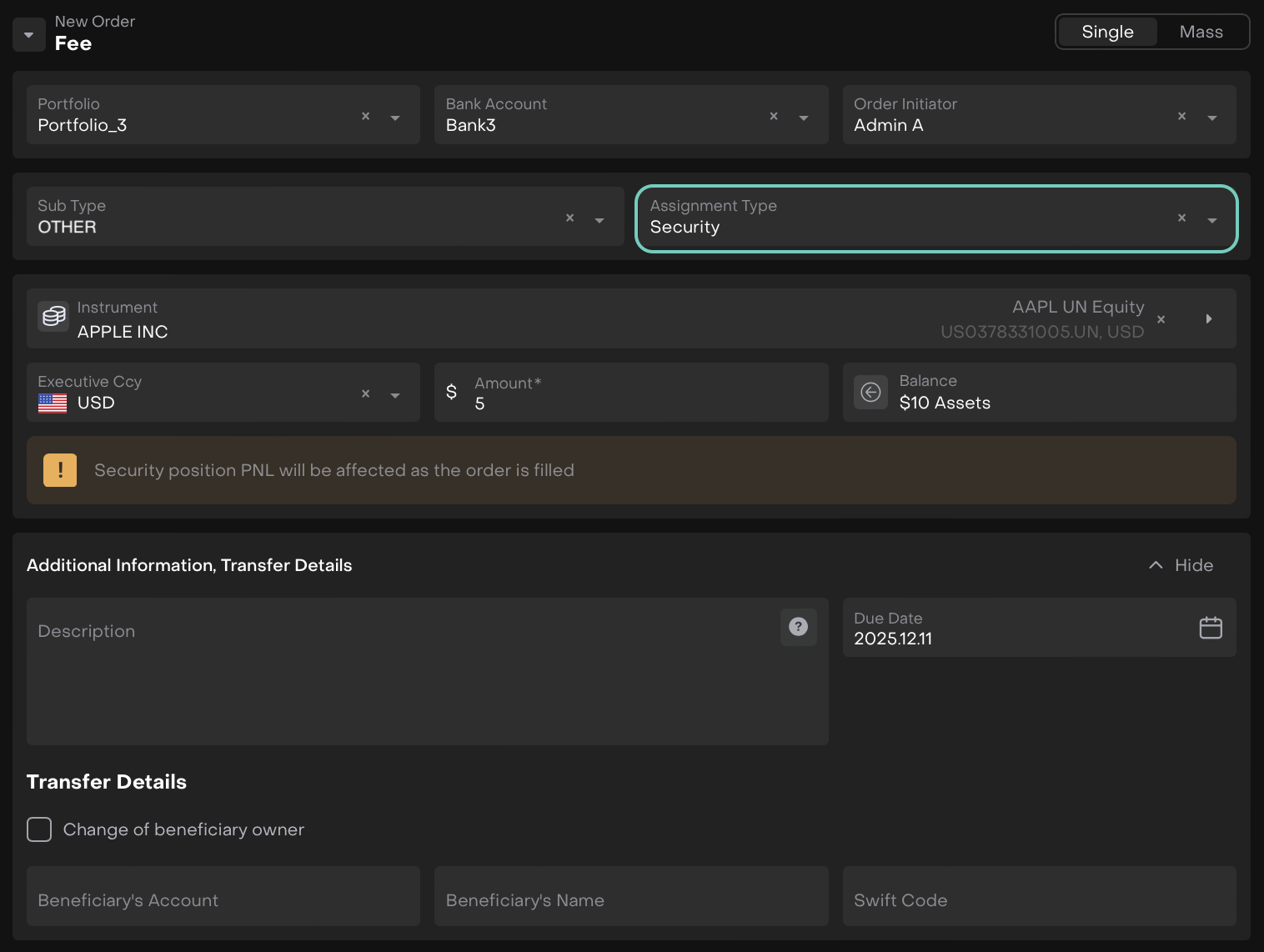
When Assignment Type = Security

Detailed Fields Explained Here:

Field

Description / Options

Portfolio (*)

Select the portfolio to which the order belongs.

Bank Account (*)

Select the bank account from which the fee will be processed.

Order Initiator (*)

Name of user initiating the order.

Sub Type (*)

Specific type of Fee. Options are:

Credit

  • INCENTIVE

  • REIMBURSEMENT

  • RETROCESSION

Debit

  • ADMINISTRATION

  • ADR_FEE

  • AMENDMENT_FEE

  • BROKERAGE_MARKUP_ADJUSTMENT

  • CASH_TRANSFER_FEE

  • COMMISSION

  • CUSTODY

  • DEPOSITORY

  • EXCHANGE_FEE

  • EXPOSURE_FEE

  • HANDLE_FEE

  • INTEREST_CALCULATION

  • LEI

  • MANAGEMENT

  • MARGIN

  • OTHER

  • OVERNIGHT_POSITION_FEE

  • PAYOUT

  • REVENUE

  • SAFEKEEPING

  • SERVICE_CHARGE_CALCULATION

  • SETTLEMENT_FEE

  • STOCK_TRANSFER_FEE

  • SUCCESS

  • WITHDRAWAL_FEE

Assignment Type (*)

Determines how the operation is attributed.

  • Cash – Recorded against cash balance; does not affect any security’s P&L.

  • Security – Assigned to a specific security; impacts that position’s P&L.

Instrument (*)

Enabled only for Security assignment. Select the target security. Required if Assignment Type = Security.

Currency (*)

Enabled only for Cash assignment. Select the currency of the cash operation. Required if Assignment Type = Cash.

Executive Ccy (*)

Enabled only for Security assignment. Currency used for executing the security-related operation. Required if Assignment Type = Security.

Amount (*)

Total amount of the Fee. For Security assignment, only the total amount is needed (no per-unit calculation).

Balance

Displays current balance of the selected Cash or Security instrument.

Additional Information, Transfer Details

Description

Optional description for reference.

Due Date

Date by which the order is due or will be processed.

Change of Beneficiary Owner

Tick box if the Fee order involves changing the beneficiary owner.

Beneficiary’s Account

Account number of the new beneficiary, if applicable.

Beneficiary’s Name

Name of the new beneficiary, if applicable.

Swift Code

SWIFT/BIC code of the beneficiary’s bank, if applicable.

  • Once filled, click on Create Order.

  • Review the confirmation screen and confirm by clicking on Create again or to discard click Close.
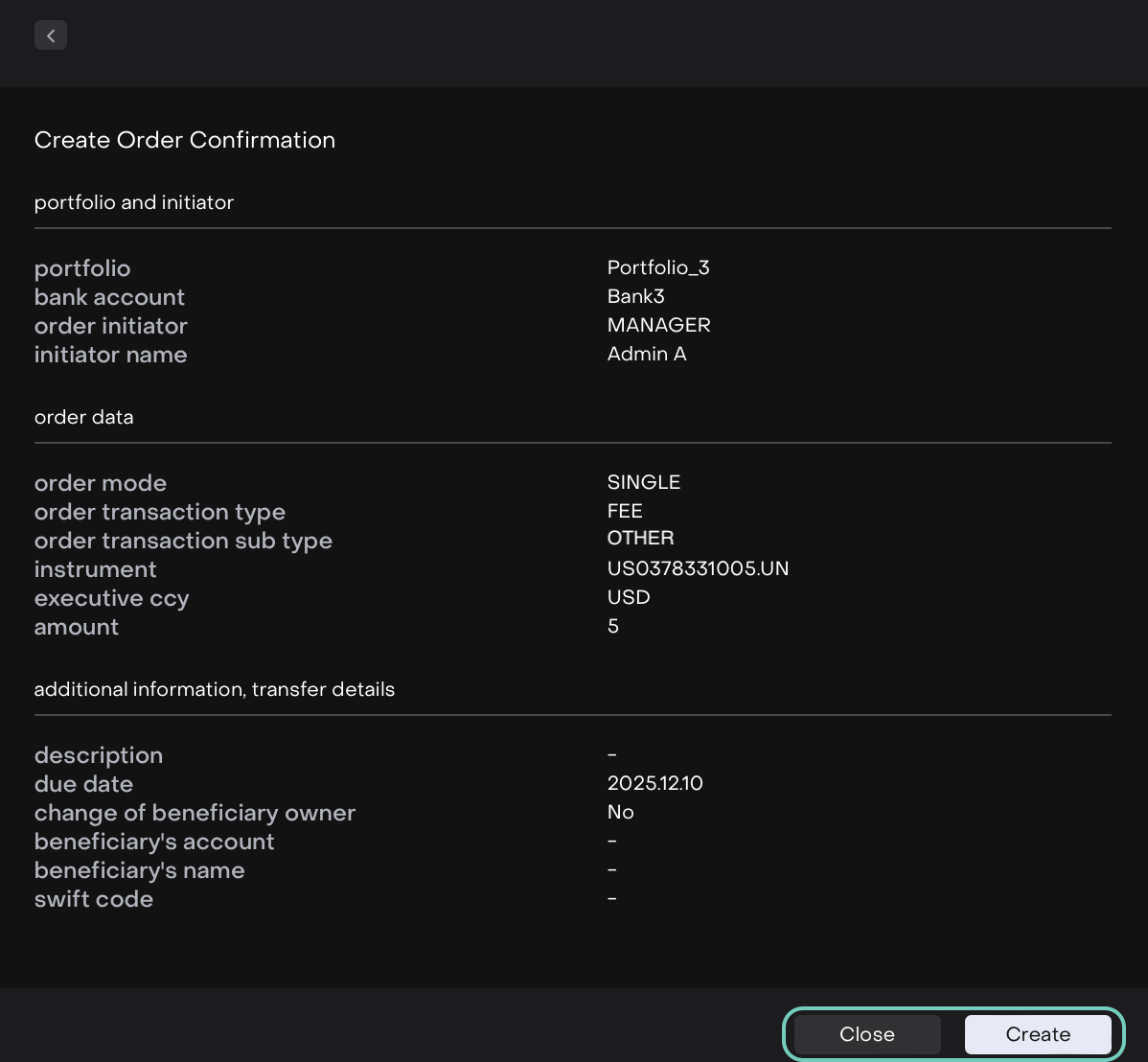
  • The created entry will appear on the list.

Execute an Order

Order execution is available to both the order’s assignee and initiator, ensuring that authorized users can handle the process efficiently.

Follow these steps to successfully execute an order on the platform:

  • On the list, double click to open to further execute the order or click on … dots to Assign To.

  • Use the Assigned To Me action to claim the order and take responsibility for its execution.

  • Once the order is picked up, click the Start Working button to edit the execution form.
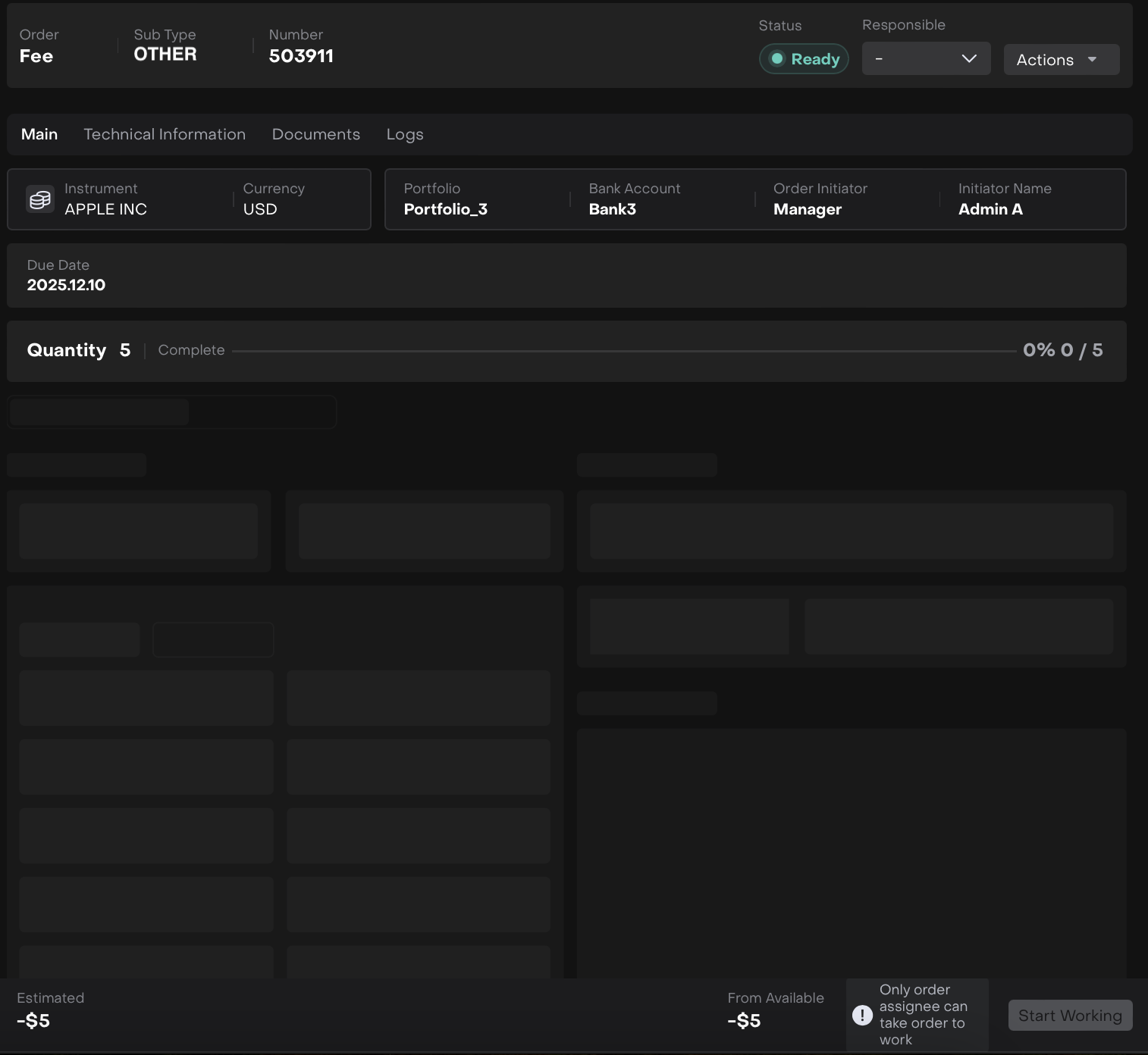
  • The order execution form opens, fill in the required fields as shown below.

  • Then, click Submit button to confirm the execution.
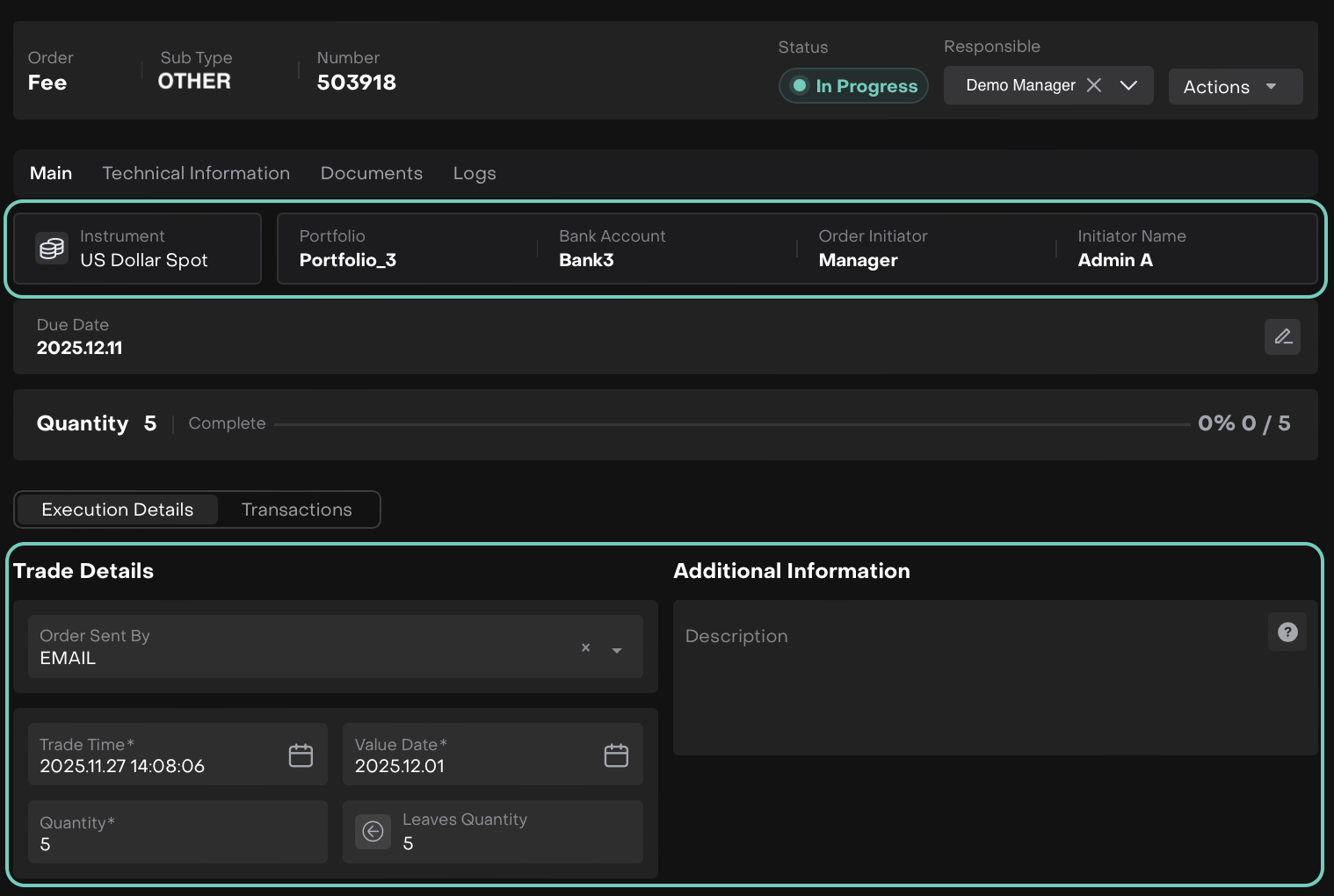
When Cash is getting Executed
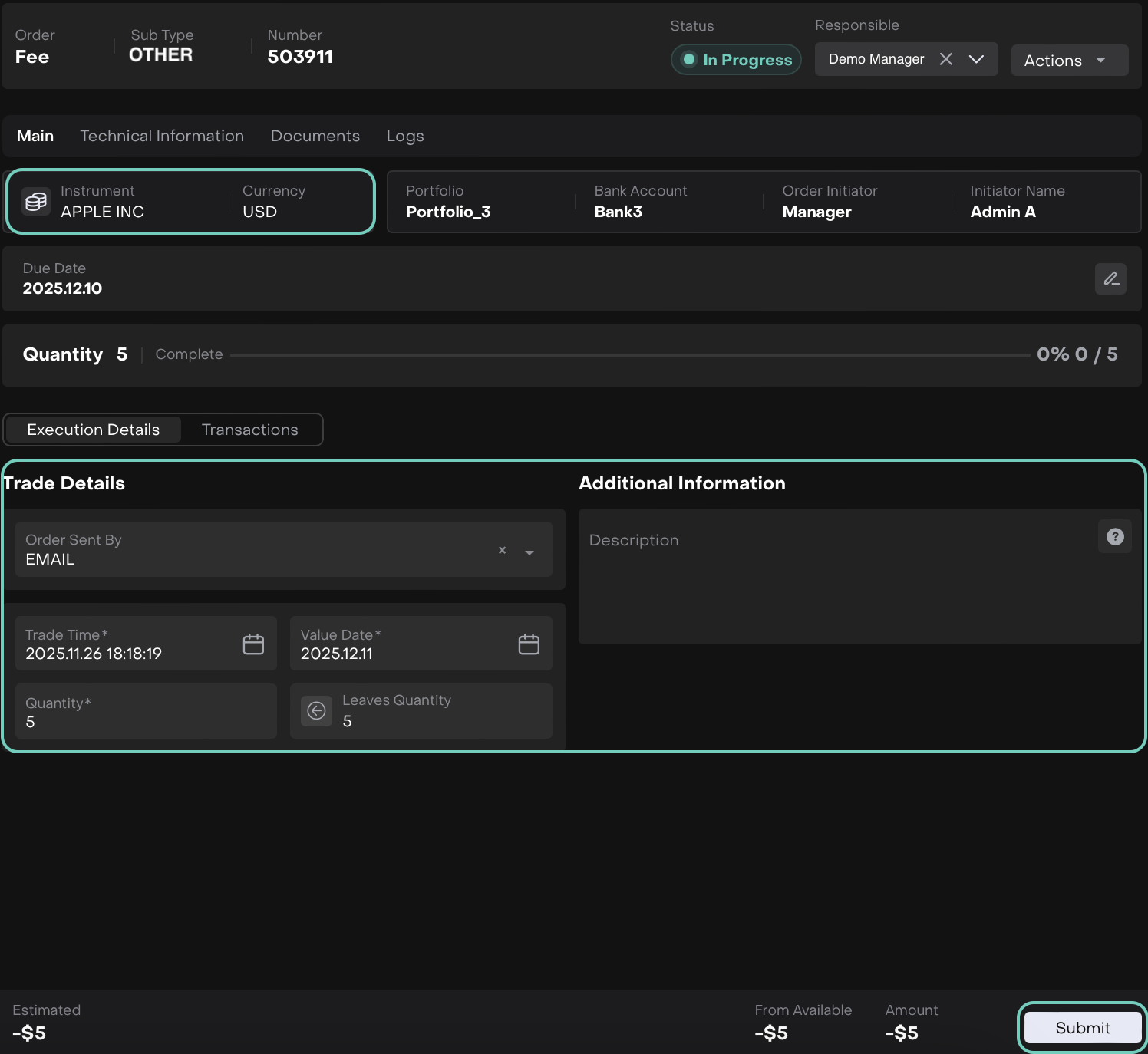
When Security is getting Executed

Detailed Fields Explained Here:

Field

Description / Options

Order Sent By

Choose the method by which the order was initiated. Options include:

  • PHONE

  • EMAIL

  • BLOOMBERG

  • ELECTRONIC

  • OTHER

  • QUIK

Trade Time (*)

Timestamp of the trade or fee execution.

Value Date (*)

Date when the fee is effective or settled.

Quantity (*)

Number of units involved (if applicable).

Leaves Quantity

Remaining quantity yet to be executed or settled.

Description

Optional description or notes related to the order execution.

  • Click Submit to confirm.

  • Once submitted, the order will automatically be set with status Filled.
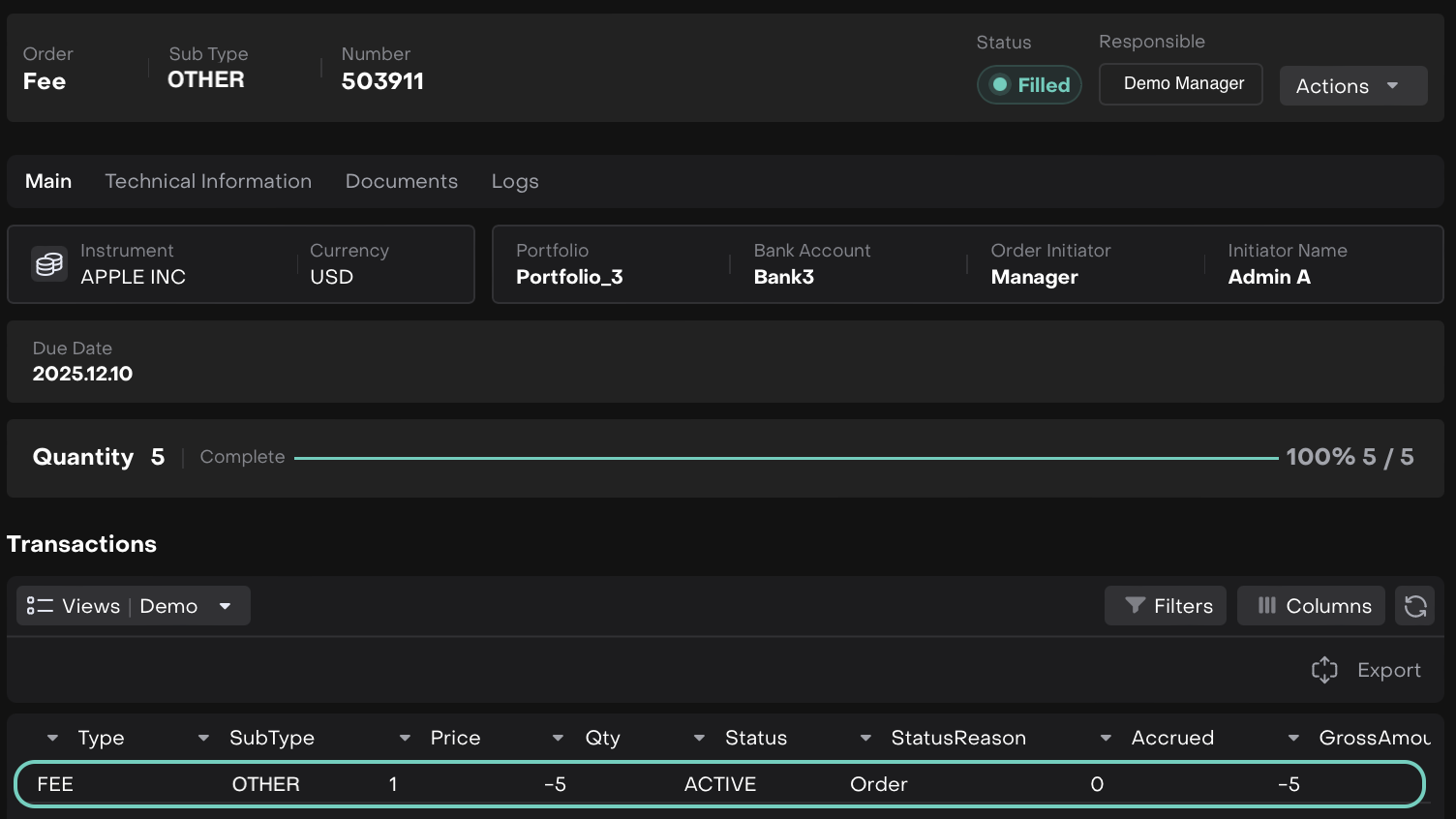
The order will be marked as Done once all transactions are matched with Custody Data.

PnL and Post-Execution Behavior

  • Cash Assignment:

    • The Fee order amount will be reflected in the Cash P&L of the selected portfolio.

    • Cash balances are updated accordingly.

  • Security Assignment:

    • The Fee order amount will be reflected in the Security P&L for the selected instrument.

    • Only the total amount is required; no per-unit or price calculation is needed.

    • Security positions are updated to reflect the fee impact.

JavaScript errors detected

Please note, these errors can depend on your browser setup.

If this problem persists, please contact our support.

