
Manage Virtual Security Transfer
AVAILABLE IN:
Introduction
You can use Virtual Security Transfer on the platform to move assets virtually between your bank account and a strategy.
Key Terminologies
Term (A–Z) | Definition |
|---|---|
Bank Account | The bank account linked to the portfolio for settlement purposes. |
Full Quantity Execution | Execution of a virtual security transfer order for the total quantity specified; partial execution is not allowed. |
Product | A strategy (product) associated with the security for tracking purposes. |
Product Subscription | Securities withdrawn from Bank Account and moved into the Strategy (Sub Type = In). |
Product Unsubscribe | Securities withdrawn from the Strategy and moved back to the Bank Account (Sub Type = Out). |
Strategies | Investment strategies available on the platform; these can receive virtual transfers and generate strategy-related transactions. |
👉 New to some terms? Check out our full Platform Glossary for more.
Permission Requirements
Platform Name | Permission ID | Permission Level |
|---|---|---|
Orders | Orders | View, Modify, Create |
Trade Orders | Orders trade | View, Modify, Create |
Create a Virtual Security Transfer
Go to Orders on the platform, find it either from:
Portfolios > Orders tab.
Transactions > Orders tab.
Select Virtual Security Transfer as the order type.
When you create this order, fill in the following required details.
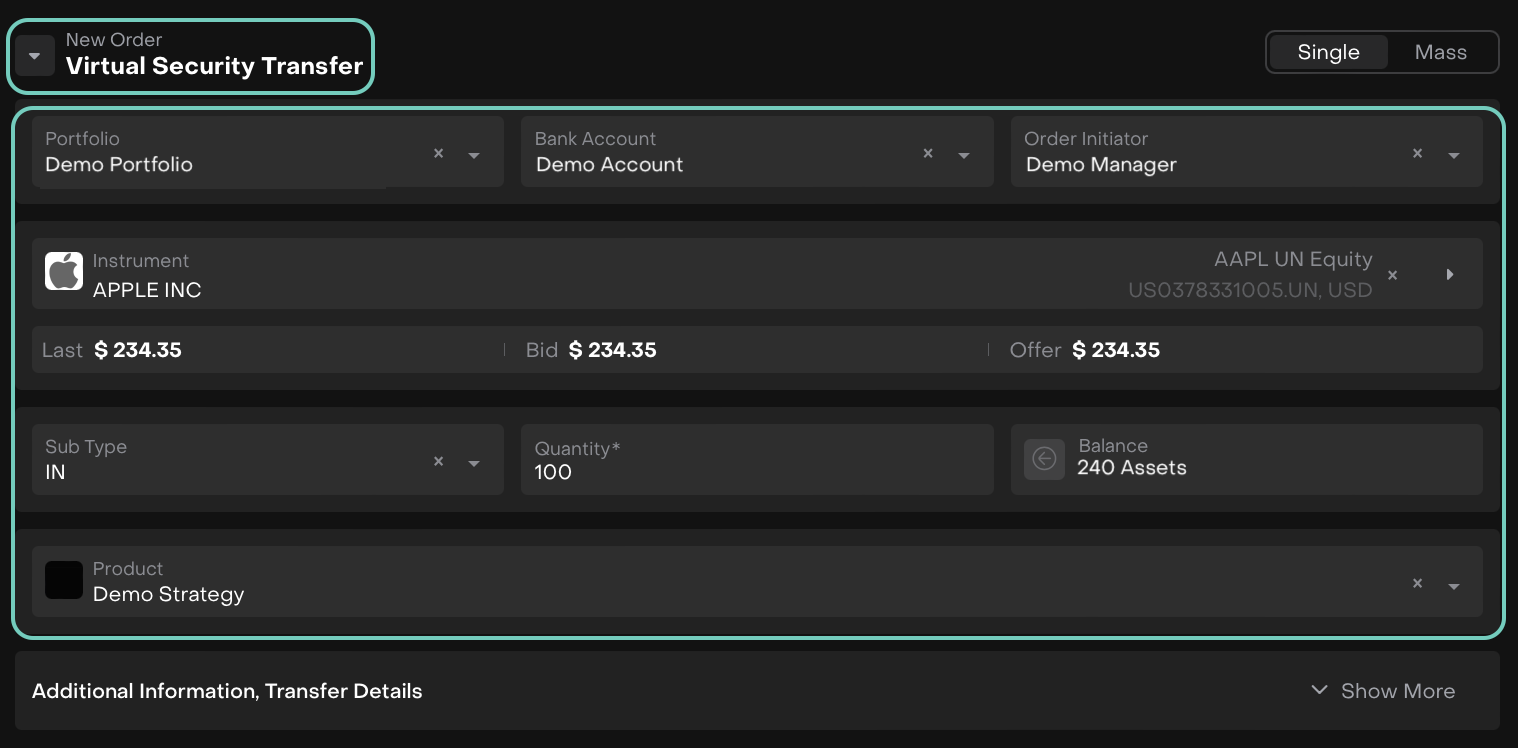
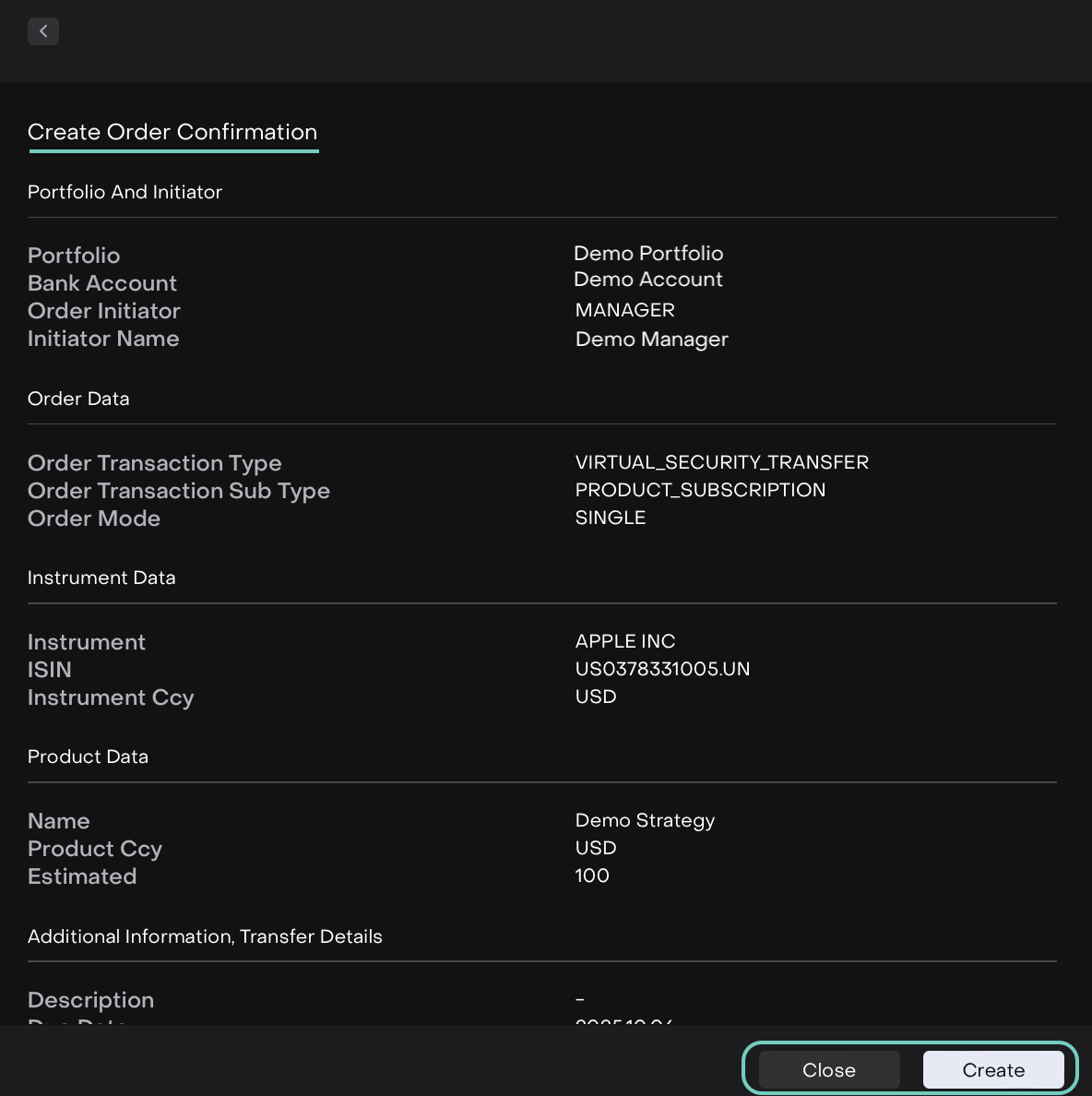
On the confirmation page, click Create or Close to go back.
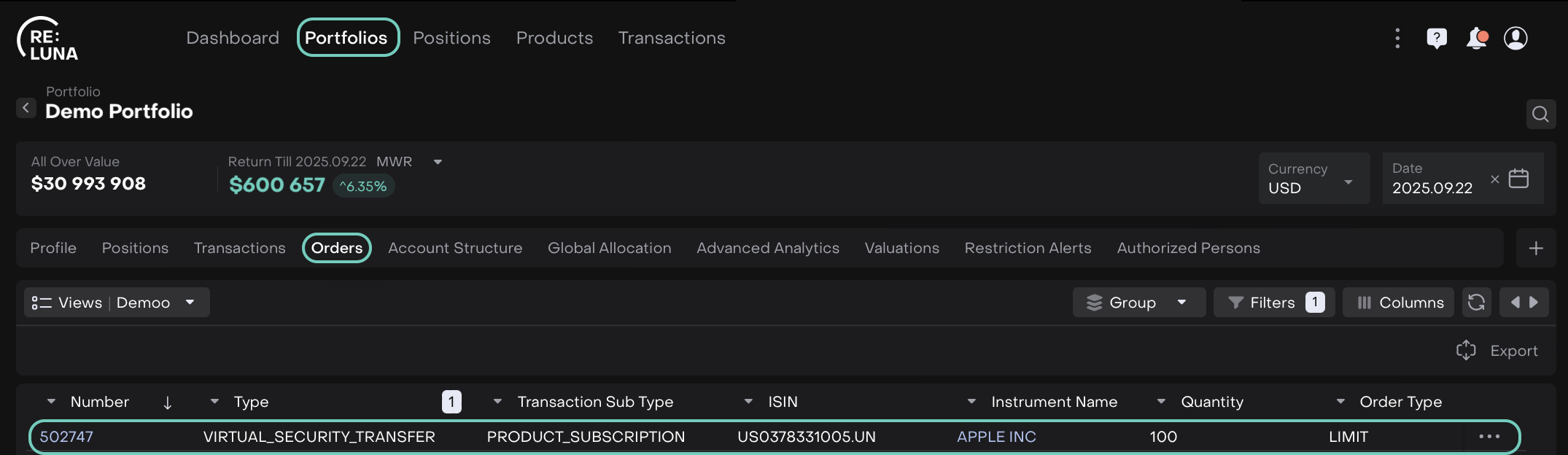
The order is created and it appears on the orders list.
Double click on the row or three-dots menu to Assign & Edit or Execute the order.
🔗 Learn more here on how to Execute Order.
Transaction Sub Type = Product Subscription

Transaction Sub Type = Product Unsubscribe
Upon executing the order, in the execution details, enter the required fields.

Virtual Security Transfer orders can only be executed in full quantity, not partially.
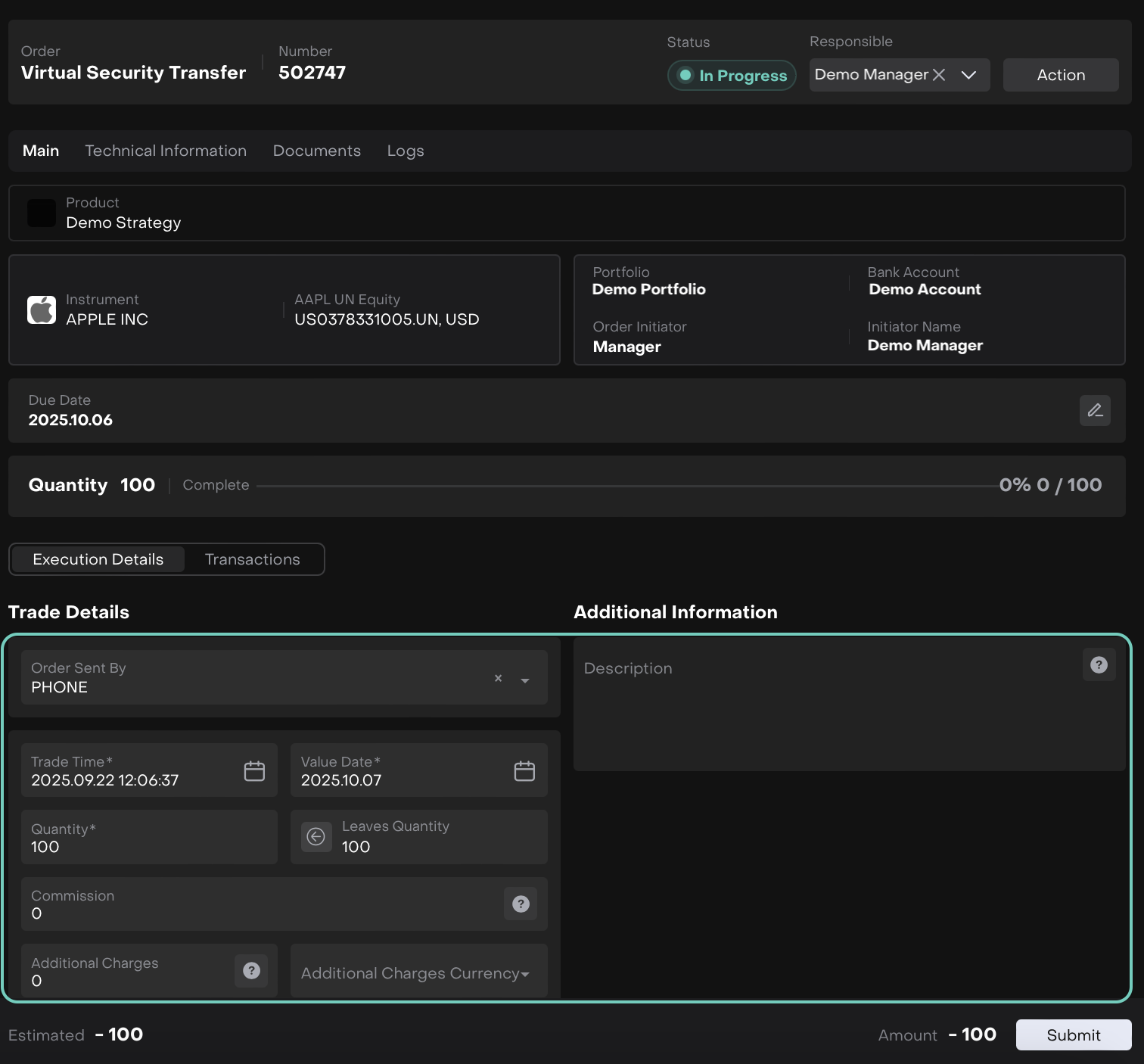
Click Submit once done.
Upon submission, the platform processes it virtually and generates the necessary transactions to move assets into or out of the strategy.

Before Executing the Order
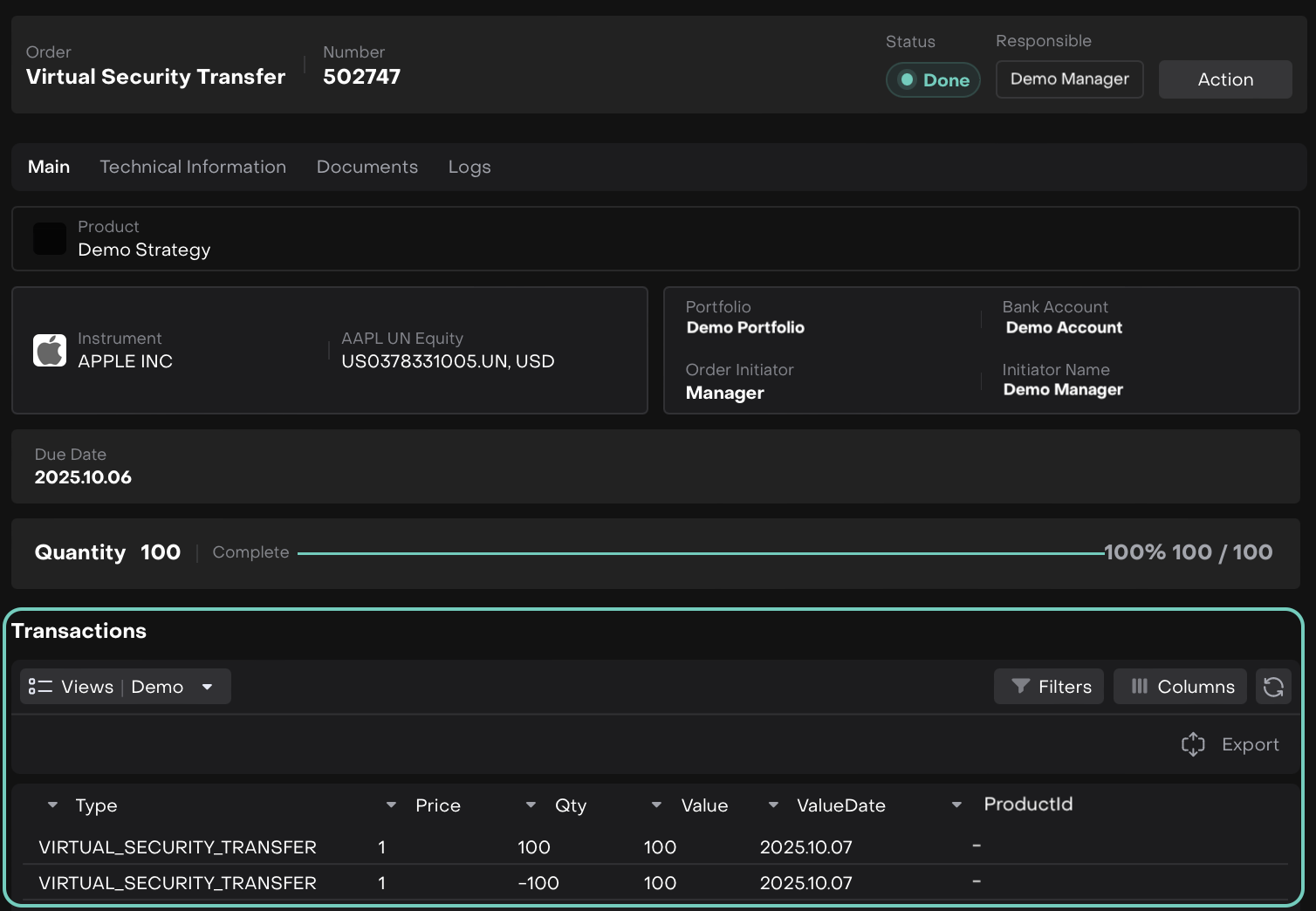
After Executing the Order
Where to Check Execution:
You can also verify the order status and related transactions under the Strategies > Requests tab.
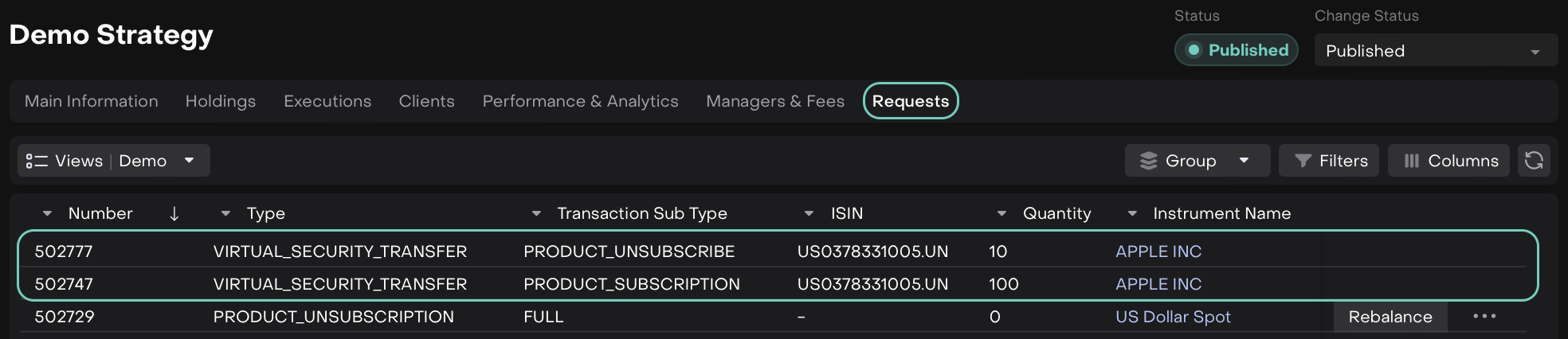
How Virtual Security Transfer Works for Strategies
When your order is executed, two types of transactions are generated:
Strategy Transaction
Shows the units of the strategy added to your Portfolio.
quantityandnetAmount→ Positive values.instrumentName→ Strategy ID.
Cash Reduction Transaction
Shows the cash deducted from your bank account.
quantityandnetAmount→ Negative values.instrumentName→ Strategy ID.
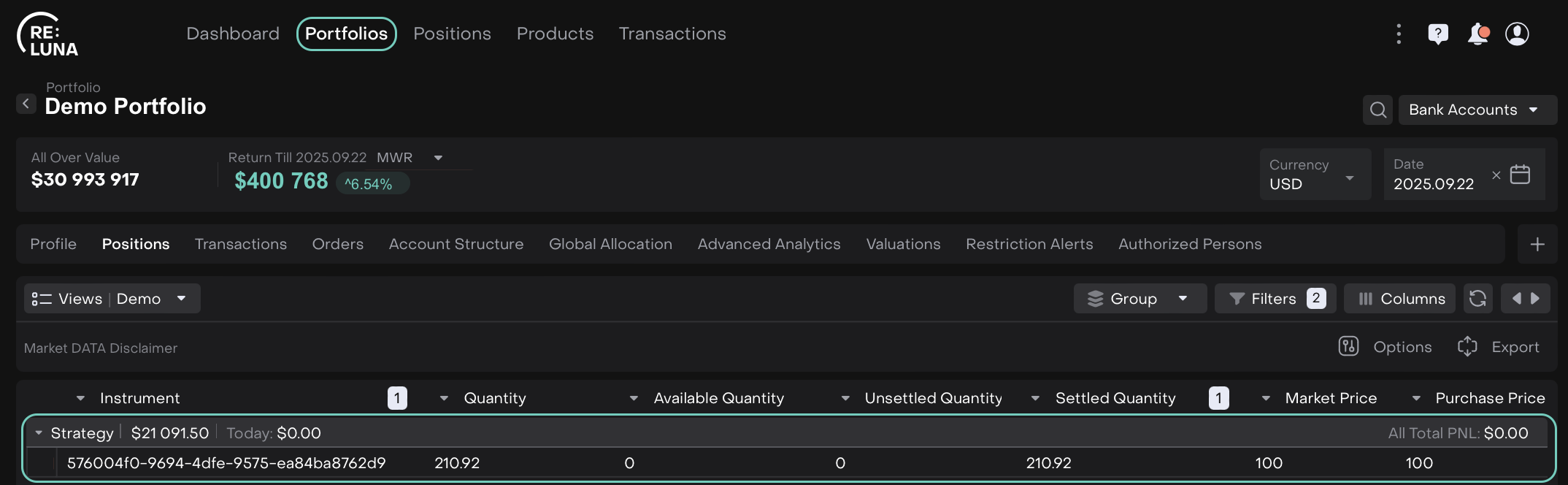
Group By Asset Type on Portfolios
Transaction Attributes
Status = ACTIVE
Status Reason = Confirmed
We do not receive bank transactions for this type of operation, so you need to confirm them manually.
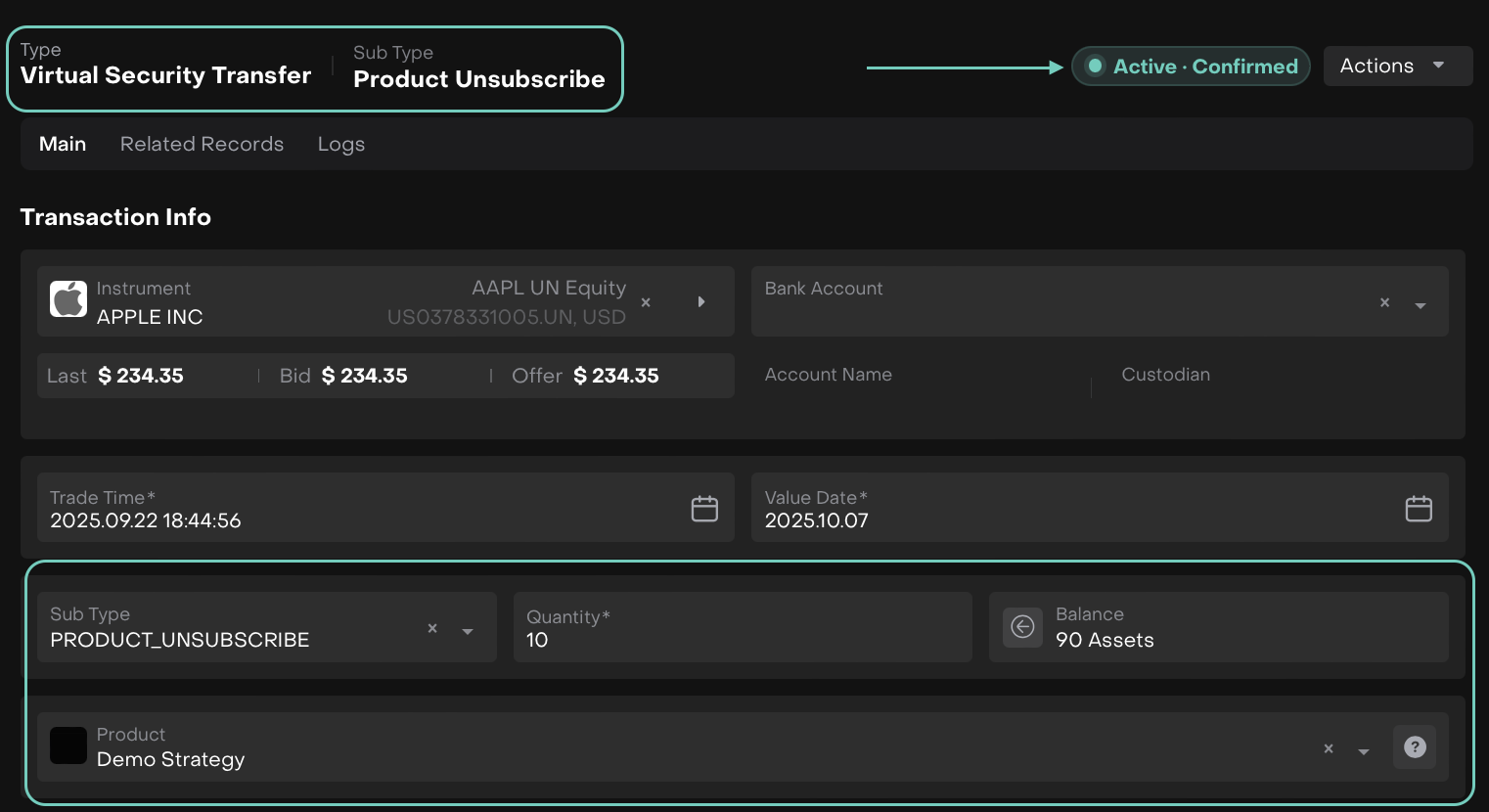
These confirm that the transaction has been successfully executed.