
Orders Advanced Settings
AVAILABLE IN: 
Introduction
The Advanced Settings in the Orders section give you complete control over how you view and manage your orders. These options allow you to organize, filter and customize the order table, helping you focus on the information that matters most.
🔗 Click here to learn more about Client Orders.

Order creation and management are permission-based features. Please check with your Manager for availability.
Use Orders Advanced Settings

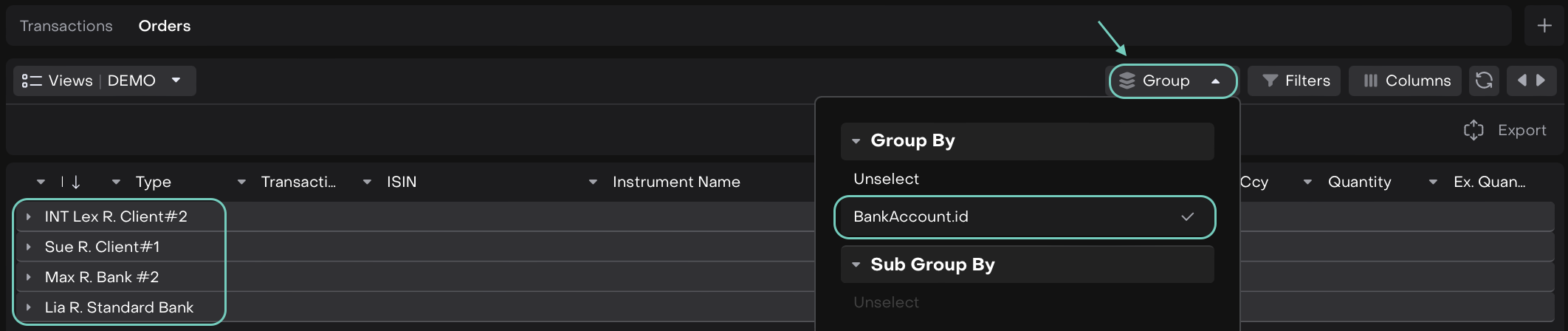
1. Group
By Bank Account ID - Orders table organizes all orders based on the specific bank account associated with each order.
2. Filters
Allow you to narrow down your orders based on fields type, specific criteria and more.
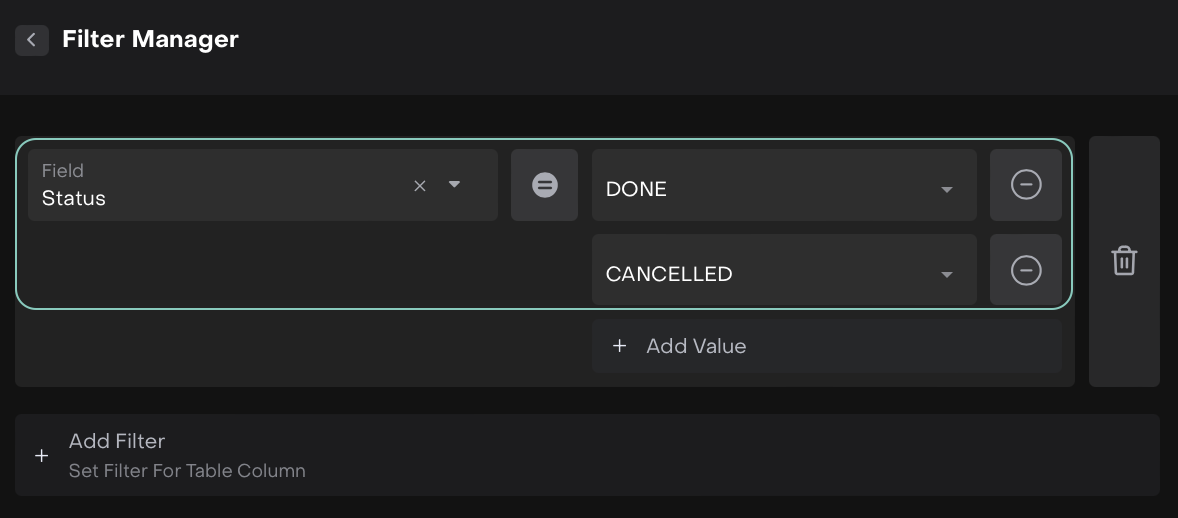
🔗 Learn more here on Filters.
3. Columns
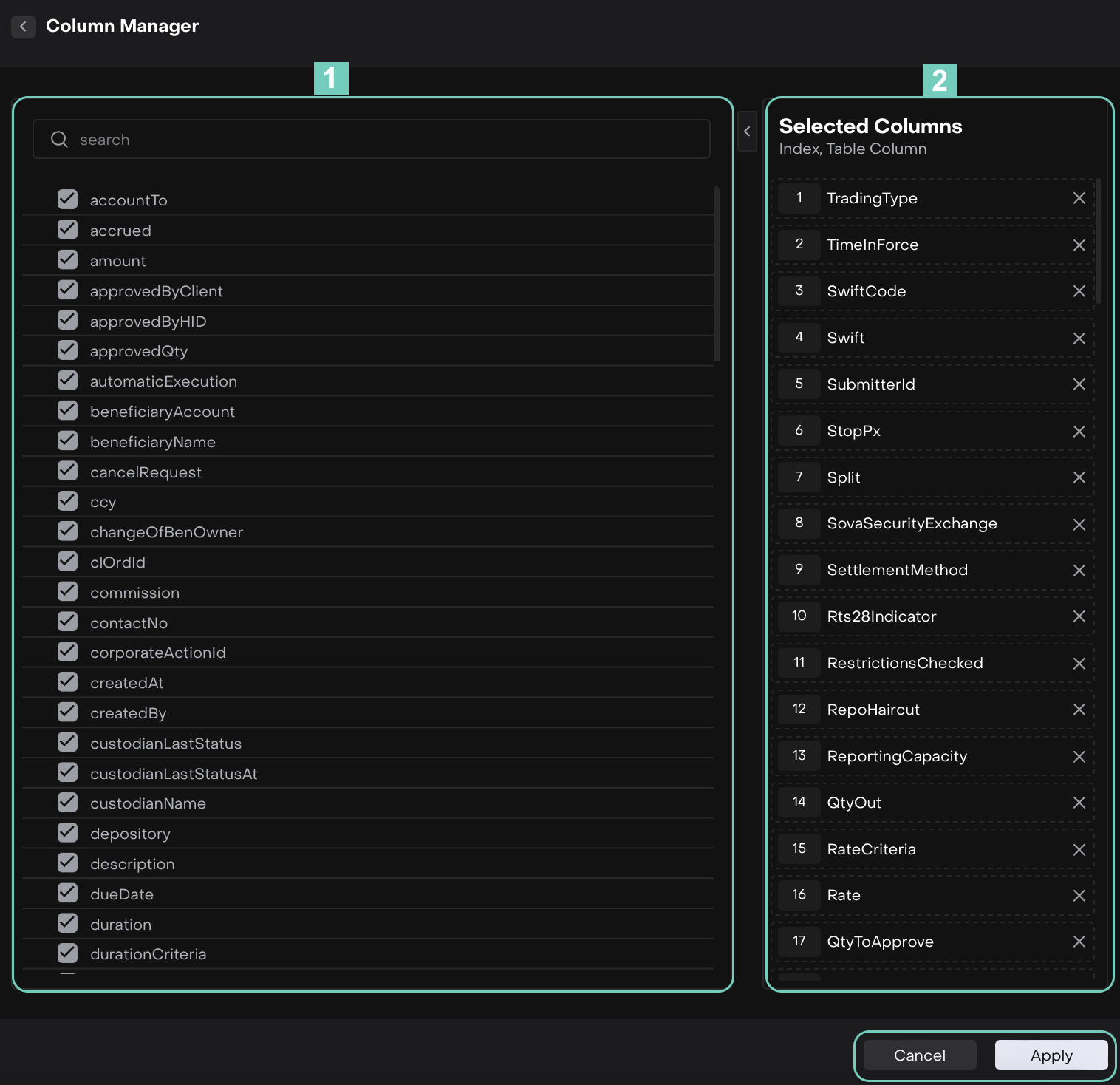
The Columns button lets you manage your table view:
Tick / Untick – choose which fields to appear in your table.
Drag & Sequence – move columns up or down to change the order.
Column Name | Definition / Description | How it’s used on the Platform |
|---|---|---|
ACCOUNTID | Client or internal account ID | Identifies the account impacted by the transaction |
ALLOCATEDQUANTITY | Quantity already allocated | Displays how much has been distributed to portfolios or accounts |
ALLOCATEDTOPORTFOLIO | Portfolio to which trade is allocated | Tracks allocation results for executed trades |
ALERTFLAG | platform alert or notification flag | Notifies users of important issues, exceptions, or updates |
ASSETLEG | Asset component in a multi-leg trade | Tracks the security component of complex (multi-leg) trades |
BLOCKTRADEFLAG | Indicates whether the trade is a block trade | Helps identify and categorize large institutional trades |
BOOKINGSTATUS | Status of transaction booking | Monitors whether a trade has been recorded or finalized in the platform |
BROKERACCOUNTID | Broker account linked to the order | Identifies the account used for broker settlement |
BROKERAGEMARKUP | Additional fee or markup charged by the broker | Contributes to total transaction cost and P&L calculations |
BROKERAGEPERCENT | Percentage of the transaction charged as brokerage | Calculates broker commission automatically |
BROKERFEEID | Identifier of the applied brokerage fee | Links transaction with the relevant brokerage fee record |
CASHIMPACT | Cash effect of the transaction | Reflects the liquidity impact of a trade or non-trade transaction |
CASHLEG | Cash component in a multi-leg trade | Displays cash movement in complex transactions |
CLIENTREFERENCE | Client reference ID | Used for client-side reconciliation or audit |
COMMISSION | Commission charged on trade execution | Deducted from total trade value; used in cost and P&L calculation |
CONNECTIONID | ID of the platform connection used for execution | Tracks execution route or venue connectivity |
CORRESPONDENTBANK | Intermediary or correspondent bank | Identifies routing for cross-border or FX settlements |
COUNTERPARTY | The opposite party involved in the trade | Identifies the broker, exchange, or counterparty entity |
CREATEDBY | User who created the order | Maintains audit trail and accountability |
CREATEDON | Timestamp when order was created | Used for historical tracking and reporting |
CROSSTRADEFLAG | Indicates if the order is a cross trade | Flags internal trades between client or proprietary portfolios |
CCY | Currency of the transaction | Determines the trading and settlement currency |
EFFECTIVEDATE | Date when the transaction takes effect | Defines the accounting or settlement timeline |
EXECUTINGBROKER | Broker who executed the order | Tracks broker participation in the trade |
EXECUTIONVENUE | Market or venue where trade was executed | Identifies the exchange, OTC, or DMA route |
FEEAMOUNT | Fee charged for the transaction | Used in total cost and P&L calculations |
FEETYPE | Type of fee (brokerage, custodian, etc.) | Categorizes transaction costs for reporting |
FUNDID | Fund associated with the transaction | Links transaction to a specific investment fund |
HOLDINGIMPACT | Indicates holdings impact | Updates asset position in the corresponding portfolio |
HOLDINGTYPE | Type of holding (custody, proprietary, client) | Determines account classification and reporting logic |
INSTRUCTION | Additional trade instruction | Provides operational notes for brokers or platform execution |
INSTRUCTIONSDETAIL | Detailed free-text instructions | Supports specific handling or exceptions during processing |
INSTRUCTIONSFLAG | Indicates special instructions exist | Alerts operations to review manual notes or requirements |
INSTRUMENTCATEGORY | Category of financial instrument | Enables filtering and classification (e.g., equity, bond, derivative) |
INSTRUMENTID | Internal platform identifier for instrument | Ensures unique identification within the platform |
INSTRUMENTNAME | Name of the instrument or security | Displays readable instrument details to users |
INTERNALREFERENCE | Internal reference ID | Used for internal reconciliation and tracking |
ISIN | International Securities Identification Number | Standard identifier used for trading and reporting |
LASTUPDATED | Timestamp of the last modification | Maintains version and audit control |
LIMITPRICE | Limit price for Limit or Stop-Limit orders | Controls the maximum or minimum execution price |
MATCHINGSTATUS | Indicates if transaction has been matched | Helps identify unmatched or pending confirmations |
MULTICURRENCYFLAG | Shows if multiple currencies are involved | Supports multi-currency transaction processing |
MULTILEGORDER | Flag indicating multi-leg order | Identifies complex or structured order types |
NETAMOUNT | Total transaction amount after deductions | Displays net cash impact post-fees and taxes |
OMNIBUSPARENT | Parent omnibus account ID | Links related sub-accounts under a master omnibus account |
OPERATIONCONTRACT | Contract or agreement reference | Associates transaction with operational/legal documentation |
OPERATIONTYPE | Type of operation (allocation, transfer, redemption) | Defines the transaction workflow in the platform |
ORDERCLIENTID | Client who placed the order | Connects the transaction to the client’s record |
ORDERCURRENCY | Currency used for order submission | Defines the currency context for trade input |
ORDEREXPIRY | Expiration date/time of the order | Controls auto-cancellation of orders beyond validity |
ORDERHISTORY | Record of all order changes | Provides a full audit trail of order updates |
ORDERORIGIN | Source of the order (client, advisor, platform) | Tracks the origin channel for compliance |
ORDERPRIORITY | Priority assigned to the order | Determines sequence for routing and execution |
ORDERSENTBY | User or role who sent the order | Used for traceability and accountability |
ORDERTYPE | Type of order (Market, Limit, Stop, Stop Limit) | Defines order execution behavior and required fields |
PORTFOLIO | Portfolio linked to the order | Allocates trade results to the correct portfolio |
POSITIONIMPACT | Indicates position change | Reflects whether transaction updates open positions |
PRIORITY | Execution priority level | Influences trade routing and processing sequence |
QUANTITY | Quantity or number of units traded | Defines executed size and portfolio exposure |
RECEIVINGBANK | Bank receiving settlement funds | Identifies settlement destination account |
RELATEDORDER | Reference to linked order(s) | Tracks related or dependent transactions |
REJECTIONREASON | Reason for order rejection | Provides feedback for correction or compliance review |
RESTRICTIONSCHECKED | Compliance/restriction verification flag | Ensures regulatory or internal trade rules are met |
SECURITYTYPE | Security type (equity, bond, derivative) | Determines applicable trading and reporting rules |
SENDINGBANK | Bank sending settlement funds | Identifies source account for cash movement |
SETTLEMENTCURRENCY | Currency used for settlement | Defines actual payment currency for trade |
SETTLEMENTINSTRUCTIONS | Settlement instructions for operations | Guides clearing and settlement processes |
SETTLEMENTMETHOD | Type of settlement (e.g., DVP, FOP) | Defines whether delivery and payment occur simultaneously |
SETTLEMENTMETHODCODE | Code for settlement method | Used for platform-based settlement automation |
SETTLEMENTSTATUS | Status of settlement (Pending, Done) | Monitors settlement completion |
SOURCE | Origin of transaction creation (Manual, platform, API) | Helps identify trade entry channel |
SOVASECURITYEXCHANGE | Exchange where the security is listed | Identifies trading venue and settlement route |
SPLIT | Indicates if the order is part of a split order | Helps manage partial or split executions |
STATUS | Current order status (Ready, Filled, Cancelled, Done, etc) | Tracks the real-time progress of the order |
STOPPX | Stop price for Stop and Stop Limit orders | Triggers order activation when reached |
SUBORDINATEORDER | Link to parent or sub-order | Maintains relationship between complex order structures |
SUBMITTERID | ID of user submitting the order | Records who submitted or executed the order |
TAXAMOUNT | Tax applied to transaction | Used in net settlement and reporting calculations |
TIMEINFORCE | Duration order remains active (e.g., GTC) | Controls order validity period |
TRADEPRICE | Price at which trade executed | Used for valuation and P&L computation |
TRADESETTLEMENTSTATUS | Completion status of trade settlement | Indicates if settlement is finalized |
TRADETIME | Timestamp of trade execution | Used for audit and market reporting |
TRANSACTIONCATEGORY | Category (cash, security, derivative) | Classifies transactions for reporting |
TRANSACTIONID | Unique internal transaction ID | Serves as a platform reference for traceability |
TRANSACTIONTYPE | Type of transaction (Buy, Sell, Cross Trade, etc.) | Defines transaction direction and purpose |
UNALLOCATEDQUANTITY | Quantity not yet allocated | Identifies pending allocations |
UNMATCHEDQUANTITY | Quantity pending match | Tracks open or unsettled trade quantities |
VALUEDATE | Settlement date of transaction | Determines when value is realized or posted |
4. Refresh
Click to update the orders table with the latest data.
5. Expand
Click on it to view the table in full screen or adjust it to a narrower width.
6. Export to Excel
Download the orders table with current settings as an .xlsx file.