
Restrict Role Access by IP
Introduction
You can control access to the platform for specific roles by configuring External Access and setting allowed IP Addresses. This ensures that only users connecting from trusted networks can access the platform with sensitive roles.
How to Configure IP Restrictions for a Role
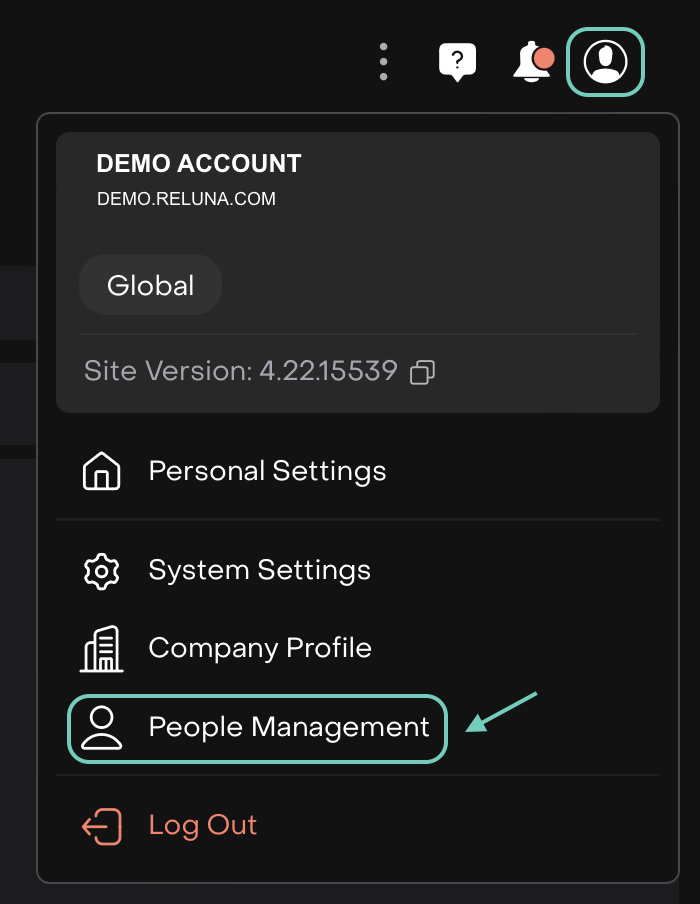
Go to User Settings > People Management > Roles tab.
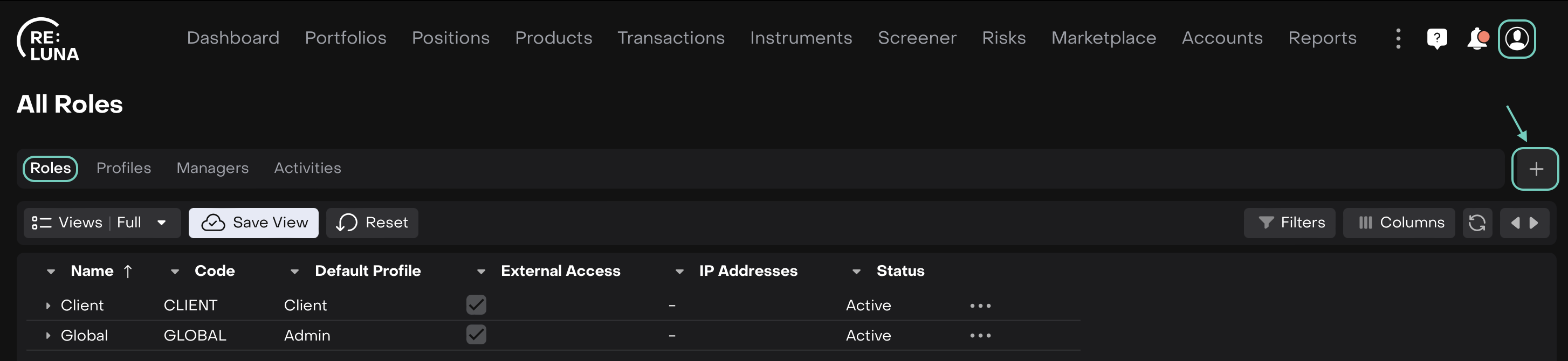
Create or edit a role:
Click the “+” icon on the right to create a new role,
or select an existing role to update.

Learn more here on How to Manage Roles on Platform.
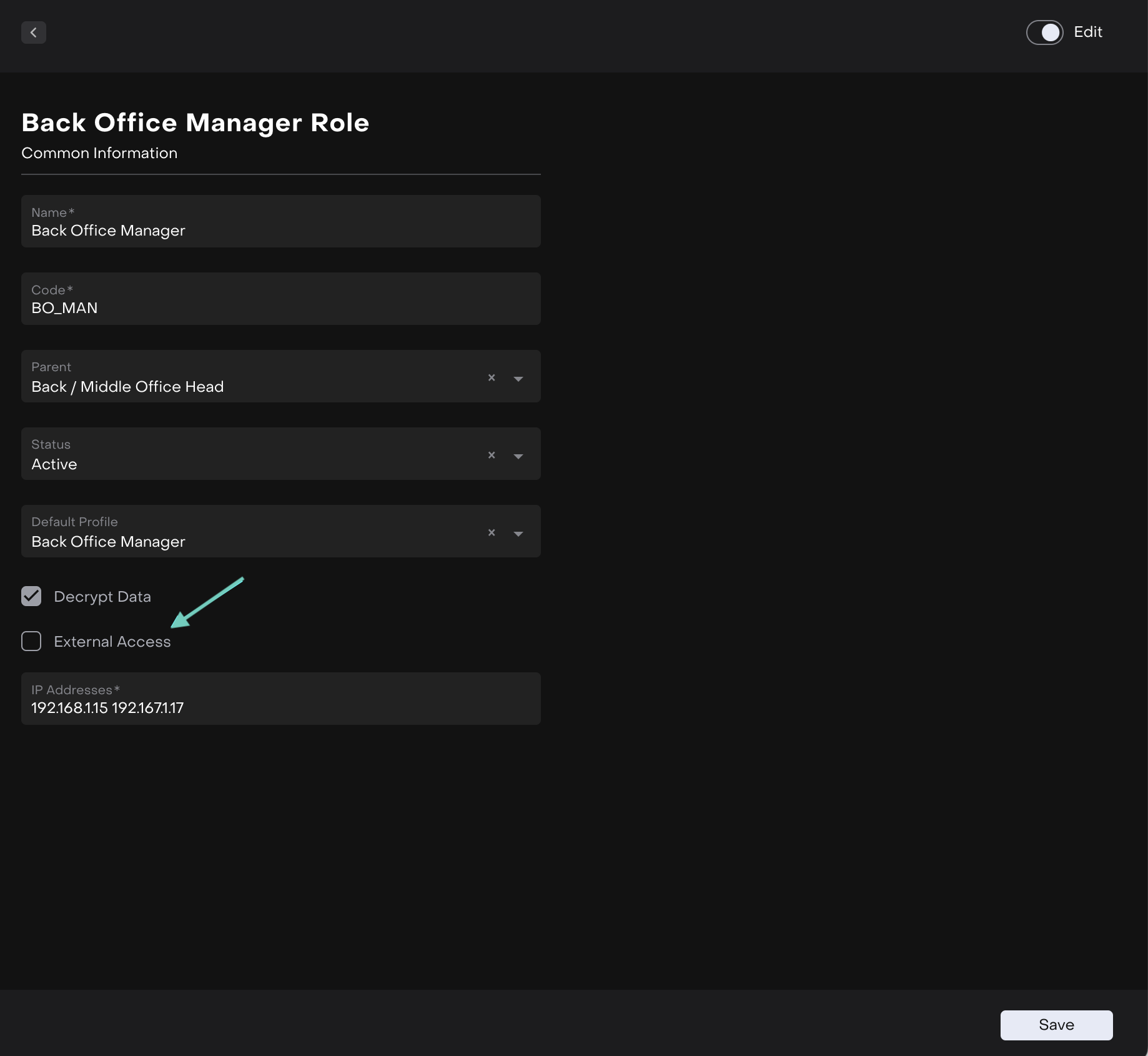
Find the External Access checkbox.
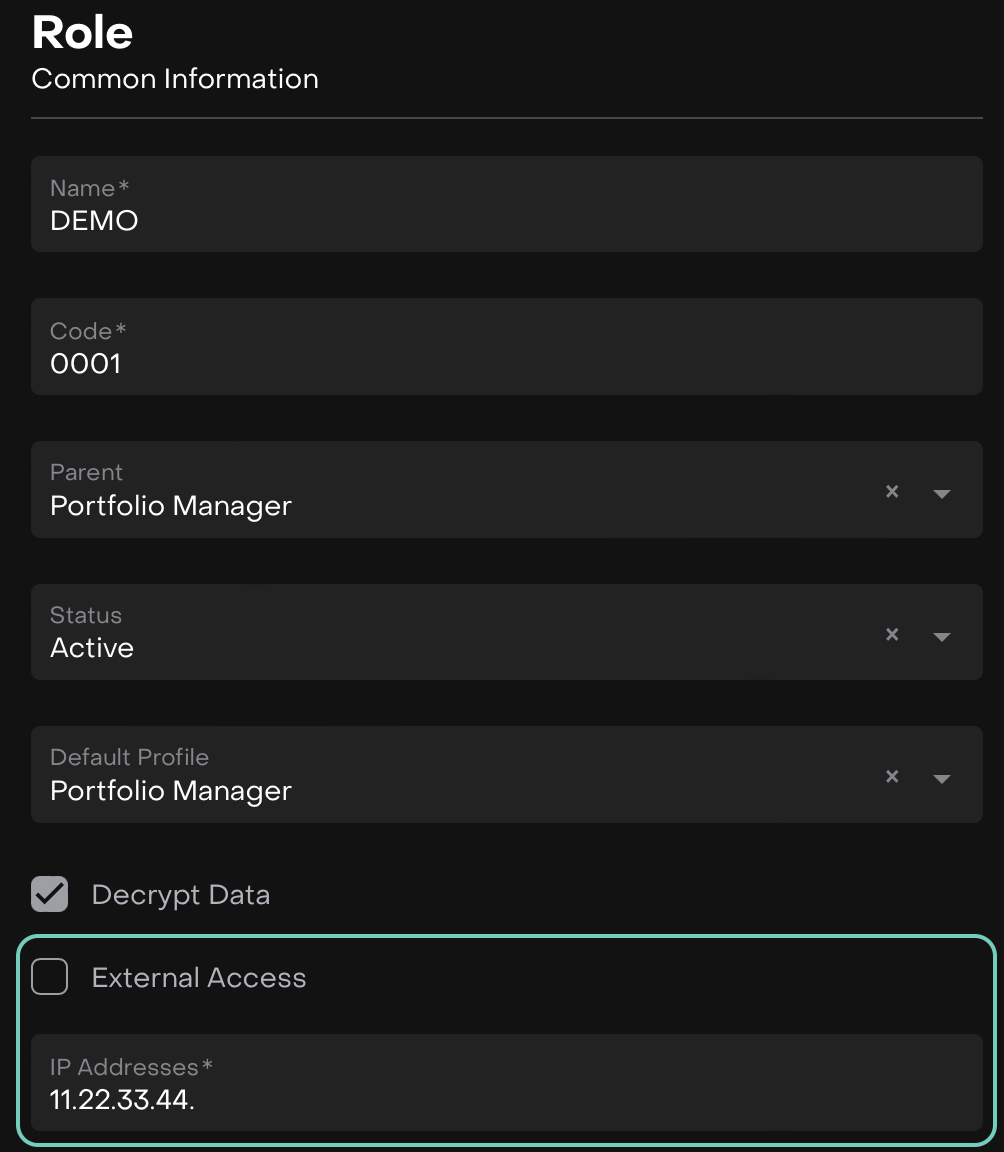
❌ Unchecked – Access will be restricted to specific IPs.
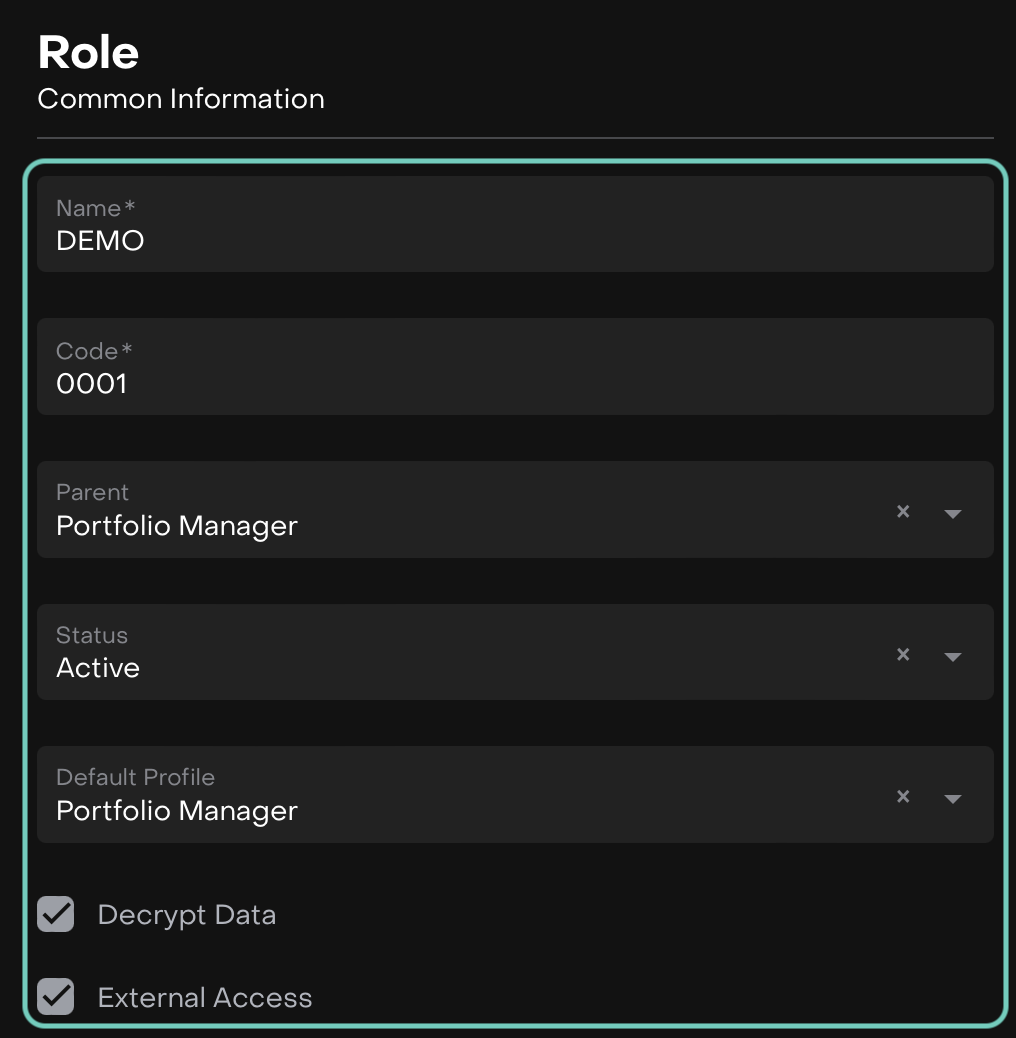
✅ Checked – Users can log in from any IP address.

If External Access is unchecked, a new field called “IP Addresses” will appear.
Enter one or more allowed IP addresses:
Use standard IP format (e.g.,
192.168.1.15,203.01.113.24). If entering multiple IPs, separate them with a space.Only users connecting from these IPs will be able to use this role.
Now, Save the role configuration.