
Rollback Manually Approved Transactions
How to Rollback a Manual Approval Transaction
Locate the transaction that you want to rollback.
Open the transaction:
Double-click the transaction, or
Click the three-dot menu and select Rollback.

If the rollback option is not visible, contact your Business Admin.
When the transaction window opens, toggle Edit on.
Click Rollback to revert the transaction.
A Rollback Of Transaction page opens.
Select, Rollback To Manual Approval. Here, revert to Status: Pending and Status Reason: Pending Confirmation For Manual Approval Without Matching Or Allocation.
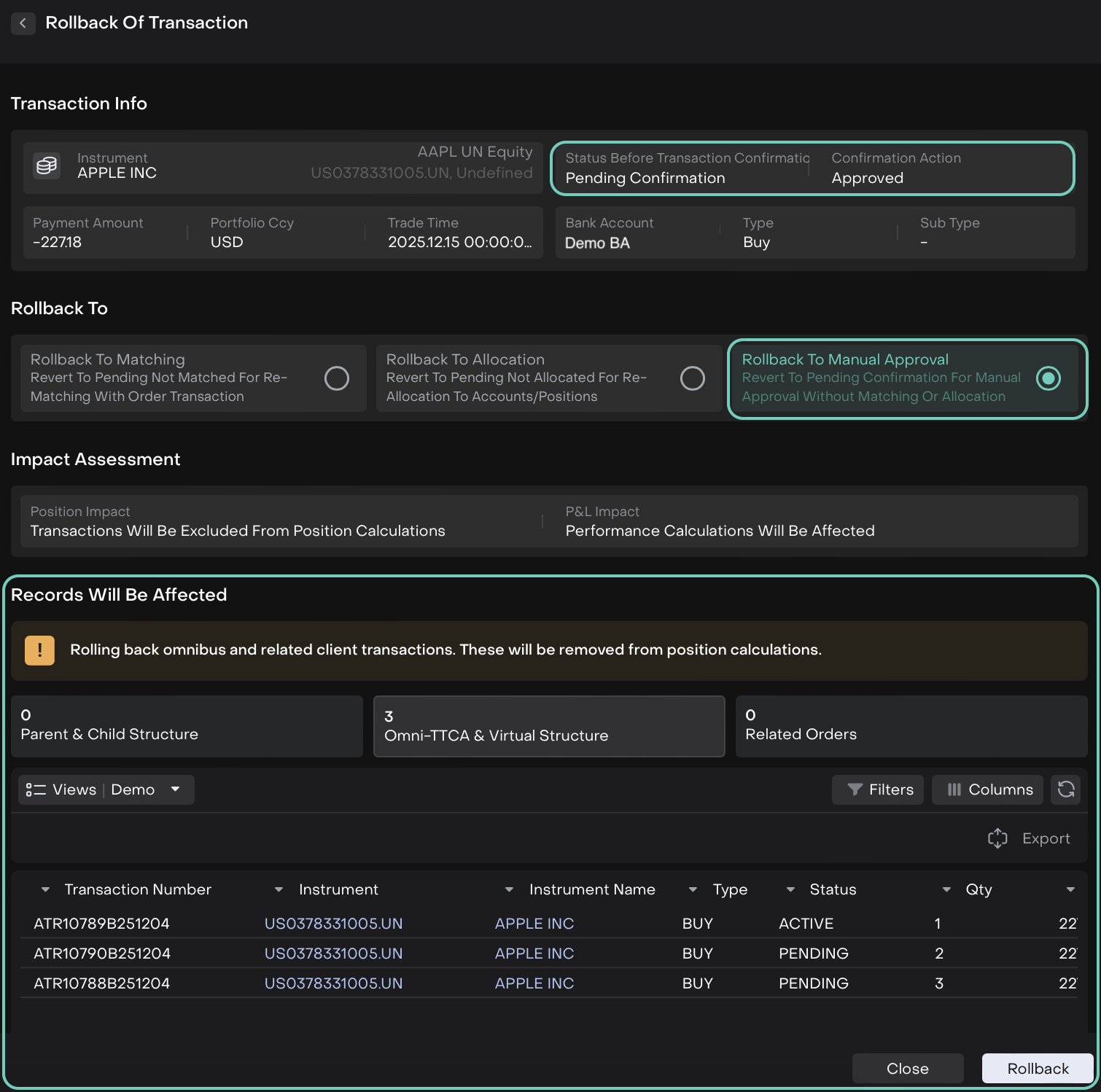

You can roll back a transaction to Pending Confirmation (Manual Approval) even if it needs to be matched with an order. This temporarily skips matching, so you must manually run the matching step afterward before continuing further.
Click on Rollback button or click Close to discard.
Now, the platform will show you a confirmation prompt before completing the rollback.
Click Rollback on the confirmation window or Cancel to go back.
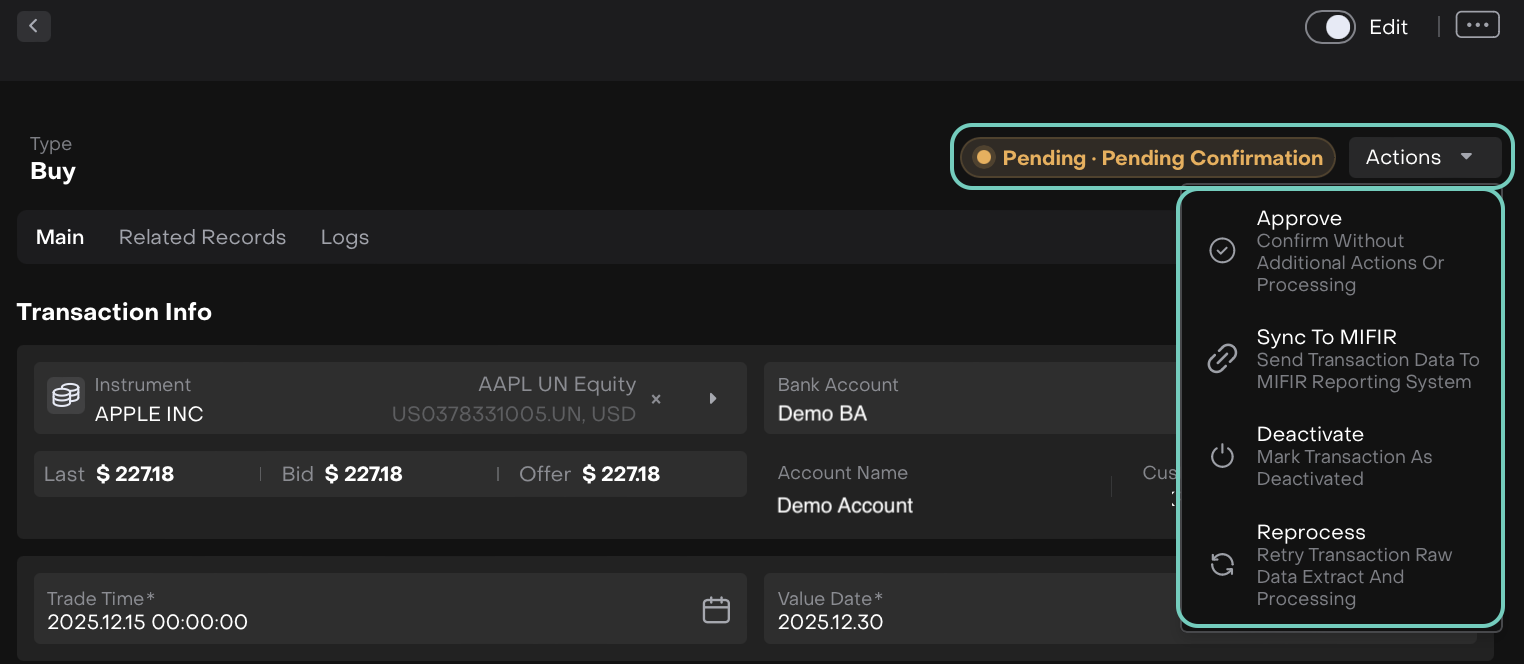
Reverts transaction to Pending Confirmation for manual approval without matching or allocation.
What Happens After Rollback
The platform automatically performs each reversal step.
1. Order Transaction Movement
Before Rollback | After Rollback |
|---|---|
Active > Confirmed | Status: Pending |
Your transaction returns to a Pending state for re-approval.
2. Order Movement
Before Rollback | After Rollback |
|---|---|
Done | Filled |

Your order is stepped back one stage to Filled, where it waits for approval again.
The exact type depends on where the transaction was in the workflow before approval was completed.