
Rollback Transactions
Rollback: Overview
What is Rollback?
Rollback allows you to revert a transaction from the Active / Confirmed state back to its previous status:
Not Approved
Not Allocated
Not Matched
This enables you to fix incorrect data, correct matching issues or reprocess/reallocate the transaction without breaking the transaction lifecycle or creating portfolio inconsistencies.
When Rollback is Available
Rollback can be performed only if:
Transaction Status = Active
Transaction Status Reason = Confirmed
🔗 Click here to learn how to configure Matching mechanism on platform.
Transactions Excluded from Rollback
Rollback is not supported for the following transaction types:
Product Subscription
Product Unsubscription

Any attempt to rollback these transactions will be ignored by the platform.
Rollback Scope (What Happens During Rollback)
When you perform a rollback:
The platform automatically checks parent and child transactions
All related transactions and associated orders are rolled back together
This ensures data consistency across linked records.
Permissions Required
If you do not see the Rollback option:
Contact your Business Admin
Verify that you have Modify permission for transactions
Key Terminologies
Term | Definition |
|---|---|
Allocation | The step where transaction quantity or amount is distributed among accounts, portfolios or positions. Rollback to Allocation moves the transaction back before allocation was completed. |
Manual Approval | A user-driven approval step. Rolling back to Manual Approval allows you to re-review or modify the transaction before approving again. |
Matching | The process of linking two or more related transaction records (e.g., bank record + order execution). If you roll back to Matching, the transaction returns to a “Not Matched” stage. |
Parent/Child Transactions | Linked transactions that follow a hierarchy. When rolling back, the platform rolls back all related parent or child transactions together to keep the lifecycle consistent. |
Pending – Not Allocated | A pending status showing the transaction has not been allocated yet. |
Pending – Not Approved | A pending status indicating the transaction has not been manually approved. |
Pending – Not Matched | A pending status indicating the transaction has not been matched yet. |
👉 New to some terms? Check out our full Platform Glossary for more.
Where You Can Perform a Rollback
You can start a rollback from two locations:
From Portfolios:
Go to Portfolios > Select Portfolio > Transactions tab > Choose transaction(s) to rollback.

From Transactions:
Go to Transactions > Find Transactions tab > Select transaction(s) to rollback.

How to Rollback Transactions
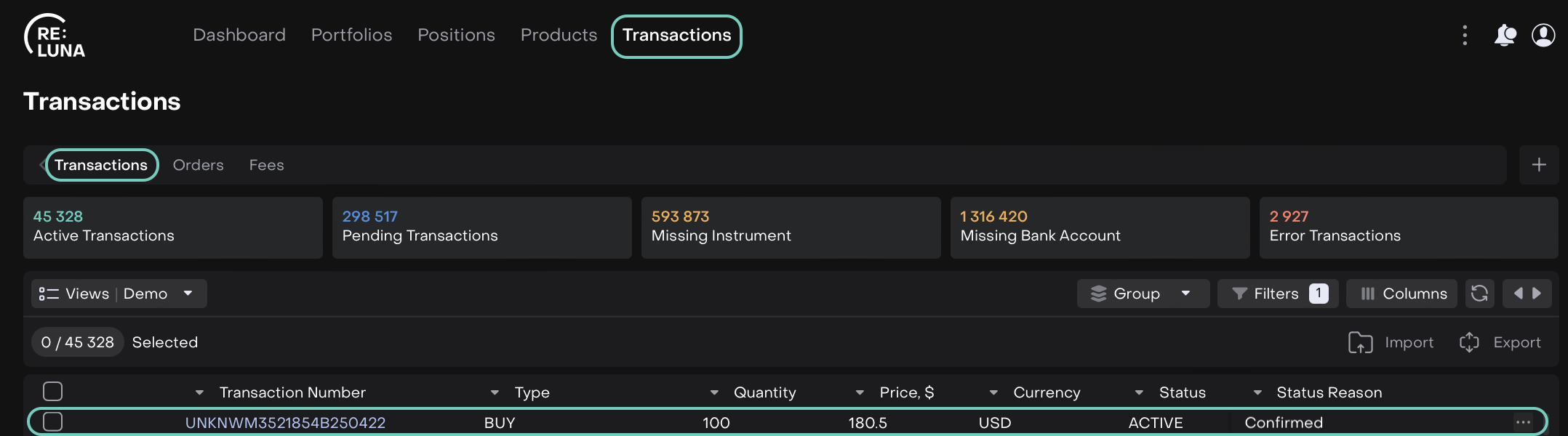
Locate the transaction that is in Active status with the status reason Confirmed.
Open the transaction by double-clicking on it or use the three-dot menu and select Rollback.
When the transaction window opens, toggle Edit on.
Click Rollback to revert the transaction.
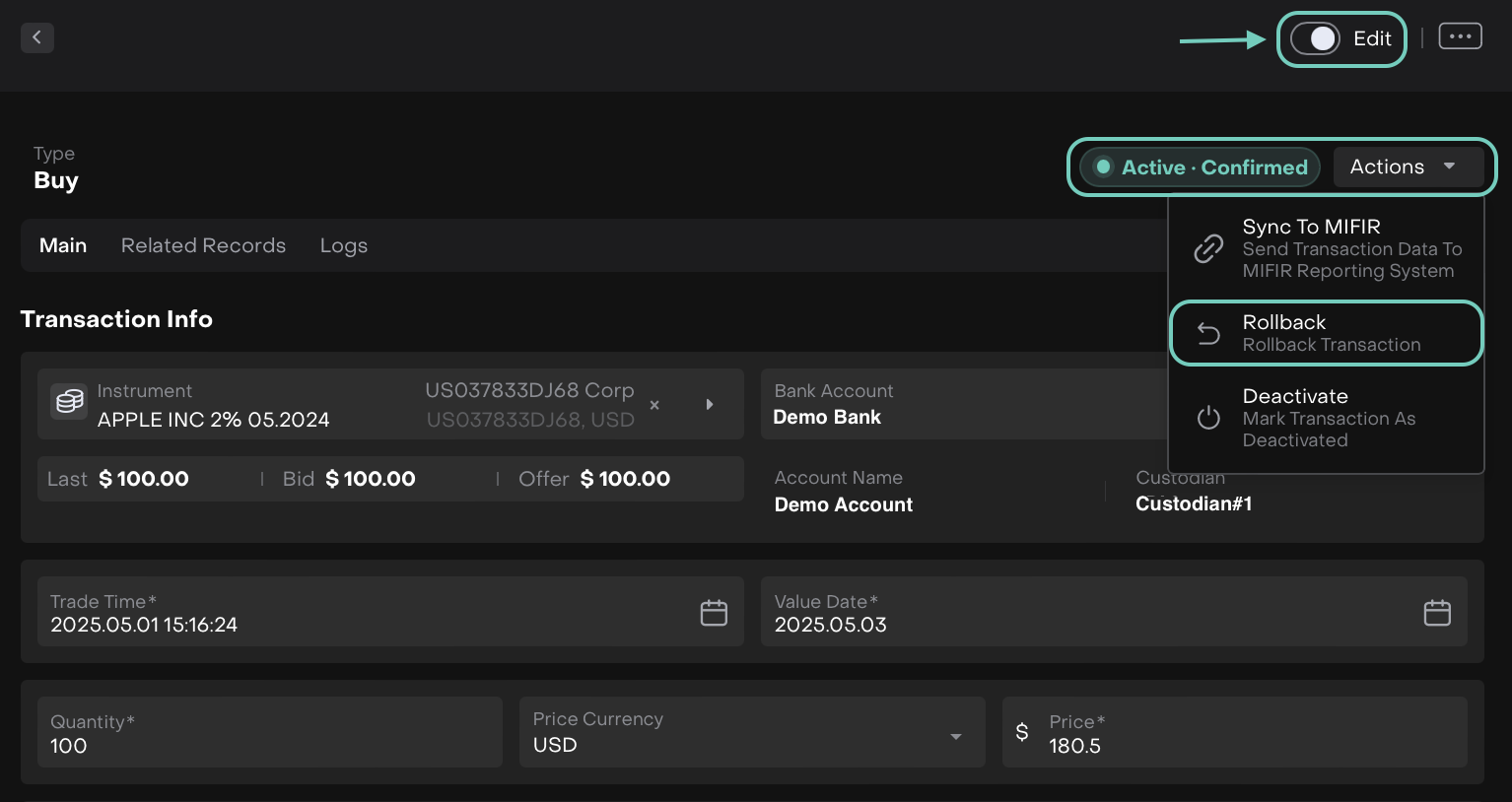
The following screen appears.
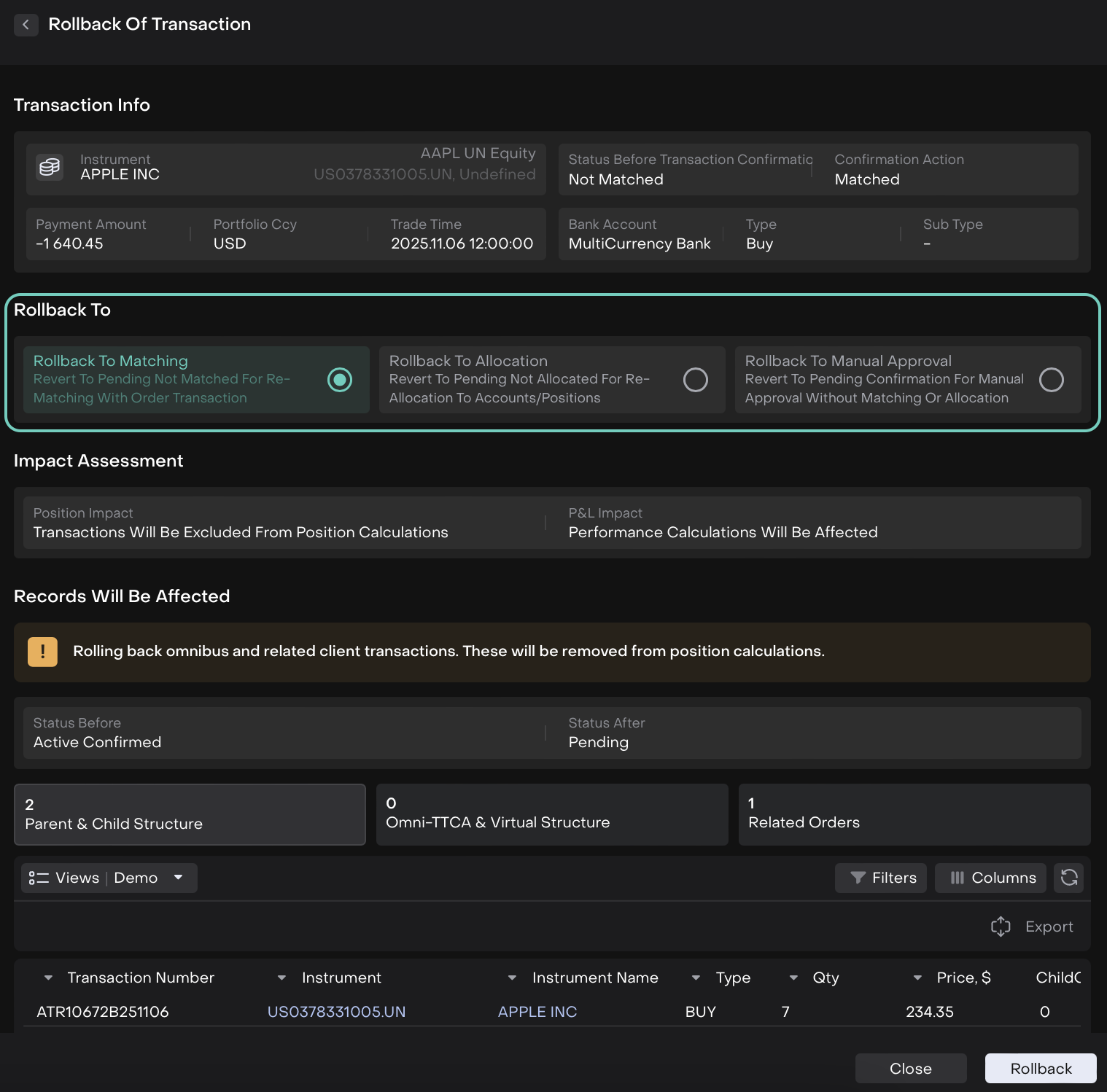

See how to roll back a transaction to the specific statuses from below guides.
🔗 Rollback Matched Transactions