
Rollback Matched Transactions
Prerequisite
Before performing a rollback, always check the Matched checkbox to confirm the transaction’s matching status.


If you cannot see the rollback option, contact your Business Admin.
How to Rollback Matched Transaction
Locate the transaction that you want to roll back.
Open the transaction by double-clicking it, or click the three-dot menu and select Rollback.
When the transaction window opens, toggle Edit on.
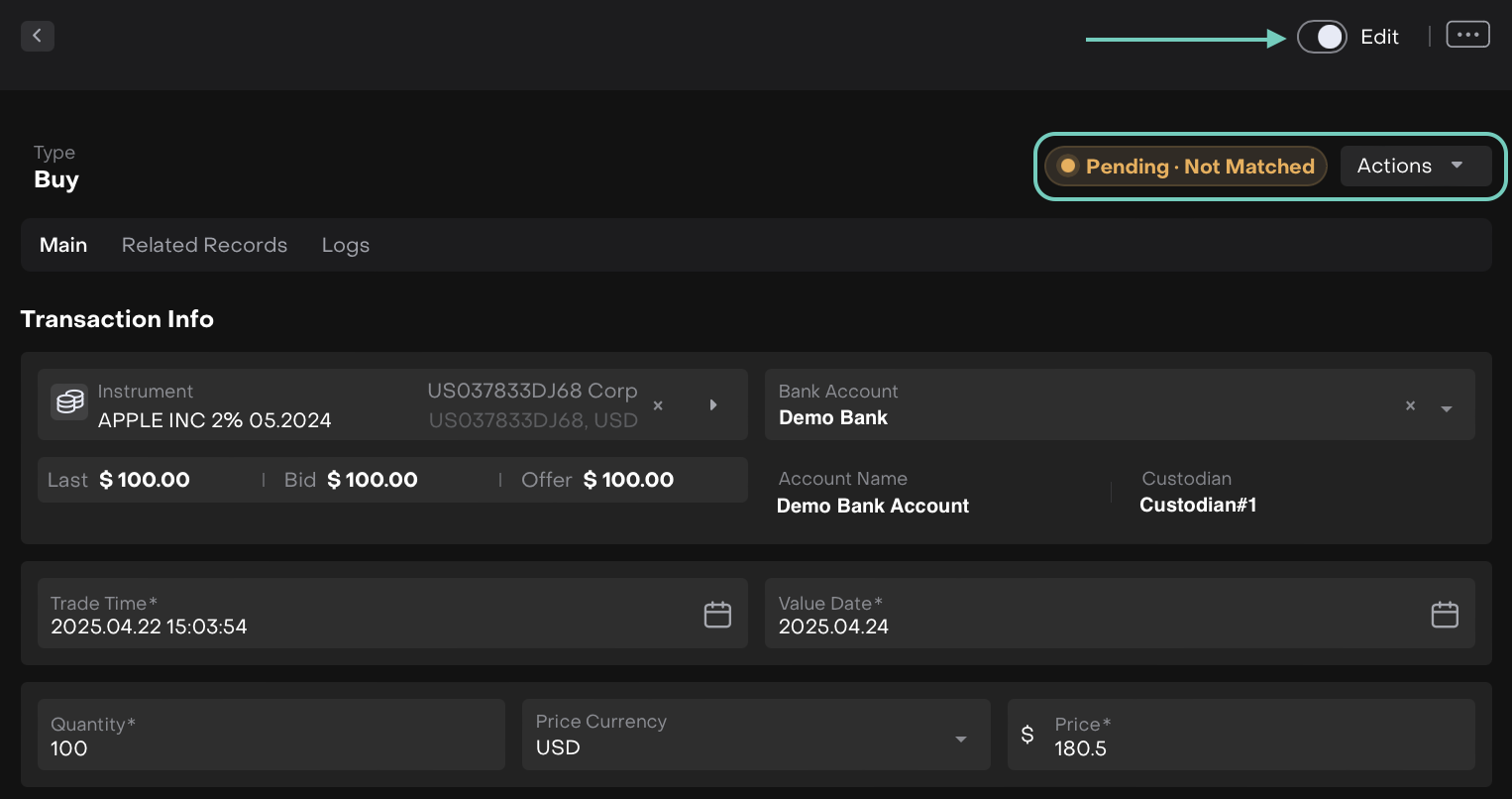
Click Rollback to revert the transaction. A Rollback Of Transaction page opens.
Select, Rollback To Matching. Here, revert To Status: Pending and Status Reason: Not Matched For Re-Matching With Order Transaction.
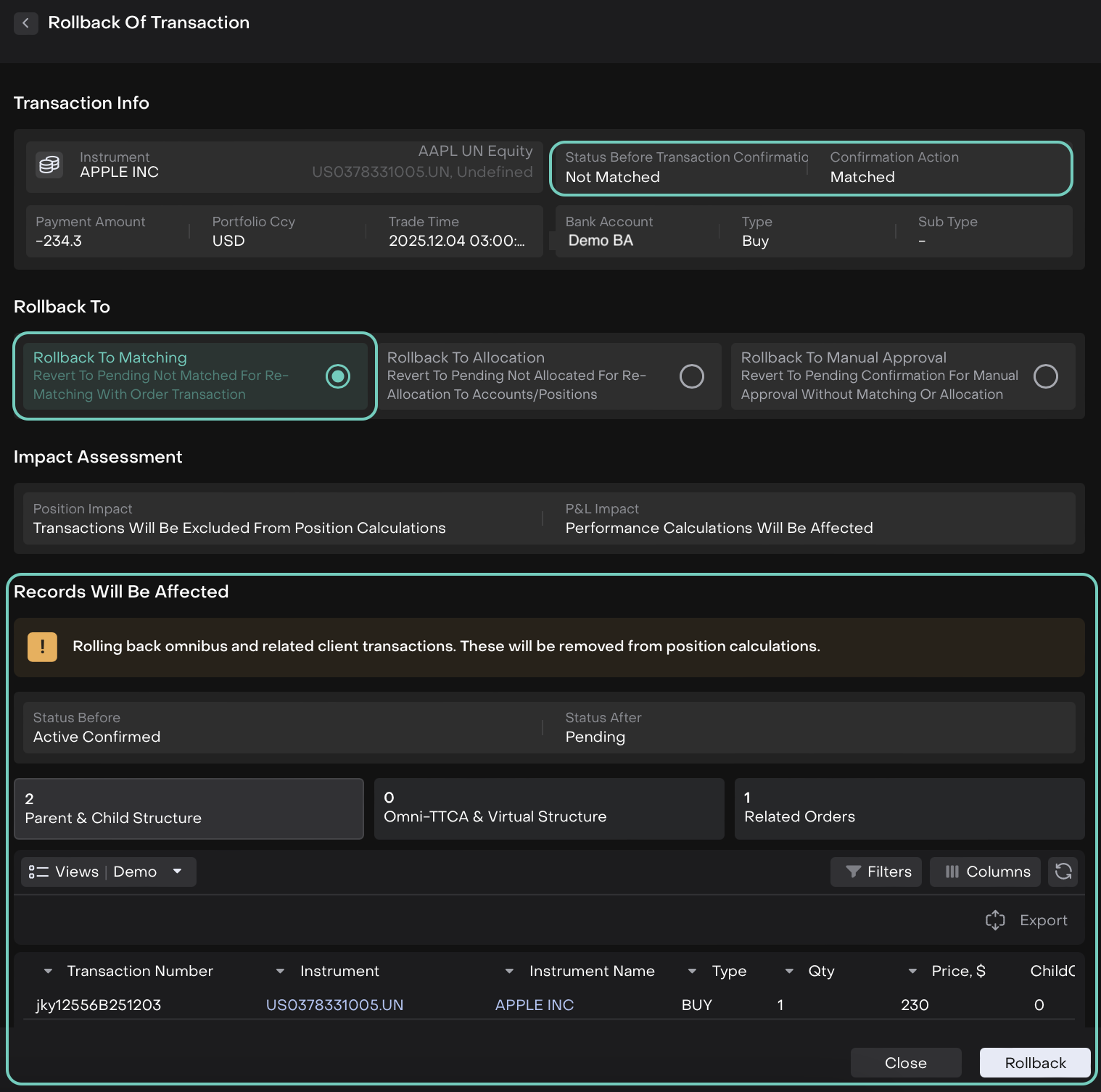
Click on Rollback button or click Close to discard.

Platform is configured to require a Change Request for modifications to confirmed transactions, the Rollback action is handled through one single Change Request that covers all related transactions and orders and no separate Change Requests are created for individual records.
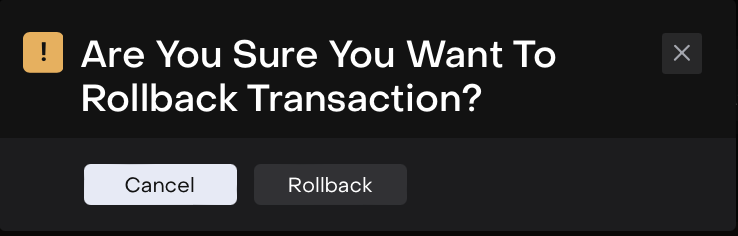
The platform displays a confirmation prompt; click Rollback to proceed or Cancel to return without making changes.
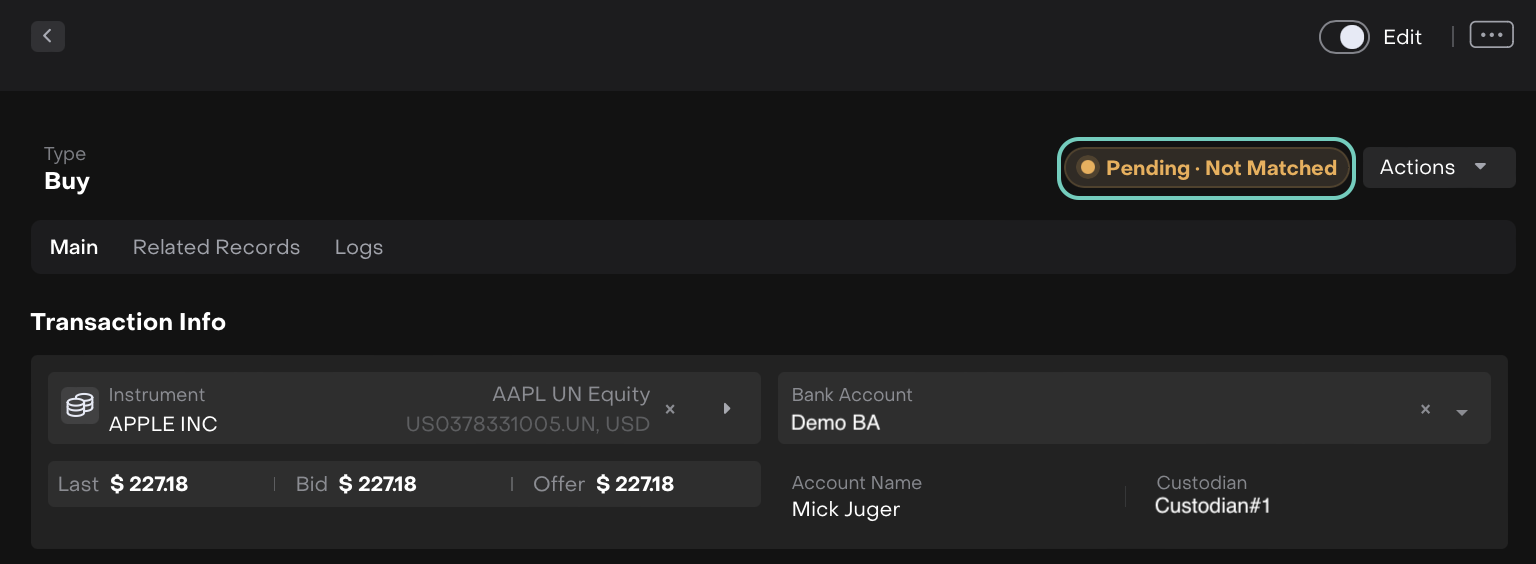
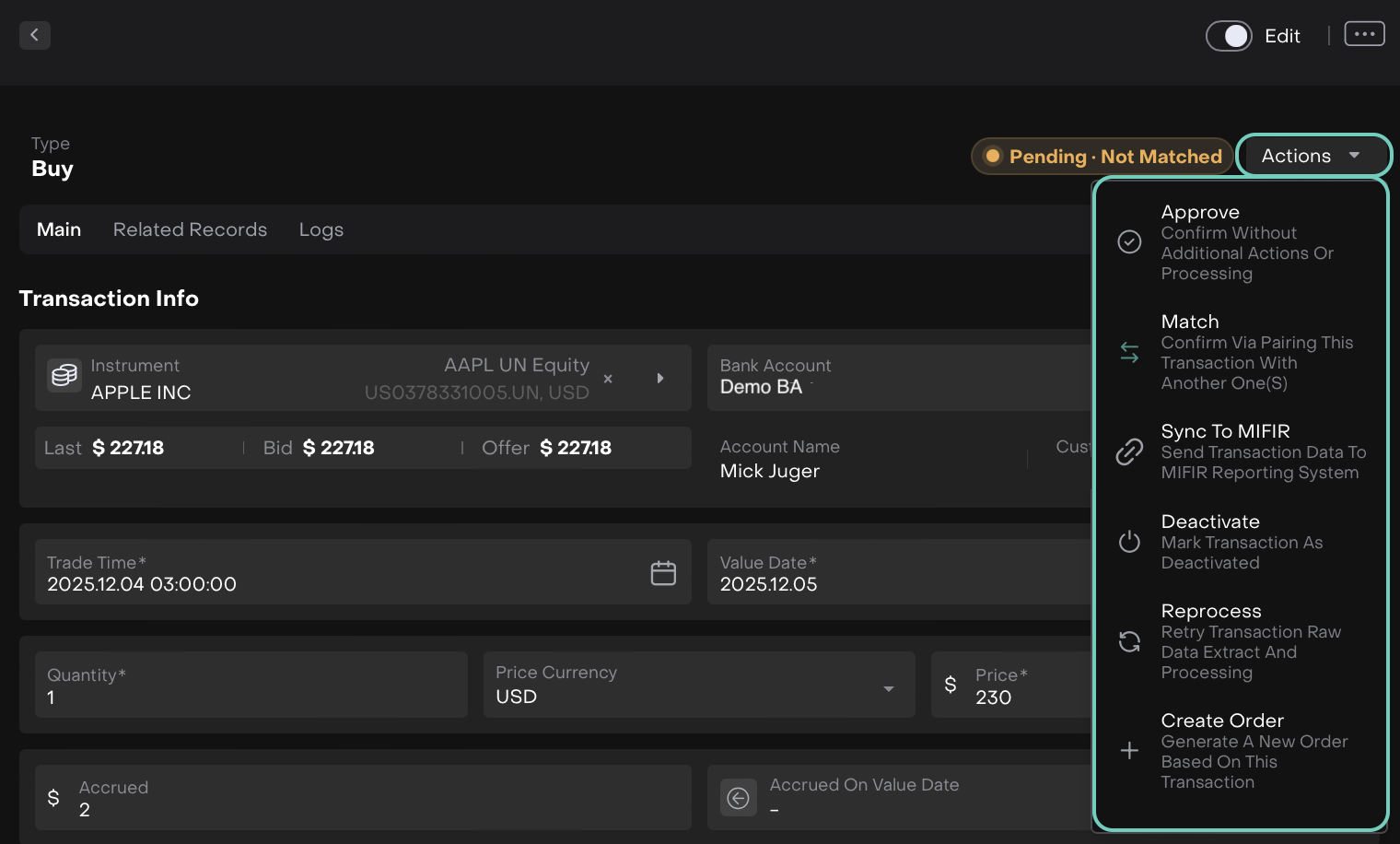
Upon rollback, the status changes to Pending and Status Reason: Not Matched.
Transactions will be excluded from position calculations.
Further perform the following actions: approve/match. Once updated/edited the status will change to Active and Status Reason Confirmed.
What Happens After Rollback
The rollback updates both the order transaction and the order status.
1. Order Transaction Movement
Before Rollback | After Rollback |
|---|---|
Active > Confirmed | Deactivated |
2. Order Movement
Before Rollback | After Rollback |
|---|---|
Done | Filled |
The order steps back one level and is no longer considered completed.

The platform chooses the correct state automatically based on where the transaction was in the workflow before matching was completed.