
Rollback Postallocated Transactions
How to Rollback a Post Allocation
Locate the transaction, open it (double-click or use the three-dot menu) and toggle Edit on.
Click Rollback to revert the transaction. A Rollback of transaction page opens.

If you do not see the Rollback option, contact your Business Admin for access.
Select, Rollback To Allocation. Here, revert To Status: Pending and Status Reason: Not Allocated For Re-Allocation To Bank Account/Positions.
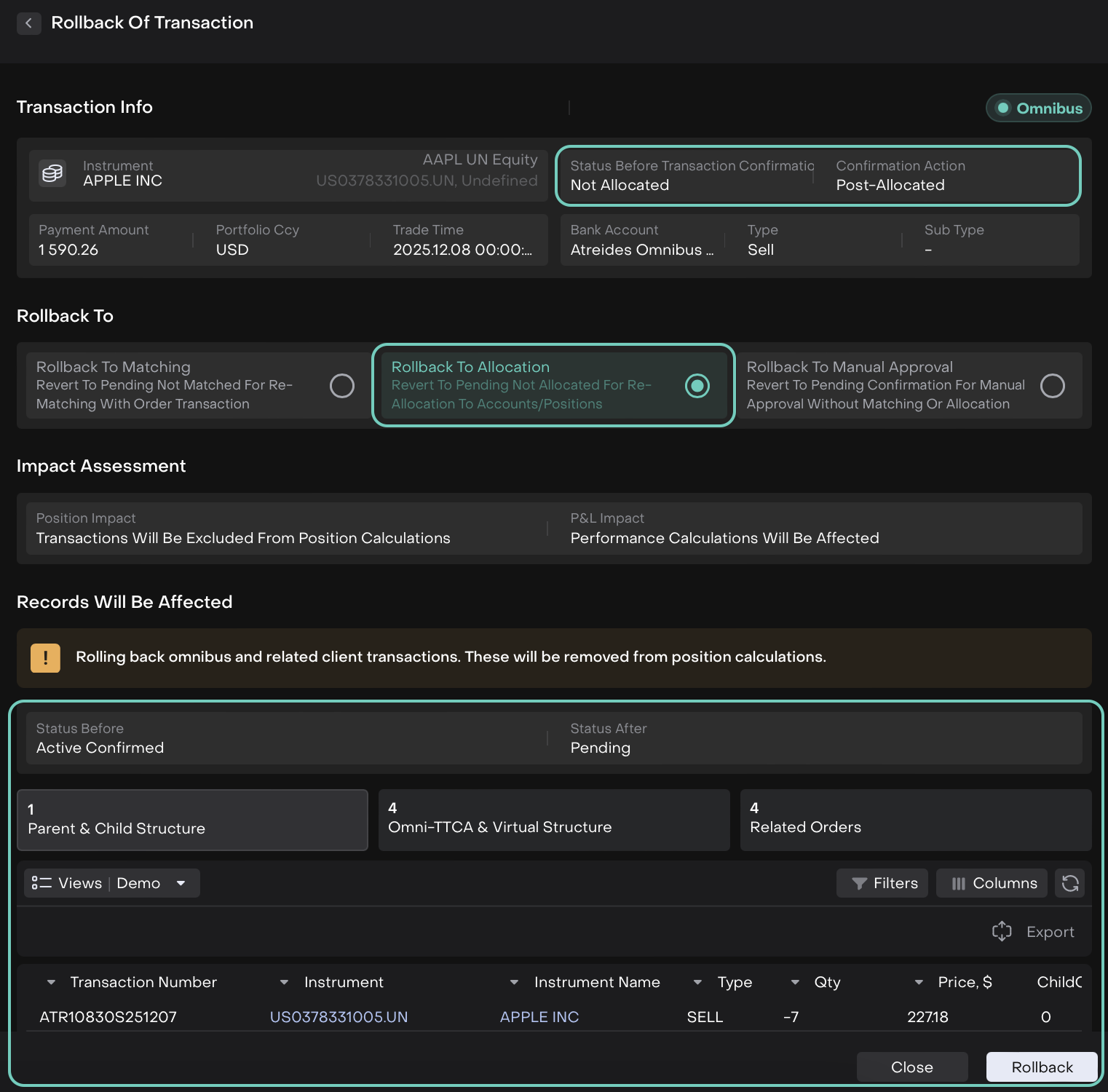
If Rollback to Allocation is chosen, the platform immediately reverses the Post Allocation effects.
Click on Rollback button or click Close to discard.
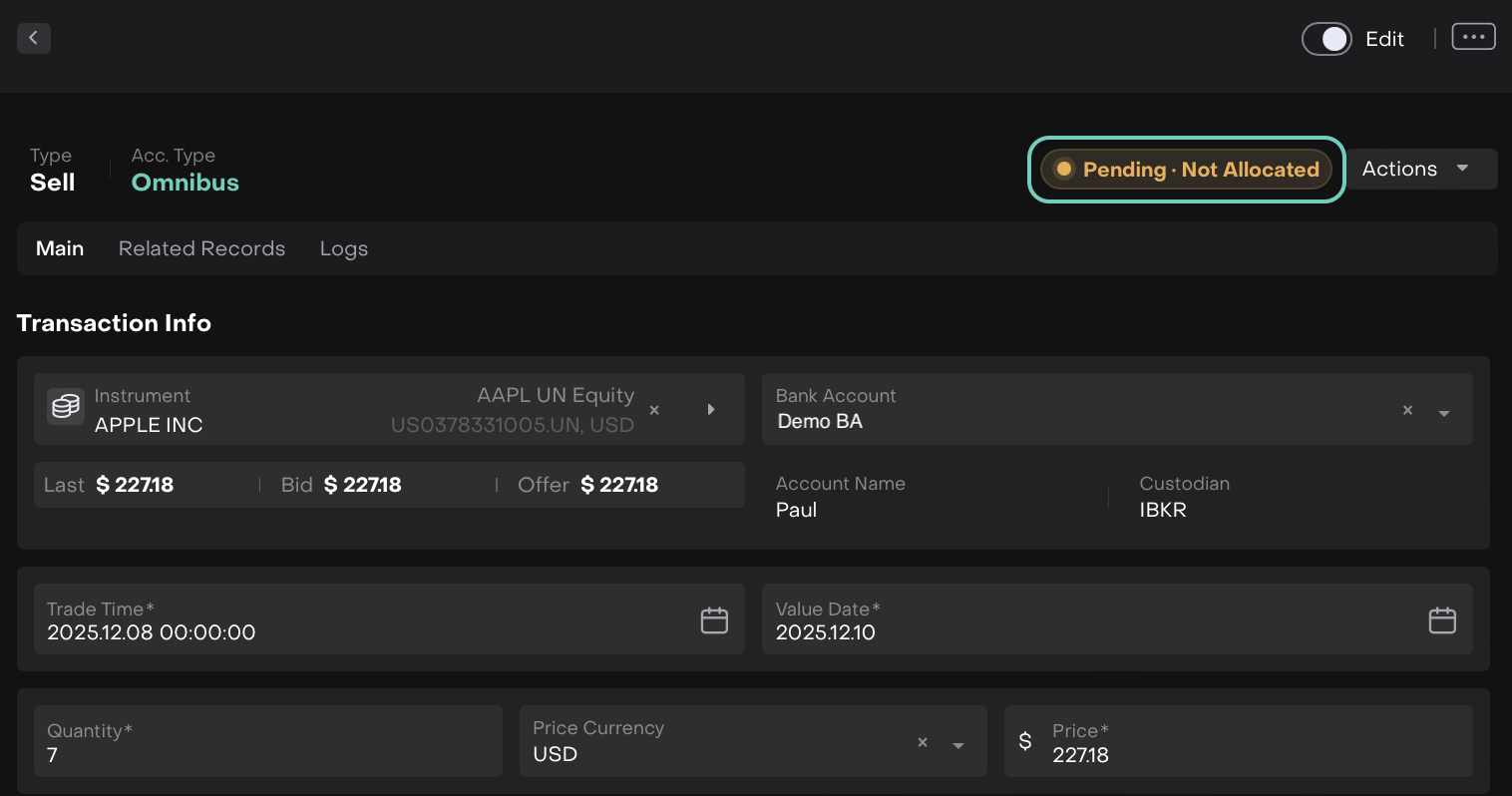

You will see the order transaction and the parent order update automatically.

You can now run allocation or matching again as needed.
What You Can Do Next
Once rollback is complete, you can:
Choose the action to re allocate. Find it from Actions.
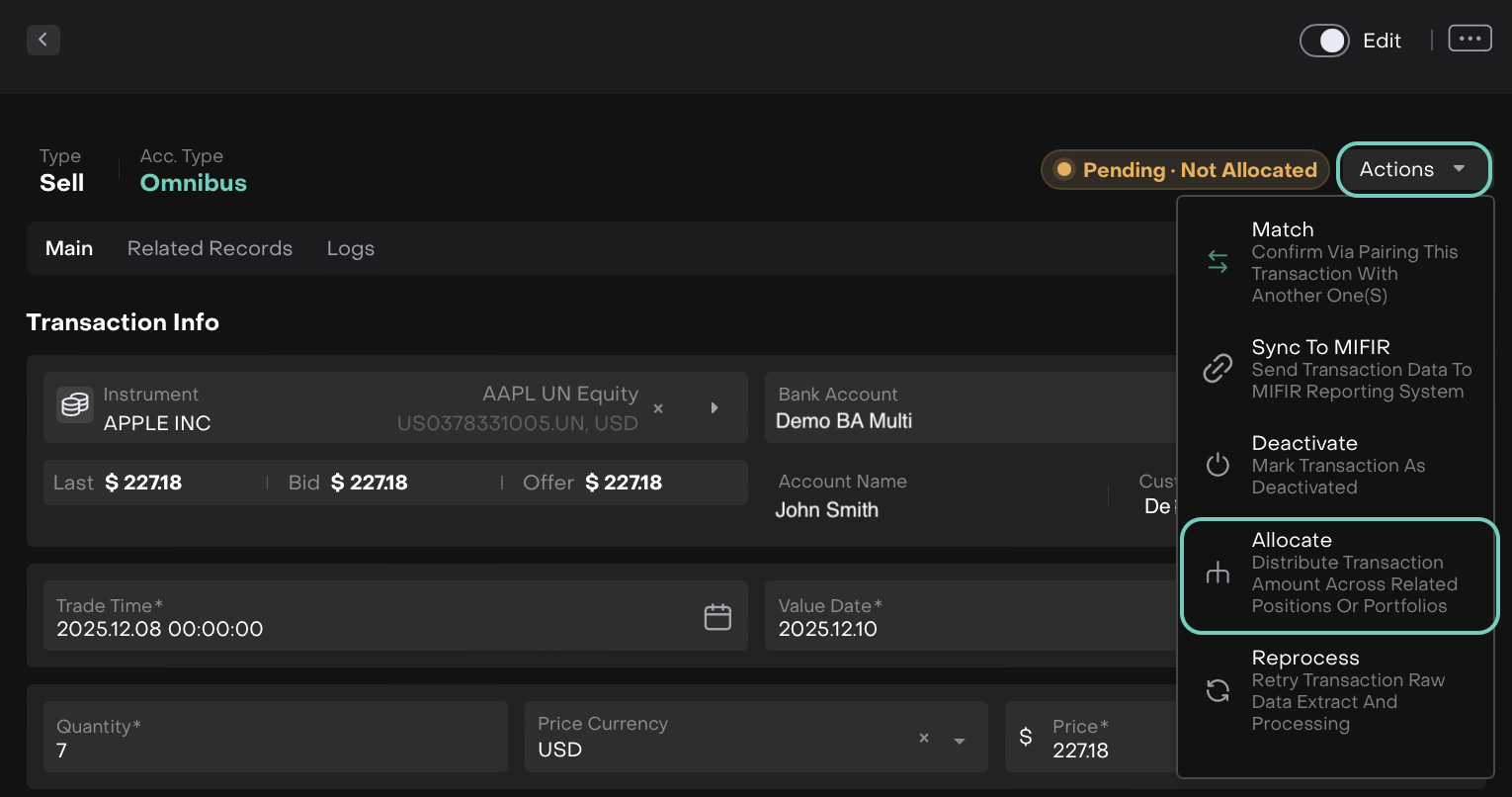
🔗 Click here to know in detail how to allocate transactions.
Click on Skip and Proceed with Allocation or you can choose Proceed with Matching.
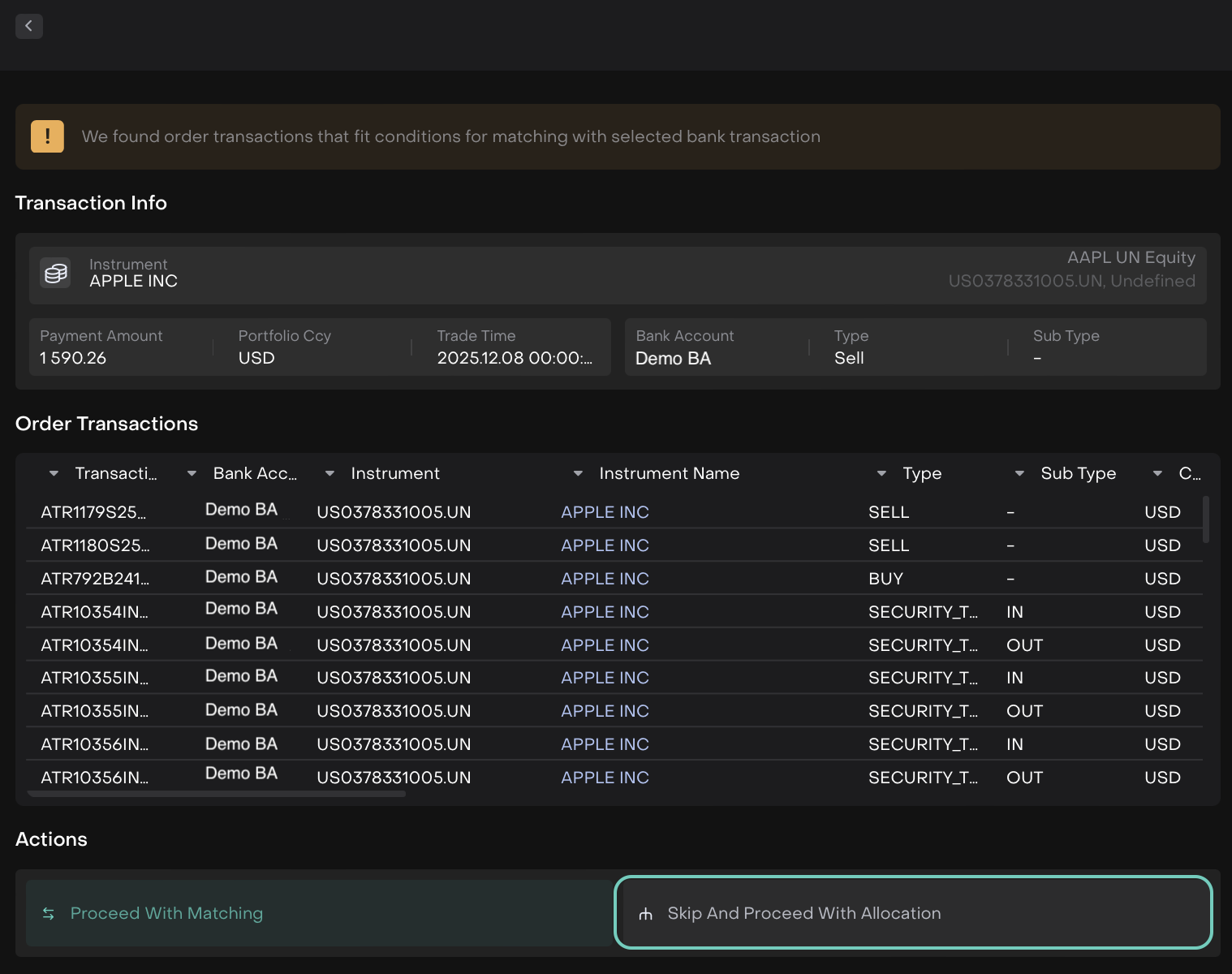
Edit/add the allocation details and click Confirm.
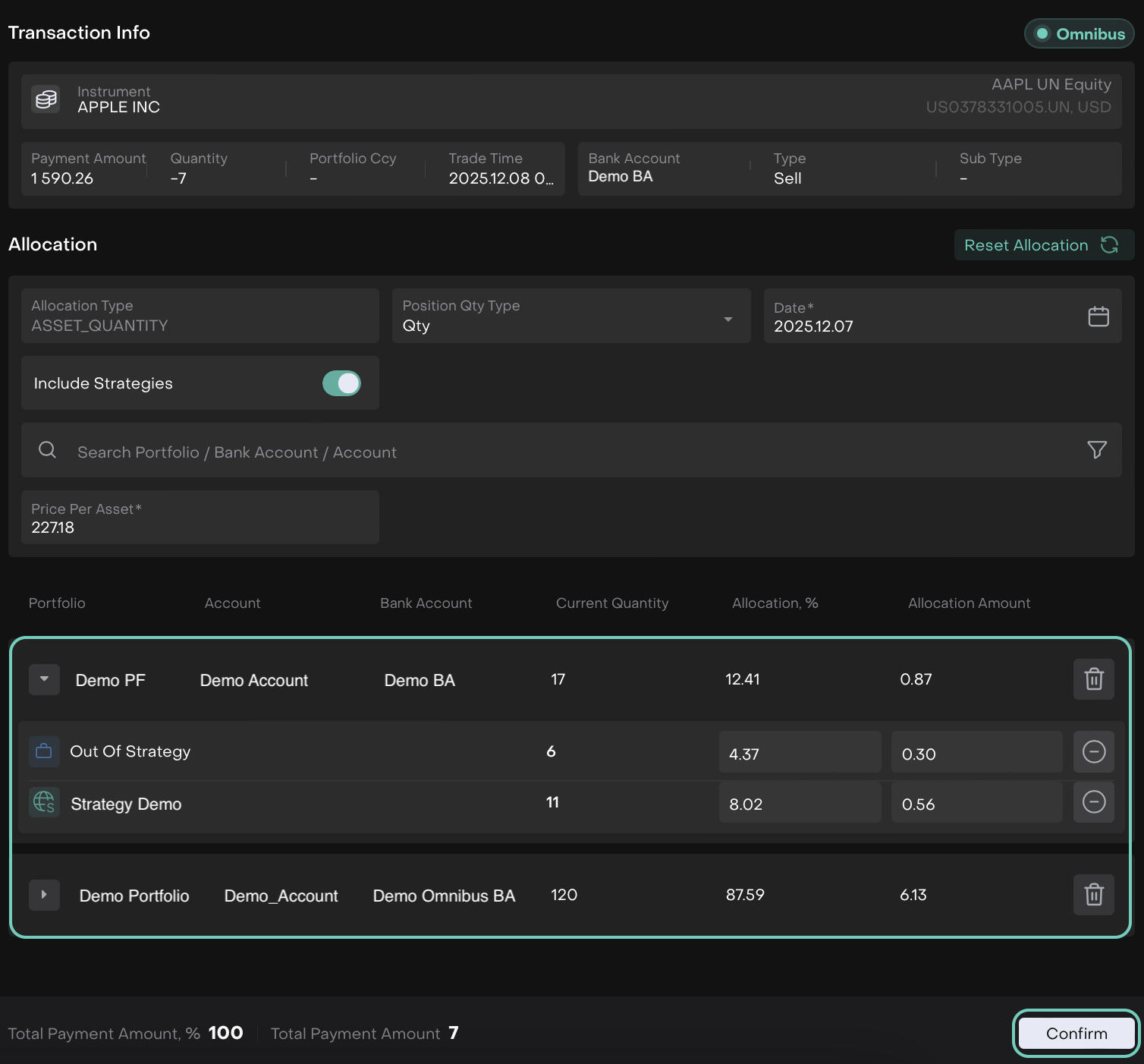
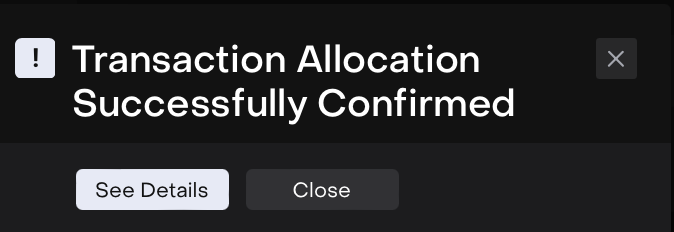
The following pop up appears, click See Details or Close to discard.
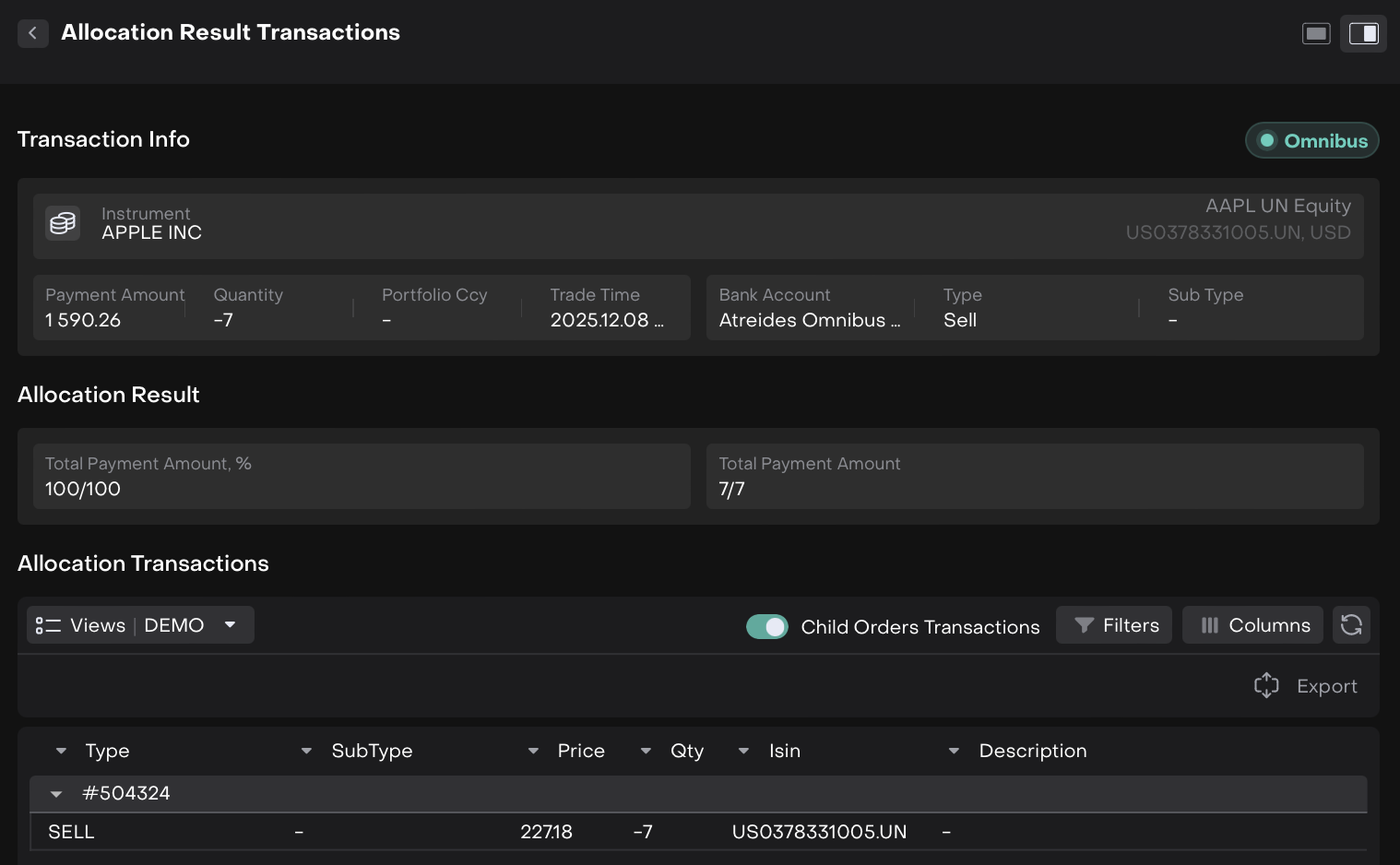
The following screen shows the allocation result transactions.
What Happens After Rollback
The platform automatically performs all required reversals in the background. Here’s how your objects update:
1. Order Transaction Movement
Before Rollback | After Rollback |
|---|---|
Active > Confirmed | Deactivated |
Your transaction is reset so that no allocation effects remain.
2. Order Movement
Before Rollback | After Rollback |
|---|---|
Done | Cancelled |
The parent order is cancelled because its allocation has been reversed.