
Manage Fee Transactions
Introduction
A Fee Transaction records the actual application of a charge to an account or portfolio. It represents the execution of a fee event, reducing the account’s cash balance or adjusting a specific security position, depending on whether the fee is Cash-assigned or Security-assigned.
Permission Requirement
Platform Name | Permission Level |
|---|---|
Transactions (tab) | View, Modify, Create, Delete |
Manage Fee Transactions
Go to Transactions > Find Transactions tab > Click + Icon

Or,
Go to Portfolios > Find Transactions tab > Click + Icon

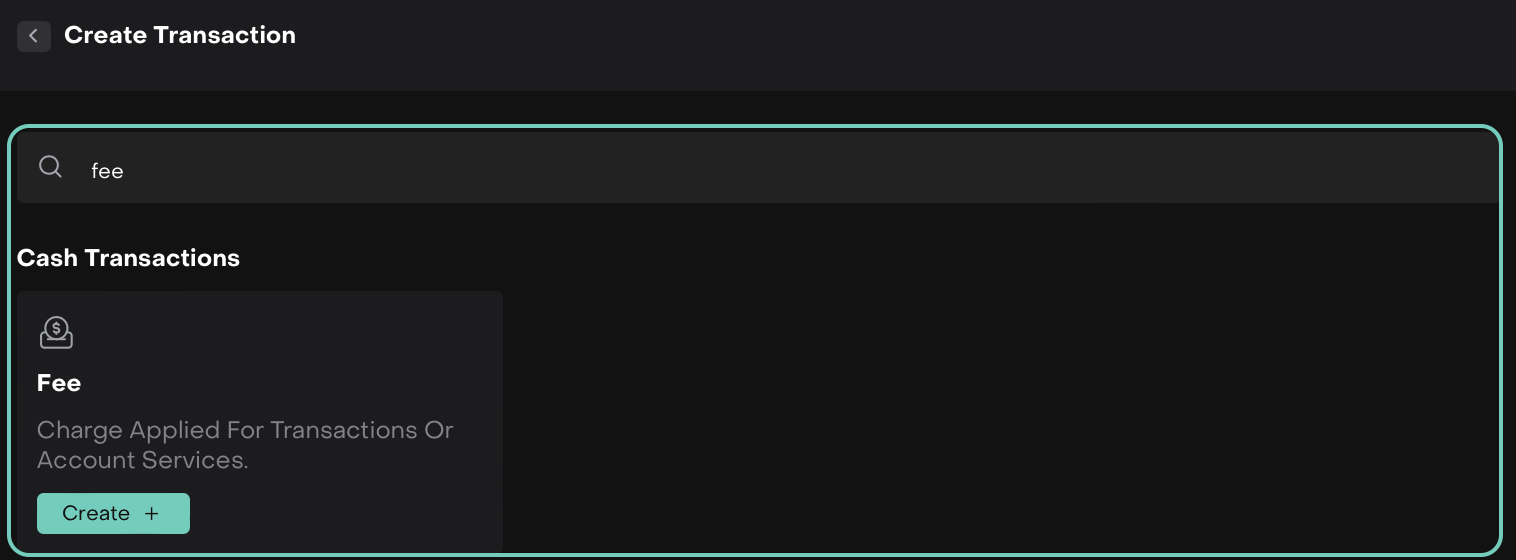
A window appears. Search/Select your Transaction type.
Click Create + to proceed.
A form opens, fill in all the required fields(*).
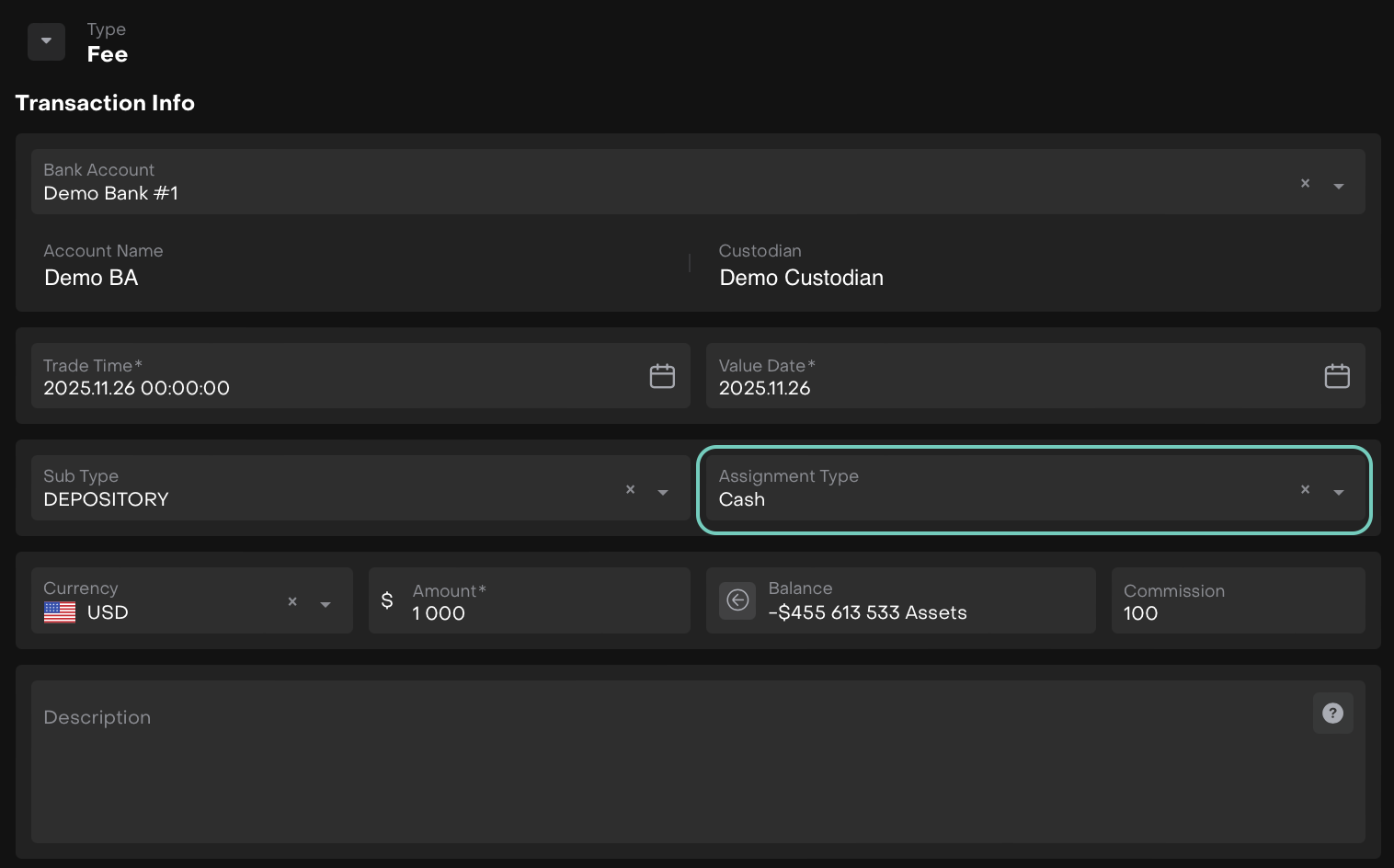
When Assignment Type = Cash
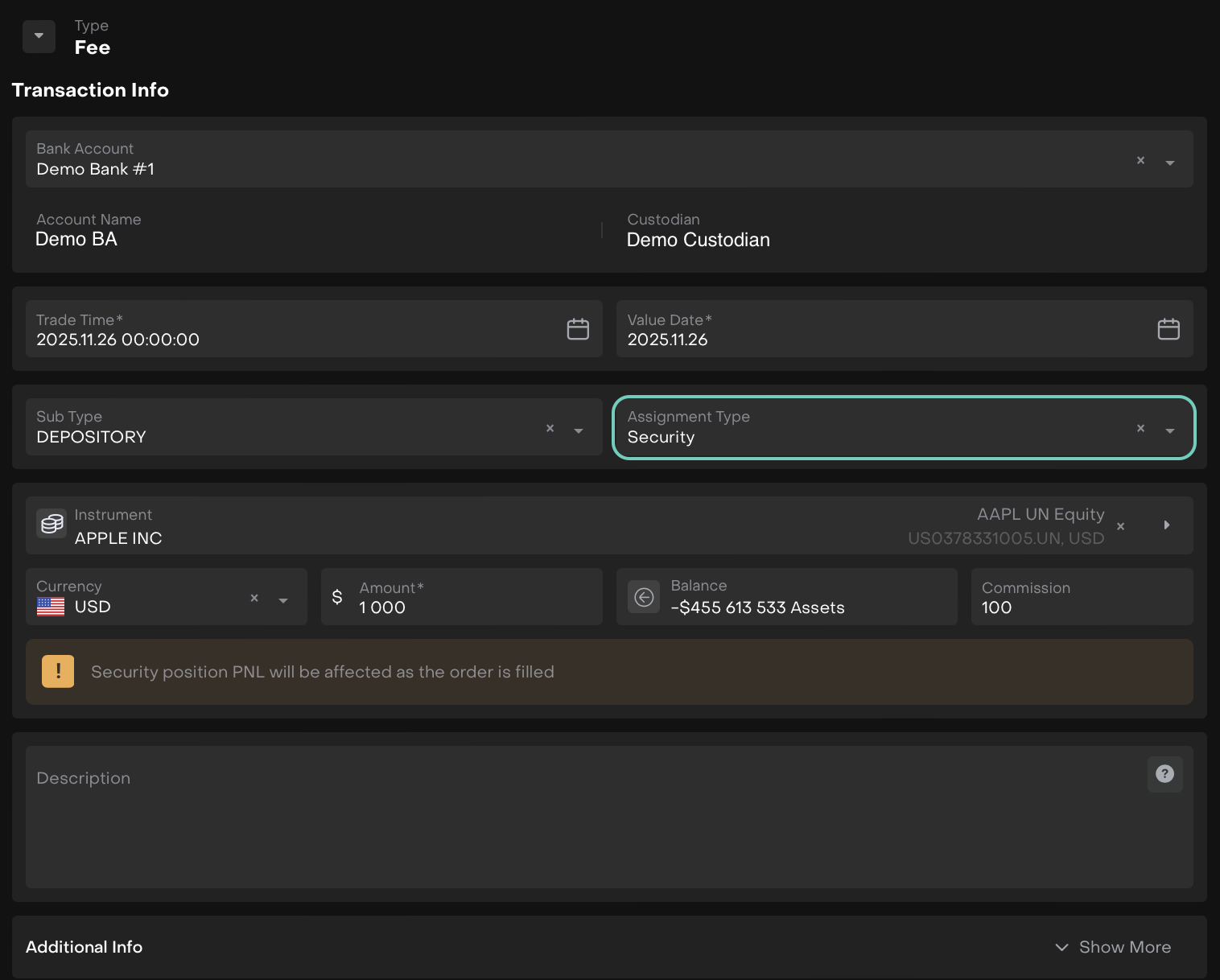
When Assignment Type = Security
🔗 Learn here on how to fill in the Additional Info.
Once filled, click Save or to discard click Close.
Upon saving, a pop up message appears.

Click on Check Transaction Details to Edit details or click on Create Another Transaction.
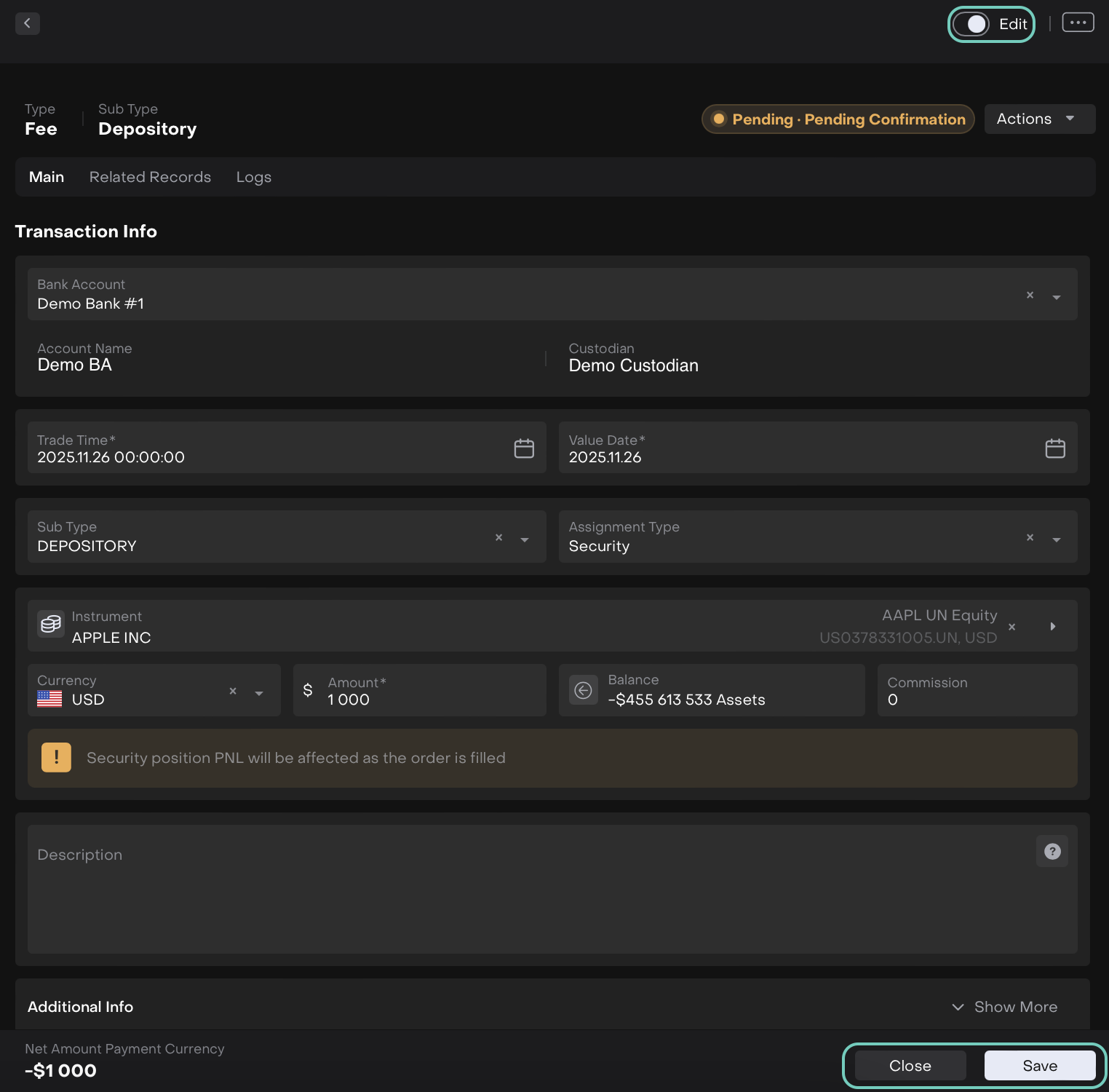
Once saved, the transaction is created and will appear on the list.
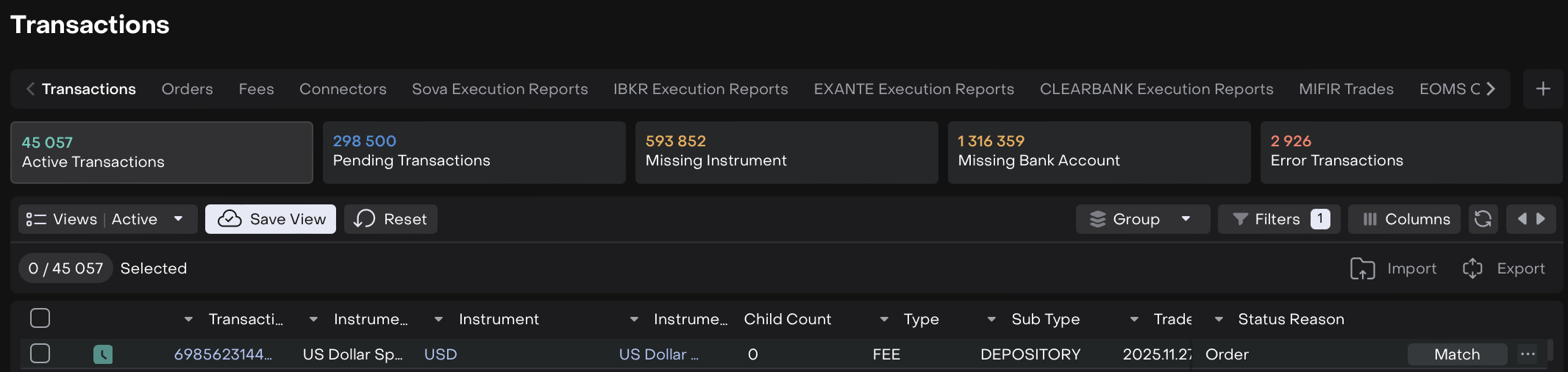
To further Edit/Approve/Match the transactions. Click on three-dots menu to proceed or double click on the row.
🔗 Learn more on how to Manage Transactions or Match Transactions.
Post-Matching Behavior for Fee Transactions
PnL Impact
Cash Assignment: Cash PnL is updated to reflect the fee amount.
Security Assignment: Security PnL is updated for the assigned instrument.
Security balances or positions are updated accordingly.
Portfolio and Cash Updates
Cash balances decrease for cash-assigned fees.
Security positions reflect the fee deduction if assigned to a security.